Evidence Uploader
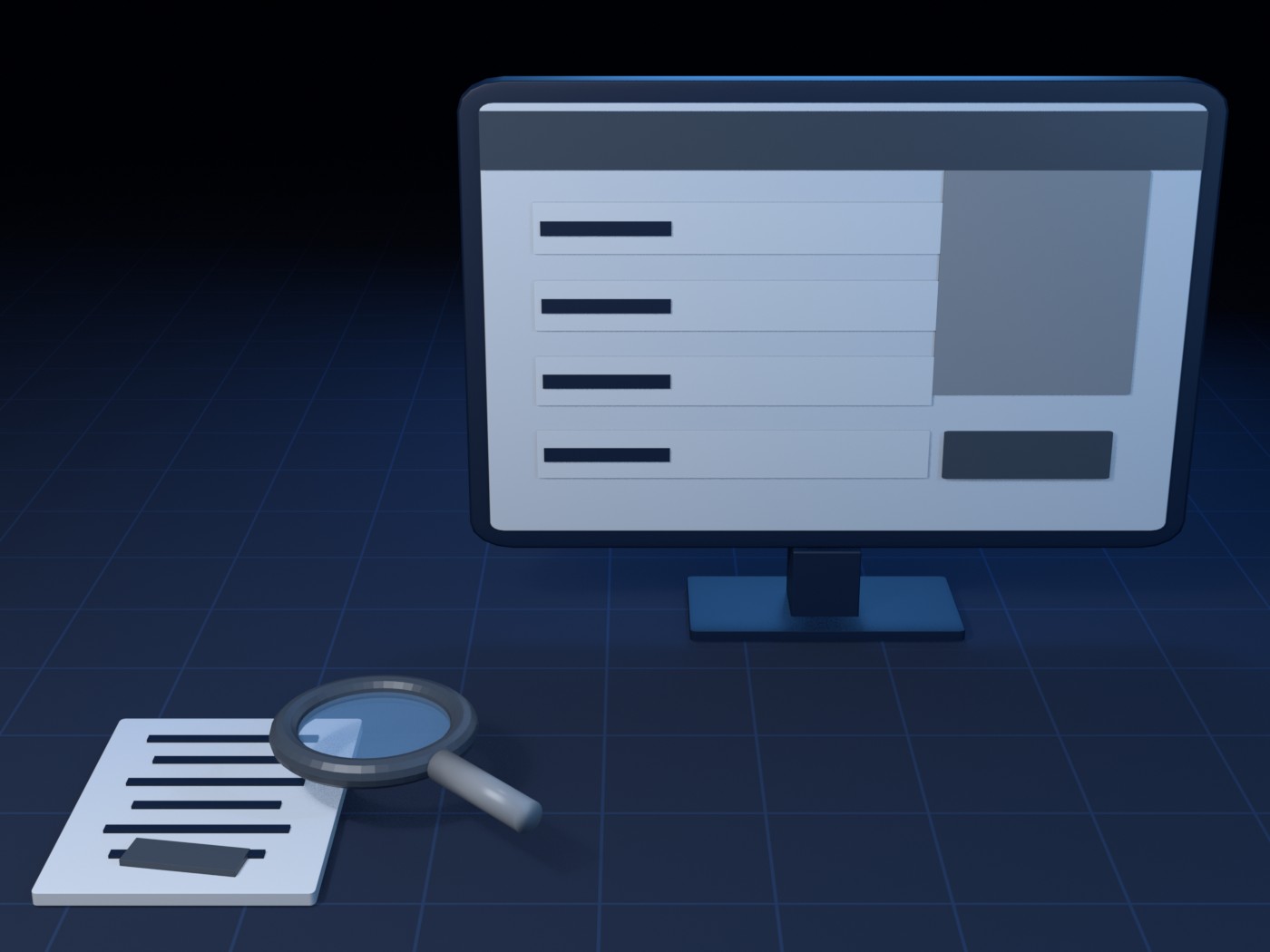
Evidence Uploader is a small Windows desktop tool I wrote in Python (3.10+, Tkinter) for the accounts-payable clerk. It attaches supporting documents (supplier invoices, official receipts, billing statements, reimbursement receipts) to a Payment Request Form (PRF) in Paylalo’s Cash Center module, and checks each one the way a careful reviewer would before filing it.
For each file it runs image forensics, has a local vision model read the document and compare it with the PRF on record, and writes remarks the way a reviewer would. Then it files the document in Supabase Storage and puts a verdict on the PRF’s activity trail, so the approver in the CashCenter web app sees the evidence and the AI’s opinion together. It signs in with the same Paylalo username and password as the web apps, talks only to the Supabase backend, and runs the AI entirely offline through Ollama. A second tab attaches the required authorisation file to a procurement cancel request.
Screens
- Sign in with username and password.
- The main window shows the user and role, a Company picker, the Ollama status and a status bar.
- The Payment Request (PRF) tab is where you load a PRF, drop in files, press Submit, watch the Evidence queue and read each job’s log.
- The Cancel Request authorization tab lets you pick an open cancel request and attach a file.
- A “Queue still running” dialog stops you from closing too early.
Sign in
The window (“Evidence Uploader — Paylalo”, 1040×760) opens on a centred form: “Evidence Uploader”, “Sign in with your Paylalo username and password.”, Username, Password (masked) and a “Sign in” button. Pressing Enter in the password box also submits.
- The button disables and the message reads “Signing in…”.
PaylaloApi.loginPOSTs{username, password}to/functions/v1/auth-login, with the publishable key fromconfig.jsonasapikey. The custom JWT, user andcompanyIdthat come back become the session.- In the same background call it reads the active companies from the
companiestable (id, fullname, "shortName", "isActive"whereisActive = true). - Any
ApiErrorshows in red under the form and the button turns back on. That’s the HTTP code plus the server’smessage/error/hint, or “Network error: …”.
The main window
A strip across the top shows “{fullName} · {appRole}” and a read-only Company dropdown (“{company} (#id)”). On the right is the Ollama indicator. It starts at “Ollama: checking…”, then turns green with “Ollama: qwen2.5vl:3b”, red with “Ollama: offline — AI checks disabled”, or red with “… — not pulled! run: ollama pull {model}” if the configured model isn’t installed. Below that are the two tabs and a status bar that says “Pick a company to begin.”
- The dropdown starts on the company you logged in with, and
select_companyruns. - Picking a company POSTs
{companyId}to/functions/v1/refresh-company-token. The status bar shows “Switching to company #N…” and then “{name} selected. Type a PRF number.”
Loading a PRF
The tab has a “PRF number” box, a “Load PRF” button and a hint. Under them is a “Payment Request” panel with Payee, Payee type, Total, Status, Requested, Requested by and Purpose, and a grid of lines with three columns: Line description, GL account and Amount.
- “PRF-7”, “#7”, “0007” and “7” all read as 7. Anything else gets “Type a PRF number, e.g. PRF-7 or 7.”
- The tool reads
cashcenter_requests(id, companyId, requestType, payeeType, payeeId, payeeName, requestFor, dateNeeded, dateRequested, requestedById, status, apvId, approvedById, isActive), filtered onidand the selectedcompanyId. Then it readscashcenter_request_lines(id, description, amount, glAccName, status), the requester’s name fromusers, and any evidence already filed fromcashcenter_request_docs(fileName, aiVerdict, uploadedAt, uploadedByName). - If there’s no row it says “No PRF #7 in {company}.” If the row isn’t a PRF it warns “#7 is an SFL request, not a PRF — loaded anyway.” Otherwise it says “PRF #7 loaded. N file(s) already attached.” and the detail pane lists “PRF #7 — already attached:” with each file’s verdict and who uploaded it.
- The total is the sum of the line amounts, shown as “₱12,345.00”.
Adding files and submitting
A grey drop zone reads “Drop evidence files here (PNG, JPG, PDF, any picture) — or click to browse”. If tkinterdnd2 is missing, you get a click-only version. A label under it lists the files you’ve picked. The buttons are “Submit — check & attach in background”, “Clear files” and “Remove finished”, with a “Queue: empty (max 10)” counter on the right.
- Dropped or picked files (jpg, jpeg, png, webp, bmp, tif, tiff, pdf) go into the list without duplicates.
- Submit only works when a PRF is loaded, there are files, and the queue has room. The queue takes at most 10 jobs waiting or in progress. Extra files stay in the list with “— only N more fit in the queue right now.” and a “Queue full” dialog explains why.
- Each file becomes an
EvidenceJobthat takes a copy of the PRF, its lines and the session (token and company) at the moment you submit. So you can load another PRF or switch company while it waits, and it still files under the right company. - One worker thread handles the jobs one at a time, because Ollama on a CPU can’t serve two requests at once.
The evidence queue
The grid is headed “Evidence queue — one file is checked at a time; flagged files are still filed, marked as flagged”, with columns #, PRF, File, Status, Verdict and Remarks. The status goes Queued → Processing · forensics → Processing · AI read (model) / AI 2:35 (the elapsed time updates every 5 s) → Processing · uploading → Done or Failed, coloured grey, blue, green or red. Done rows with REVIEW or FAIL are tinted amber or red. Click a row and the detail pane shows “#id PRF-7 · payee · ₱amount — file [status]” and the job log.
Each job goes through five stages.
1. Forensics
This lives in checks/forensics.py and uses only Pillow.
- If the EXIF
Softwaretag names an editor (Photoshop, GIMP, Snapseed, Canva…), it flags “Saved by an image editor: …”. - A modify date earlier than the capture date gets flagged.
- PNG and WEBP get “not a camera format — likely a screenshot or export”.
- Error Level Analysis looks for hotspots. A ratio of 4 or more is “worth a look”, and 8 or more is “region edited after last save”.
- A dHash is compared with every earlier
analysis/*.json. A Hamming distance of 4 or less against evidence filed under a different PRF counts as a duplicate.
A PDF is rendered to a PNG of page 1 with PyMuPDF. Without PyMuPDF the PDF is “attached without an AI read”.
2. AI read and review
This is in checks/ollama_client.py. It’s one /api/chat call to Ollama, with the image scaled down to 672 px, format: "json", temperature 0.1 and num_predict 900. It uses the short PRF_COMBINED_PROMPT, which includes the PRF’s payee type, payee, amount, purpose, dates and lines.
The answer has two parts. extracted holds docType, issuer, issuerTin, billedTo, docNo, date, amount, vatAmount, items and signedOrStamped. review holds payeeMatches, amountMatches, dateOk, purposeFits, alterationSuspected, confidence, signs and remarks. If the answer gets cut off, the tool rescues it by closing the JSON. If Ollama is offline the log says “Ollama offline — filed with forensics only, no AI comparison.”
3. Verdict
This is decide_prf in checks/verdict.py.
It’s FAIL for a duplicate image, for a SUPPLIER payee whose name doesn’t match the issuer (token similarity under 0.5 after stripping Inc/Corp/Trading…), or for a document total more than double the PRF.
It’s REVIEW for any forensic flag, an issuer or amount it can’t read, an amount above the PRF (“partial payment?”) or below it (“confirm other receipts make up the difference”), a document dated after the request, suspected alteration with model confidence of 0.5 or more, or purposeFits = false.
Otherwise it’s PASS (“Document supports the PRF; no discrepancies or signs of alteration found”).
EMPLOYEE payees skip the issuer match, but get flagged if the document is billed to neither the employee nor the company. AGENT payees have to be named on the document. The log shows “Verdict: PASS (checked in 3:12)”, what the model read, a ✓ or ✗ for each field check, and the AI’s remarks.
4. Upload and attach
This always happens, even on FAIL. The file is POSTed to the Storage bucket cashcenter-docs at {companyId}/prf/{prfId}/{yyyymmdd-hhmmss}-{file} with x-upsert: true. Then the tool calls the RPC cashcenter_request_attach_evidence with p_request_id, p_storage_path, p_file_name, p_mime, p_bytes, p_ai_verdict, p_ai_remarks, p_ai_analysis. The analysis is the full forensics/extracted/review/verdict JSON plus model, checkedAt and forcedUpload.
That RPC writes the cashcenter_request_docs row and adds an “Evidence attached” line to the PRF’s activity trail. A local copy goes to analysis/PRF-7-{stamp}-{id}.json, which the duplicate check uses later. The log ends with “Attached to PRF-7 as cashcenter-docs/… (filed as FLAGGED)”.
5. Errors
Any exception marks the job Failed with “FAILED: …”. If the message is a 403, 42501 or a row-level-security error, the tool adds “— you need a CashCenter PRF privilege (CASHCENTER.PRF.VIEW / CREATE / APPROVE or PRF.MANAGE) in that company.”

Cancel Request authorization tab
This tab has a “Load open cancel requests” button, a read-only dropdown, an “Attach authorization file…” button and a log. The log starts with “Attaches the mandatory authorization document to a procurement cancel request (RR / PO / Canvass). The request must be open; execution still happens in the web app.”
- Load reads
supplychain_cancel_requestsfor the selected company with status inPendingSupervisor, PendingAccounting, ReadyToExecute, newest first, and lists each as “#id DOCTYPE docId · status · requester · reason”. - Attach opens a file picker (pdf, jpg, jpeg, png). It refuses files over 15 MB (“File is larger than 15 MB.”). It uploads to the
procurement-docsbucket atcancel/{reqId}/{stamp}-{file}and callssupplychain_cancel_request_attachwithp_request_id, p_storage_path, p_file_name, p_mime, p_bytes, then logs the response.
Closing the window
If any jobs are still Queued or Processing, closing asks: “Queue still running – N evidence file(s) are still being checked or waiting. Closing now abandons them (nothing is attached for those). Close anyway?”
How it talks to the rest of the suite
- Auth works the same as in the Angular apps and the two Flutter apps.
auth-logingives the custom JWT andrefresh-company-tokenscopes it to a company. After that it’s PostgREST (/rest/v1/{table}), RPC (/rest/v1/rpc/{fn}) and Storage (/storage/v1/object/{bucket}/{path}), each withapikeyandAuthorization: Bearer.paylalo_api.pyonly uses the standard library’surllib. - It works on two kinds of document. Cash Center PRFs (
cashcenter_requests,_request_lines,_request_docs) are created and approved in the CashCenter web app, and they’re the same PRFs Scan2Approve can approve from a QR. Supply Chain cancel requests live insupplychain_cancel_requests. - The tool doesn’t check privileges itself. The server’s RLS and the attach RPCs decide, and the tool turns a 403/42501 into the CashCenter PRF privilege hint above.
- The AI is Ollama at
http://localhost:11434, with the model set inconfig.json. It ships withqwen2.5vl:3b, and7bis the better pick on a GPU. No document leaves the machine for the AI step.
Releases and updates
There’s no version number in the code or in config.json, and the folder isn’t a git repository yet (the README asks for one). It runs from source. run.bat installs requirements.txt the first time (Pillow is required, tkinterdnd2 and pymupdf are strongly recommended) and launches pythonw app.py. Updating means replacing the files. Configuration is four keys in config.json: the Supabase URL, the publishable key, the Ollama URL and the model.
Notes
checks/verdict.pystill has an olderdecide()for Collection Receipts and a docstring about an “upload anyway (flagged)” tick. The PRF flow usesdecide_prf()and always files the document, as the README says.checks/ollama_client.pystill has separate extract and review prompts, but the app only calls the combinedprf_analyseround-trip.- The README timings (about 3 min per document on
qwen2.5vl:3band 7 to 8 min on7b, CPU only) are my own earlier measurements. I didn’t re-check them for this write-up. samples/make_prf7_samples.pymakes three test receipts for ZZ-TEST PRF-7, expected to come out PASS, FAIL and REVIEW. There are threeanalysis/*.jsonresults dated 2026-08-27, which points to one real run.- I wrote this from the source code, not by running the tool.