Paylalo Construction
Paylalo Construction is the project-control app in the Paylalo suite, at construction.paylalo.com. Project engineers, foremen and project managers use it to set up a project, split its budget into a WBS, price resources in a bill of quantities, schedule the work on a Gantt chart and track the job from the field.
Field tracking covers progress updates, daily site reports, man-hour analysis, change orders, equipment bookings and an activity feed for each project. Every project here is also an ERP project under a branch, and approved Supply Chain purchase orders show up in the WBS “Actual” column. I’m upfront about the limit in the app’s own Help: this version “plans and tracks. It does not yet post costs or billings to the general ledger.” I ran everything below on Oct 9, 2026 in the test company ZZ-TEST UX Review Co., using a sample project called ZZ-DOC-CON-1.
What’s in the app
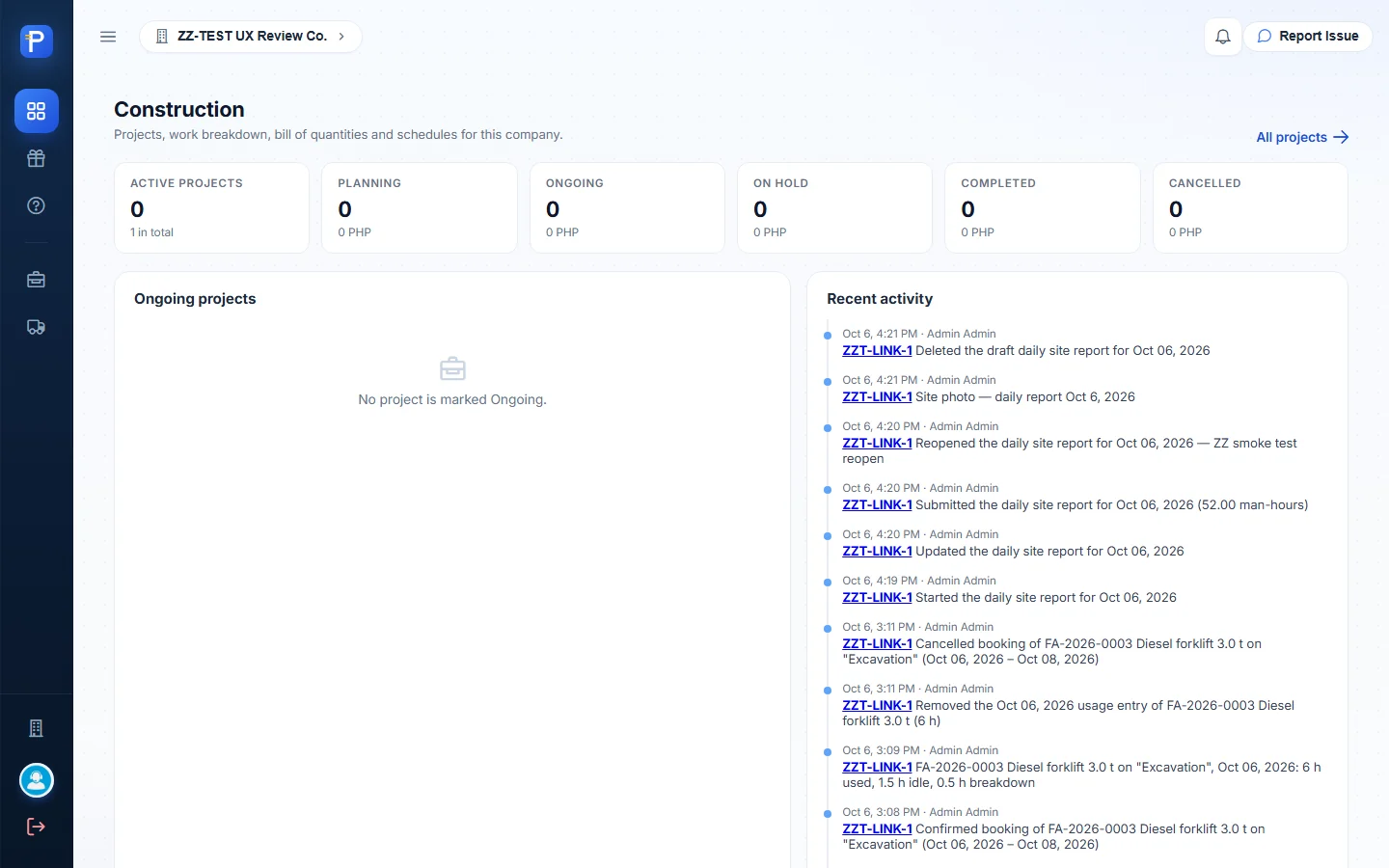
- Dashboard: project counts and contract value by status, the Ongoing list and recent activity across all projects.
- Projects: the list of every project and the New project form.
- The project workspace has nine tabs (Overview, WBS, BOQ, Schedule, Progress, Change orders, Equipment, Site reports, Manhours) and two side panels (Activity and Files).
- Equipment planner: a booking calendar and utilisation view of Fixed Assets for the whole company.
- Help is a guided “How Construction Works” tour. It covers the budget rules and who can do what by privilege.
- Rewards: the suite’s points store, with a voucher catalogue and the user’s redemptions.
Projects
The project list and a new project
The list shows each project’s code, name, type, branch, customer, contract price, dates and status, with a total at the bottom. If a project exists in the ERP but has no construction details yet, it’s marked Not set up and gets a Set up action. Inactive projects stay hidden until you tick Show inactive.
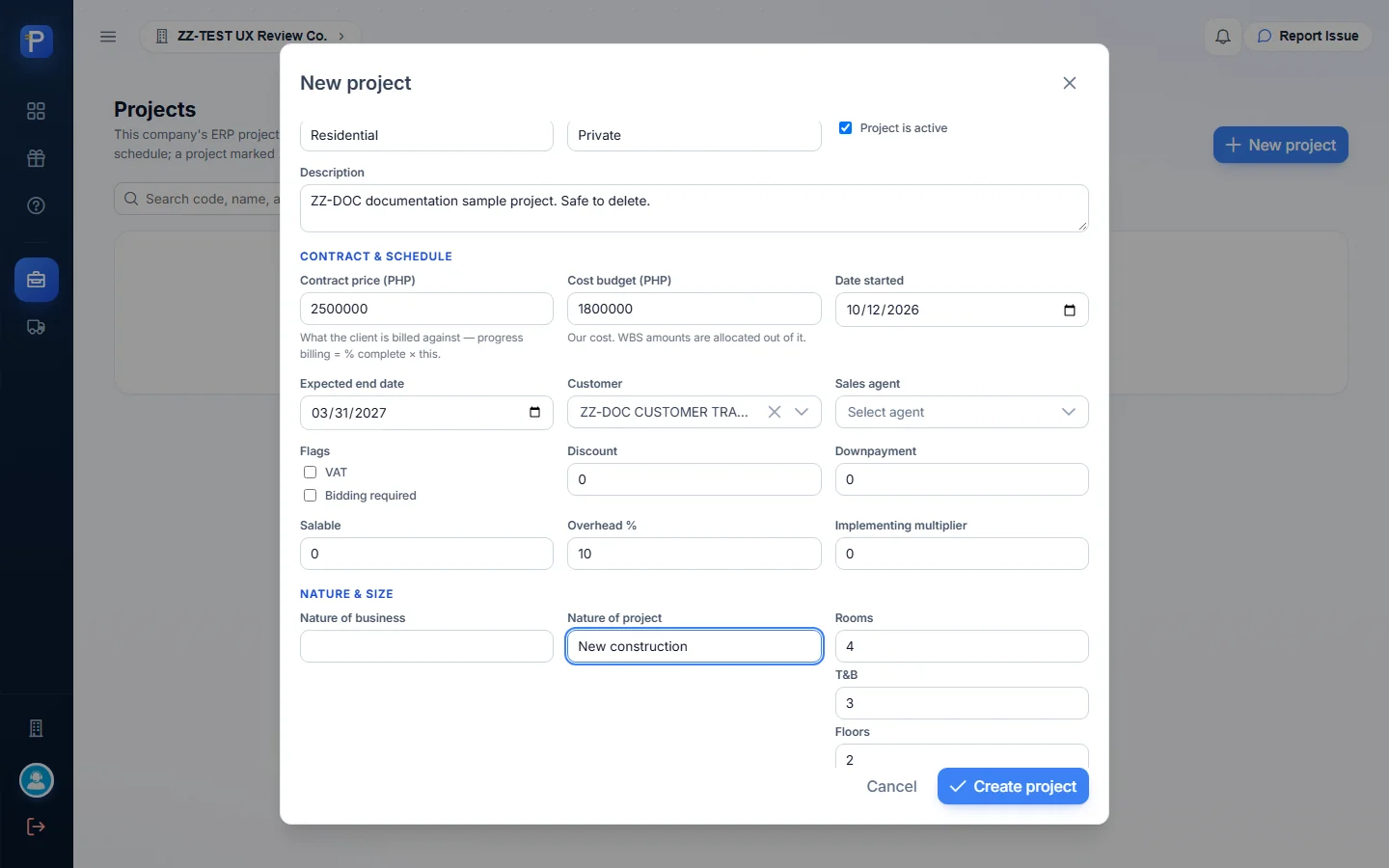
The New project form asks for:
- code, name and branch (all required), plus address, type, ownership, an Active flag and a description;
- Contract price (“what the client is billed against — progress billing = % complete × this”);
- Cost budget (“our cost. WBS amounts are allocated out of it”);
- start date, expected end date, customer and sales agent;
- VAT and bidding flags, discount, downpayment, salable, overhead % and implementing multiplier;
- the nature of the business and project, and counts of rooms, toilet-and-baths and floors.
- Press New project.
- Fill in the form. For the sample I used:
- code ZZ-DOC-CON-1, branch ZZ CEBU MAIN;
- contract 2,500,000.00, cost budget 1,800,000.00;
- dates Oct 12, 2026 to Mar 31, 2027;
- customer ZZ-DOC CUSTOMER TRADING. The Sales agent list was empty.
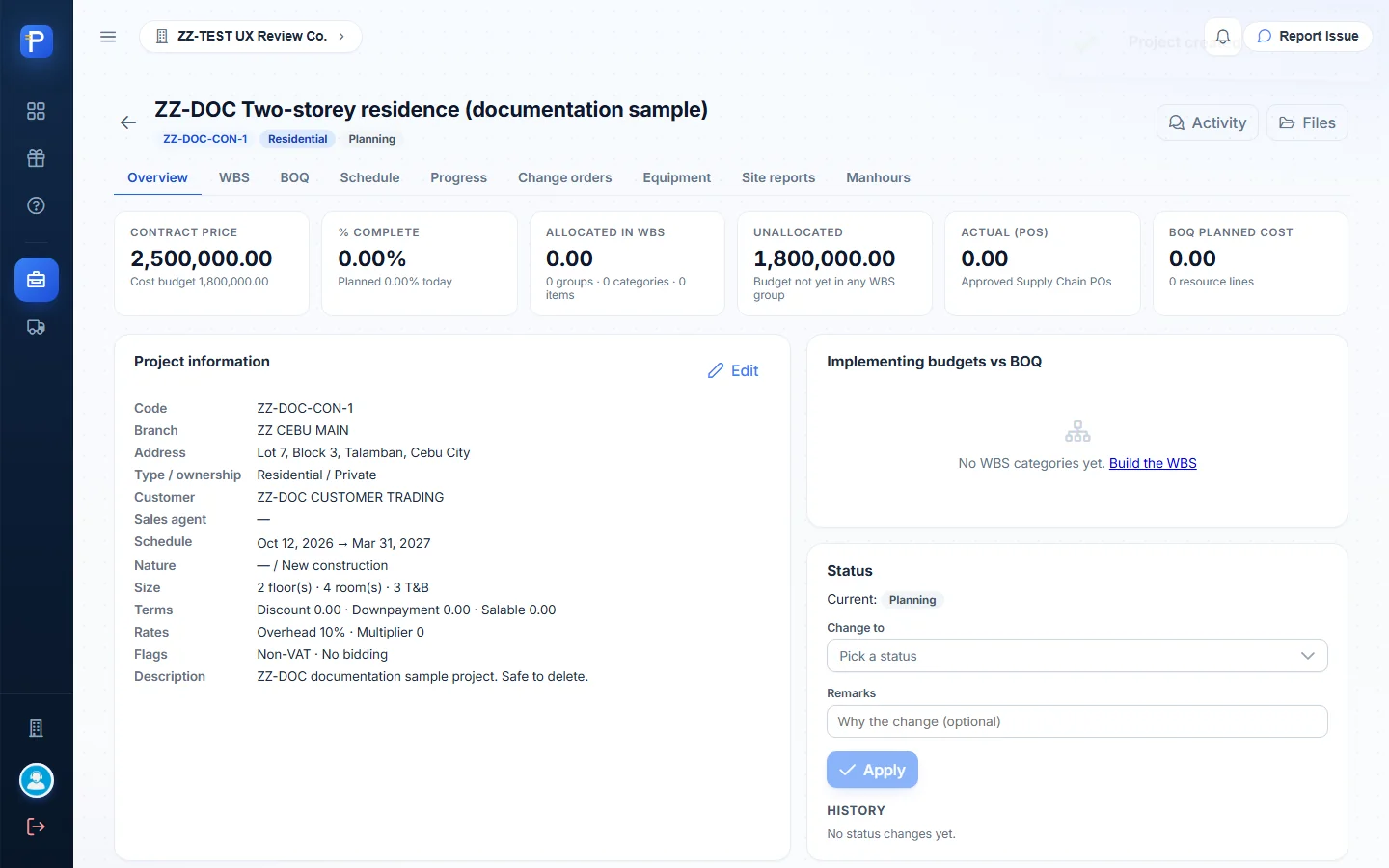
- Press Create project. The project’s Overview opens with status Planning, 0.00 allocated in the WBS and 1,800,000.00 unallocated.

Overview and status
Across the top of the Overview you get:
- contract price;
- % complete (actual vs planned today);
- amount allocated in the WBS and amount unallocated;
- Actual (POs);
- BOQ planned cost.
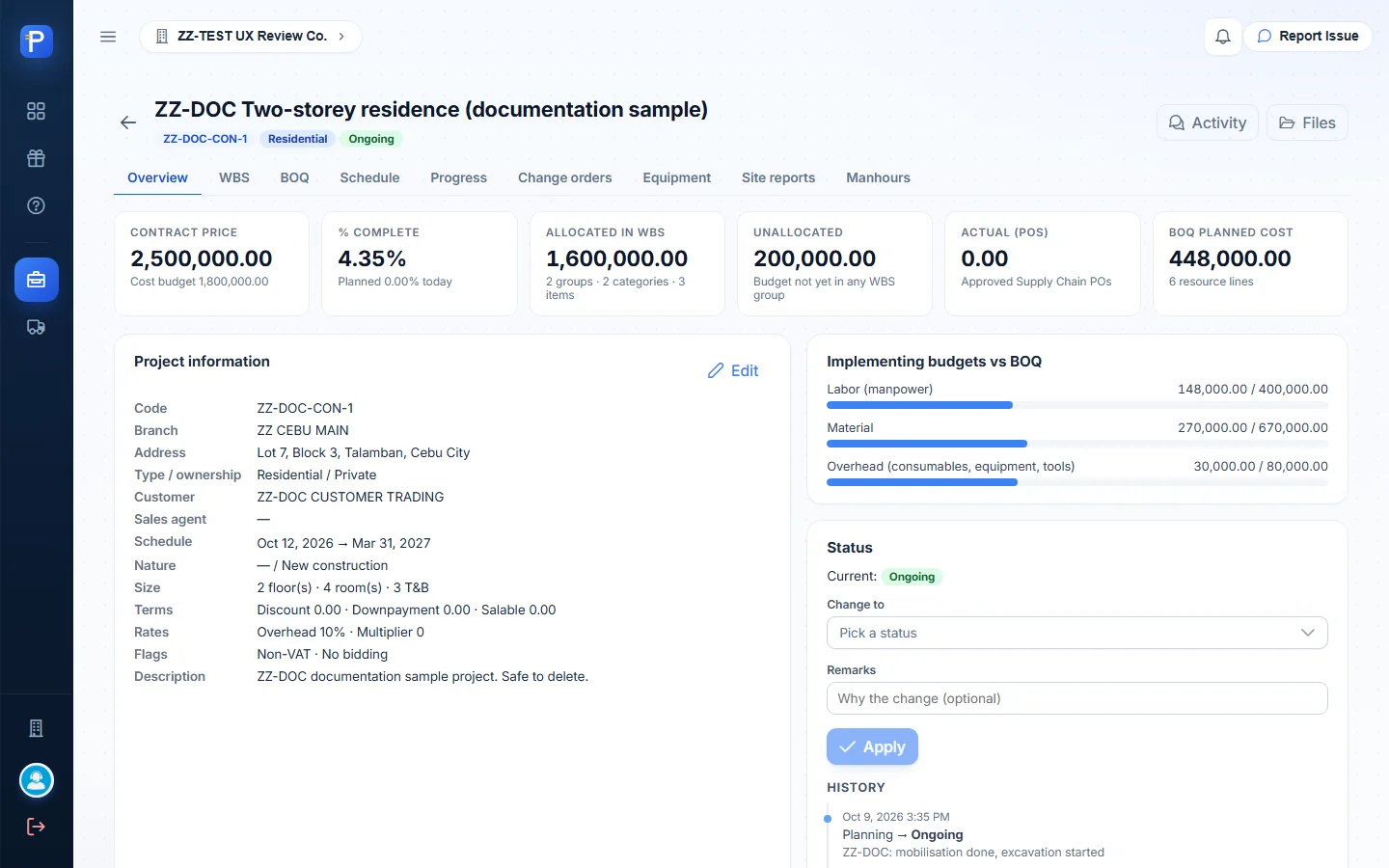
Under that are the project information card (with Edit), “Implementing budgets vs BOQ” bars for labour, material and overhead, a breakdown by group, and a Status card. The status can be Planning, Ongoing, On Hold, Completed or Cancelled. I picked Ongoing, added the remark “mobilisation done, excavation started” and pressed Apply. The app said “Status set to Ongoing” and logged the change in the card’s History. The project then showed up in the dashboard’s Ongoing list.
Work breakdown structure
The WBS has three levels:
- Groups (I, II…)
- Categories (I.1…), each with its own labour, material and overhead budgets
- Items (I.1.a…), each with a start and end date
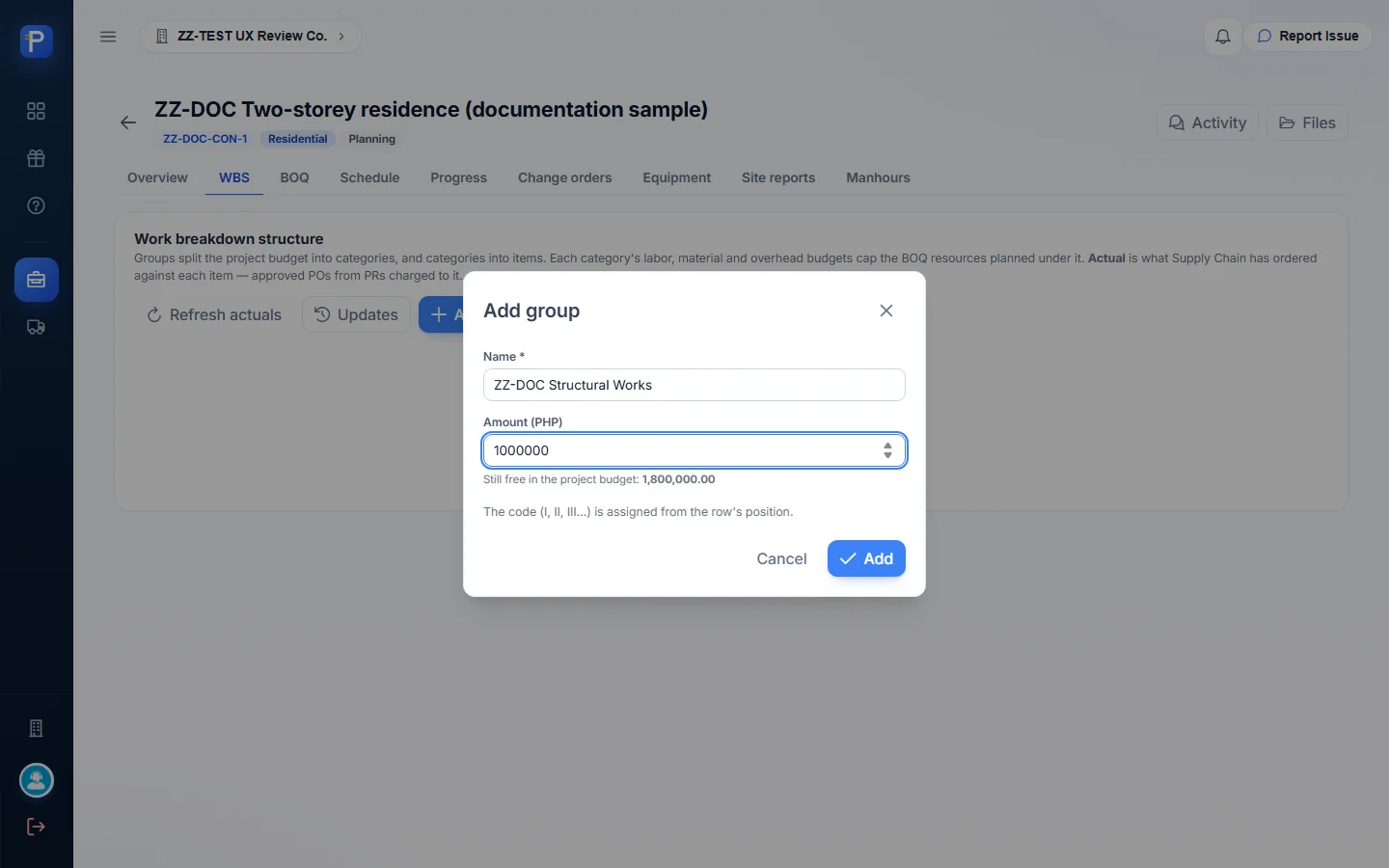
You never type a code. It comes from the row’s position. Each add dialog shows how much is still free above it. The first group dialog, for example, said “Still free in the project budget: 1,800,000.00”. According to Help, the server refuses any change that would overspend a group, a category or one of a category’s budgets.
- Press Add group and enter a name and amount.
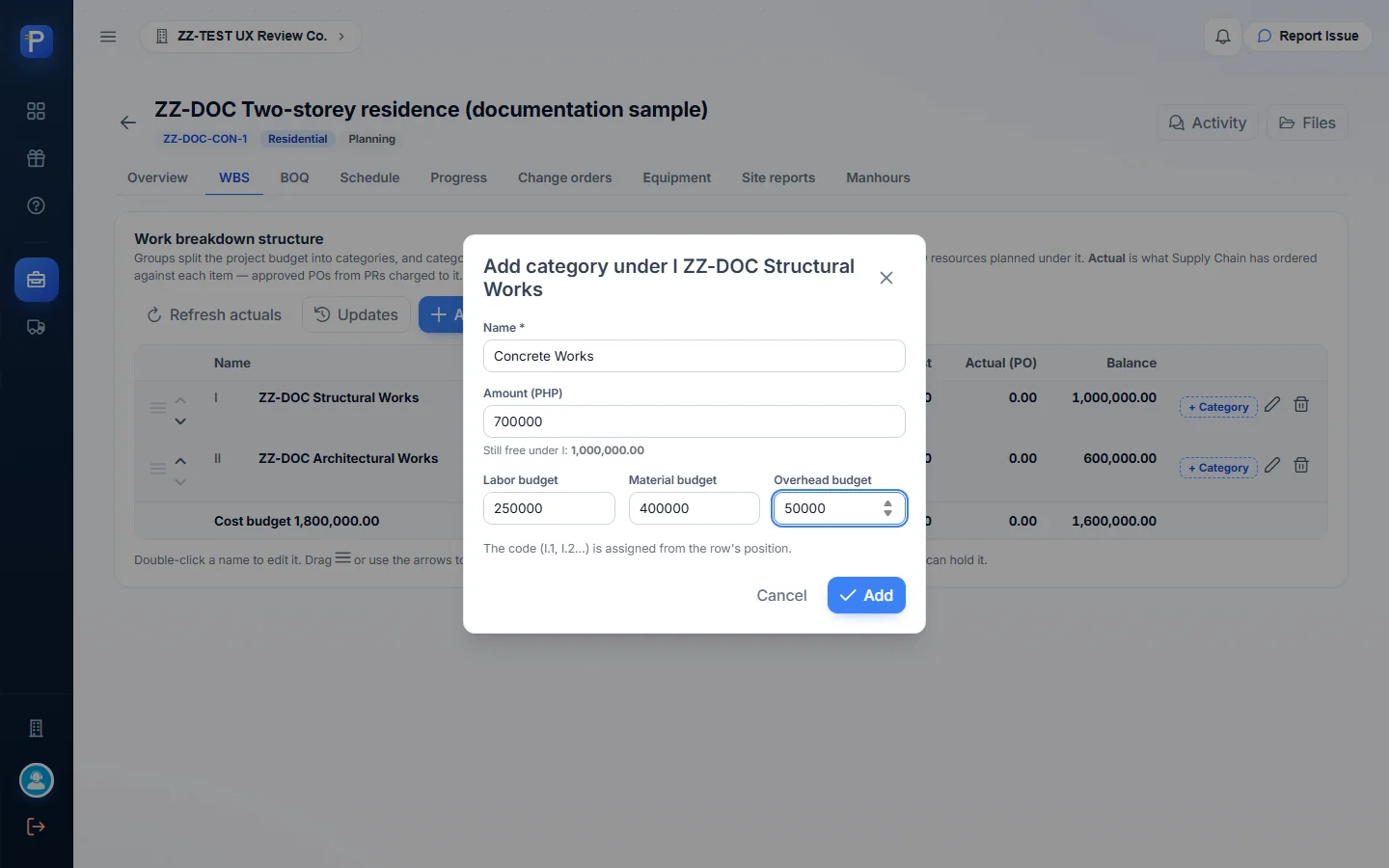
- On a group, press + Category and enter a name, amount and the labour/material/overhead split.
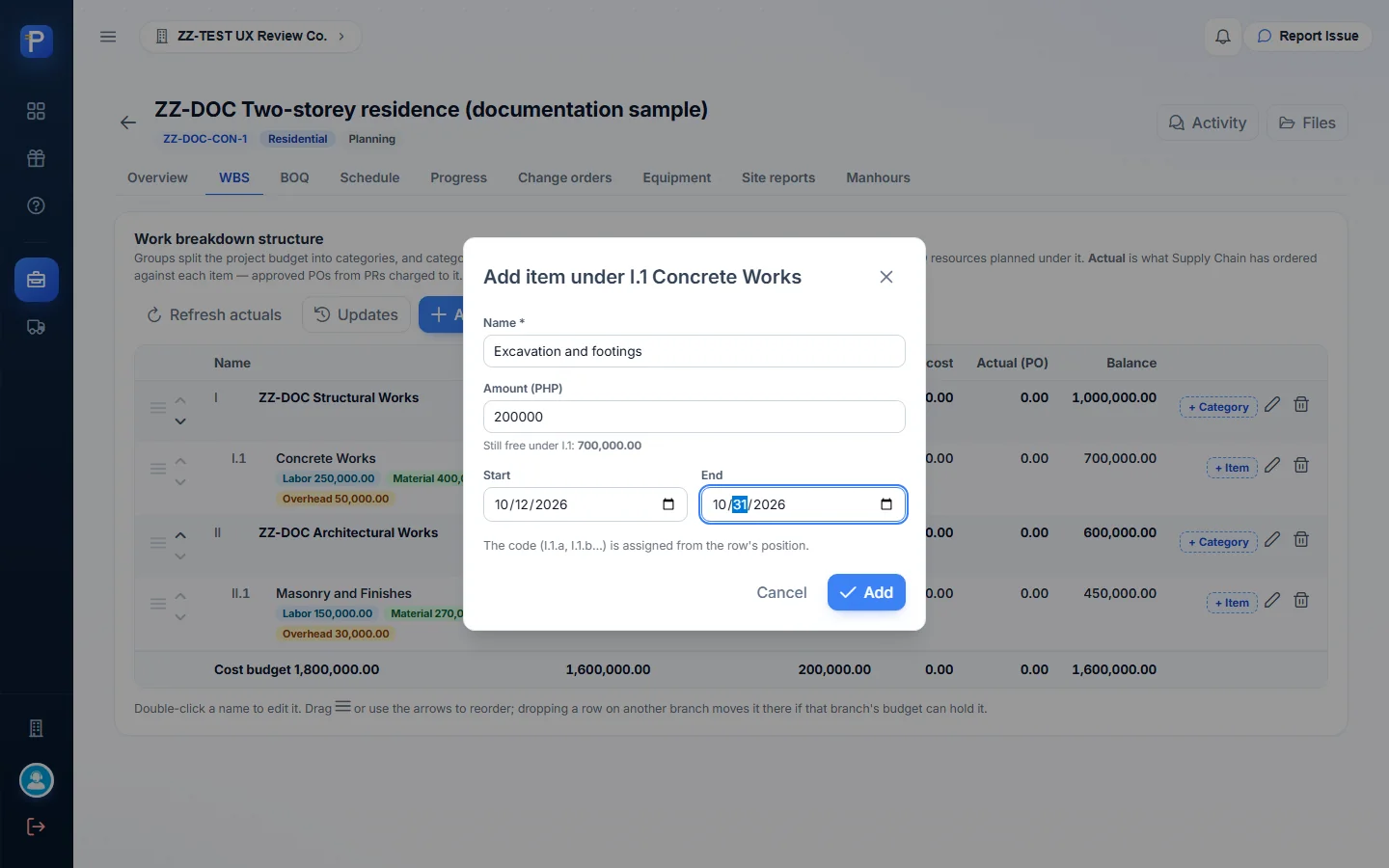
- On a category, press + Item and enter a name, amount, start and end.
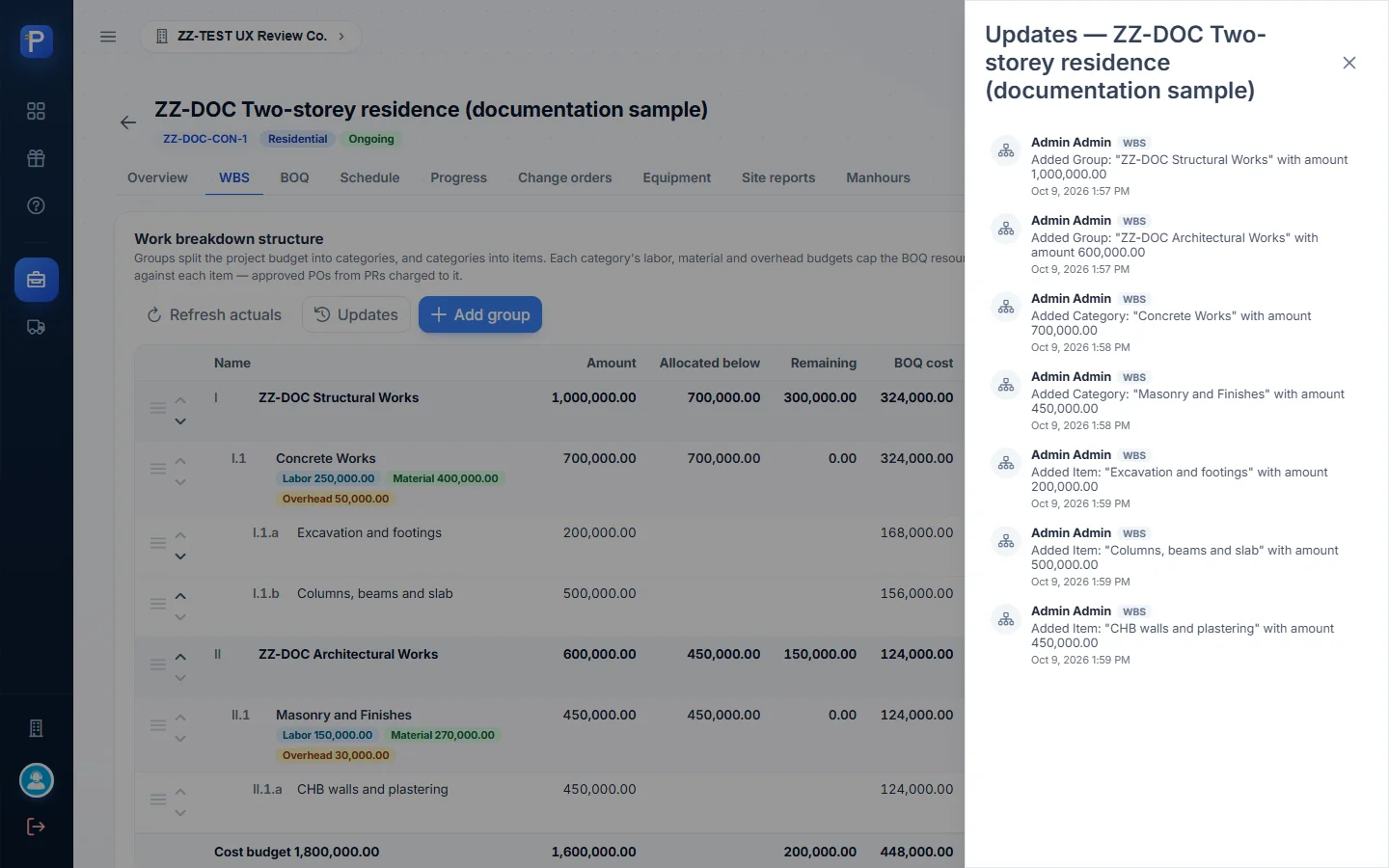
| Code | Name | Amount | Split / dates |
|---|---|---|---|
| I | ZZ-DOC Structural Works | 1,000,000.00 | |
| I.1 | Concrete Works | 700,000.00 | L 250,000 · M 400,000 · O 50,000 |
| I.1.a | Excavation and footings | 200,000.00 | Oct 12 to Oct 31, 2026 |
| I.1.b | Columns, beams and slab | 500,000.00 | Nov 2 to Dec 19, 2026 |
| II | ZZ-DOC Architectural Works | 600,000.00 | |
| II.1 | Masonry and Finishes | 450,000.00 | L 150,000 · M 270,000 · O 30,000 |
| II.1.a | CHB walls and plastering | 450,000.00 | Dec 21, 2026 to Feb 27, 2027 |
The footer compares the WBS with the cost budget: 1,600,000.00 allocated, 200,000.00 left. Every row shows Allocated below, Remaining, BOQ cost, Actual (PO) and Balance. You can reorder rows with the arrows or by dragging. Refresh actuals pulls purchase-order amounts in from Supply Chain. Updates opens a change log for the WBS only, with entries like “Added Item: ‘Excavation and footings’ with amount 200,000.00”.


Bill of quantities
A BOQ line’s total is quantity × unit cost. Each type of resource draws on one of the category’s budgets. Manpower uses labour. Material uses material. Consumables, equipment and tools all use overhead.
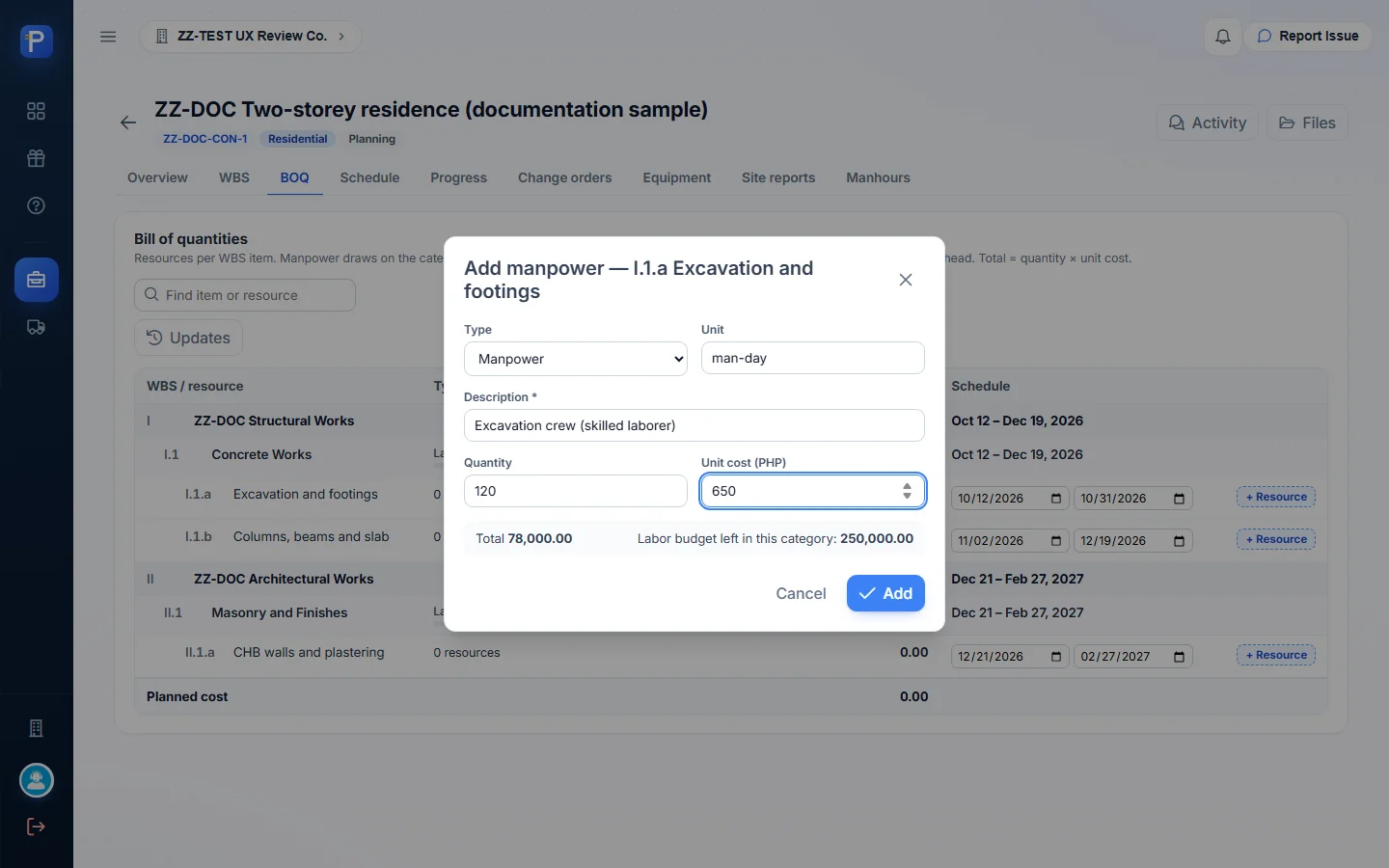
To add a line, press + Resource on an item and pick the type. Then enter the unit, description, quantity and unit cost. The dialog shows the line total and what’s left in the budget, e.g. “Labor budget left in this category: 250,000.00”.
| Item | Resource | Type | Qty × Unit cost | Total |
|---|---|---|---|---|
| I.1.a | Excavation crew (skilled laborer) | Manpower | 120 man-day × 650.00 | 78,000.00 |
| I.1.a | Ready-mix concrete 3,000 psi | Material | 20 cu m × 4,500.00 | 90,000.00 |
| I.1.b | Deformed bars 16 mm x 6 m | Material | 300 pcs × 420.00 | 126,000.00 |
| I.1.b | One-bagger concrete mixer rental | Equipment | 20 day × 1,500.00 | 30,000.00 |
| II.1.a | CHB 4 in | Material | 3,000 pcs × 18.00 | 54,000.00 |
| II.1.a | Mason | Manpower | 100 man-day × 700.00 | 70,000.00 |
Planned cost came to 448,000.00. Each category row tracks its own budgets. Concrete Works read labour 78,000 / 250,000, material 216,000 / 400,000 and overhead 30,000 / 50,000. On the Overview, the budget bars showed:
- labour 148,000 / 400,000;
- material 270,000 / 670,000;
- overhead 30,000 / 80,000.

Schedule
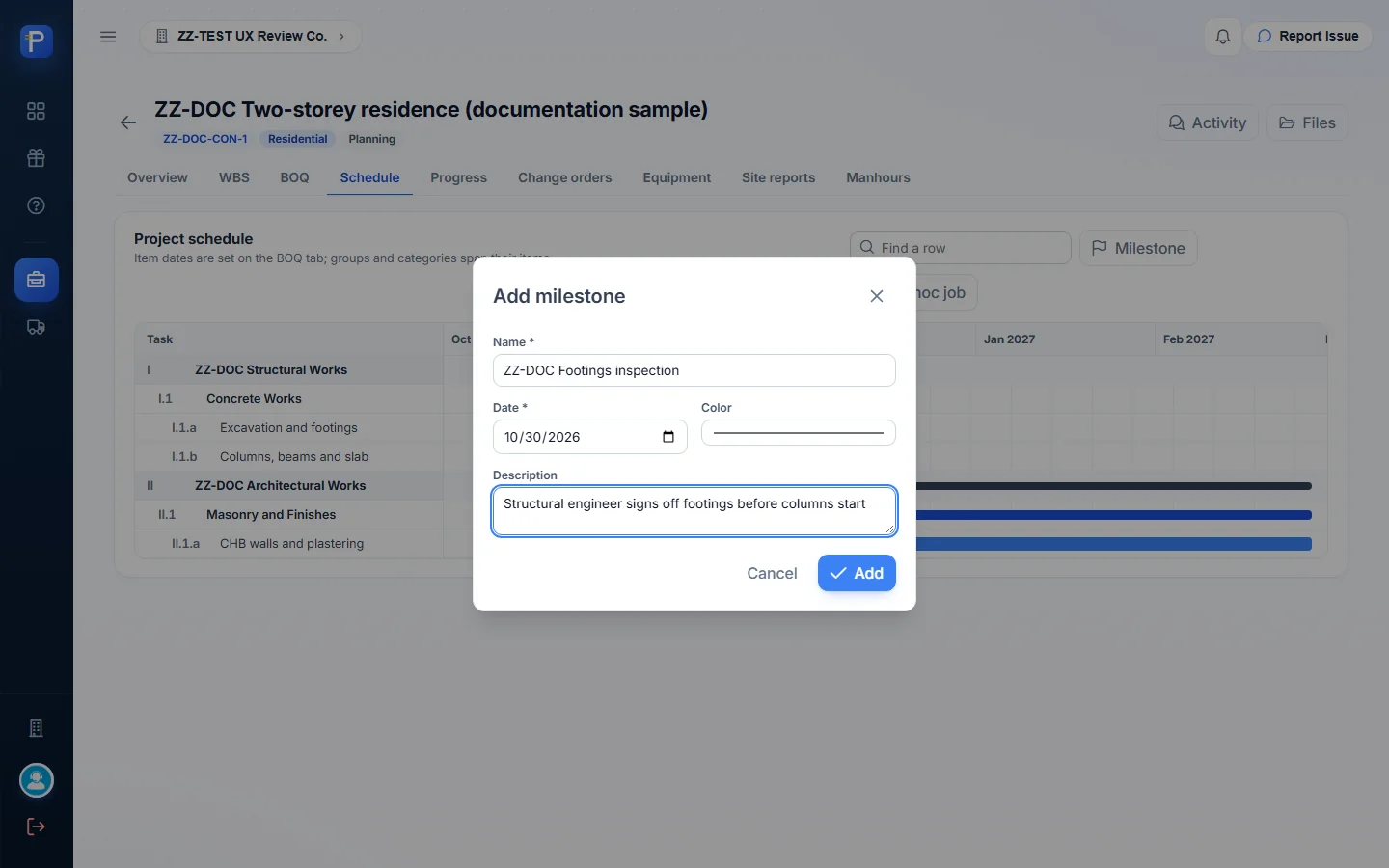
The Gantt chart draws its bars from the item dates. Groups and categories stretch across their items, and a red line marks today. You can add two kinds of entry on top. A milestone has a name, date, colour and description and shows as a diamond. I added “ZZ-DOC Footings inspection” on Oct 30. An ad-hoc job is work that isn’t in the BOQ, drawn as a bar. I added “ZZ-DOC Site mobilisation and fencing”, Oct 5 to Oct 10.

Progress
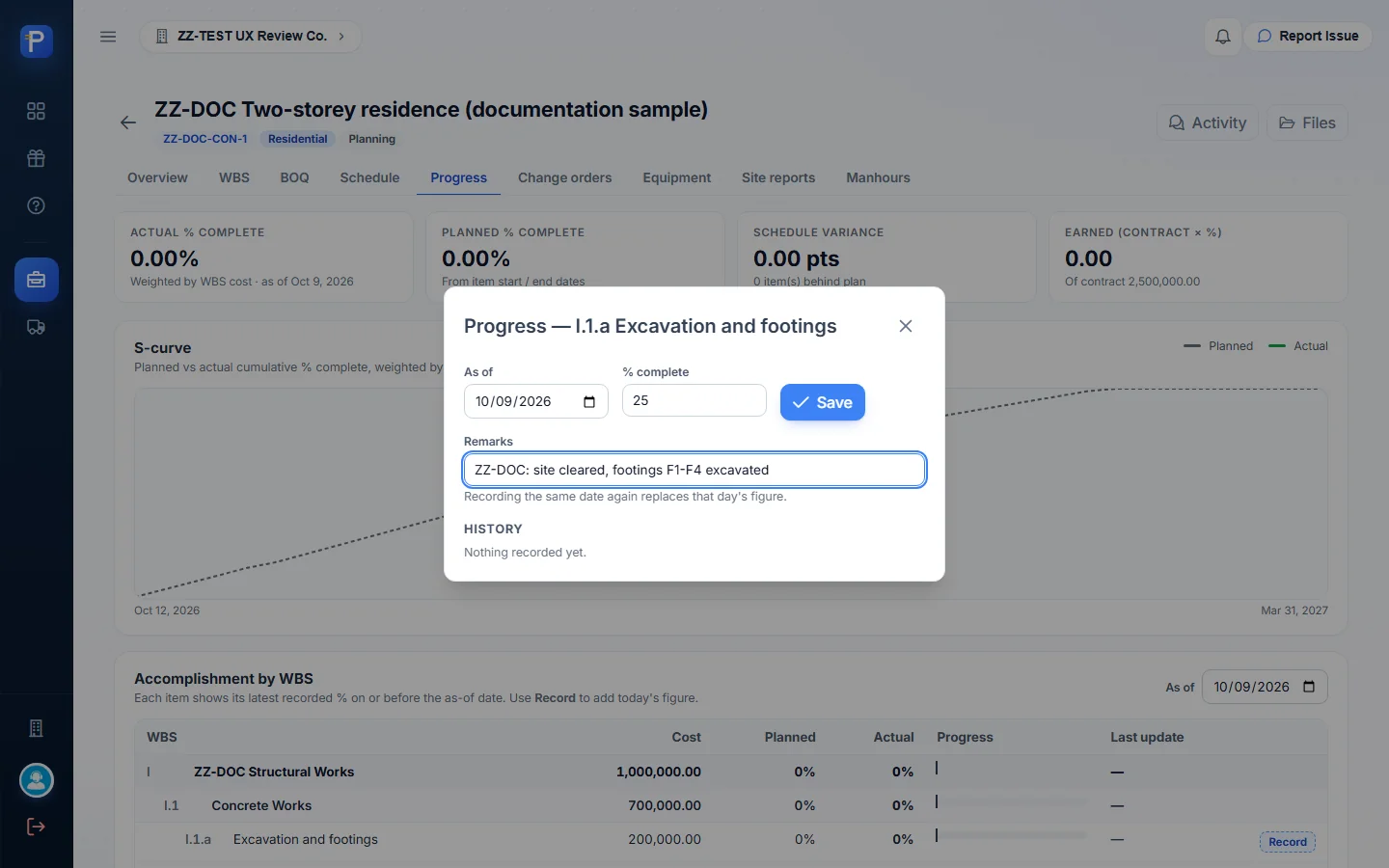
On any item, press Record and enter an as-of date, a % complete and a remark. Recording the same date again replaces that day’s figure. The dialog keeps a history, and you can remove any entry. I recorded 25% on I.1.a (“site cleared, footings F1-F4 excavated”). The tab then showed:
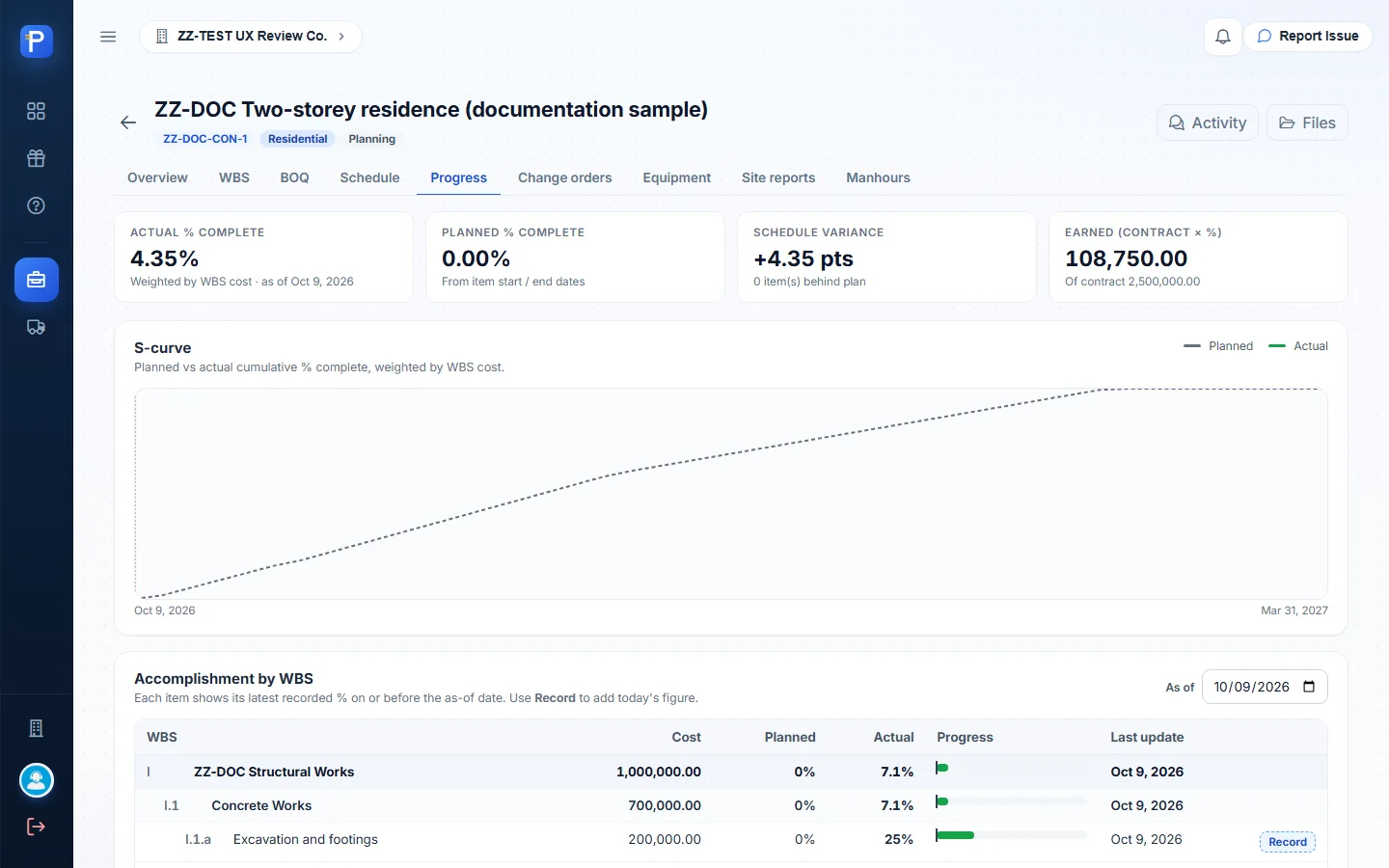
- Actual % complete of 4.35%. It’s weighted by item cost: 25% × 200,000 ÷ 1,150,000 of total item value. Group I read 7.1%.
- Planned 0.00%, worked out from the item dates. The first item starts Oct 12.
- Schedule variance of +4.35 pts.
- Earned (contract × %) of 108,750.00 out of 2,500,000.00. Progress billing is based on this number.
- An S-curve of planned vs actual cumulative %.
Site reports
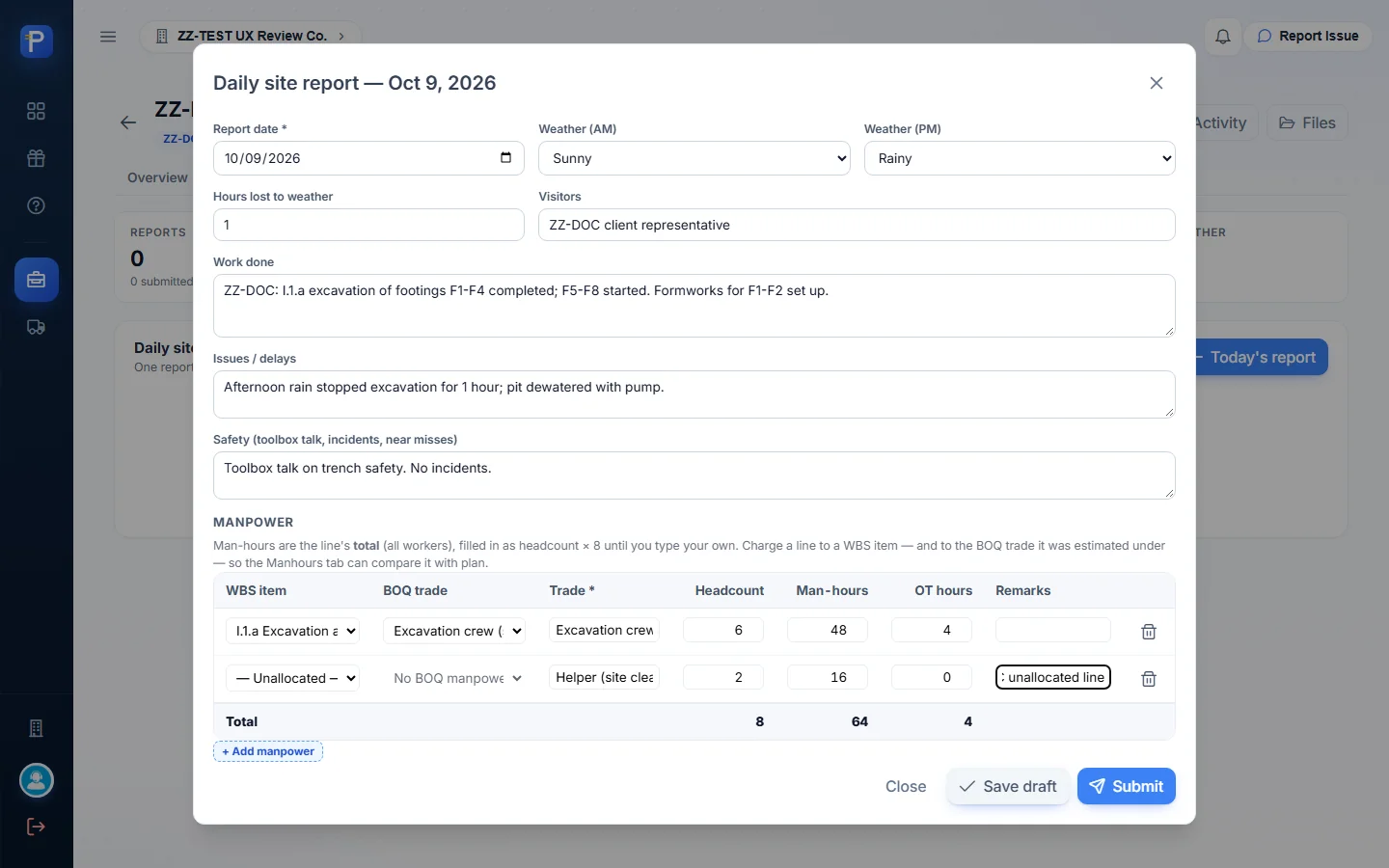
The site report is the daily document from the field, one per day per project. It records:
- morning and afternoon weather, and hours lost to weather;
- visitors, work done, issues and delays, and safety;
- a Manpower grid with one line per crew: WBS item, BOQ trade, trade, headcount, man-hours (headcount × 8 by default), OT hours and remarks;
- Equipment used, read from the usage logged on the Equipment tab;
- Photos, which you can attach once the report is saved as a draft.
- Press Today’s report and fill in the weather and notes. I entered Sunny AM, Rainy PM, 1 hour lost, and a toolbox talk on trench safety.
- Add the manpower lines:
- I.1.a against the BOQ trade “Excavation crew (skilled laborer)”: 6 workers, 48 MH, 4 OT;
- a helper line with no item: 2 workers, 16 MH.
- The grid total was 8 workers, 64 MH, 4 OT.
- Press Save draft. The status becomes Draft and the list shows 68 man-hours.
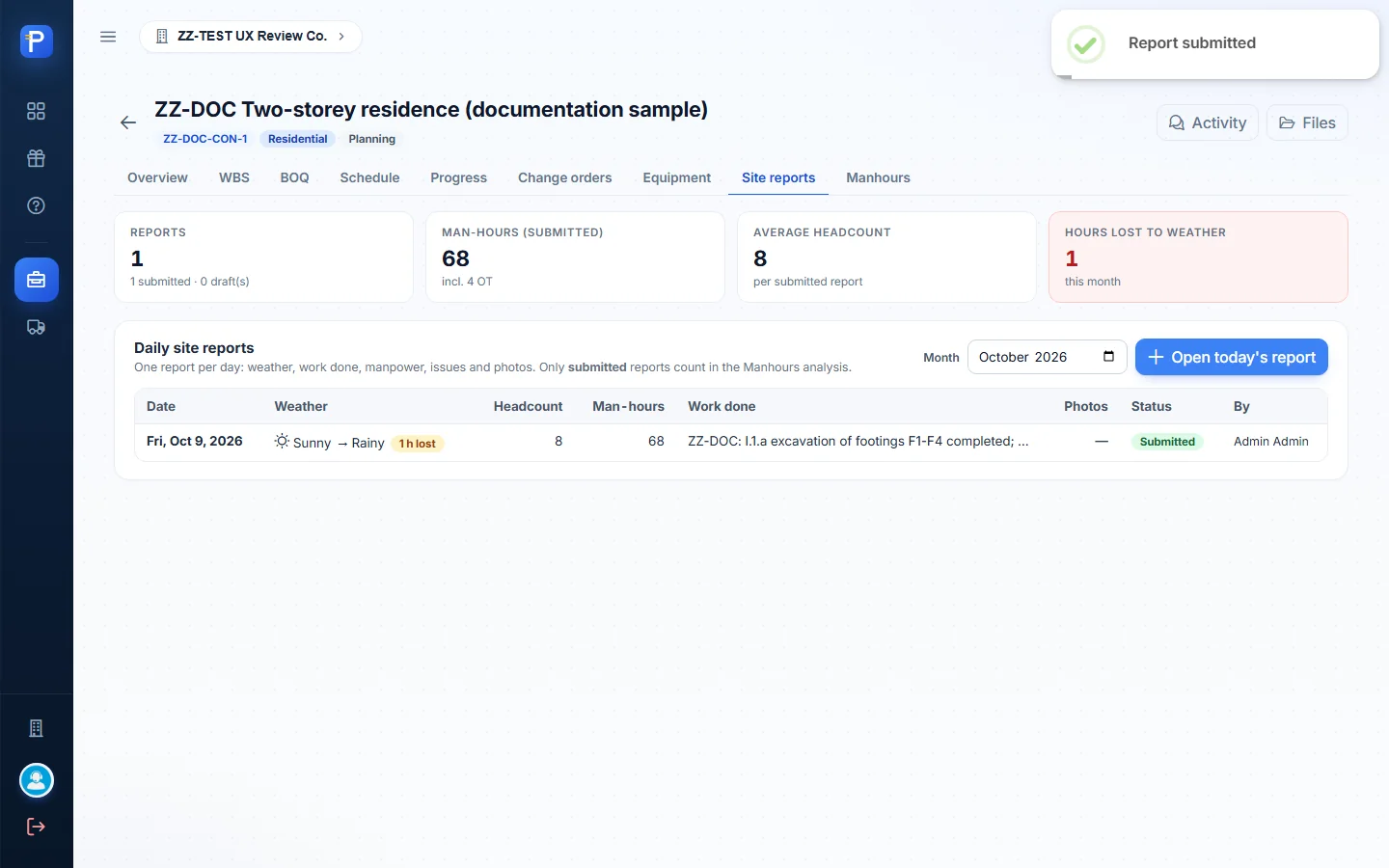
- Press Submit and confirm: “Submit the report for Oct 9, 2026? Its man-hours then count in the Manhours analysis and it can no longer be edited.” The app says “Report submitted”.
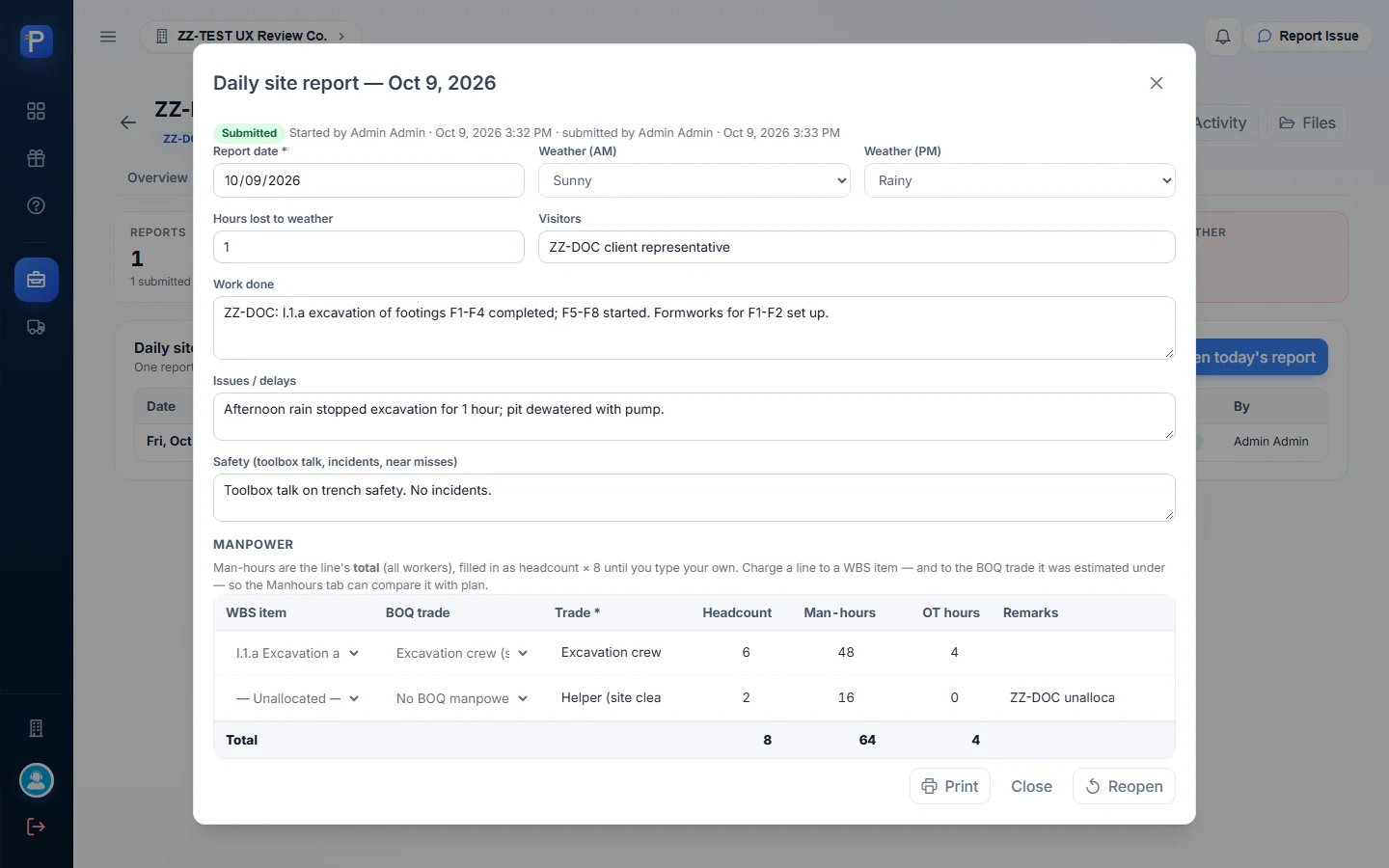
A submitted report is read-only, with Print and Reopen buttons. The tab header then read 1 submitted report, 68 man-hours including 4 OT, average headcount 8, and 1 hour lost to weather.
Manhours
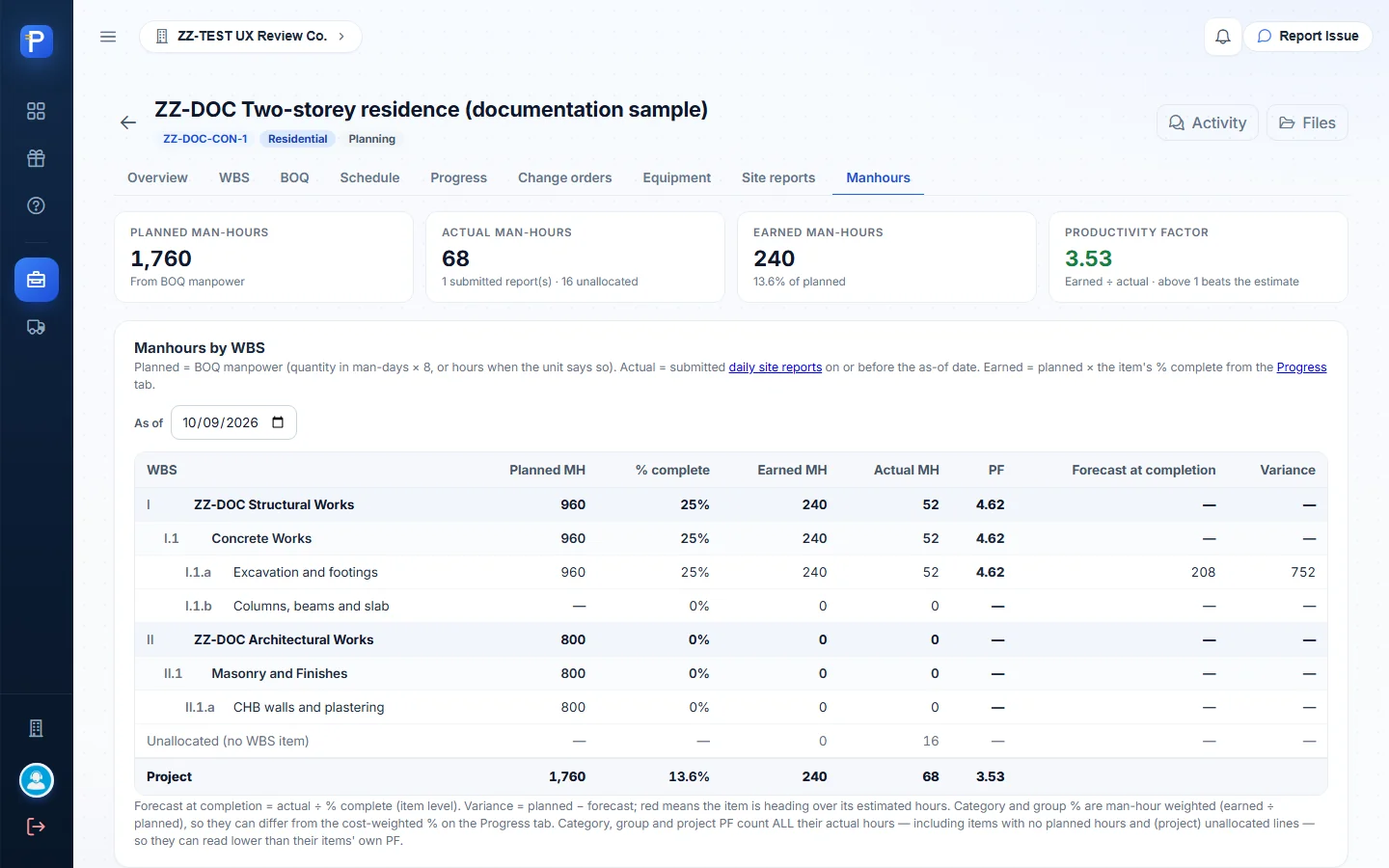
This tab puts the BOQ labour estimate next to what the site actually reported.
- Planned MH is BOQ man-days × 8. That’s 960 for the excavation crew and 800 for the mason, 1,760 in total.
- Earned MH is planned × % complete, so 960 × 25% = 240.
- Actual MH comes from submitted reports: 52 on I.1.a (48 + 4 OT) plus 16 unallocated, 68 in total.
- The productivity factor is earned ÷ actual. It was 4.62 on I.1.a and 3.53 for the project. Anything above 1 beats the estimate.
- Forecast at completion for I.1.a is 52 ÷ 25% = 208 MH, 752 under plan.
A “By trade” table compares each BOQ trade’s planned hours with its actual hours, and flags lines that aren’t in the BOQ, e.g. “Helper (site cleanup) · not in BOQ”. A daily man-hours chart sits at the bottom.
Change orders
A change order can change the contract price, add days, adjust an existing item’s cost or add a new item. Approval applies all of it at once, and the screen notes that “whoever prepared it cannot approve it”. The header cards show the original contract, approved changes, the revised contract (which progress billing uses) and the amount waiting for approval.
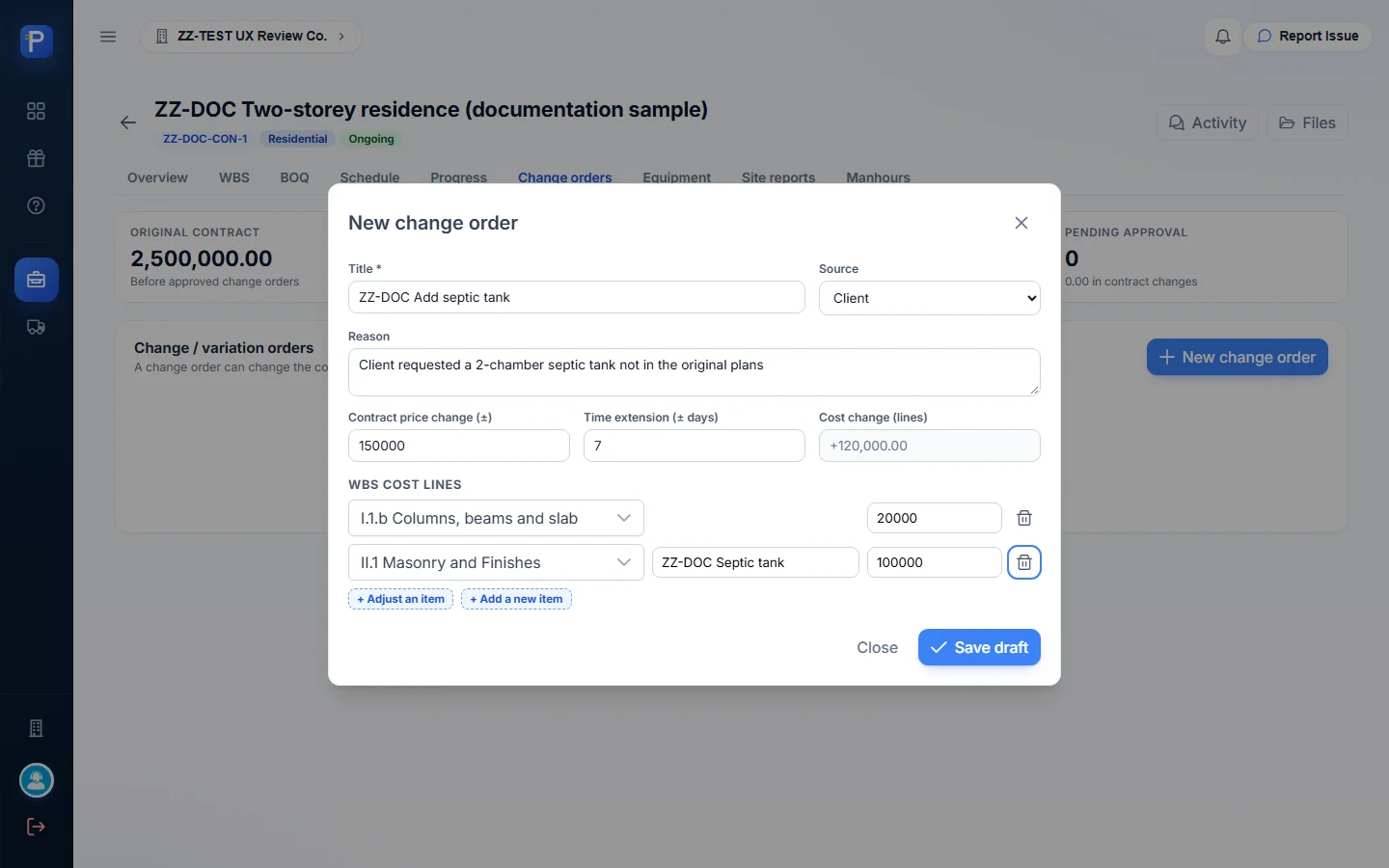
- Press New change order and enter:
- a title and a source (Client, Design change, Site condition or Internal);
- the reason;
- the contract change (±) and time extension (± days);
- cost lines, using + Adjust an item or + Add a new item under a category.
- Press Save draft. The order gets a number, here CO-001, with status Draft and the actions Edit, Submit and Cancel.
- Press Submit and confirm “Submit CO-001 for approval? It can no longer be edited.” The status becomes For Approval.
CO-001, “ZZ-DOC Add septic tank” (source: Client), had:
- a contract change of +150,000.00;
- +7 days;
- I.1.b adjusted by +20,000.00;
- a new item “ZZ-DOC Septic tank” under II.1 at +100,000.00;
- a total cost change of +120,000.00.
After I submitted it, the Actions cell only showed “Awaiting another approver” and Cancel. The revised contract stayed at 2,500,000.00.


Equipment
Booking equipment for a project
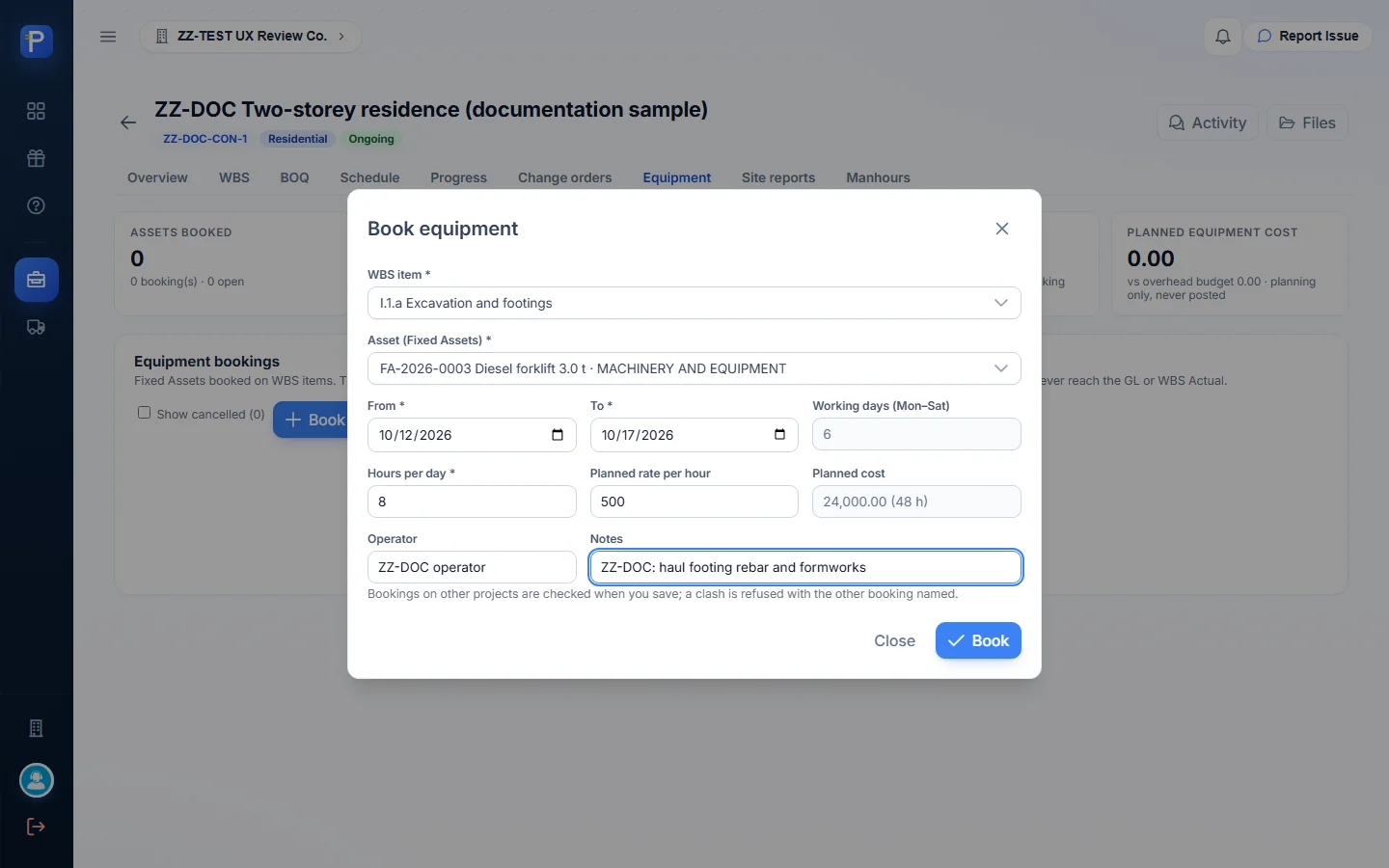
Book equipment reserves a Fixed Asset for a WBS item. The screen lists three rules. An asset can never be booked for overlapping days on any project. If bookings clash, the save is refused and the other booking is named. And the rates “never reach the GL or WBS Actual”.
- Pick I.1.a and FA-2026-0003 Diesel forklift 3.0 t.
- Enter Oct 12 to 17. The app counts 6 working days, Monday to Saturday.
- Enter 8 h a day at 500.00 an hour. The app works out the planned cost: 24,000.00 for 48 h.
- Enter the operator and notes, then press Book. The booking saves as Planned.
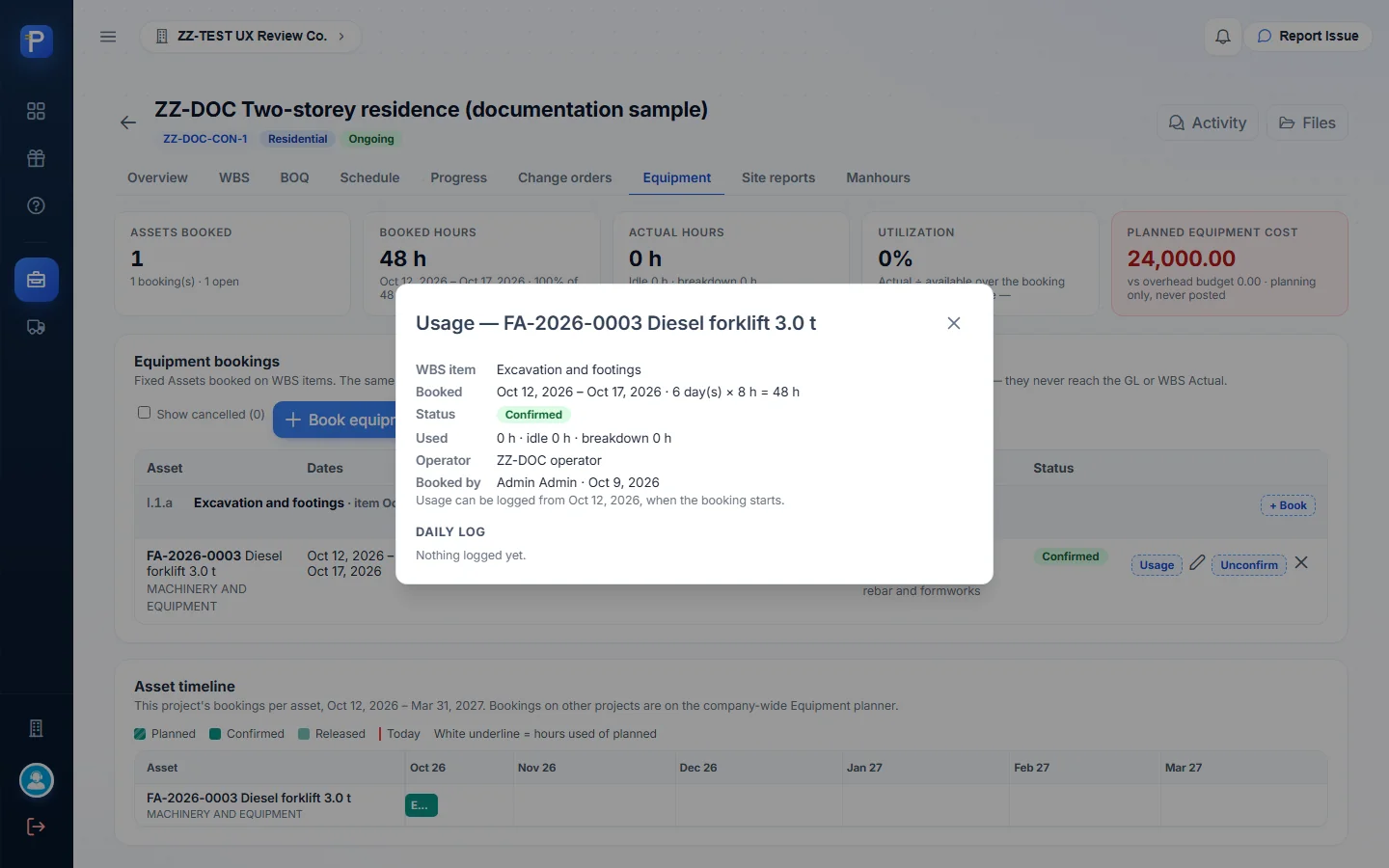
- Press Confirm, then Confirm booking. The status becomes Confirmed.
- Press Usage to open the daily log of used, idle and breakdown hours. For this booking it said “Usage can be logged from Oct 12, 2026, when the booking starts.”
The header cards then read 1 asset booked, 48 booked hours and 0% utilisation, with “Planned equipment cost 24,000.00 vs overhead budget 0.00 · planning only, never posted”. An asset timeline sits under the table.

The company planner
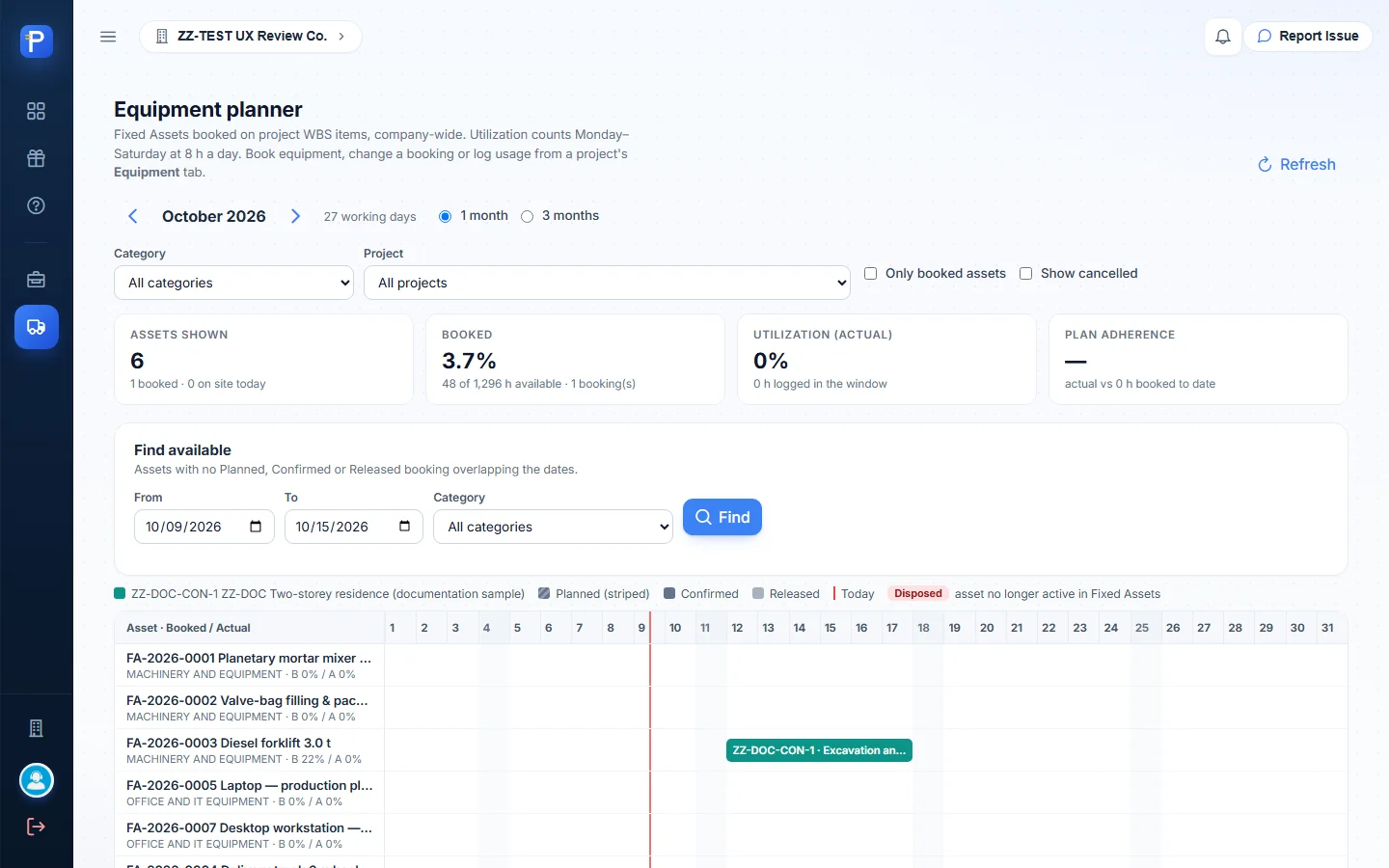
The Equipment page in the sidebar covers every asset across all projects, in a 1-month or 3-month window. You can filter by category and project, and “Find available” searches a date range. The utilisation table shows available hours (27 working days × 8 h in October), booked %, actual % and plan adherence.
Activity feed and files
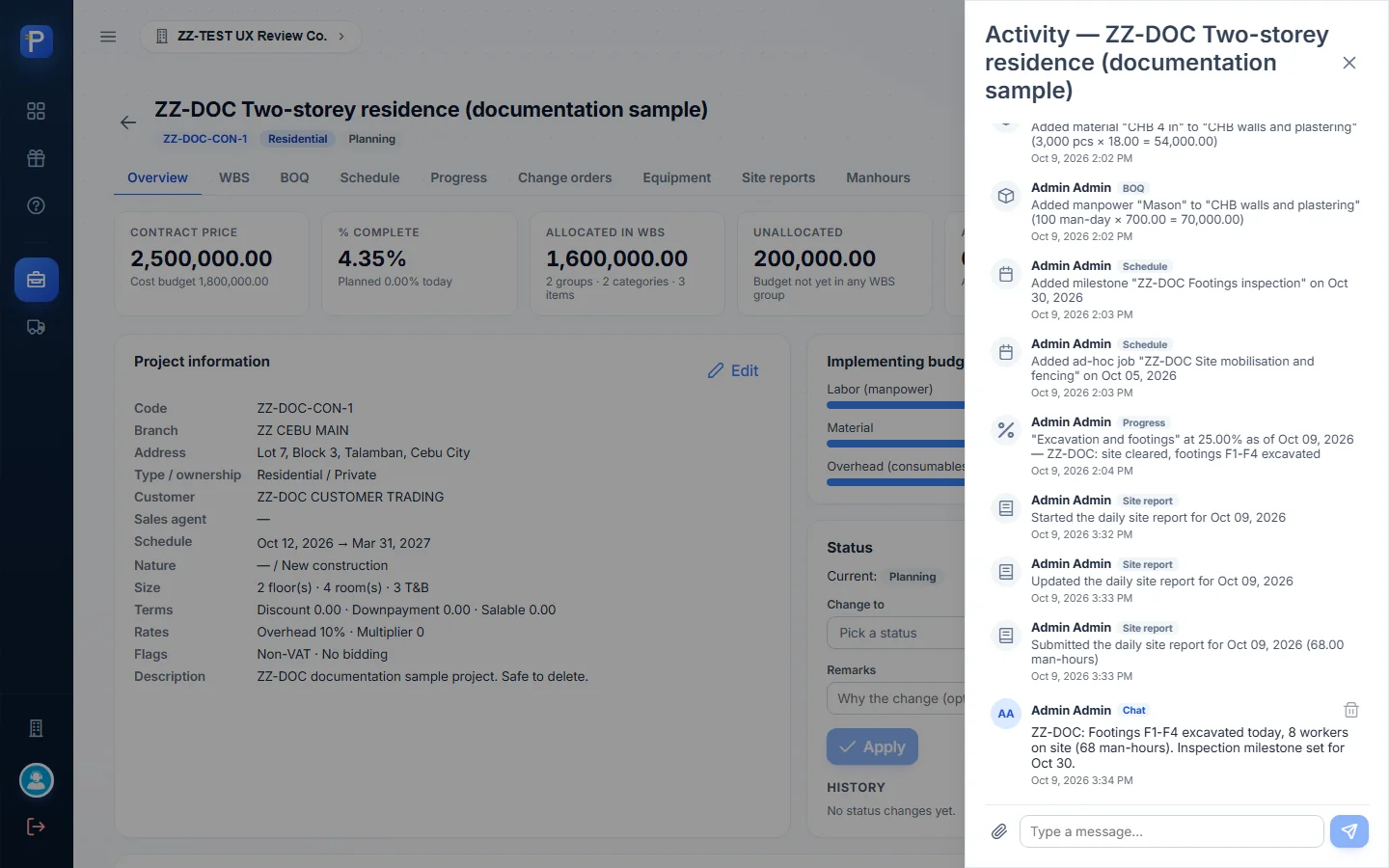
Activity is the project’s feed. It logs each change on its own, tagged by module (Project, WBS, BOQ, Schedule, Progress, Site report), for example “Submitted the daily site report for Oct 09, 2026 (68.00 man-hours)”. It doubles as a team chat. I posted a ZZ-DOC site update and it showed up tagged Chat. You attach files with the paperclip in the feed, and they’re listed in the Files panel. Mine was still empty (“No files yet. Attach one from the project’s Activity feed.”). The dashboard’s Recent activity shows the same events.

How the pieces connect
- The project is created here and in the ERP. Its status is Planning, Ongoing, On Hold, Completed or Cancelled.
- The WBS splits the cost budget into groups, then categories (each with labour, material and overhead budgets), then dated items.
- The BOQ prices resources per item, capped by the category budgets. That gives the planned cost and the planned man-hours.
- The schedule comes from the item dates, plus milestones and ad-hoc jobs.
- Progress gives the cost-weighted % complete, which gives earned value (contract × %) for progress billing.
- A daily site report goes from Draft to Submitted, and can be reopened. Submitted manpower becomes actual hours on Manhours.
- A change order goes from Draft to For Approval and is approved by a different user. Approval revises the contract, the days and the WBS costs.
- An equipment booking goes from Planned to Confirmed. The legend also shows a Released state. These are planning numbers only.
- From the other apps: Supply Chain purchase orders charged to WBS items show as Actual (PO), and customers and Fixed Assets come from the ERP. Per Help, nothing posts to the GL yet.
Notes from testing
- CO-001 is still For Approval. Approving it needs a second user, and I only had one admin account.
- I couldn’t log equipment usage because the booking starts Oct 12, 2026, after the test date.
- Print on the submitted site report gave nothing to capture. It produced no preview in the headless browser and the page stayed on the report.
- I didn’t try photo or file uploads.
- The Sales agent dropdown had no options (“No results found”) in this test company.
- Actual (PO) stayed at 0.00 because no Supply Chain purchase order was charged to the project.
- The Equipment tab shows an overhead budget of 0.00. It reads “24,000.00 of 0.00 overhead” and “vs overhead budget 0.00”, while Concrete Works has an overhead budget of 50,000.00.
- I didn’t hit any errors. Toasts confirmed each save, e.g. “Added”, “Report submitted” and “Status set to Ongoing”.