Paylalo Customer Portal

The Customer Portal at customer.paylalo.com is where a Paylalo company’s customers serve themselves. The sign-in page sums it up: “Register, keep your contact details current, and submit your business documents to us — in one secure place.”
It’s the outward-facing piece of the sales side. A customer who’s already in the company’s customer master registers with the email the company has on file, the company approves the request, and the customer can then sign in to their own account. It’s a separate site from the ERP with its own customer logins. Staff accounts aren’t used here.
The pages
- Sign in (/login): email and password, with one neutral error for both bad credentials and pending accounts.
- Create your account (/register): email (it has to match the company’s records), optional full name, password and confirm password.
- Pending approval: after registering, the customer waits for the company to approve them.
- The signed-in area has these routes built into the portal: profile, documents, orders, deliveries, invoices, statement and ledger. I couldn’t reach them without approval (see the notes).
- Public links (/r/
, /f/ are token pages that open without signing in. The /r page is a “rating” page.)
Getting in
Sign in
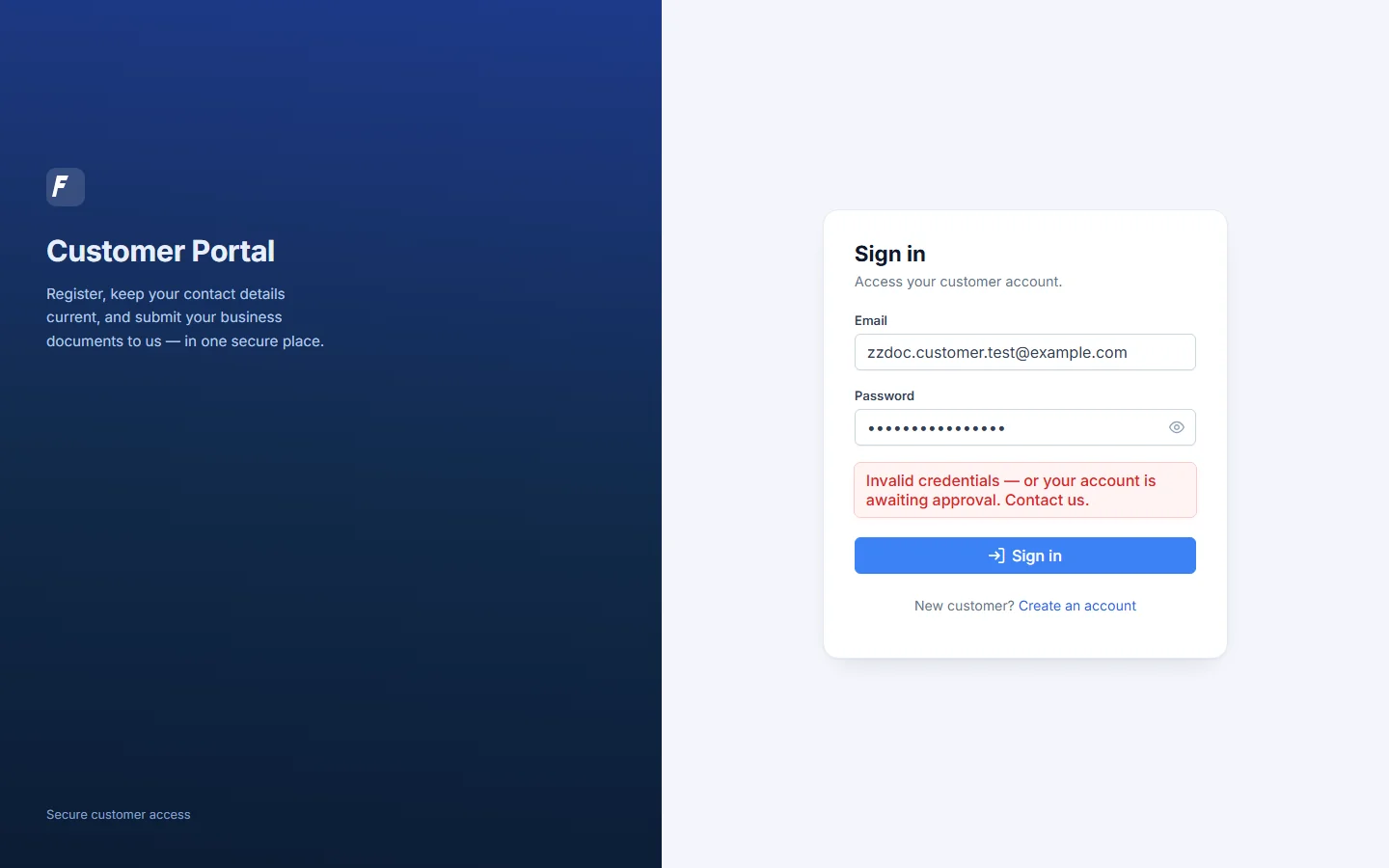
Sign-in lets an approved customer into their account. There are two fields, Email and Password, and the password box has a show/hide eye icon.
- Open customer.paylalo.com. It goes straight to /login.
- Enter the email and password and click Sign in. The button greys out and shows a spinner while it checks.
- If the check fails, a red message shows under the fields:
Invalid credentials — or your account is awaiting approval. Contact us.
That one message covers a wrong password, an unknown email and an account that isn’t approved yet. I did that on purpose: the page never confirms whether an email is on the company’s customer list. The check takes a few seconds. In testing I allowed about 9 seconds before reading the message.
The pages inside are protected. Opening /profile, /orders or /invoices without a session sends you back to /login.


Registering
Registration is how a customer the company already knows asks for portal access. The fields:
- Email, with the hint “Use the email we have on file for you.” It only works for an email already on the company’s customer list.
- Full name (optional).
- Password: “Minimum 8 characters.”
- Confirm password.
Here’s what I did:
- From the sign-in page I clicked Create an account (/register).
- I filled the form with email
zzdoc.customer.test@example.com, name “ZZ-DOC Customer Portal Test” and a password of at least 8 characters. - I clicked Create account.
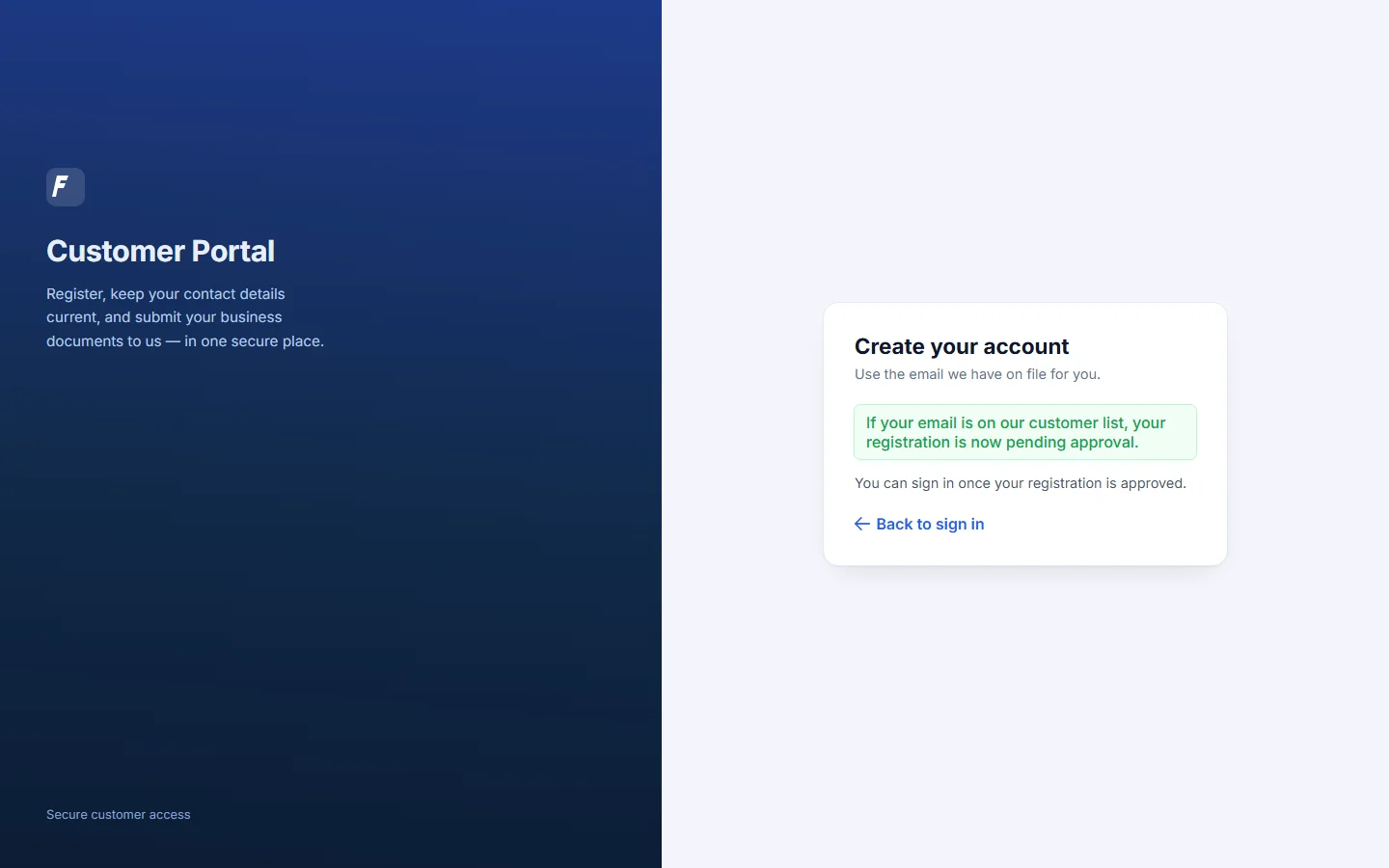
- The form was replaced by a confirmation:
If your email is on our customer list, your registration is now pending approval. You can sign in once your registration is approved.
Under it was a Back to sign in link.
The wording is careful here too. It never says whether the email matched, so nobody can use the form to find out who’s a customer.
A password that’s too short is refused before anything is sent, with “Password must be at least 8 characters.” When the password was too short and the confirmation also didn’t match, only the length message showed. The checks report one problem at a time.



Waiting for approval
When I signed in with the new test account right after registering, I got the same neutral error as a wrong password. The account can’t be used until someone at the company approves it. I didn’t visit the approval screen, because it lives in the back office, outside this portal and outside this test.
Inside the portal (not reached)
Registration needed approval, so I stopped at the pending state as planned. I didn’t see any screen behind the login. What I can say for sure is what the portal’s route table (the list of address paths built into the site) contains: profile, documents, orders, deliveries, invoices, statement and ledger. Put that next to the tagline and a signed-in customer should be able to keep their contact details current, upload business documents, and look up their orders, deliveries, invoices, statement of account and ledger. How those screens look and behave, including how profile edits get proposed and approved, I couldn’t check.
Public token links
Two routes need no sign-in: /r/
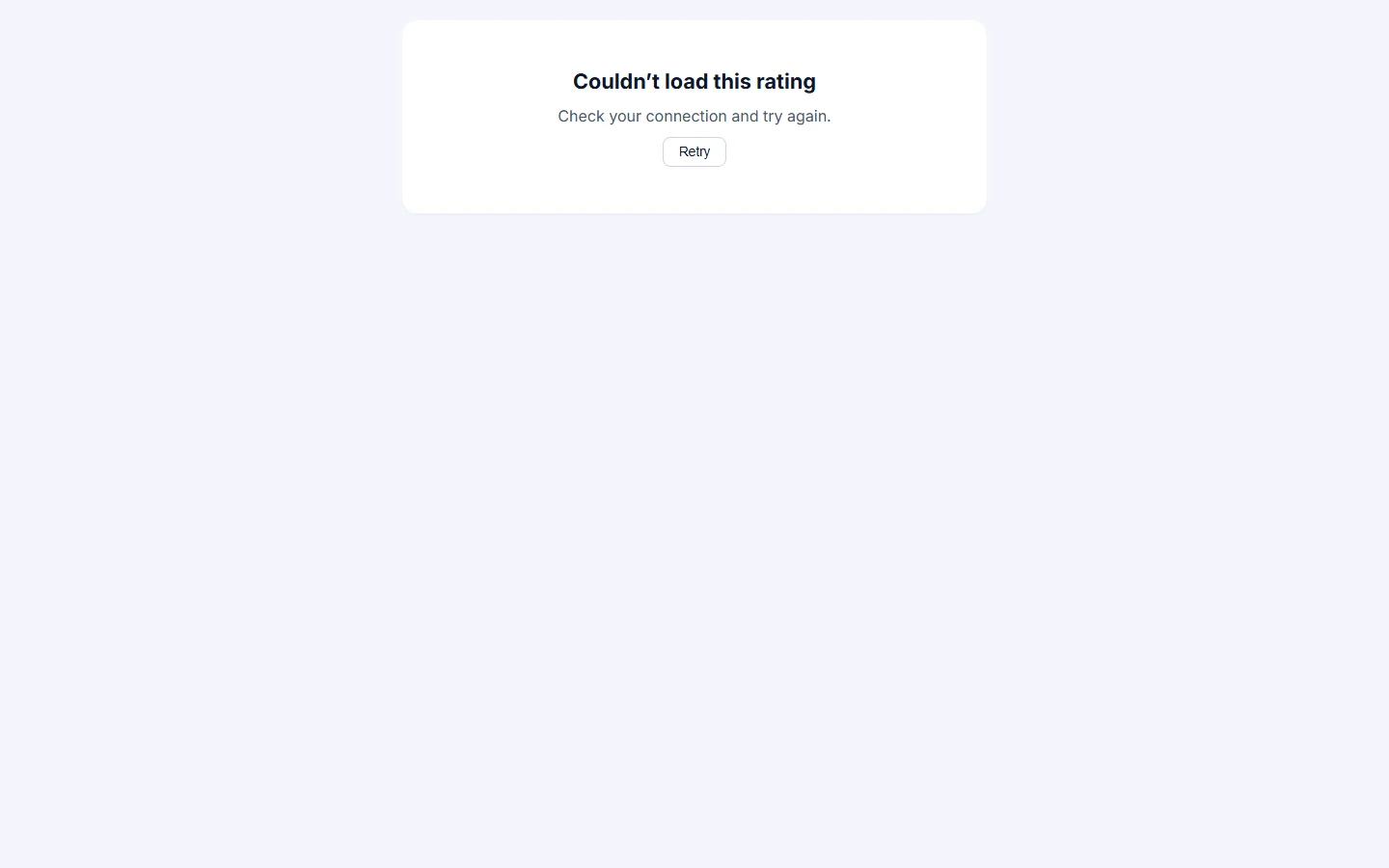
- /r/… showed “Couldn’t load this rating”, “Check your connection and try again.” and a Retry button. That lines up with the Paylalo Go v1.0.12 release note, where the driver shows the customer a QR code “to scan and rate the service on their own phone”. I didn’t see the rating page itself, since that needs a real token.
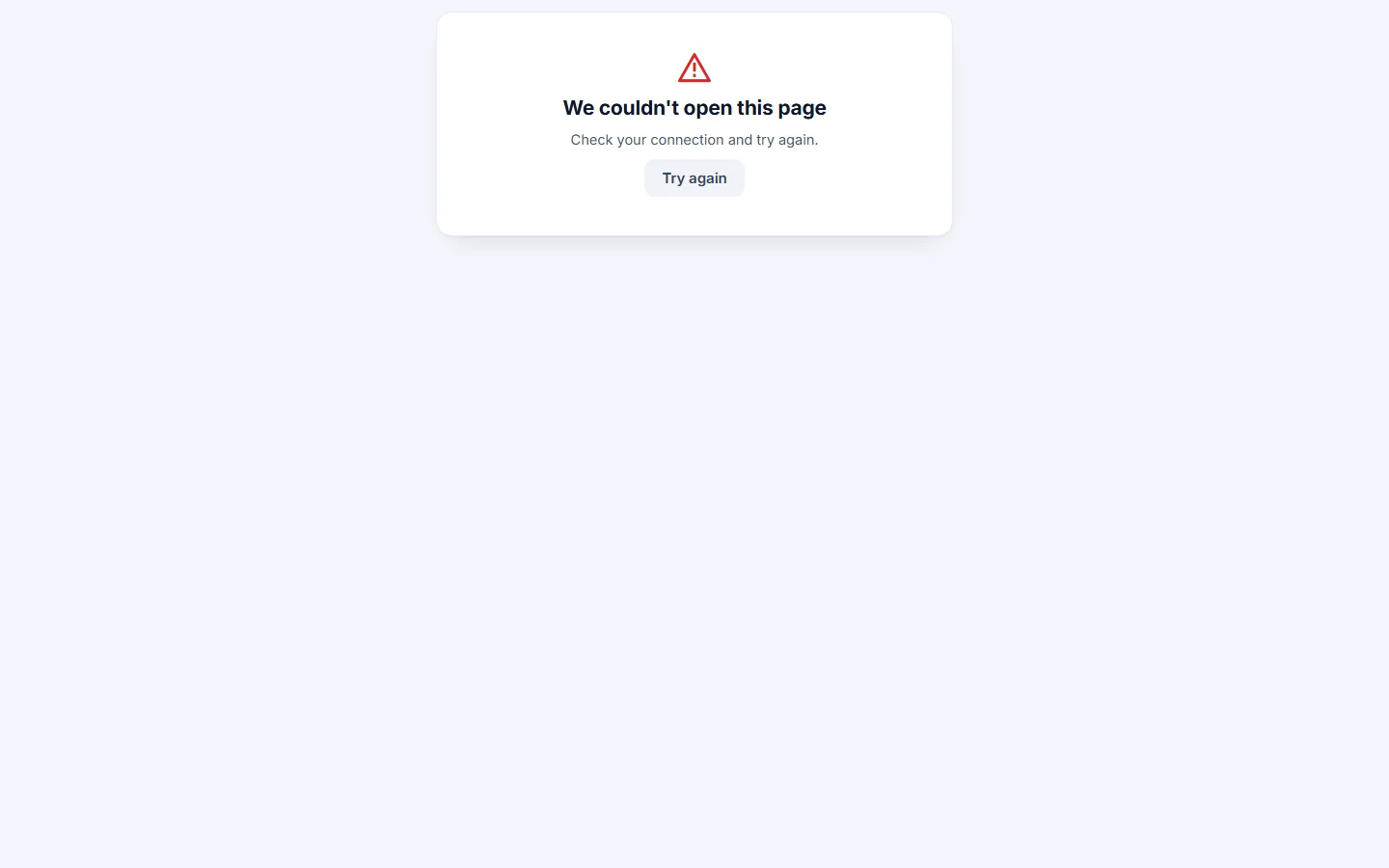
- /f/… showed “We couldn’t open this page”, “Check your connection and try again.” and a Try again button.
Both fail gracefully. For an invalid token, though, the text blames the connection instead of the link.
How it connects
- The company sets the customer up in its customer master in the ERP, with the email on file.
- The customer registers on the portal with that email, and the request goes into pending approval.
- The company approves it in the back office, and the customer can sign in.
- Inside, the customer sees their own sales documents (orders, deliveries, invoices) and their account (statement, ledger), keeps their profile current and uploads documents. I only know these from the route names; I didn’t see the screens.
- Separately, a delivery finished in Paylalo Go can give the customer a QR code that opens a /r/
rating page on this portal.
Notes from testing
- Approval blocked me. Registering
zzdoc.customer.test@example.comended in “pending approval”, and sign-in was refused after that. So none of the inside screens could be documented: profile, propose edits, document upload, orders, deliveries, invoices, statement and ledger all need an approved account. Approving it meant using the back office, which was out of scope. - The test account is left pending. If the email isn’t on any company’s customer list, the portal’s own wording hints the request may never turn into a real pending request. I couldn’t tell which happened.
- The neutral wording at sign-in and registration is good security practice, but it also means a customer whose request is still pending gets no specific status.
- The token pages say “Check your connection” even when the token is just invalid.