Paylalo DMS (Distribution Management)
Paylalo DMS is the order-to-cash app I built for distributors in the Paylalo suite. The sales and dispatch team uses it to price finished goods, take customer orders, reserve stock, raise delivery receipts and plan trips, then follow each order until it becomes a posted Sales Invoice and an open receivable.
It sits between two other apps. Supply Chain releases goods when a guard scans the QR and runs the driver’s trip. Accounting holds the GL, the invoice and AR. I went through every screen below on 9 Oct 2026 in the test company ZZ-TEST UX Review Co., signed in as its admin. Every test record I made starts with ZZ-DOC.
What’s in the app
- Dashboard: “Distribution Overview” tiles. In this company it shows procurement numbers (purchase requests, canvasses, approvers), not sales.
- Rewards: a points store for the signed-in user (295 points, two fulfilled redemptions). It’s not part of the order flow.
- Pricelist: selling price and Suggested Retail Price per branch for finished goods, worked out from each branch’s weighted-average cost (WAC).
- Sales Orders: customer orders from Draft through Approved, Delivered, Invoiced and Collected, with approval, a document tree and an activity log.
- Logistics: Deliveries (DR), Pending Evidence, Picking & Loading (pick lists, cycle counts) and Route Planning / Dispatch (trips, fleet).
- Trips, Live Map and Trip History: the live trip list, a MapLibre map of vehicles sharing GPS, and replays of finished trips with proof-of-delivery pins.
- Allocation answers “can I fulfill it?” for each open SO line. It reserves quantity only. No GL entry, no stock movement.
- Deliveries is where DRs get approved. Approving posts the goods-issue entry and the Sales Invoice.
- Invoices: a read-only list of posted Sales Invoices with net, VAT and gross.
- Statement of Account: AR aging for one customer as of a date, printable.
- Reconciliation checks that every delivered line has an invoice in Accounting.
- Reports: Sales Report, Collection Report, GP per Invoice, GP per Product and Report Targets.
- Master data: Customers, Items, Item Categories and Item Groups. Items import from the ERP, customers from the PSI API.

Master data
Customers
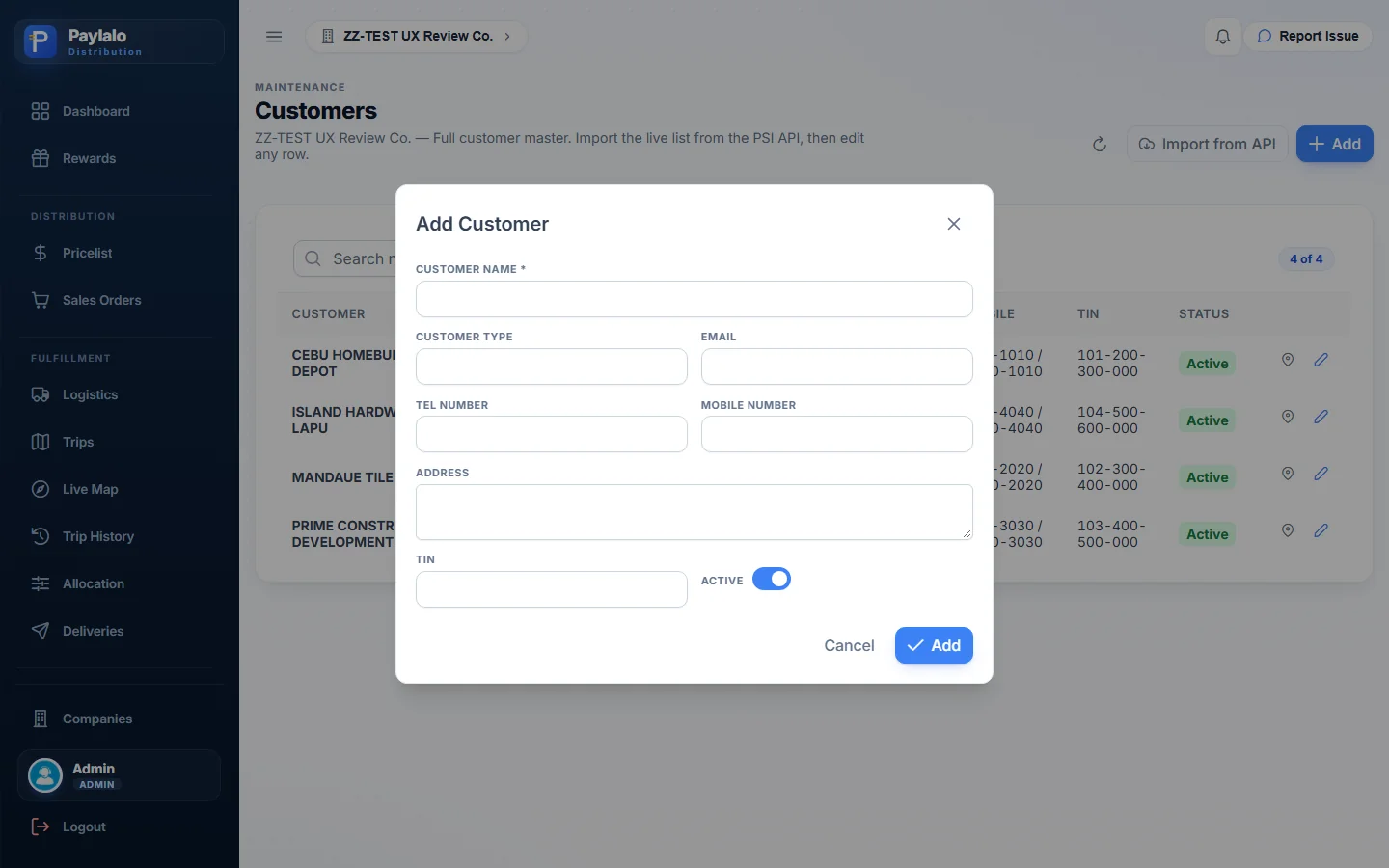
A customer has a name, type, email, telephone, mobile, address, TIN and an Active switch. It can also carry extra delivery addresses. The first button on the row opens “Addresses —
- Open Customers and press Add.
- Enter the name
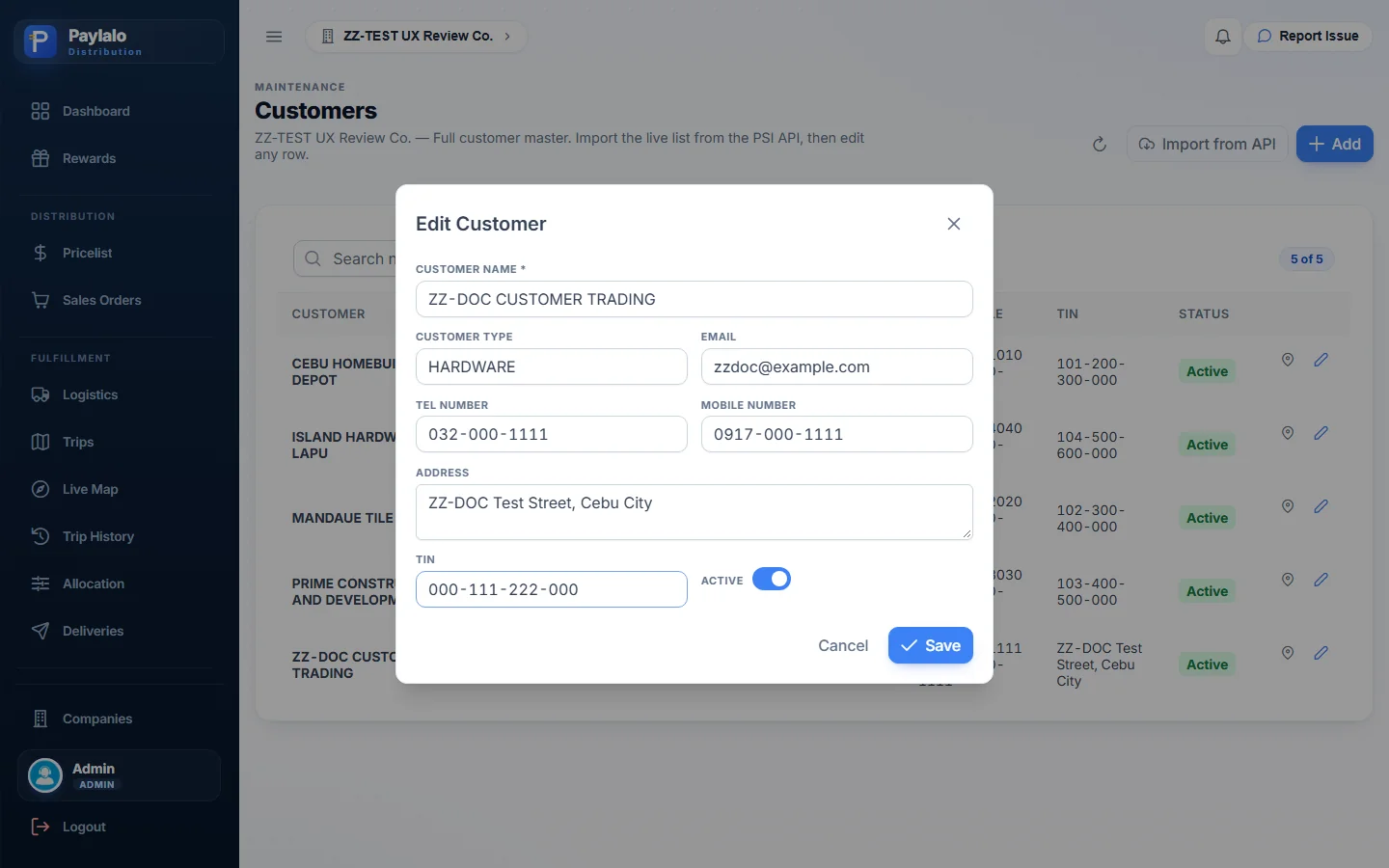
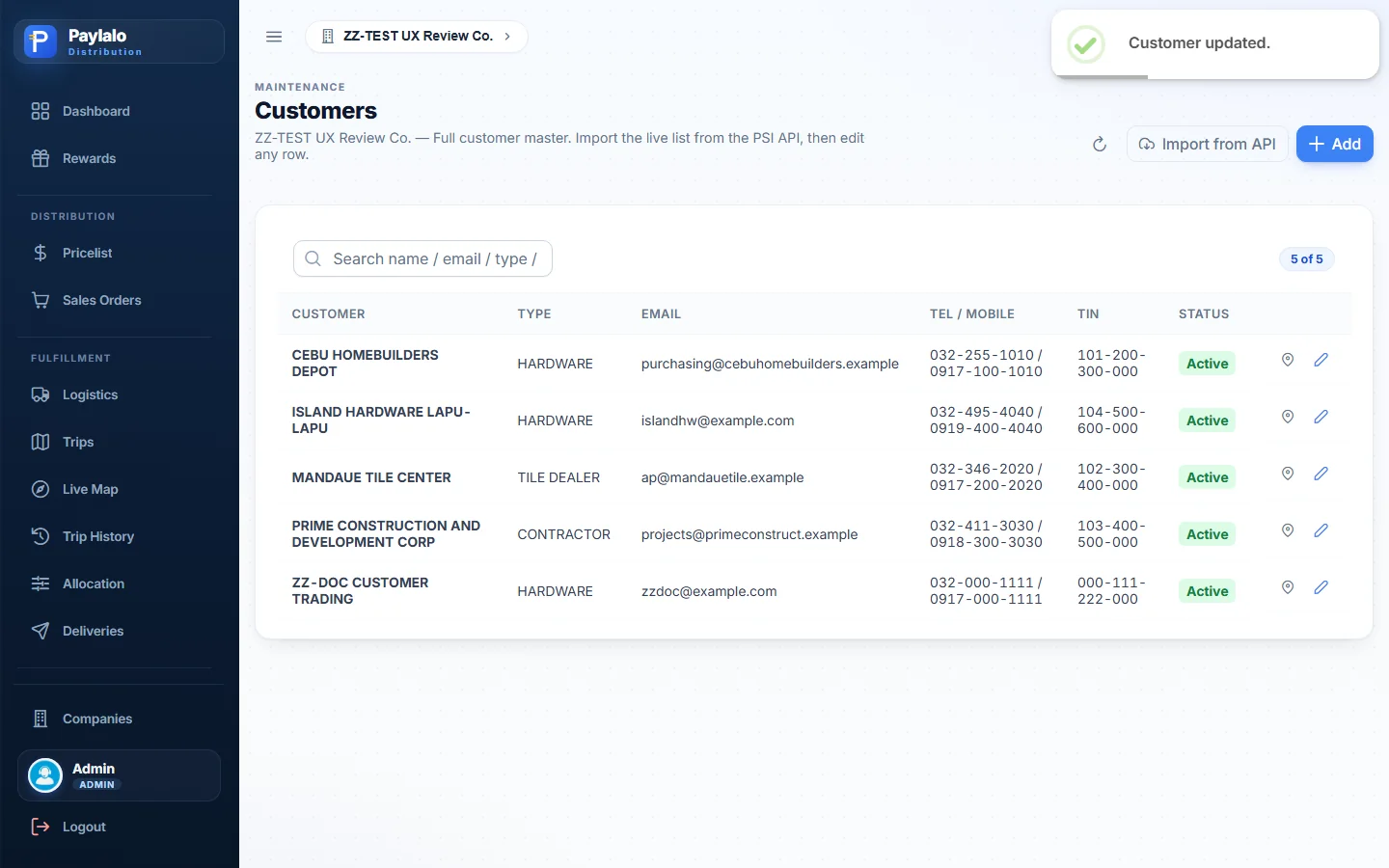
ZZ-DOC CUSTOMER TRADING, type HARDWARE, email, tel/mobile, address and TIN000-111-222-000. - Press Add. The row shows up right away as Active (“5 of 5”).
I could then pick the customer on a Sales Order, and its Main address became the order’s default Sales Address.
Items, categories and groups
Items come from the ERP item maintenance with code, category, group, UOM and class (Raw Materials or Finished Goods). This company has 8: cement, sand, additives, sacks and two finished goods, TILE ADHESIVE STANDARD GREY 25KG FG.TA.001 and TILE ADHESIVE HEAVY DUTY 25KG FG.TA.002. Categories and groups are their own masters, each with an “Import from ERP” button. I didn’t add items. Only finished goods get priced and sold, and the two already there were enough.

Pricelist
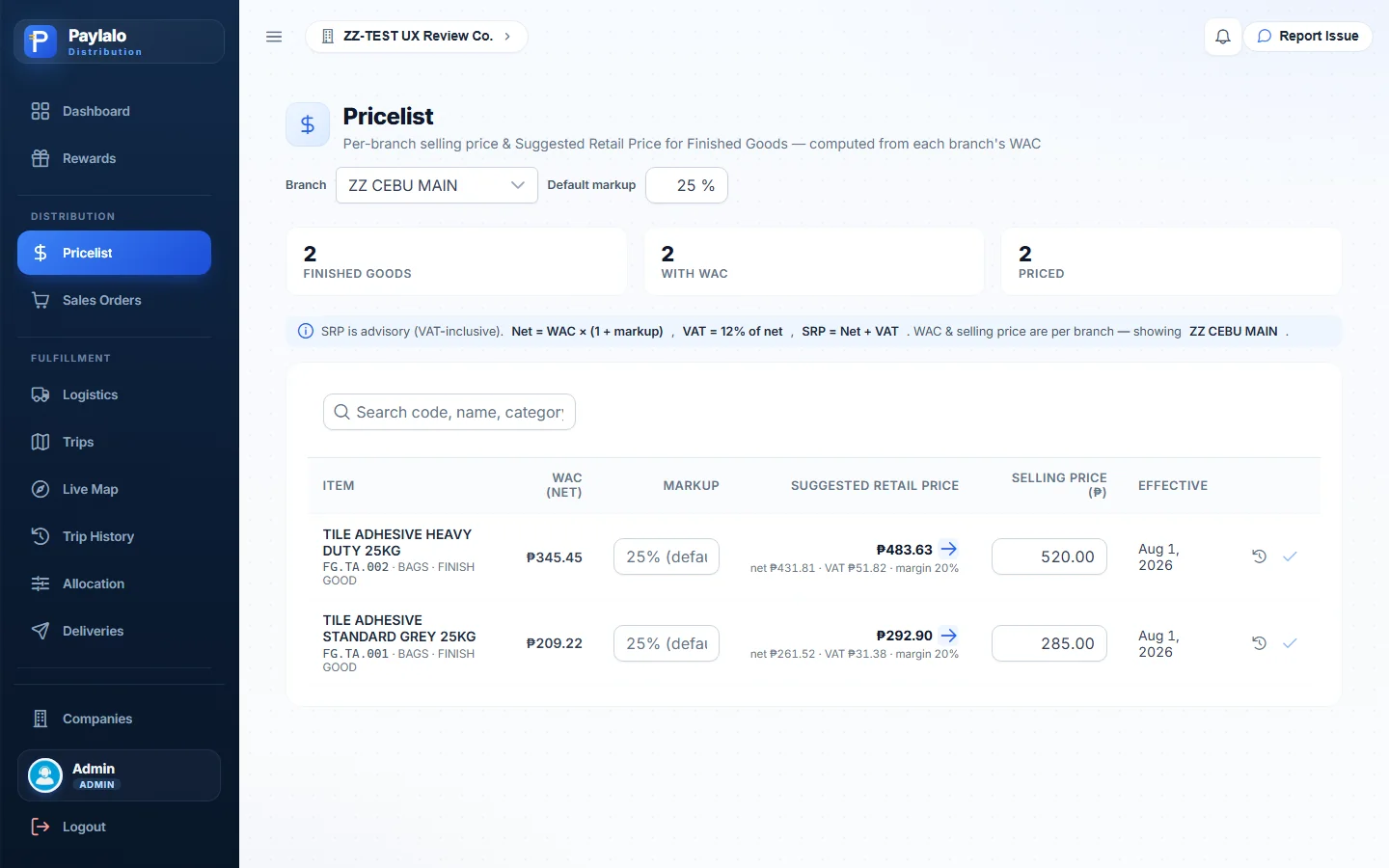
For each branch (ZZ CEBU MAIN here), the Pricelist shows every finished good’s WAC, a markup (25% by default, changeable per item), the Suggested Retail Price it works out, and the actual Selling Price with its effective date. The rule on screen is Net = WAC × (1 + markup), VAT = 12% of net, SRP = Net + VAT. The SRP is only a suggestion and includes VAT.
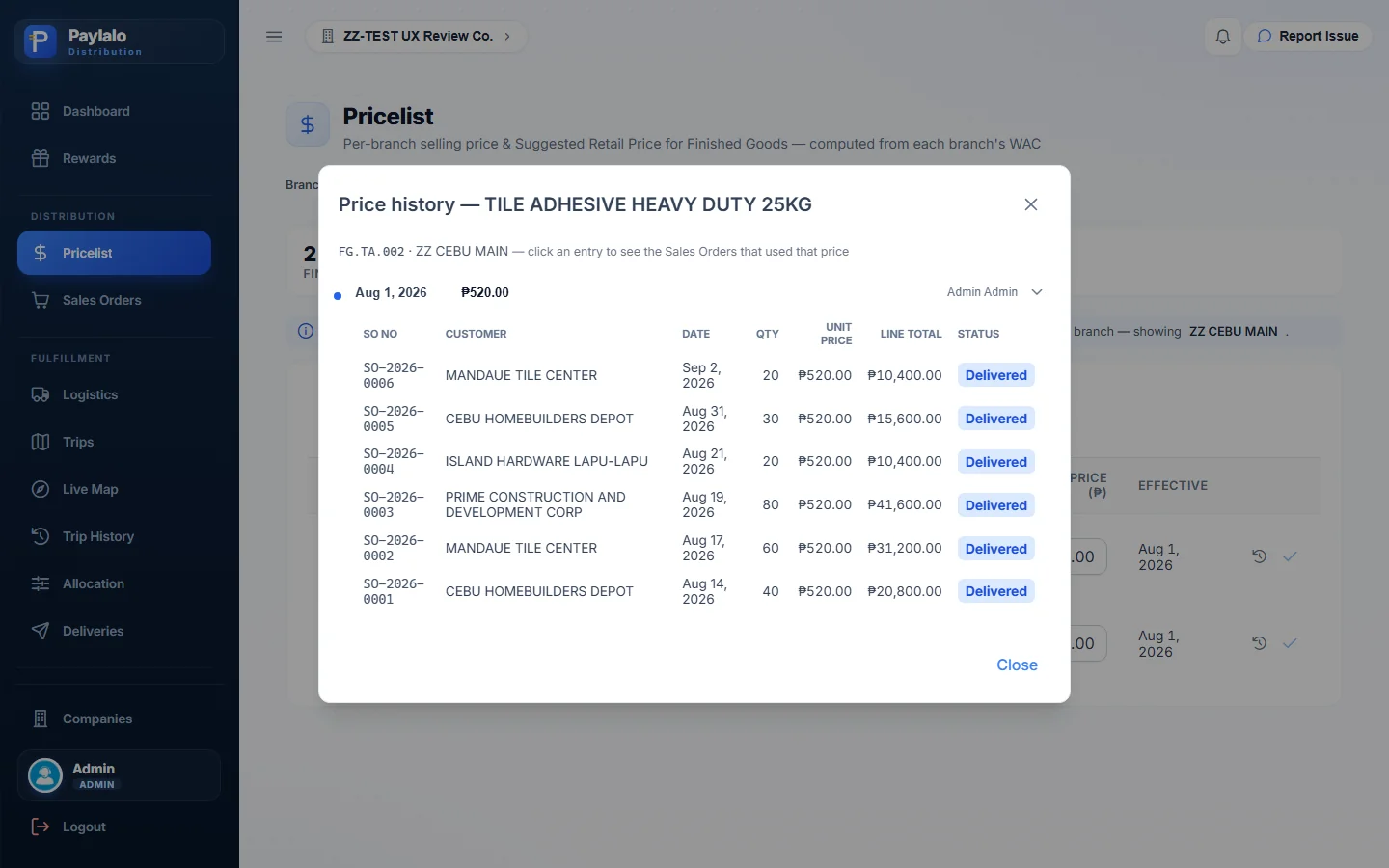
Take FG.TA.002. Its WAC is ₱345.45 and the SRP comes to ₱483.63 (net ₱431.81, VAT ₱51.82, margin 20%). The current Selling Price is ₱520.00, effective 1 Aug 2026.
Each row has three buttons. “Use as selling price” copies the SRP into the price box. The history button opens every price with who set it, and clicking an entry lists the Sales Orders that used that price. The save button stays disabled until you change the price. I left the existing ₱520.00 alone instead of changing seeded data, and used it on my test order.
Sales Orders
Creating an order
A Sales Order is the customer’s order without VAT. The screen says so: “VAT is recognized downstream, at delivery / invoicing. This order is net-only”.
The fields that matter are Customer, Sales Address (defaults to the customer’s Main address), Sales Person, Order Date, Delivery Date, Branch, Credit Term (COD, NET 15, NET 30 or the company default), BIR Reference, Remarks, and the lines with quantity and unit price. A blank BIR Reference makes it a Non-VAT order. Filled in, it’s a VAT order. You add items by tapping them in the catalogue on the left, then type the unit price on each line. It didn’t fill in from the pricelist.
- Press New Sales Order. Pick
ZZ-DOC CUSTOMER TRADINGand the sales person (the one agent set up in the test company). - Open “Order details”. Set Delivery Date 10 Oct 2026, Branch ZZ CEBU MAIN, Credit Term NET 30, BIR Reference
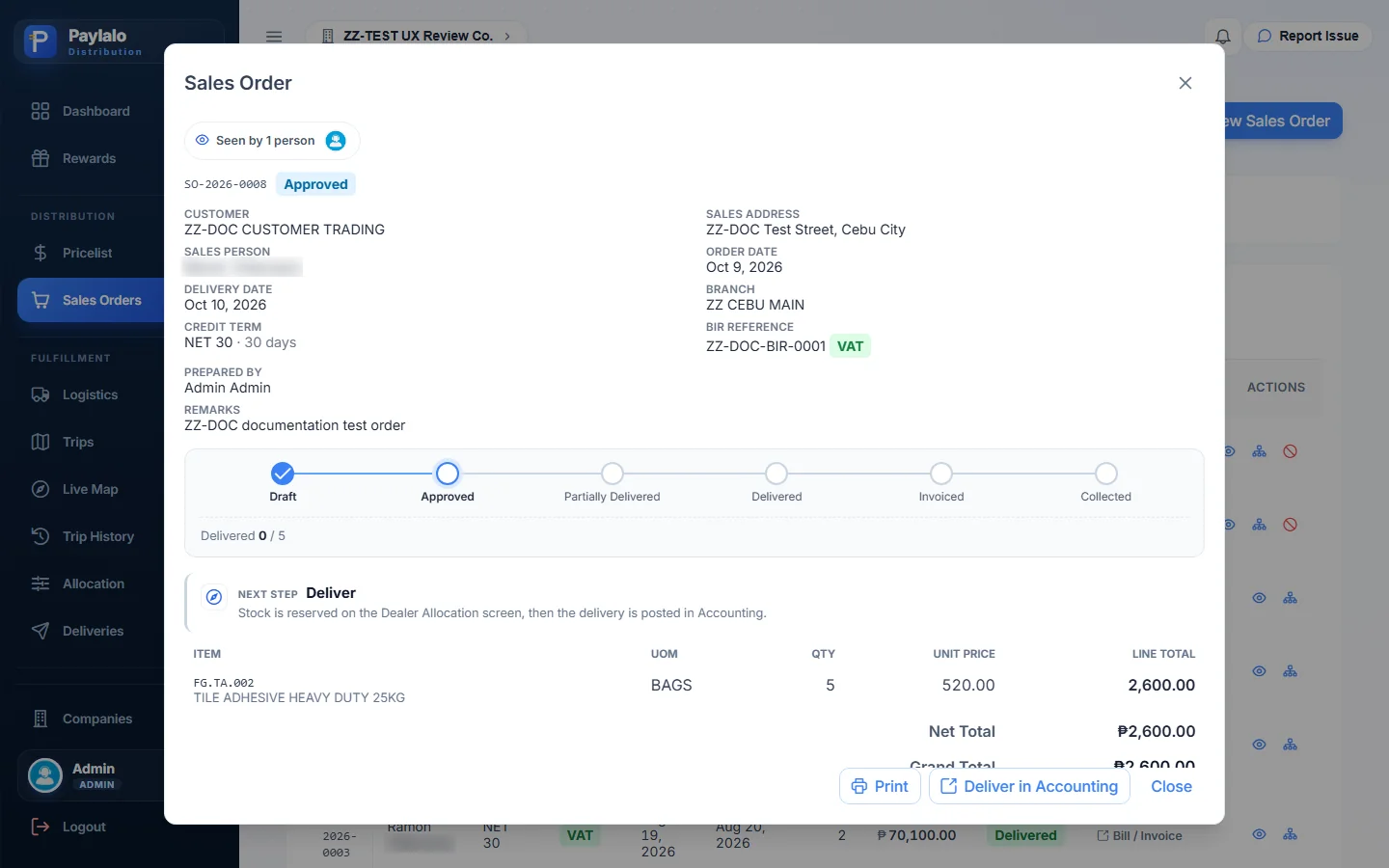
ZZ-DOC-BIR-0001and RemarksZZ-DOC documentation test order. - Tap FG.TA.002 and enter qty 5 at 520.00. The line and the Net Total both show ₱2,600.00.
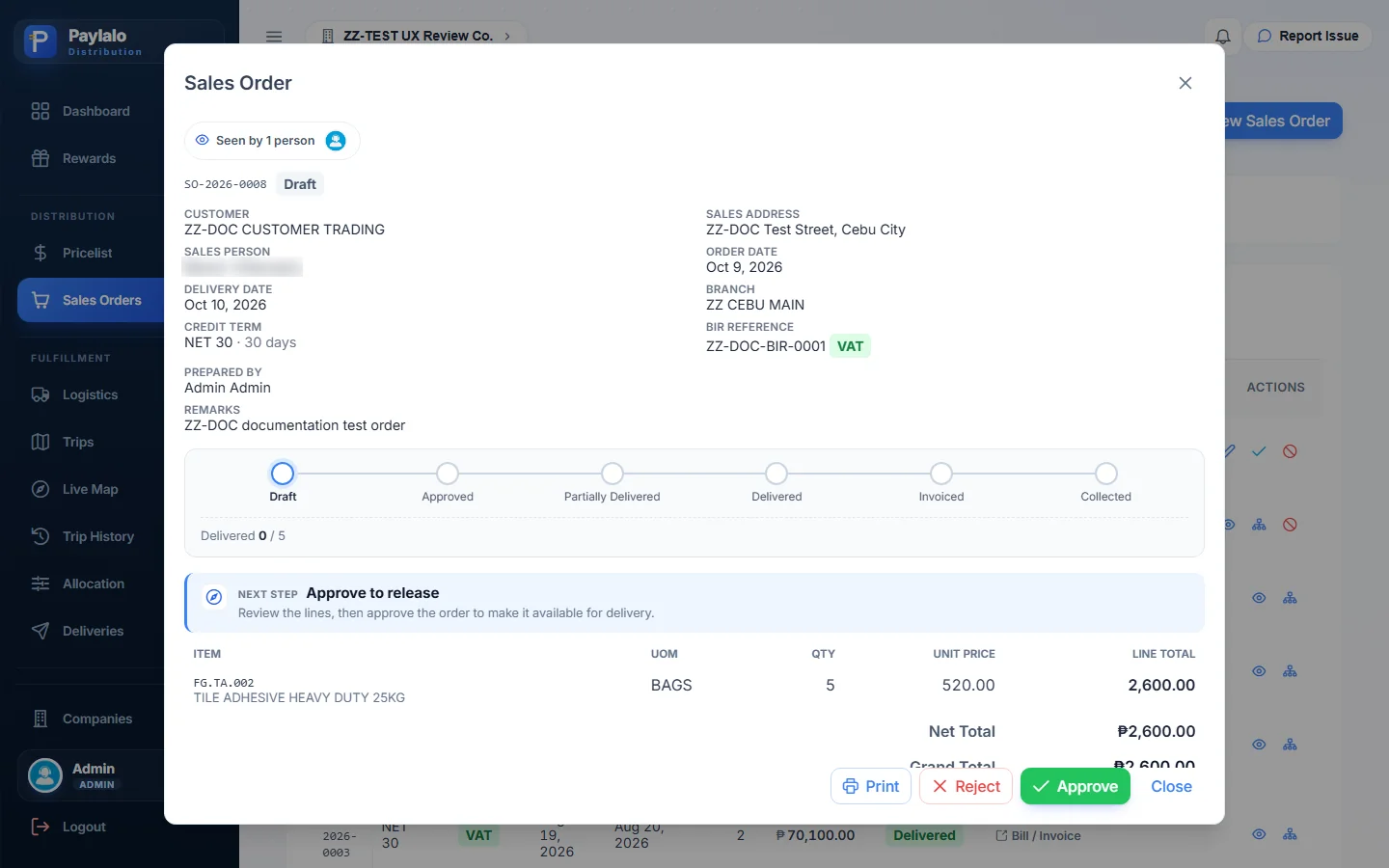
- Press Create Sales Order. The list shows SO-2026-0008, status Draft, VAT, with the next step “Approve to release”.


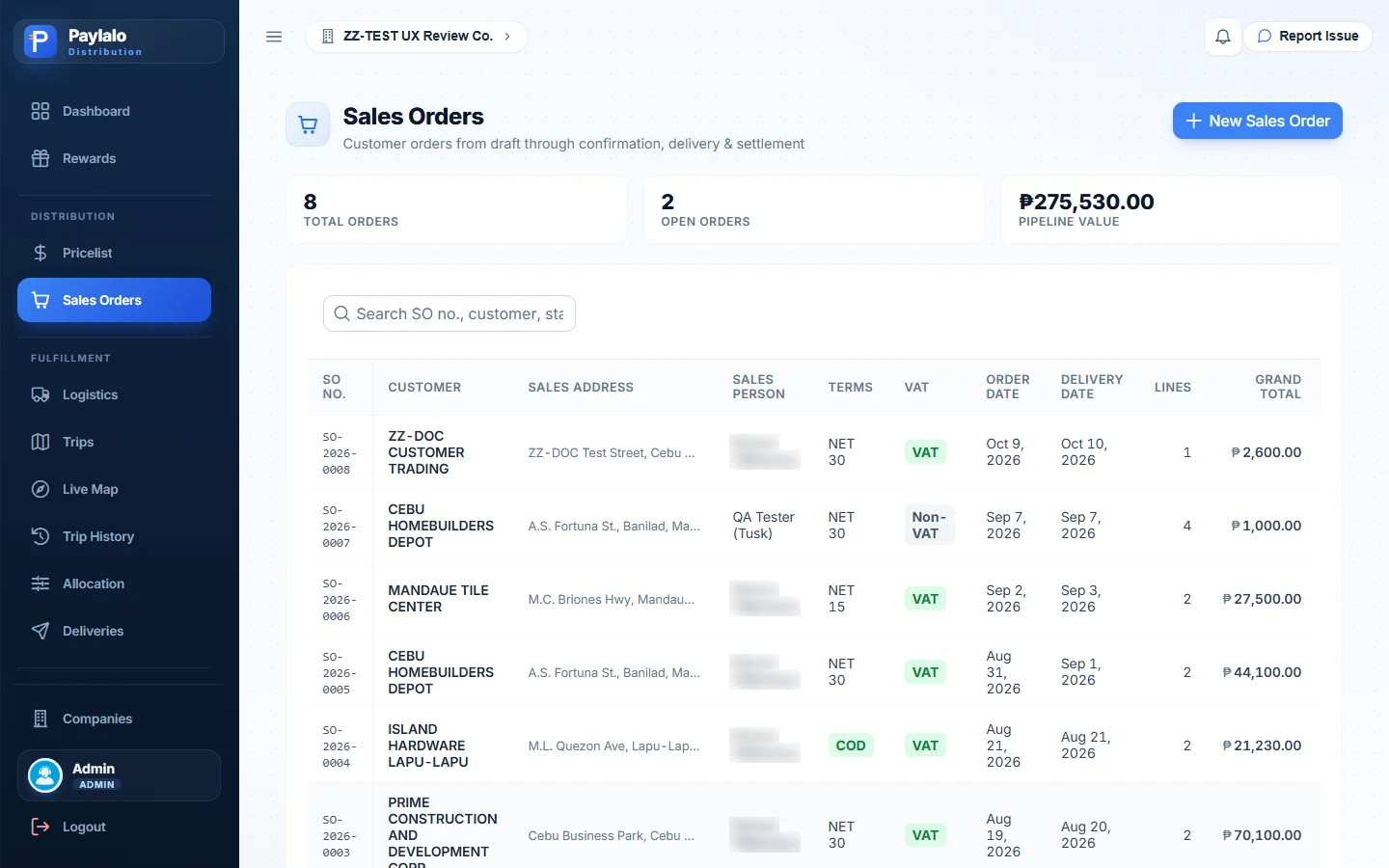
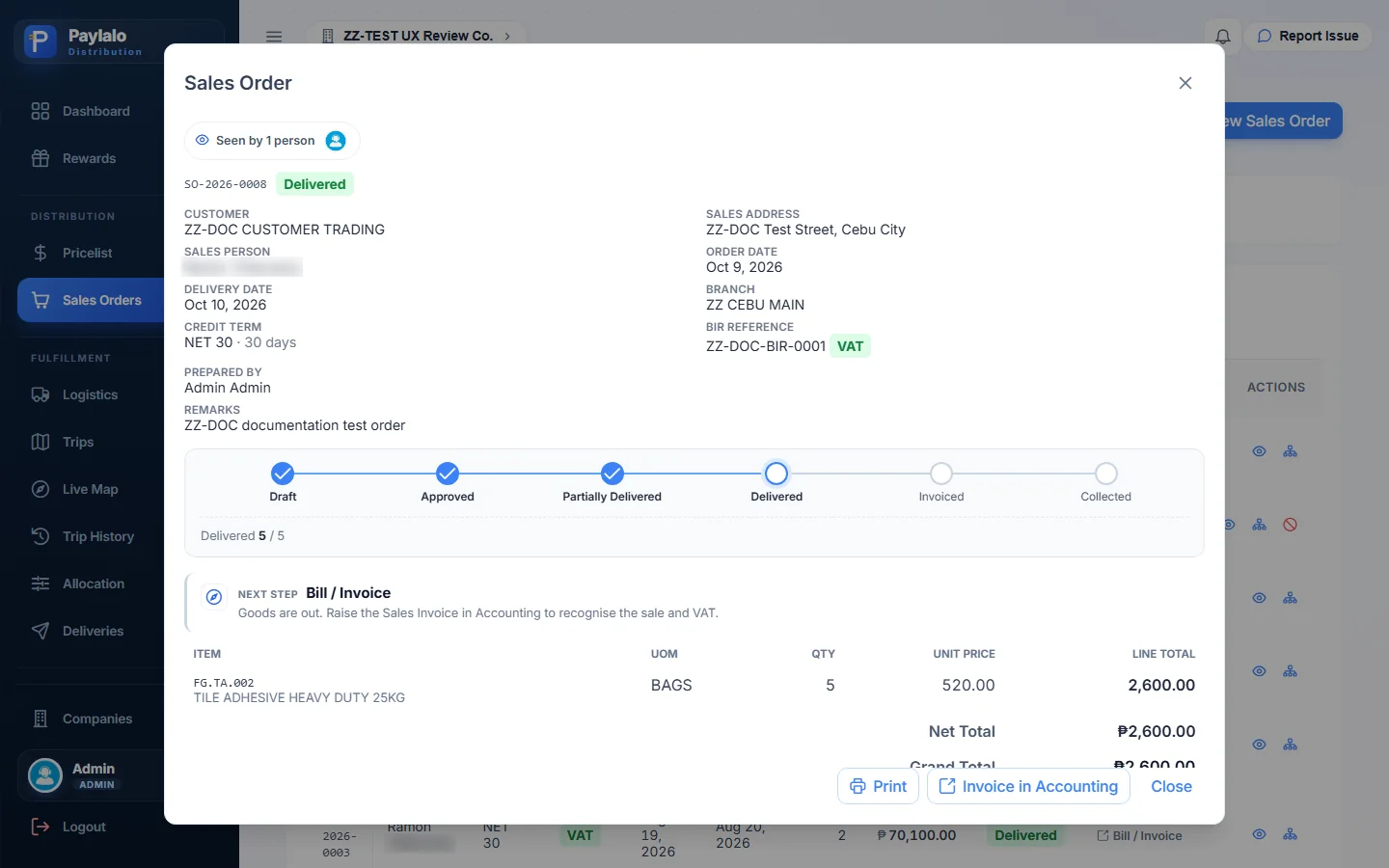
The order view has a stepper (Draft → Approved → Partially Delivered → Delivered → Invoiced → Collected) and a “Delivered n / qty” counter. It also has a Next Step card, the Deliveries document tree, an Activity log (CREATED, APPROVED, FULLY DELIVERED, each with user and time), internal Comments, a Scan2Approve QR code, and Print, Reject and Approve buttons.
Approving it
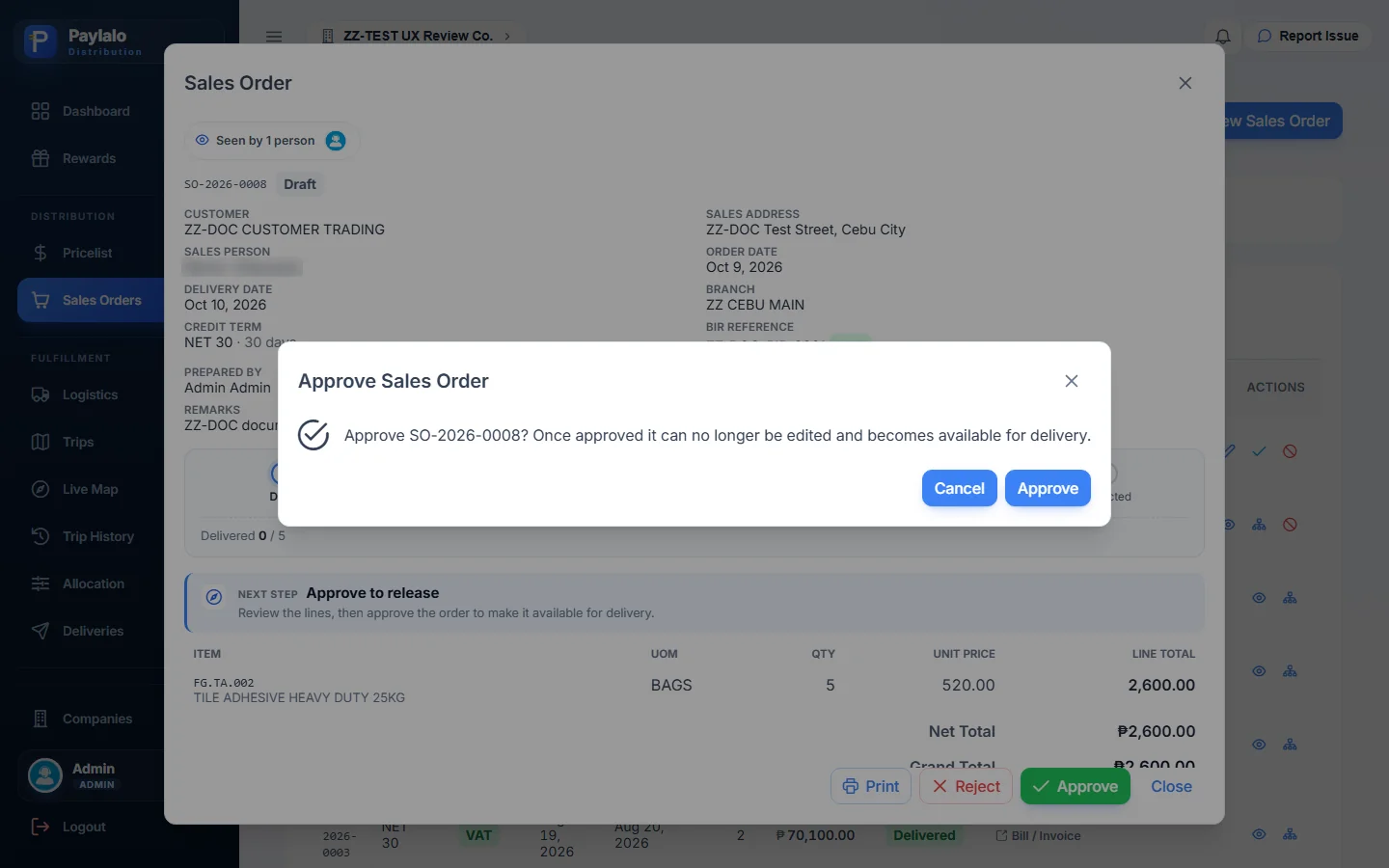
- Open the order with the eye icon and press Approve.
- The confirmation says: “Approve SO-2026-0008? Once approved it can no longer be edited and becomes available for delivery.”
- Once approved, the dialog closes and the row reads Approved · Unallocated, next step “Deliver”. The order view now says “Stock is reserved on the Dealer Allocation screen, then the delivery is posted in Accounting.”
Allocation
Reserving stock for an order
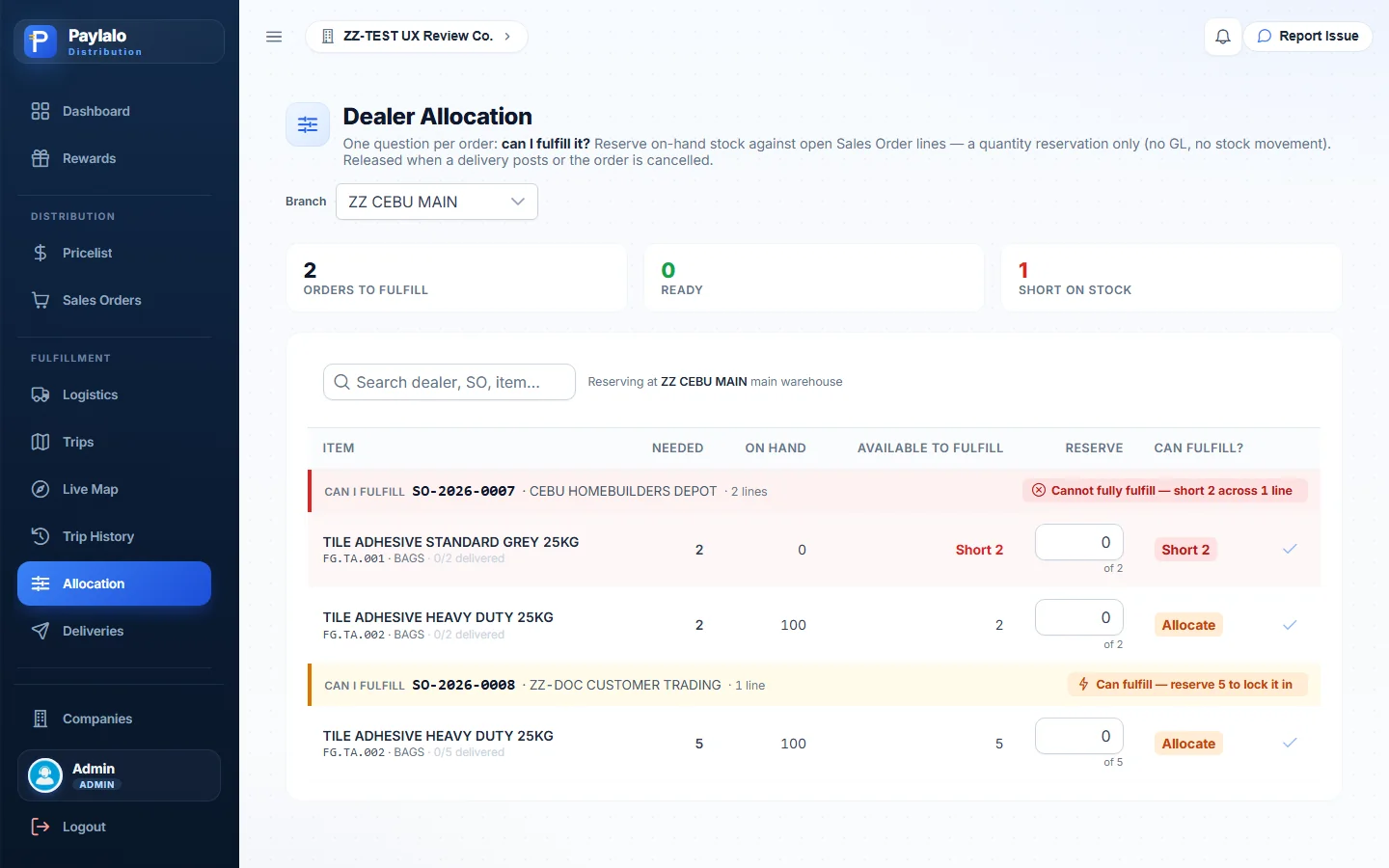
The screen explains itself: “One question per order: can I fulfill it? Reserve on-hand stock against open Sales Order lines — a quantity reservation only (no GL, no stock movement). Released when a delivery posts or the order is cancelled.”
Each approved order lists its open lines with Needed, On hand, Available to fulfill, a Reserve box and a chip that says Allocate, Short n or Ready. The seeded SO-2026-0007 shows “Cannot fully fulfill — short 2 across 1 line” because FG.TA.001 has 0 on hand. My SO-2026-0008 showed “Can fulfill — reserve 5 to lock it in”.
- Type 5 in the Reserve box on the SO-2026-0008 line. The save tick turns on.
- Press it. The toast reads “Allocated 5 on TILE ADHESIVE HEAVY DUTY 25KG.”
- The order header turns green with “Ready to fulfill — fully reserved against on-hand stock”. Available drops from 5 to 0 and the tiles show 1 Ready. In the Sales Orders list the order now reads Approved · Fully Allocated.

Logistics
Creating a delivery receipt (DR)
The DR ships an approved order out of a branch location. The New Delivery dialog spells out the accounting: “Saves the delivery as For Approval — no stock moves and no GL posts yet. After approval, the Supply Chain app releases it against its QR code, which books the goods-issue leg (Dr DR To Be Invoiced per customer / Cr Inventory at WAC). Revenue, VAT and AR are recognized later at invoicing.”
You pick a Sales Order (only Approved or Partial ones are offered). The Credit Term is shown with “Credit checked on create”. Ship-From Branch and Location fill in on their own (ZZ CEBU MAIN / ZZ Main Warehouse). Then there’s Delivery Date, Remarks, Delivery Type (For Pick Up or For Delivery), and the open lines with Ordered Open, On Hand (“100 (5 free)”), Deliver Now and an Availability check.
- In Logistics press New Delivery and pick
SO-2026-0008 — ZZ-DOC CUSTOMER TRADING (Approved). - Enter remarks
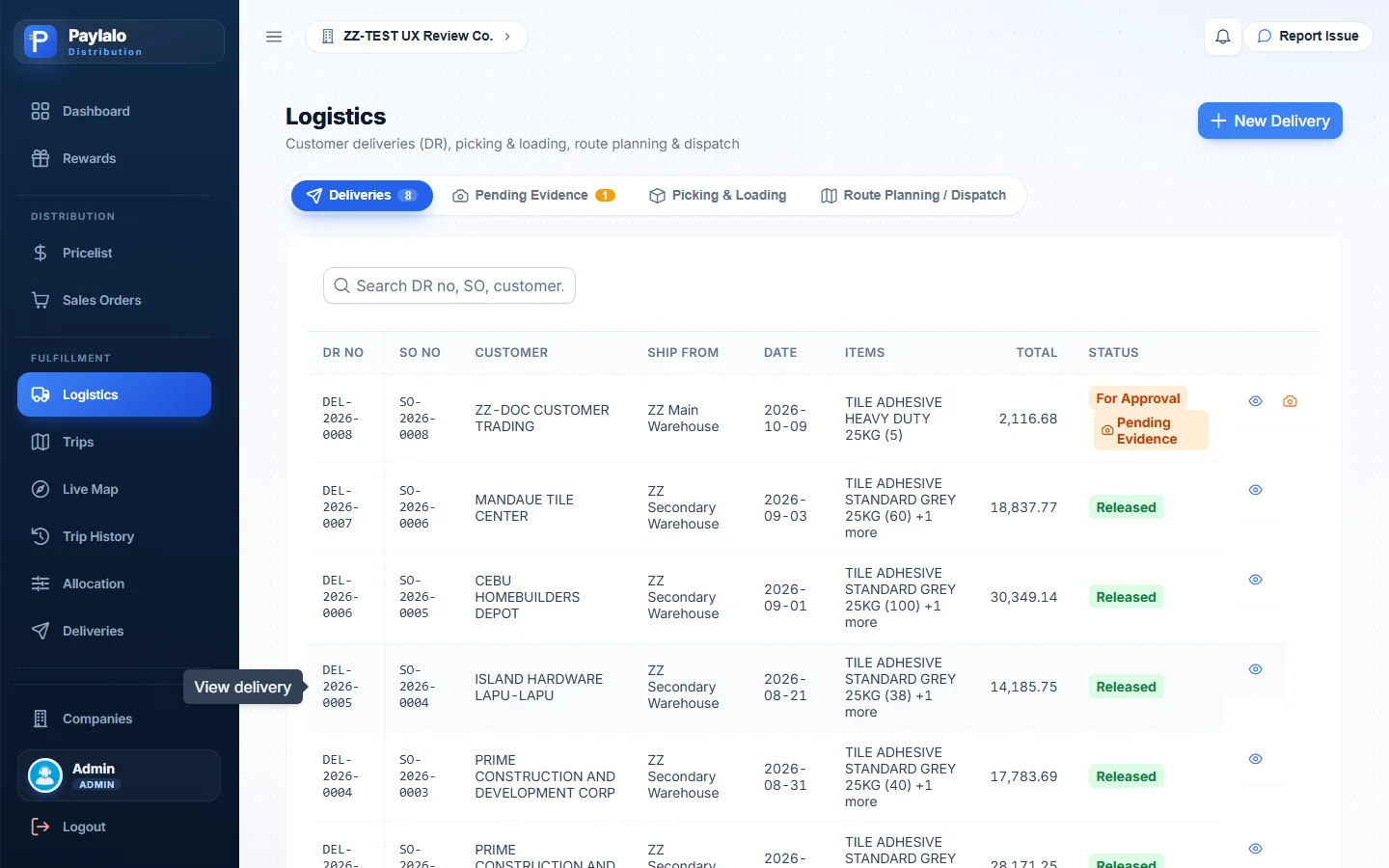
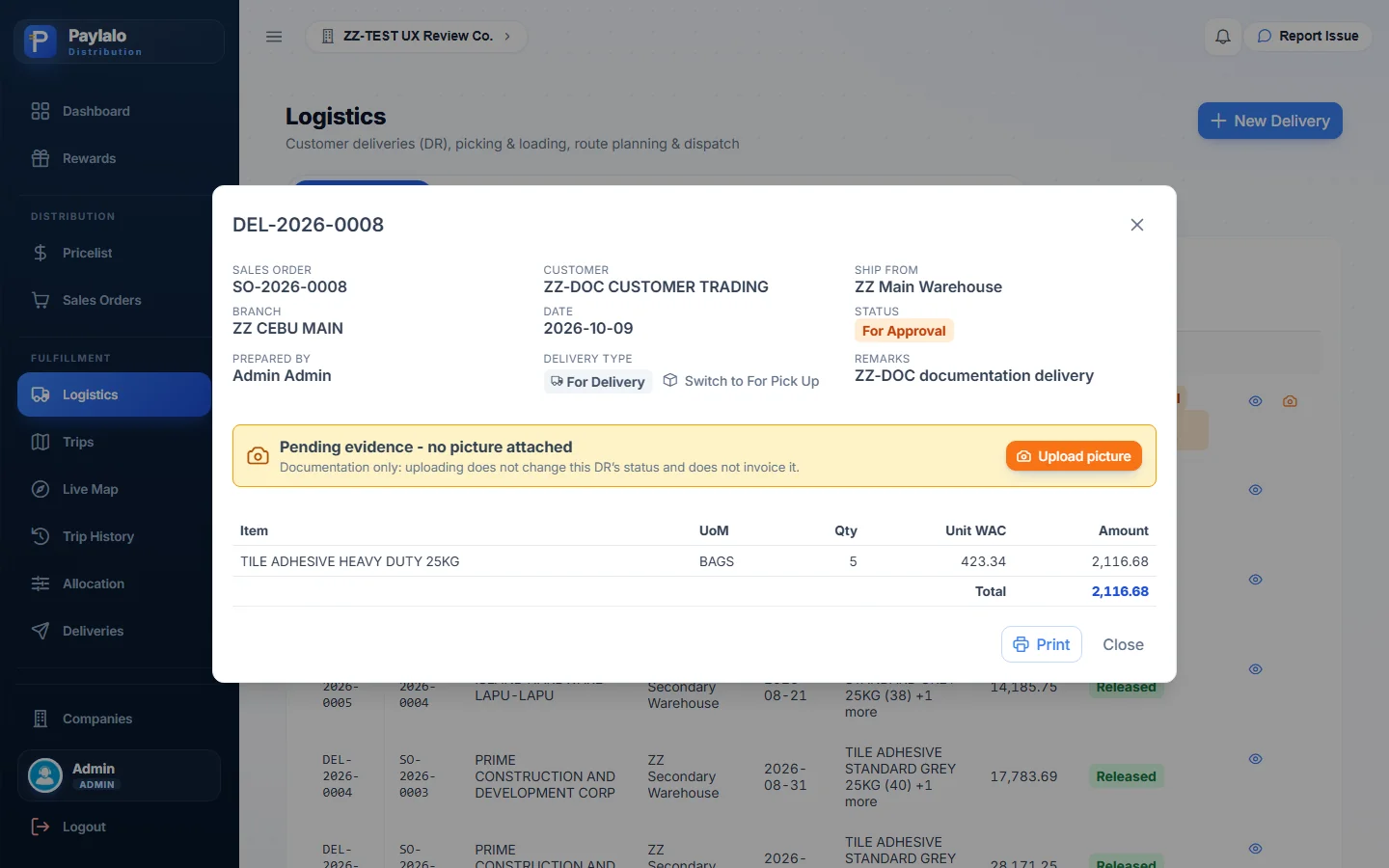
ZZ-DOC documentation delivery, set Delivery Type to For Delivery and Deliver Now to 5. Availability says OK. - Press Create Delivery. DEL-2026-0008 appears as For Approval · Pending Evidence, total 2,116.68. That’s 5 × the unit WAC of 423.34 at the ship-from location, so it’s the cost value, not the selling value.
The DR view shows the header, a “Switch to For Pick Up” toggle, the lines at unit WAC and a Print button. There’s also an Upload picture area that says “Documentation only: uploading does not change this DR’s status and does not invoice it”.


Pending Evidence, Picking & Loading, Route Planning
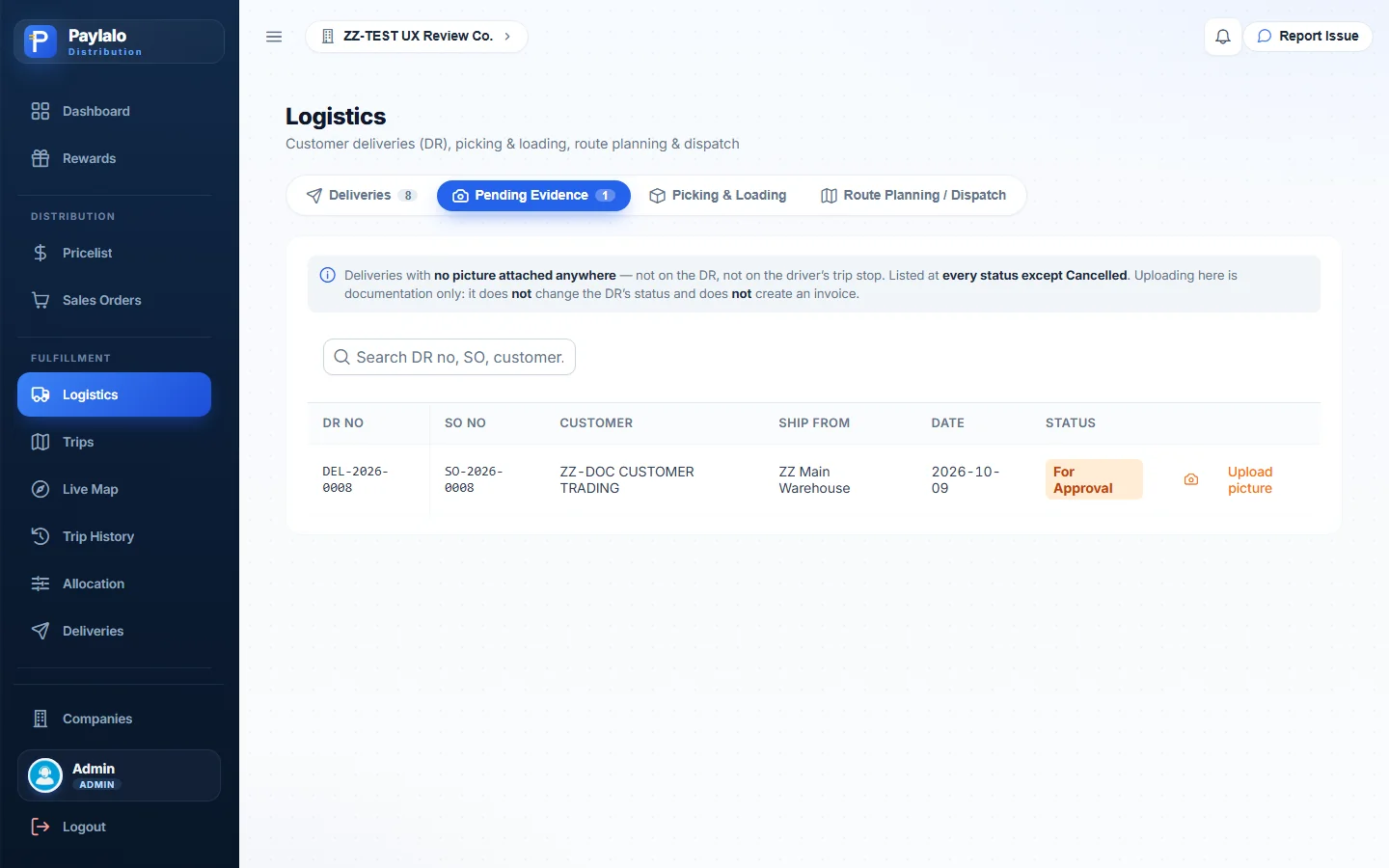
Pending Evidence lists DRs “with no picture attached anywhere — not on the DR, not on the driver’s trip stop”. DEL-2026-0008 showed up there with an Upload picture action.
Picking & Loading holds Pick Lists and Cycle Counts, both at 0 in this company, plus a New Pick List button.
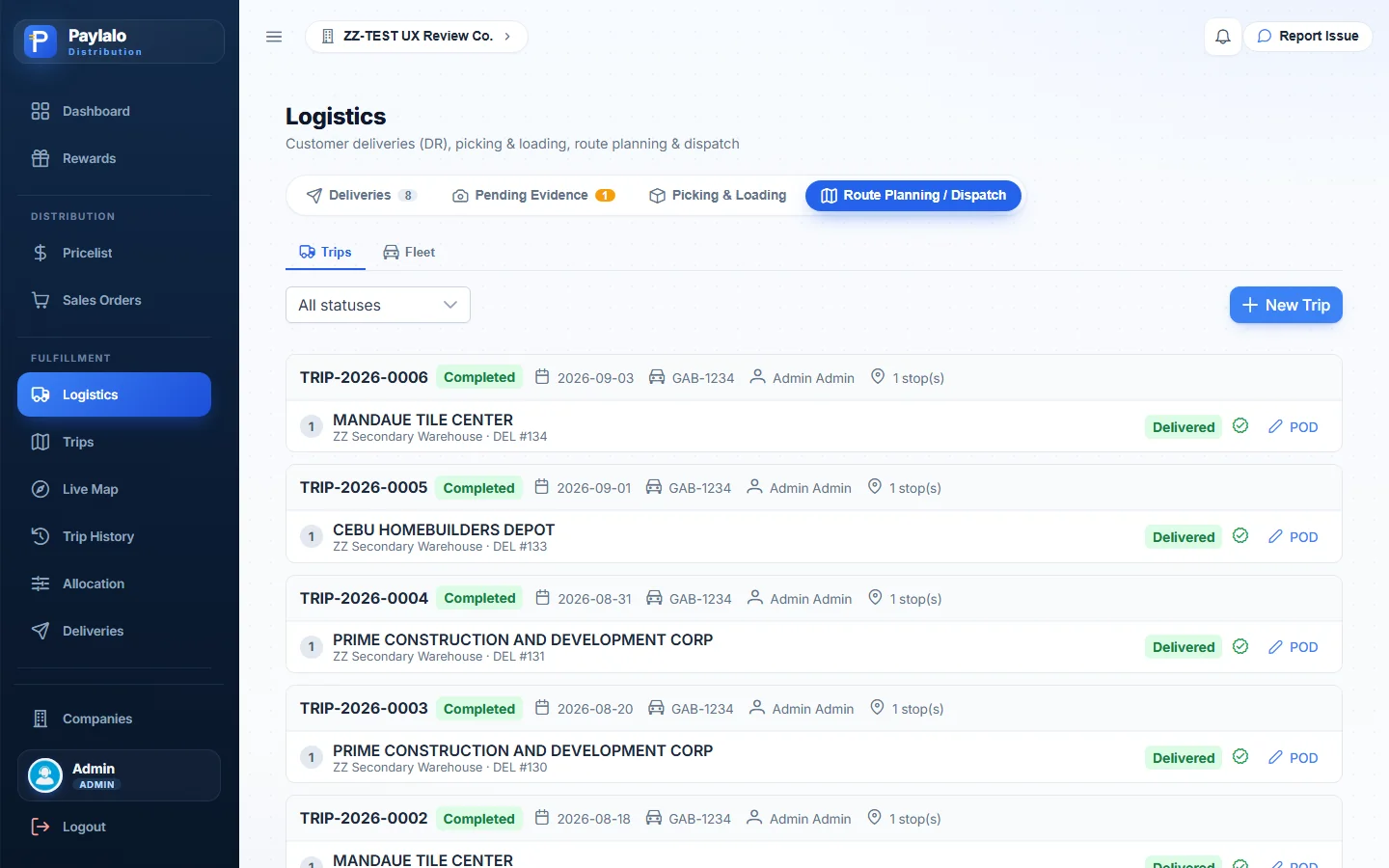
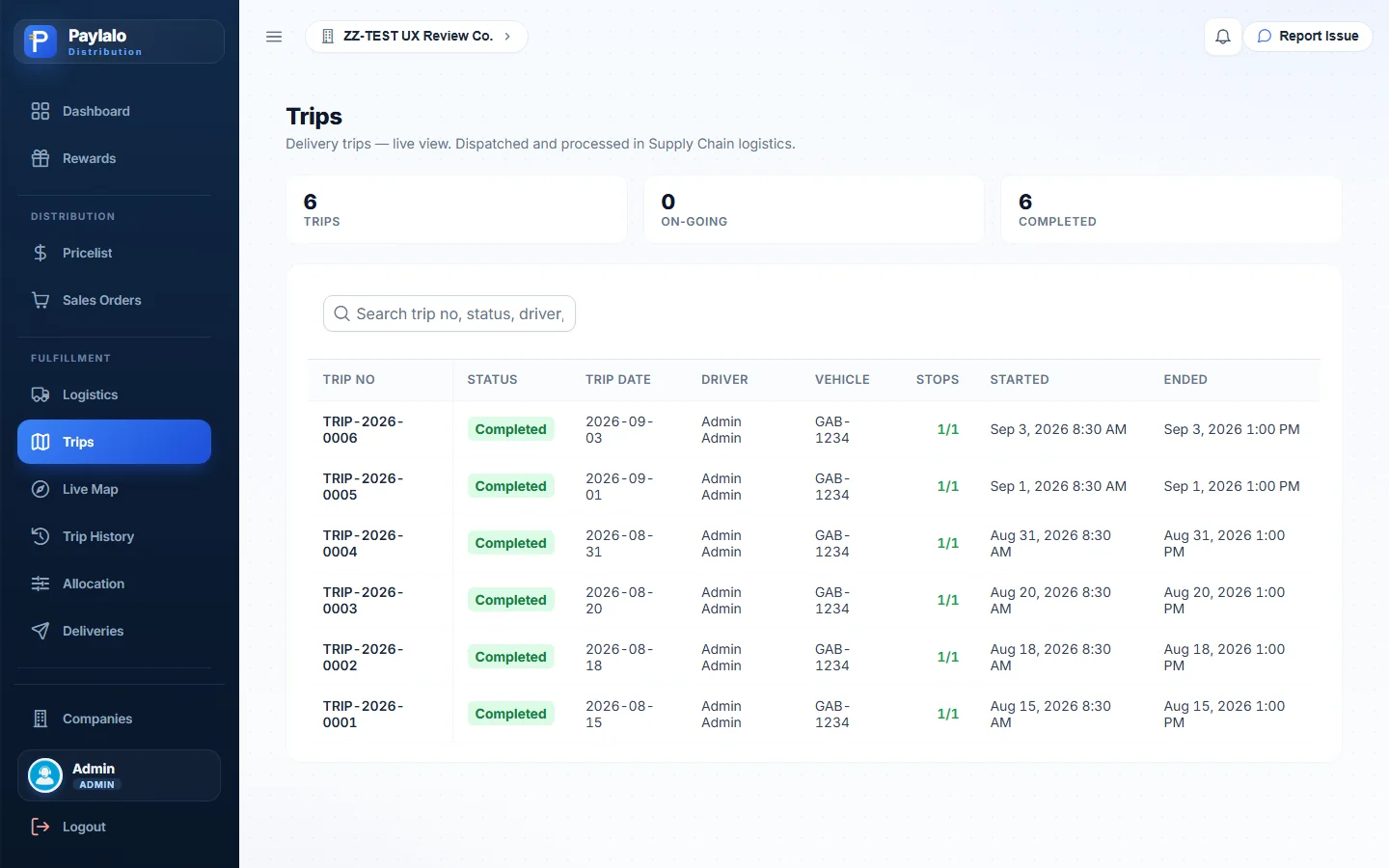
Route Planning / Dispatch shows trips as cards. TRIP-2026-0001 to 0006 are all Completed, on vehicle GAB-1234, one stop each with Delivered and POD chips. There’s also a Fleet tab and a New Trip button.
Approving and posting a delivery
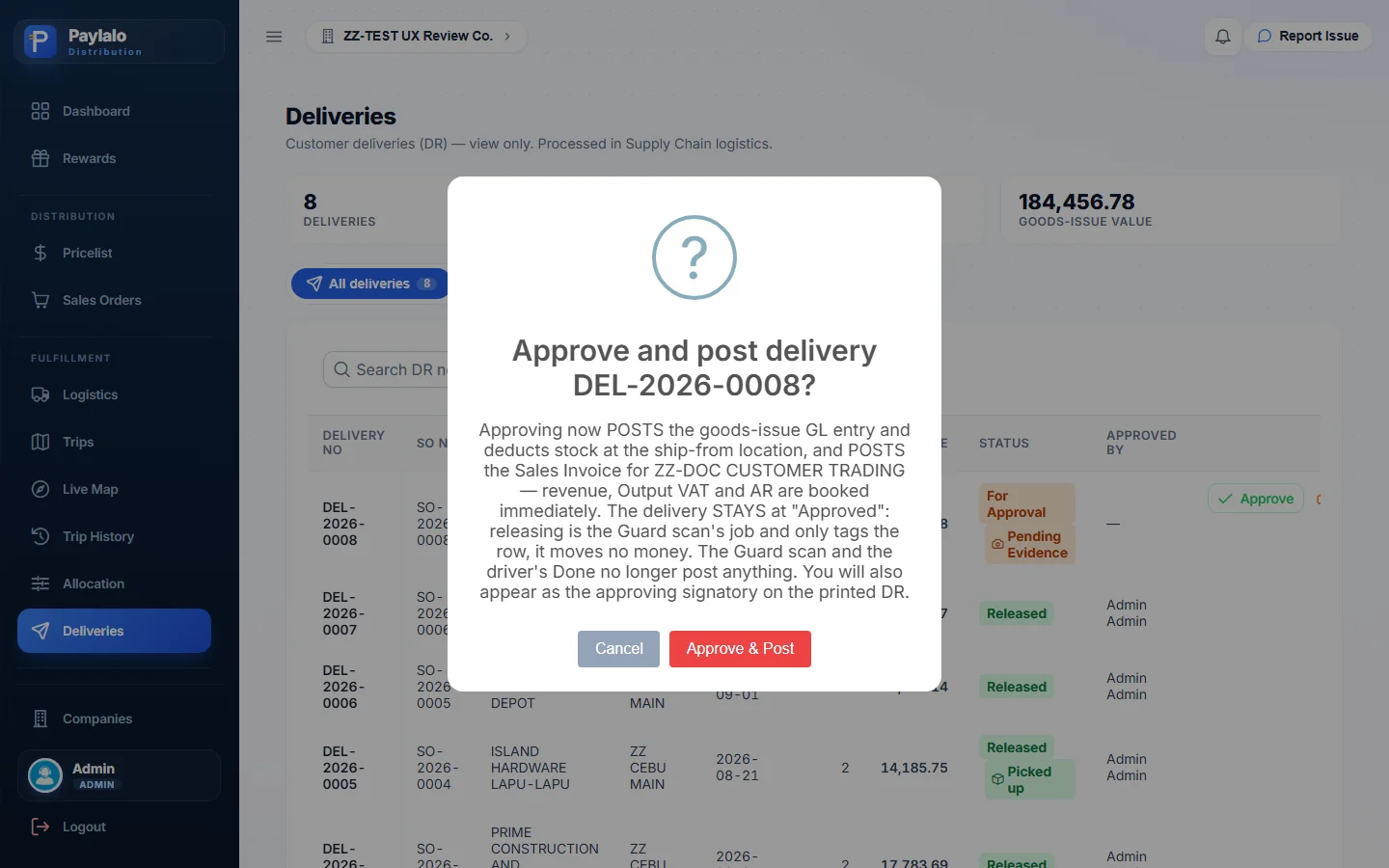
The Deliveries screen is marked “view only — processed in Supply Chain logistics” for the rest of the lifecycle, but it’s where you approve a DR that’s For Approval. The confirmation is clear about what will move: “Approving now POSTS the goods-issue GL entry and deducts stock at the ship-from location, and POSTS the Sales Invoice for ZZ-DOC CUSTOMER TRADING — revenue, Output VAT and AR are booked immediately. The delivery STAYS at ‘Approved’: releasing is the Guard scan’s job and only tags the row, it moves no money. The Guard scan and the driver’s Done no longer post anything. You will also appear as the approving signatory on the printed DR.”
- In Deliveries, press Approve on DEL-2026-0008, then Approve & Post.
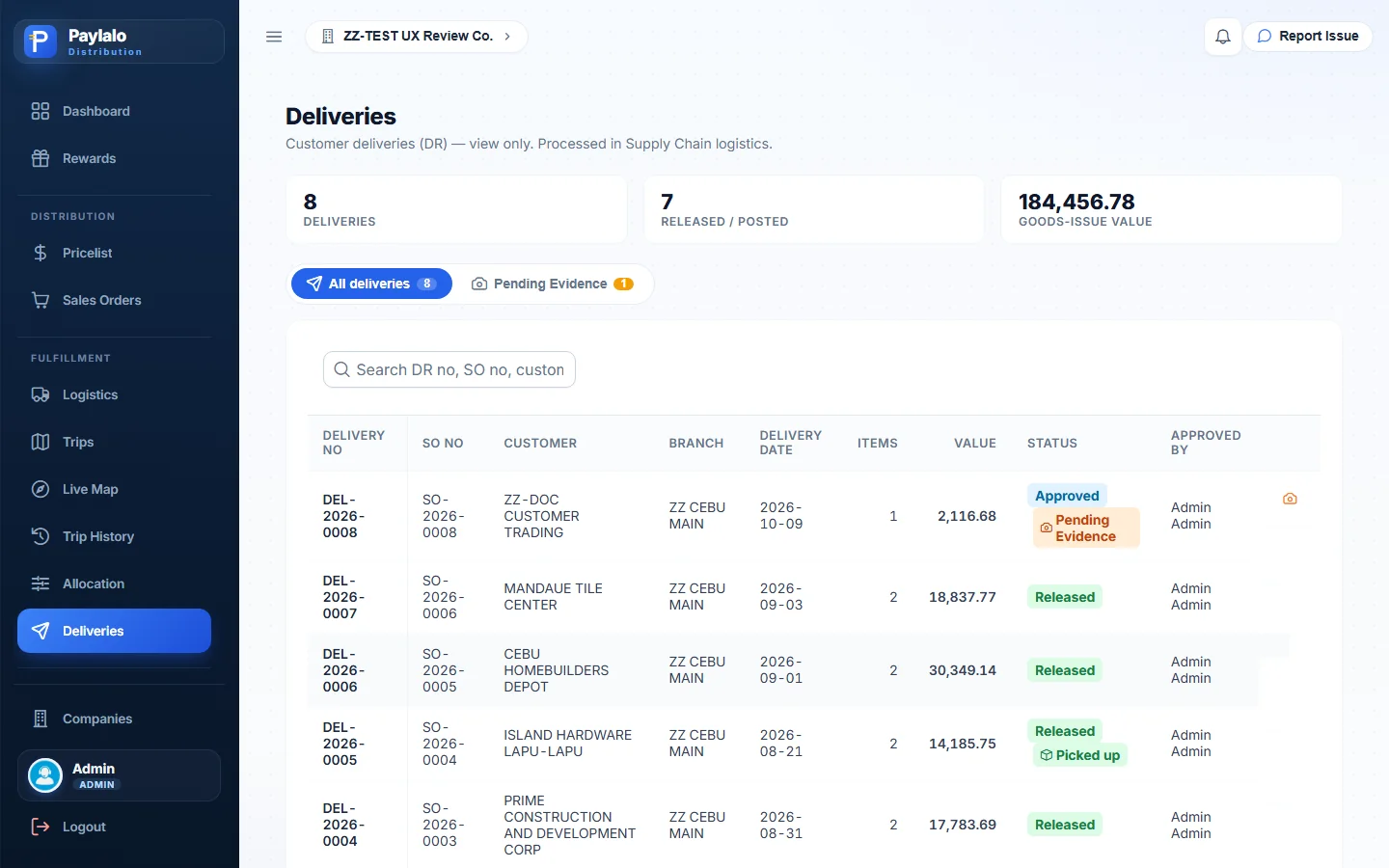
- The row changes to Approved · Pending Evidence, approved by Admin Admin.
Right after that, SO-2026-0008 moved to Delivered 5 / 5 and its Activity log got a FULLY DELIVERED entry. Its document tree showed DEL-2026-0008 · Approved · 1 invoice, and SI-2026-0010 appeared in the Invoices list.
Trips, Live Map and Trip History
Trips
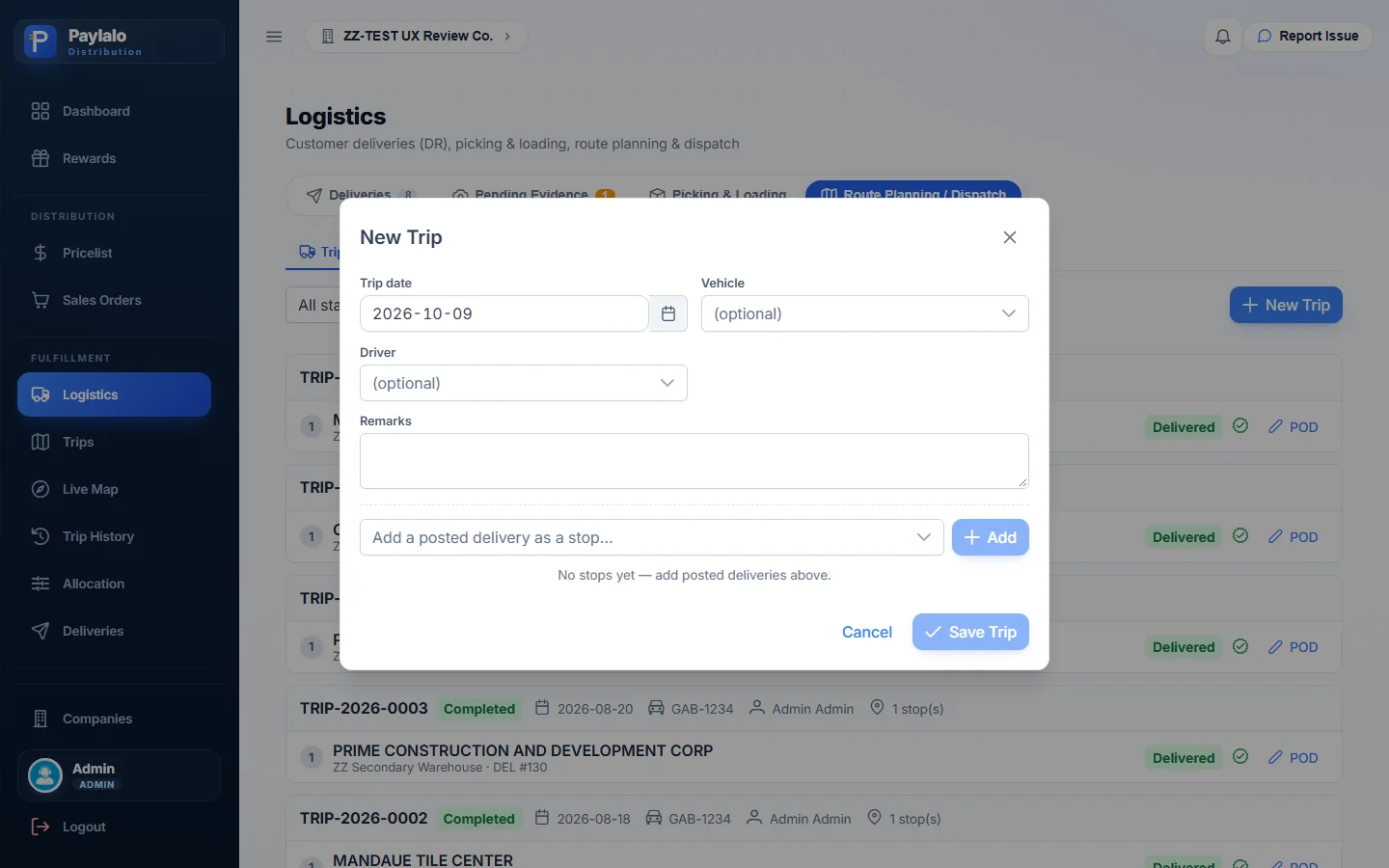
You build a trip from Route Planning → New Trip. It takes a trip date, a vehicle (GAB-1234 — Isuzu ELF Dropside), a driver (Admin Admin), remarks, and stops chosen from “Add a posted delivery as a stop…”. The stop picker only offered the seven Released deliveries, DEL-2026-0001 to 0007. DEL-2026-0008 was Approved but not yet Released, so it wasn’t there and I couldn’t build a trip for it in this session (more under the testing notes). The Trips screen lists each trip with driver, vehicle, stops done/total and start and end times. It says trips are “Dispatched and processed in Supply Chain logistics”.
Live Map
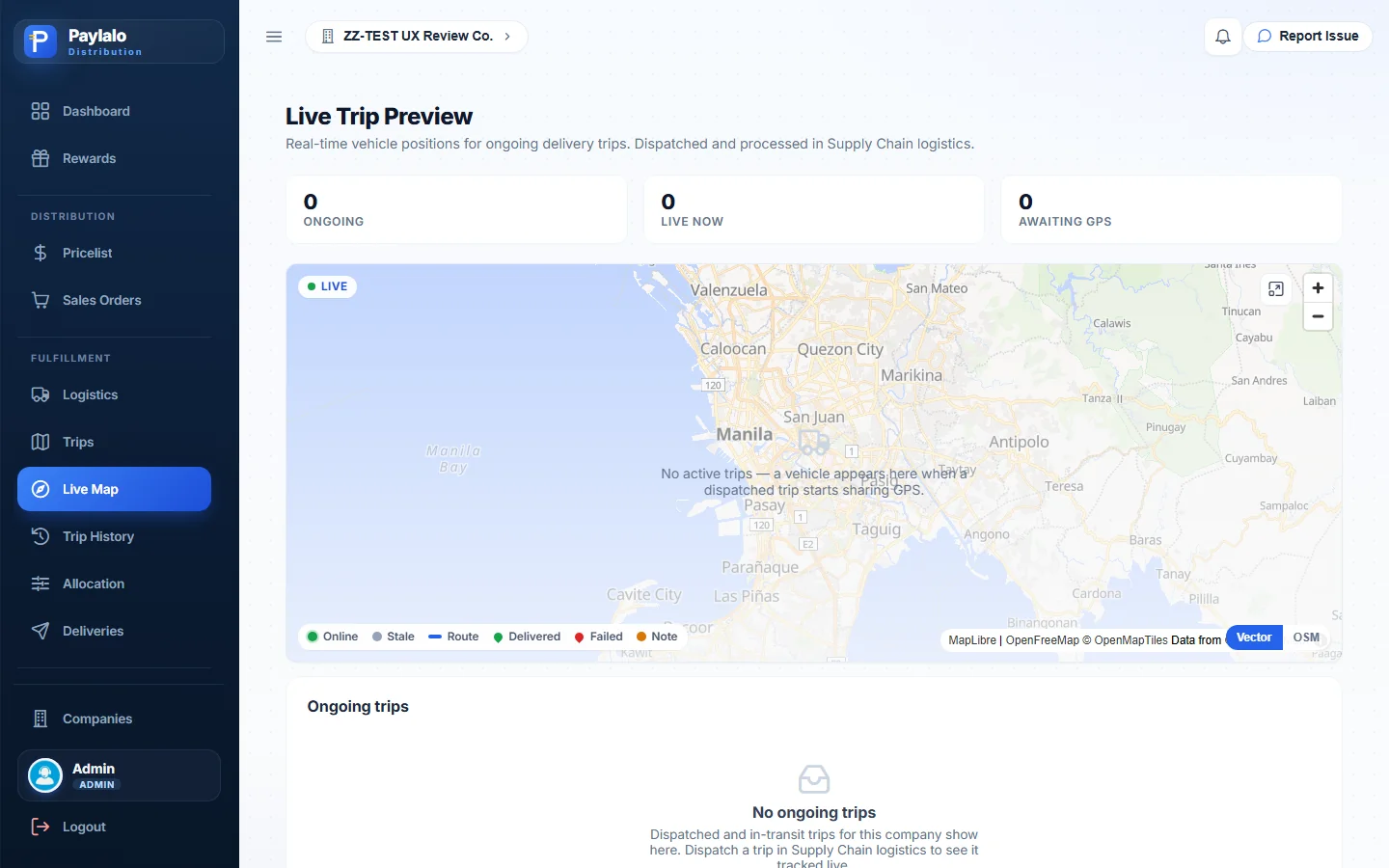
This page shows “Real-time vehicle positions for ongoing delivery trips” on a MapLibre / OpenFreeMap map. The legend has Online, Stale, Route, Delivered, Failed and Note, and you can switch between Vector and OSM base layers. With no trip out, it read 0 ongoing, 0 live now, 0 awaiting GPS, and “a vehicle appears here when a dispatched trip starts sharing GPS.”
Trip History
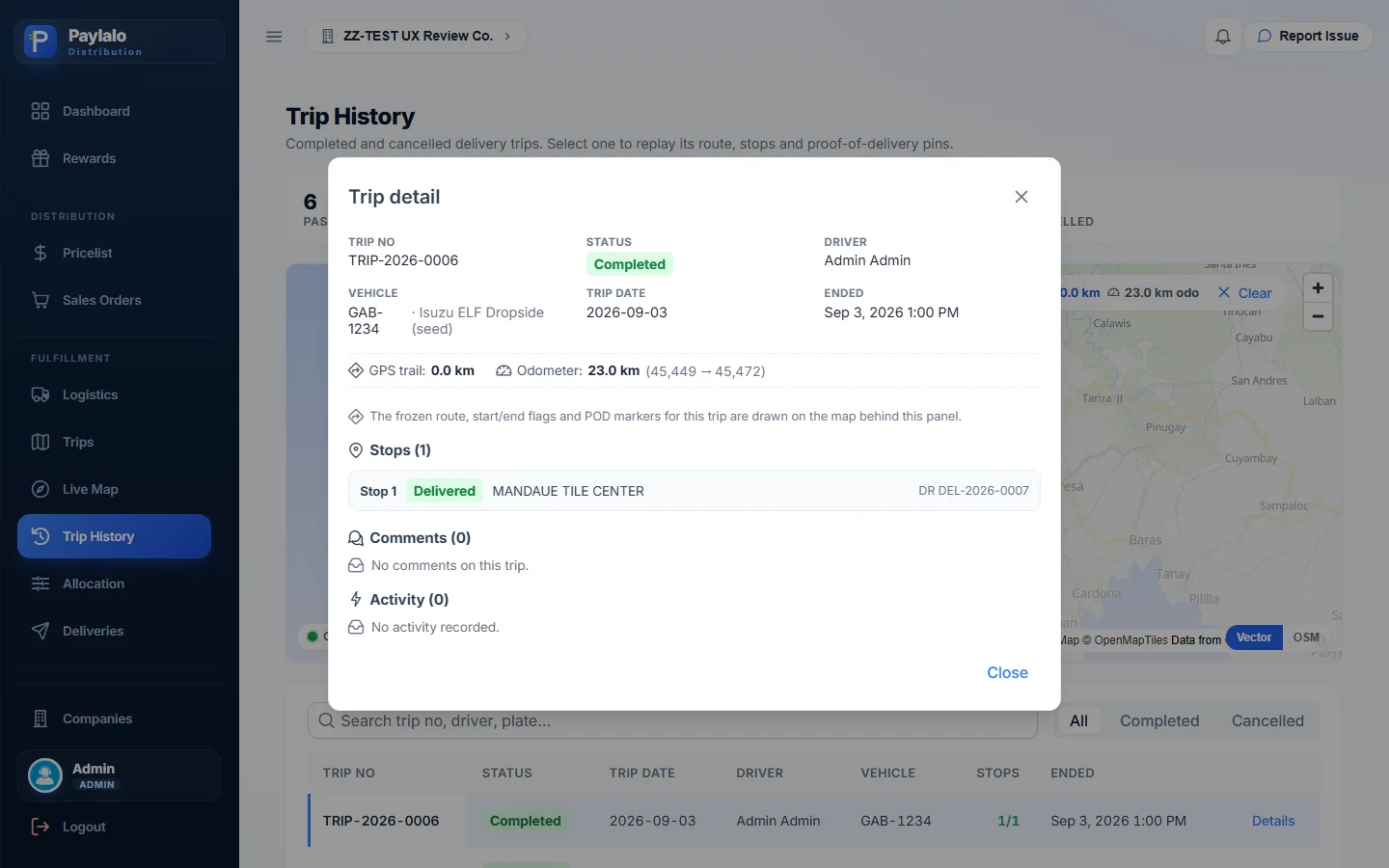
This lists completed and cancelled trips. Details opens a panel with the trip no, status, driver, vehicle, trip date, end time, GPS trail in km, odometer start and end, stops with a Delivered chip and DR number, comments and activity. The map behind it replays the saved route and POD pins. TRIP-2026-0006 had an odometer reading of 23.0 km (45,449 to 45,472) and no GPS trail.
Invoices
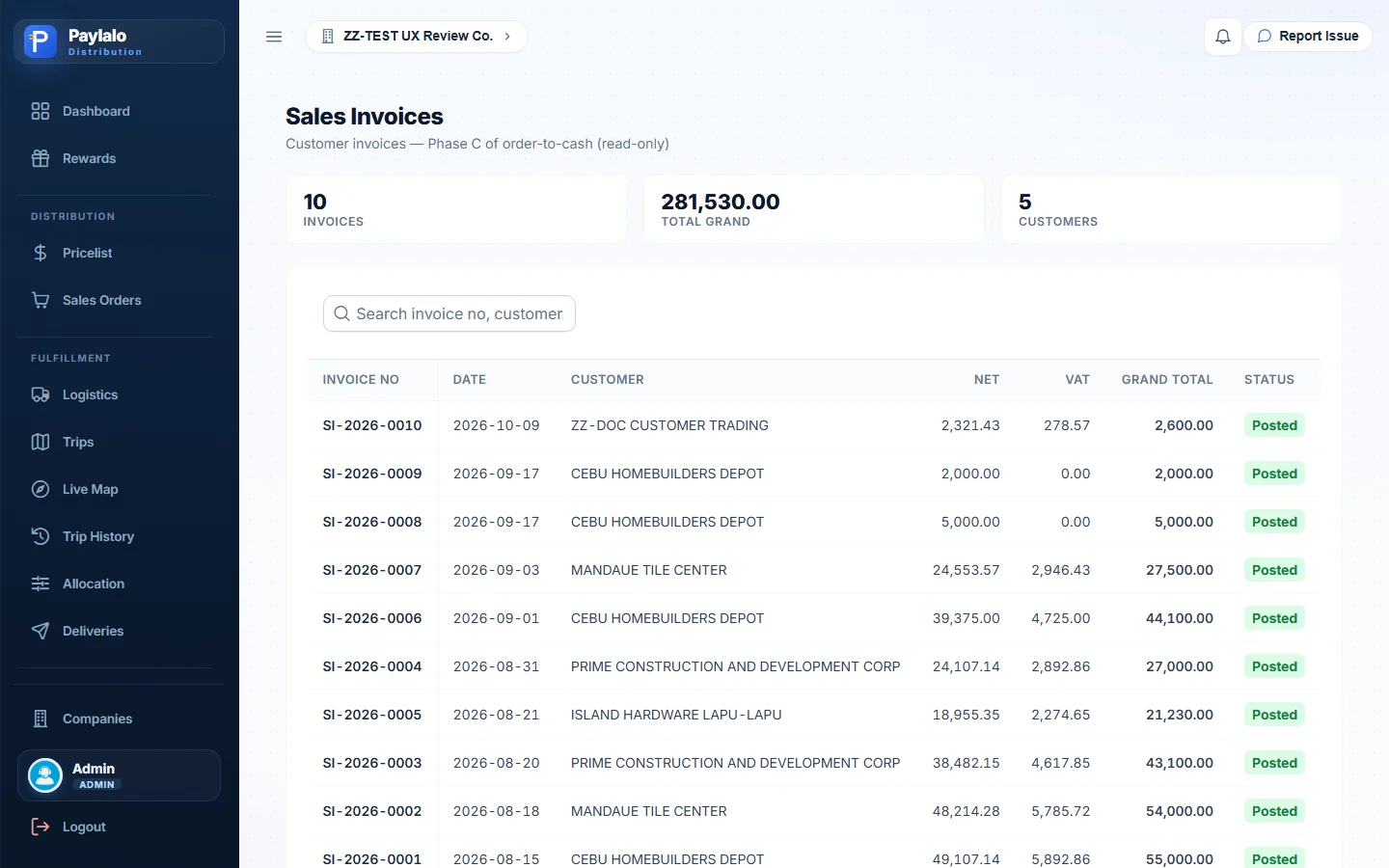
In DMS, invoices are “Phase C of order-to-cash (read-only)”. They come from the delivery approval (or from Accounting) and are listed with date, customer, net, VAT, grand total and status.
SI-2026-0010 for ZZ-DOC CUSTOMER TRADING is Posted and dated 2026-10-09, with BIR Reference ZZ-DOC-BIR-0001. Admin Admin prepared and posted it. It has one line, 5 bags at 520.00: Net 2,321.43, VAT 278.57, Gross 2,600.00. So at invoicing the ₱520 price is treated as VAT-inclusive (2,600 ÷ 1.12 = 2,321.43), while the SO carried ₱2,600 as a net-only figure. The invoice view has its own Scan2Approve QR and Print button.

Statement of Account
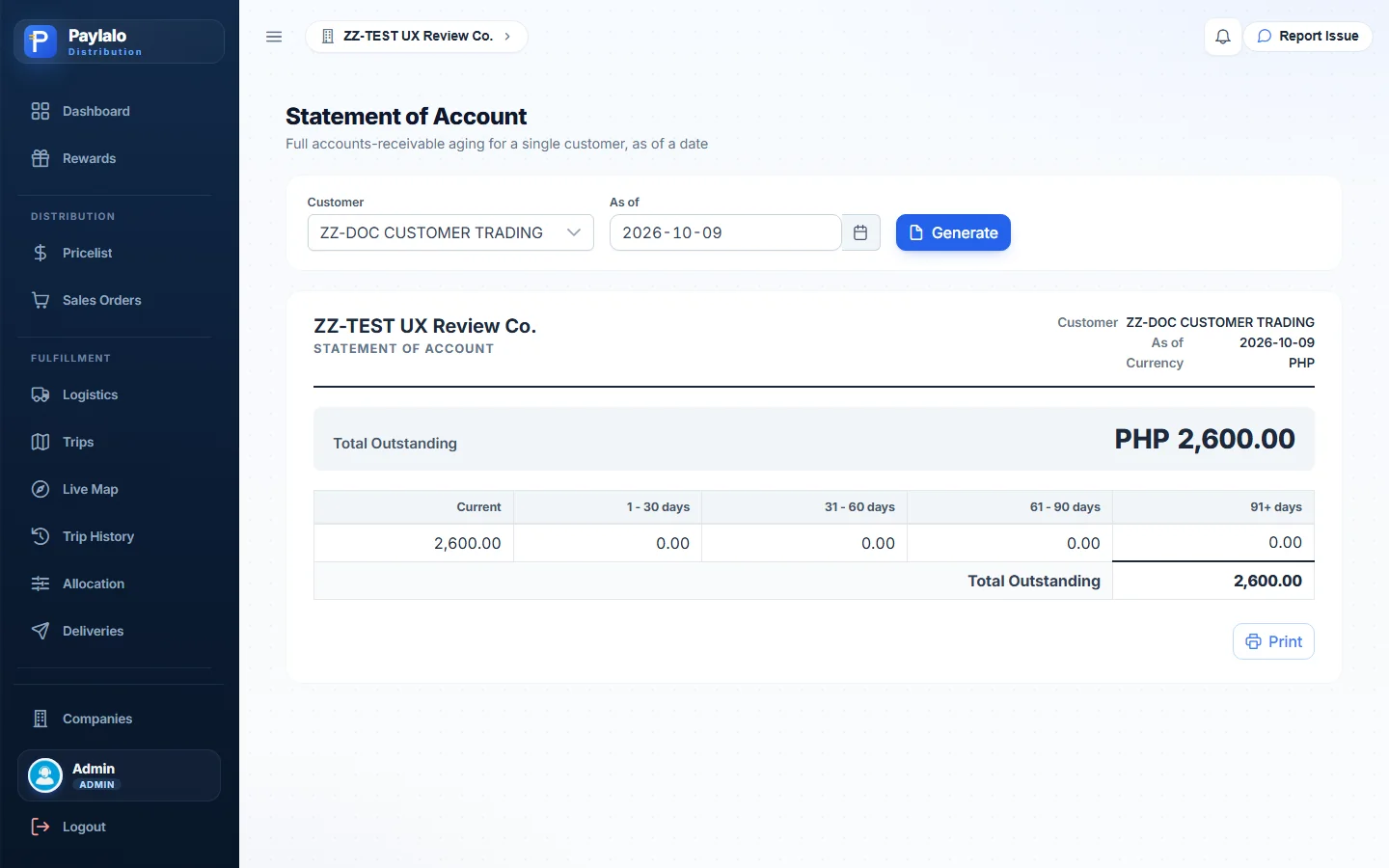
Pick a customer and an as-of date, then press Generate. The statement prints the company header, customer, as-of date, currency, Total Outstanding and the aging buckets: Current, 1-30, 31-60, 61-90 and 91+ days. For ZZ-DOC CUSTOMER TRADING as of 2026-10-09 it showed PHP 2,600.00, all Current. That’s the open SI-2026-0010 on NET 30 terms.
Reconciliation
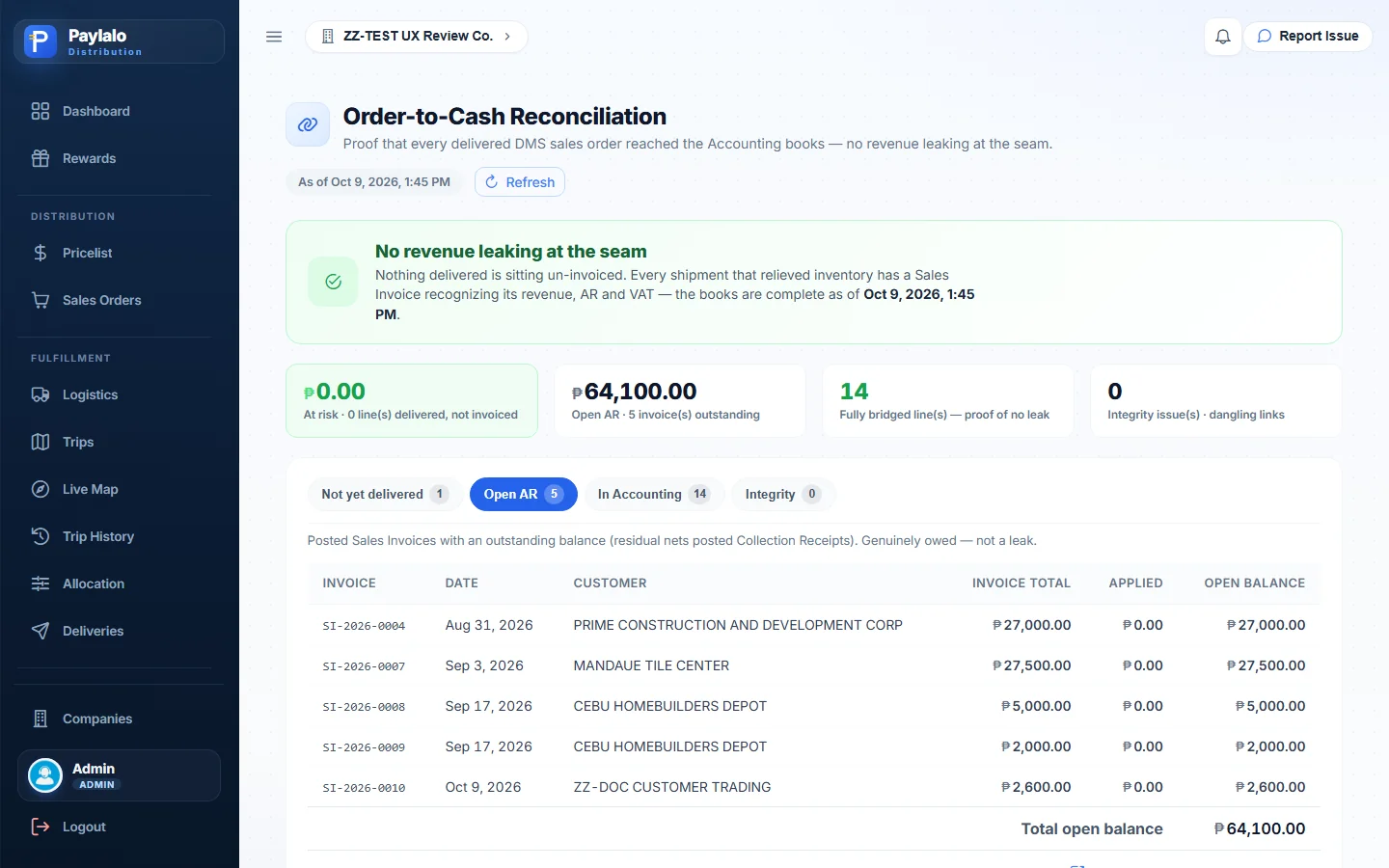
The screen’s own description: “Proof that every delivered DMS sales order reached the Accounting books — no revenue leaking at the seam.” It has a tile and a tab for each of four checks, plus one extra tab:
- At risk counts delivered lines with no invoice. It was ₱0.00, 0 lines.
- Open AR lists outstanding invoices: 5 invoices, ₱64,100.00 after my test, with SI-2026-0010 for ₱2,600.00 among them.
- In Accounting shows fully bridged lines, where “the delivery’s cost and the invoice’s revenue are both posted and linked”. There were 14, each row reading DELIVERY → SO → customer → item → qty → INVOICE.
- Integrity looks for “invoice/delivery link rows pointing at a missing record (no FK enforces these). Should normally be empty.” It reported “No dangling links — the bridge is structurally sound.”
- Not yet delivered lists approved orders that haven’t shipped (SO-2026-0007). It’s for information only, “not a leak until delivered”.
The banner said “No revenue leaking at the seam” before and after my test. The bridged count stayed at 14. The bridge counts released deliveries, and DEL-2026-0008 is Approved but not Released, so it should join once the guard scan releases it.


Reports
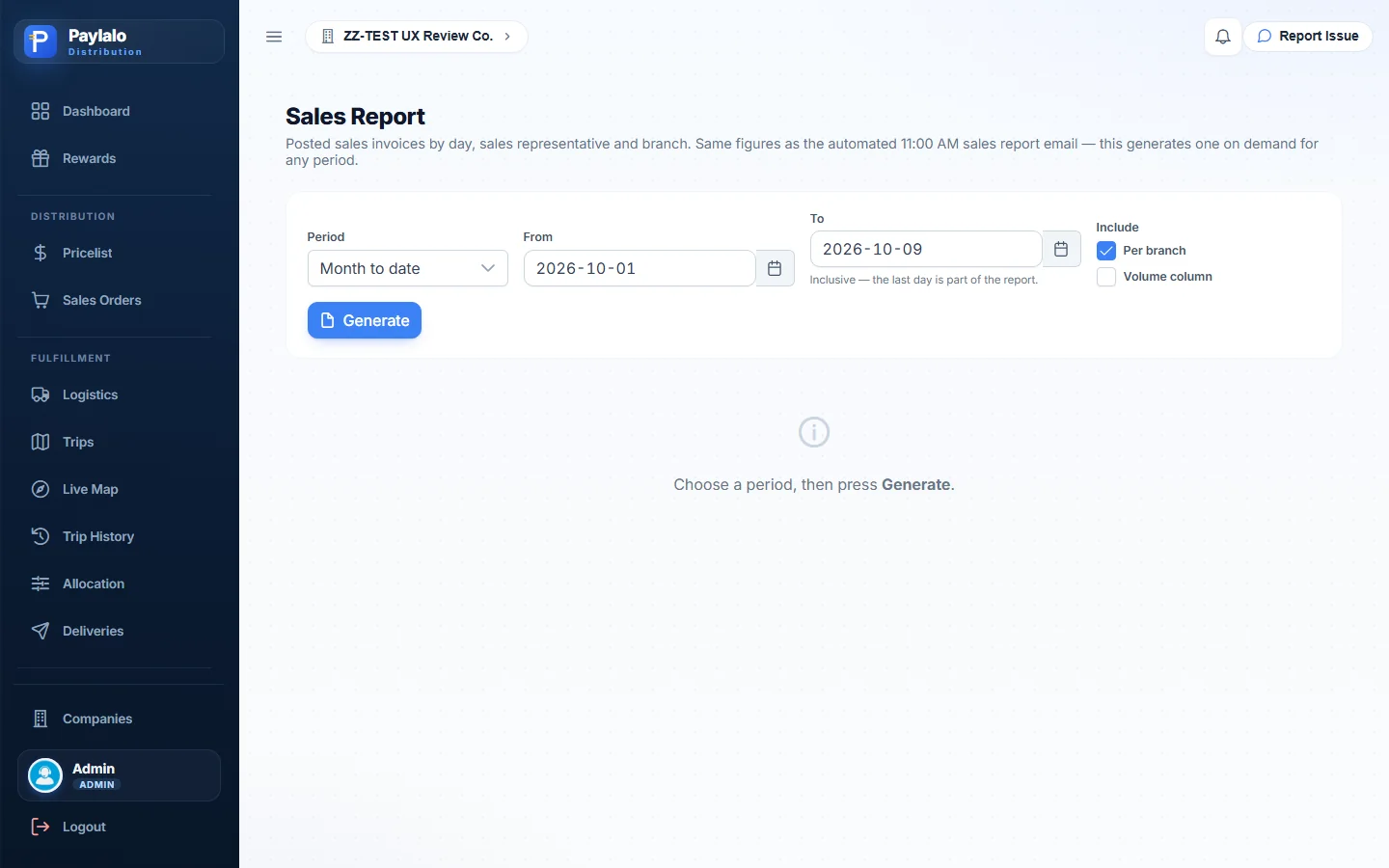
- The Sales Report shows posted invoices by day, sales rep and branch, with the “same figures as the automated 11:00 AM sales report email”. It runs for any period, with optional per-branch and volume columns.
- The Collection Report lists collection receipts with mode of payment, the month-to-date summary and a per-branch tie-out. It matches the 10:00 AM email.
- GP per Invoice and GP per Product show gross profit on posted invoices, by invoice date and net of VAT. You can filter by customer and sales person and include unposted drafts. For 1 to 9 Oct 2026 it correctly said there were no posted invoices when I first opened it.
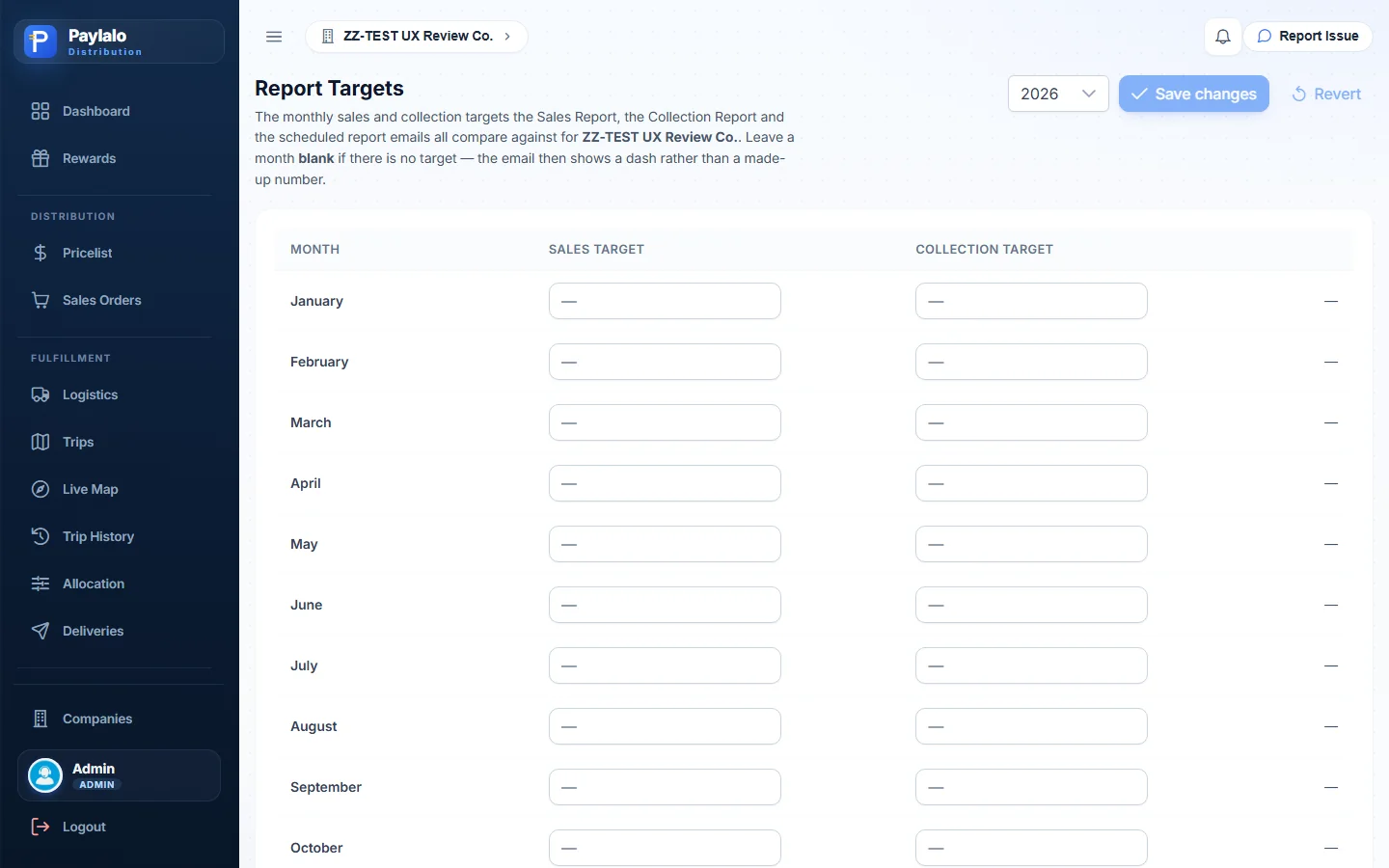
- Report Targets holds the monthly sales and collection targets per year that the reports and emails compare against. Targets are prorated by days in the range, a blank month shows a dash, and the page warns you never to enter 0 to mean “not set”.
How the documents connect
- The Pricelist sets the selling price per branch: WAC, then markup, then SRP, then selling price.
- A Sales Order is created as Draft, net of VAT, and then approved (Approved · Unallocated).
- Dealer Allocation reserves quantity against on-hand stock (Approved · Fully Allocated). Nothing posts.
- A DR is created from the approved SO in Logistics (For Approval), then approved and posted on Deliveries. That posts the goods-issue GL entry at WAC, deducts stock and posts the Sales Invoice (revenue, Output VAT, AR). The SO becomes Delivered.
- The Supply Chain app releases the DR with the guard’s QR scan and runs the trip (dispatch, GPS, the driver’s Done, POD). DMS shows it on Trips, Live Map and Trip History.
- Accounting holds the invoice and collections. DMS reads them back in Invoices, the Statement of Account and the Collection, Sales and GP reports.
- Reconciliation checks that each released delivery line is bridged to an invoice and that no link is dangling.
Notes from testing
- The inputs in the Add Customer dialog have no programmatic labels. I typed the address into the TIN box by mistake and fixed it with Edit. Both saves worked.
- The unit price on a Sales Order line starts at 0.00 and has to be typed. It didn’t fill in from the Pricelist, even after I chose the branch.
- Print on the SO didn’t open a preview in the page. It goes straight to the browser’s print flow, so there’s no print screenshot.
- After the delivery was approved and SI-2026-0010 posted, the SO stepper stopped at Delivered with next step “Bill / Invoice” and an “Invoice in Accounting” button, even though the invoice exists and is linked in the document tree. The seeded delivered orders do the same.
- I couldn’t create a trip for DEL-2026-0008. The New Trip stop picker only lists Released deliveries, and releasing happens with the Supply Chain guard scan, outside this app. So the Live Map stayed empty, and I showed Trip History with the seeded TRIP-2026-0006.
- The Deliveries and Trips screens are view-only for the lifecycle (“processed in Supply Chain logistics”), apart from the Approve action.
- This company’s Dashboard shows procurement numbers (purchase requests, canvasses, approvers), not distribution figures.
- Reconciliation didn’t count the new delivery as bridged (still 14) because the DR is Approved, not Released. At risk stayed at ₱0.00.
- I didn’t delete, cancel or edit anything apart from the ZZ-DOC records I made in this session.