Paylalo ERP Back Office

Paylalo ERP Back Office (erp.paylalo.com) is the hub of the Paylalo suite. It holds the master data every other app shares, it’s where users, roles and approvals are managed, and its Apps launcher opens each sibling app already signed in. Administrators and back-office staff work in it every day, and clerks mostly pass through on the way to another app.
The shared master data covers suppliers, customers, agents, affiliates, banks, credit terms, tax codes, units of measure, items and branches. On the admin side there are users, roles, the purchase-request approval hierarchy, outbound integrations and company-wide mail. The launcher covers Supply Chain, Accounting, DMS, Cashiering, Fixed Assets, Construction, Cash Center, PDMS and the rest, always for the company you’re working in. Everything is scoped to one company at a time. The header chip reads “ZZ-TEST UX Review Co.” throughout this walkthrough, and that’s the test company I used for every screenshot.
The screens
- Apps launcher (/app/apps): one card per sibling app, each opening that app for the current company, signed in.
- Suppliers, Customers, Agents and Affiliates: the trading-partner masters, each with Import from API, Add, search and inline edit. Suppliers and Customers also handle portal self-registration approvals and account linking.
- Banks: the company’s bank accounts, with opening balance and legacy ID.
- Credit Terms: payment terms imported from the legacy PSI API. There’s no manual add.
- Tax / VAT: VAT and withholding codes with their rates and what they apply to.
- Measurement: per-item unit conversions plus a shared unit catalog of 35 units.
- Inventory: the item master, with categories, groups, stocking UoM, services and duplicate detection.
- Branches: locations, and the bridge to the legacy ERP’s location IDs.
- Users & Roles: who has which role in this company, with per-user privilege overrides.
- Approval Hierarchy and Approval Chain Viewer: who may approve whose Purchase Requests.
- Rewards and Points Approvals: the gamification layer, with a voucher catalog, redemptions and helpdesk resolution points.
- Help Center: a long explainer on roles, privileges and approvals.
- IT Helpdesk and Report Issue: support tickets raised from any app and triaged here.
- Integrations: Playlalo App Store, AI Connector, PDMS Accounts, Webhooks, Emailing, Report Emails and Report Targets.
- KPI Scorecard (/app/scorecard): the monthly scorecard, with setup, encoding, a daily log, report cards and publishing.

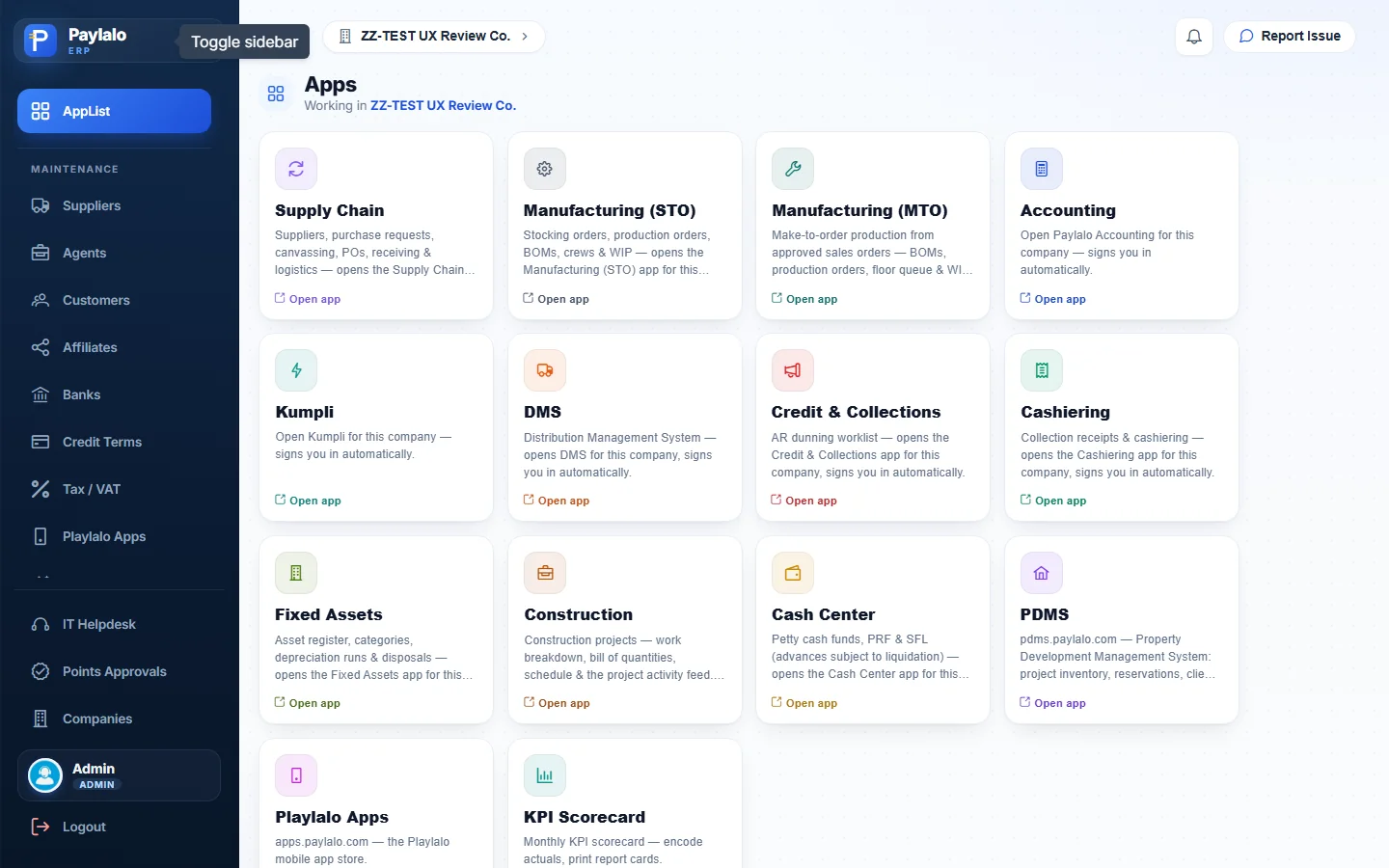
Apps launcher
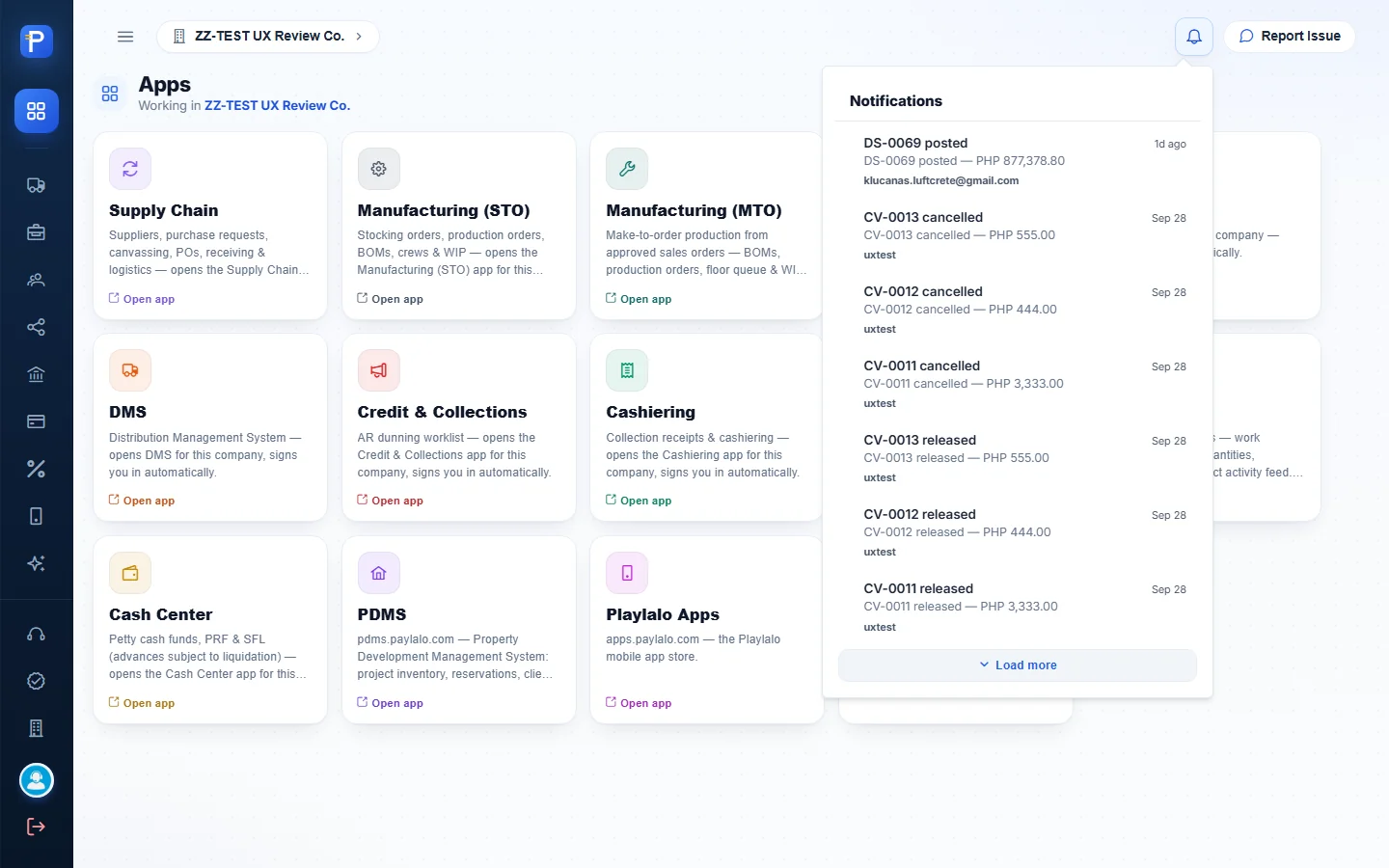
The launcher is the first screen after sign-in. The heading says “Working in ZZ-TEST UX Review Co.” and under it are fourteen cards: Supply Chain, Manufacturing (STO), Manufacturing (MTO), Accounting, Kumpli, DMS, Credit & Collections, Cashiering, Fixed Assets, Construction, Cash Center, PDMS, Playlalo Apps and KPI Scorecard.
I wrote each card’s caption to say exactly what the link does. For example, “Open Paylalo Accounting for this company — signs you in automatically” and “Suppliers, purchase requests, canvassing, POs, receiving & logistics — opens the Supply Chain app, signed in.” Two cards are different. Playlalo Apps is an external link to the mobile app store, and KPI Scorecard stays inside the hub. The company chip in the header opens the company picker at /companies. Switching companies there changes what every card opens.
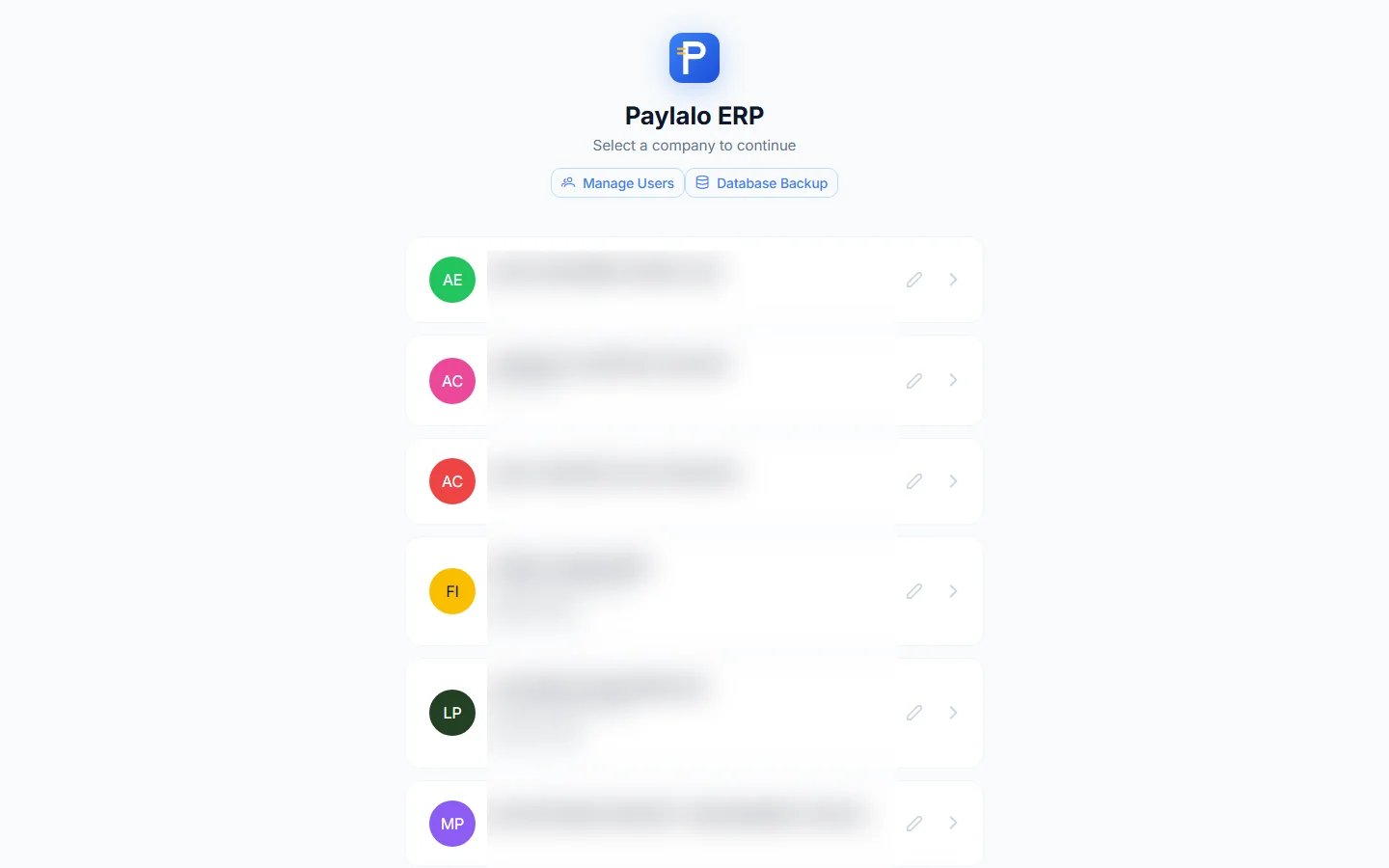
The header also has a bell with a notification feed. It shows document events from the sibling apps, like “DS-0069 posted — PHP 877,378.80”, “CV-0013 released” and “APV-0056 cancelled”. Next to it is a Report Issue button that opens a support-ticket form (more on that under the Helpdesk).
Trading partners
Suppliers
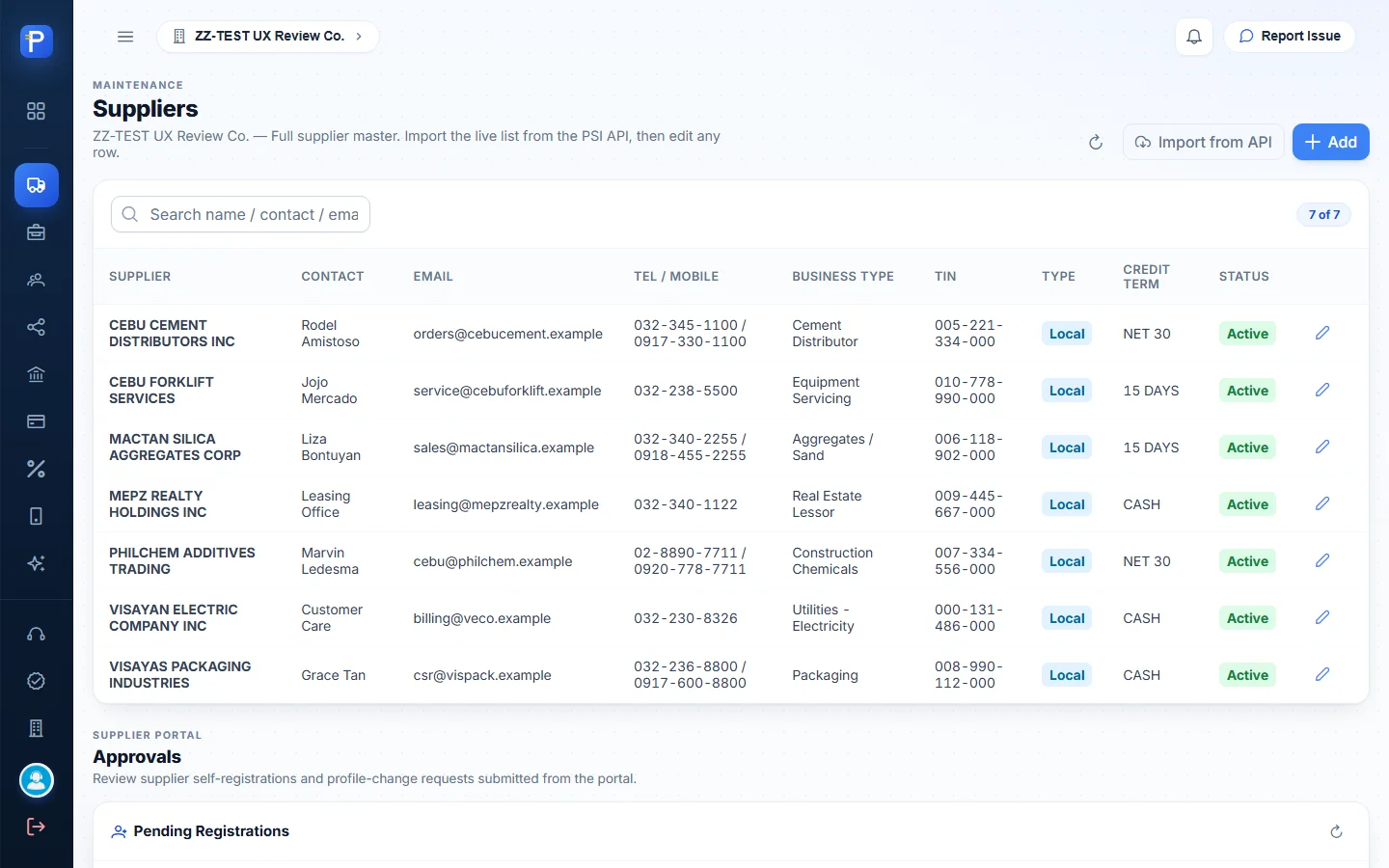
This is the full supplier master that Supply Chain purchasing and Accounting payables both use. The intro reads “Full supplier master. Import the live list from the PSI API, then edit any row.” The columns are Supplier, Contact, Email, Tel / Mobile, Business Type, TIN, Type (a “Local” chip), Credit Term (NET 30, 15 DAYS, CASH) and Status (“Active”). Each row has a pencil button for editing. The test company has 7 suppliers.
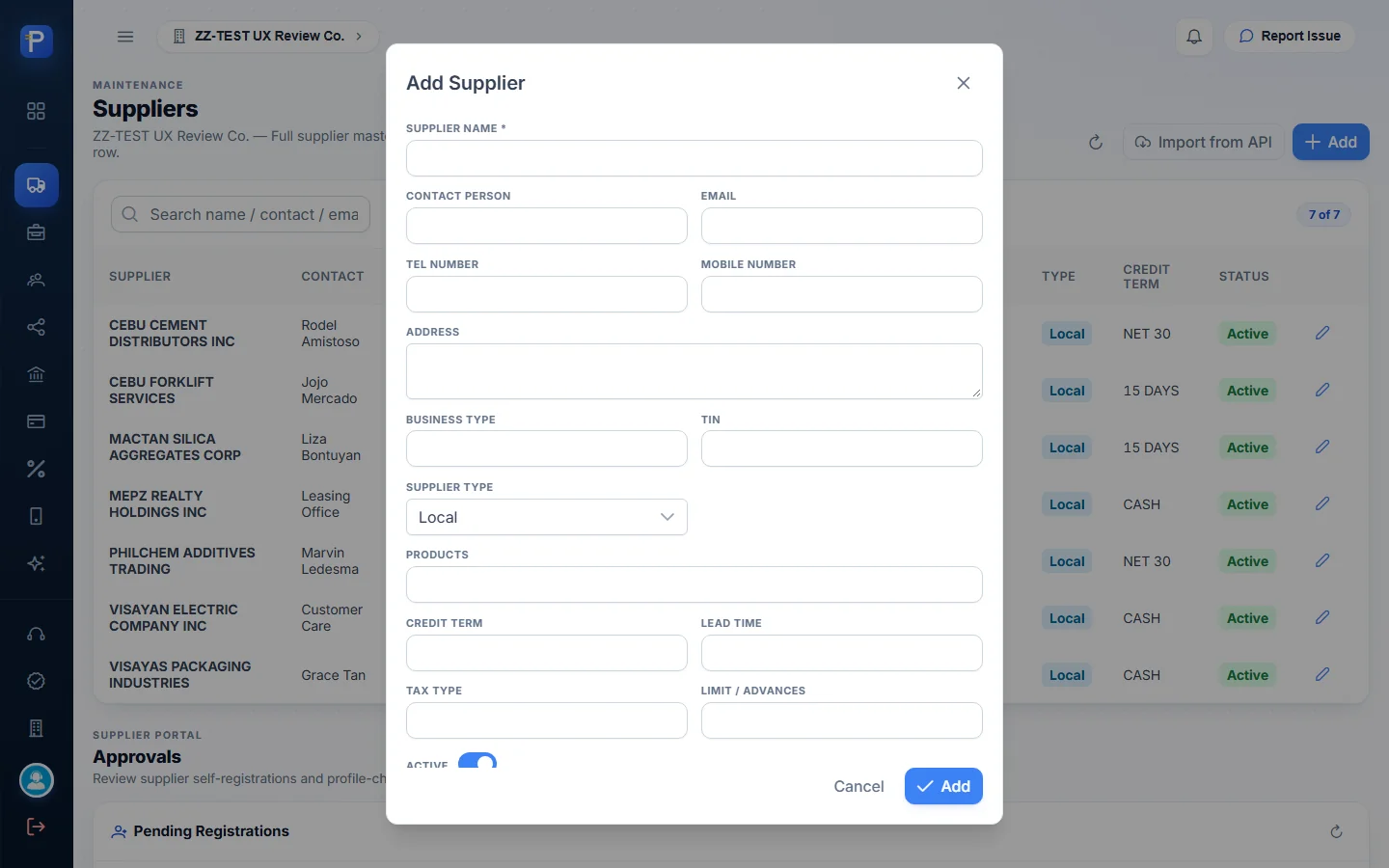
Add Supplier asks for Supplier Name (required), Contact Person, Email, Tel, Mobile, Address, Business Type, TIN, Supplier Type (a dropdown that defaults to Local), Products, Credit Term, Lead Time, Tax Type, Limit / Advances, and an Active switch.
- Click Add, or Import from API to pull the legacy list.
- Fill in the name and trading details, and pick a Supplier Type.
- Press Add. The row shows up in the list with an Active chip, and the pencil reopens it.
Below the list is a Supplier Portal → Approvals block. It holds the “Pending Registrations” and “Profile Change Requests” that suppliers submit from the portal. Both were empty here. There’s also Account Linking, where a supplier login is tied to one or more supplier rows. One linked account showed “2 links”.
Customers
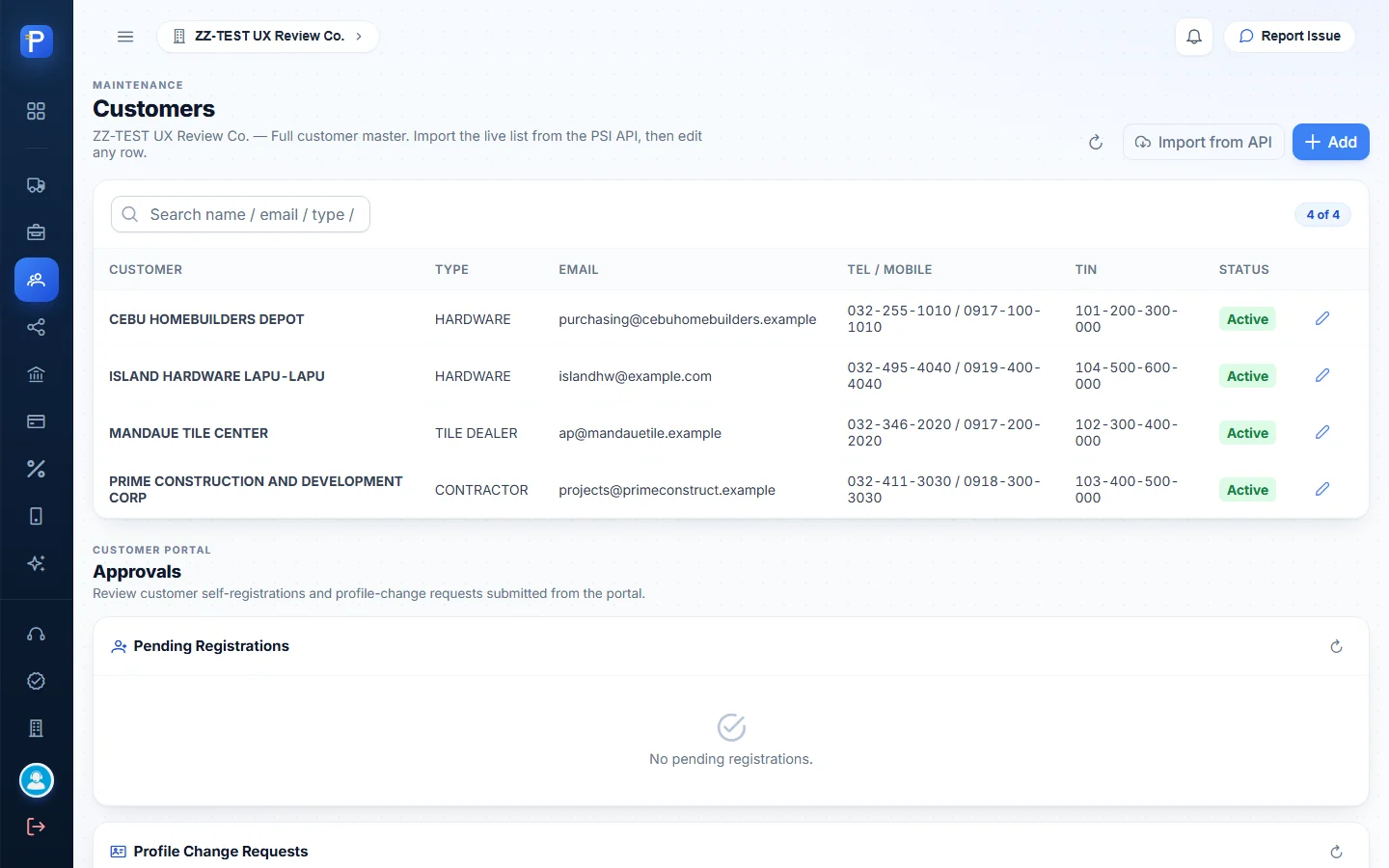
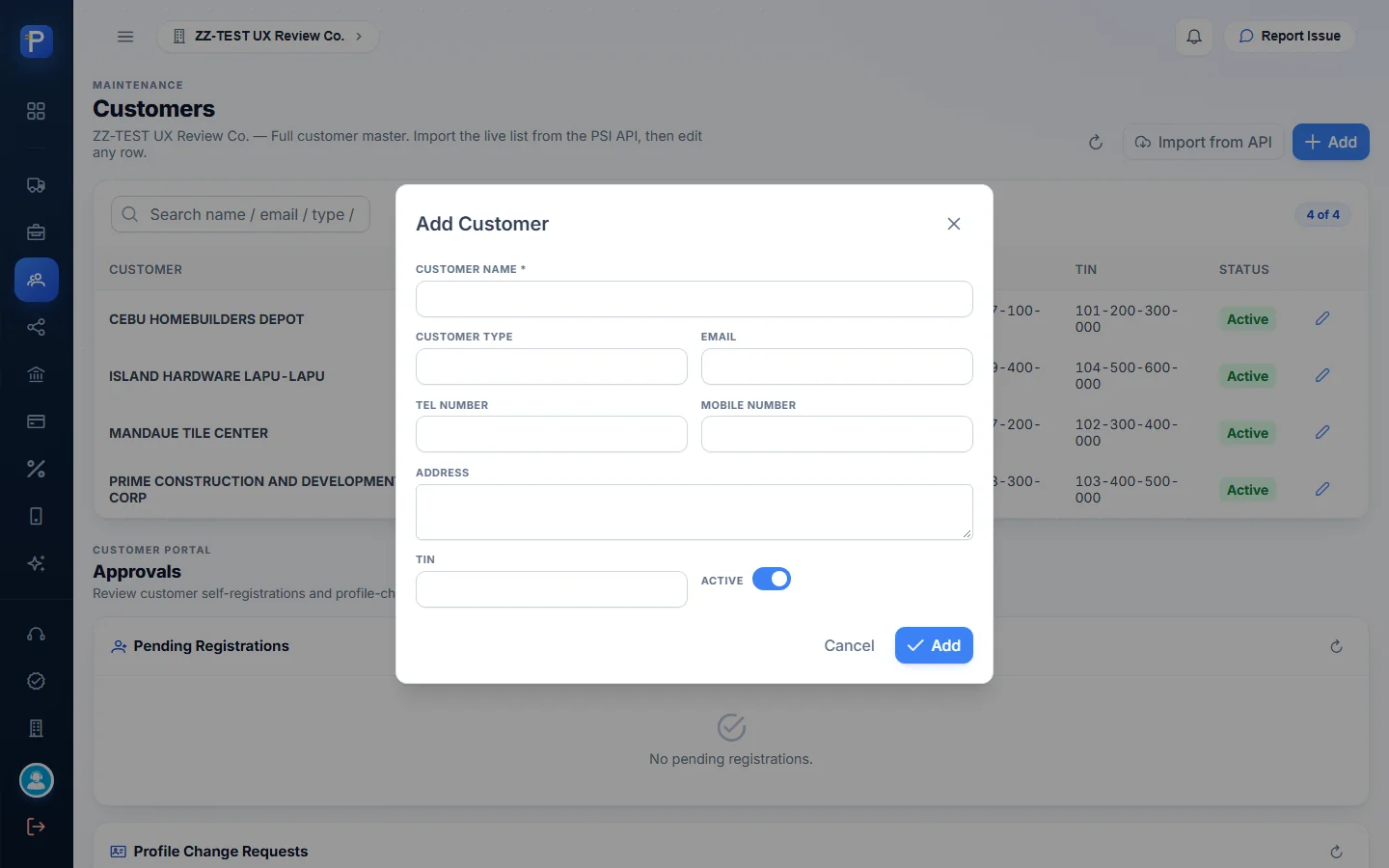
Customers works the same way on the sales side. The columns are Customer, Type (HARDWARE, TILE DEALER, CONTRACTOR), Email, Tel / Mobile, TIN and Status. Add Customer asks for Customer Name (required), Customer Type, Email, Tel, Mobile, Address, TIN and Active. The Customer Portal block mirrors the supplier one, with pending registrations, profile-change requests, and linking between a customer login and customer rows.
Agents and affiliates
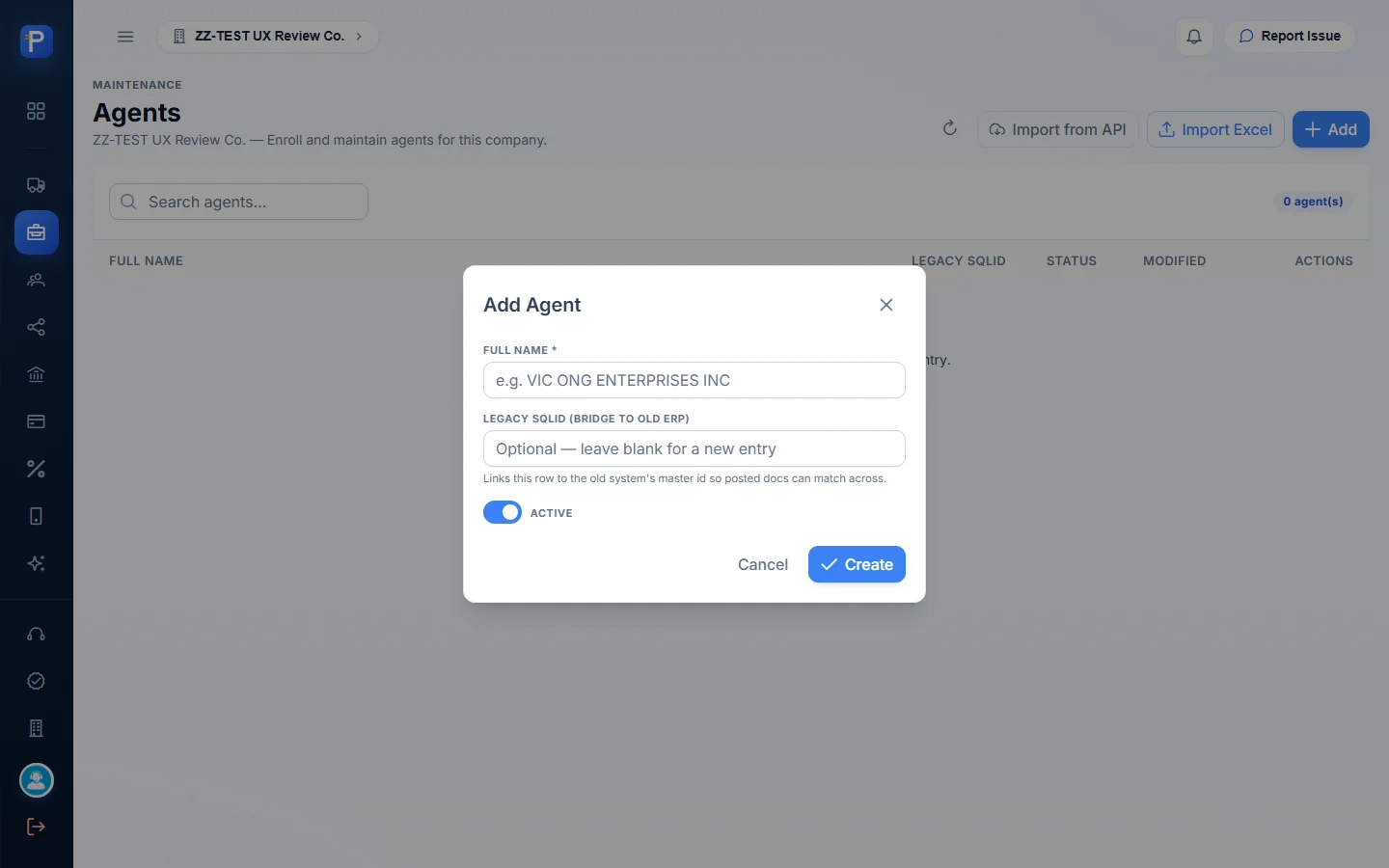
Agents are sales agents enrolled per company. The list shows Full Name, Legacy sqlId, Status and Modified. The Add Agent form only has three things: Full Name, a “Legacy sqlId (bridge to old ERP)” number, and an Active switch. The help text says the sqlId “links this row to the old system’s master id so posted docs can match across”. There’s also an Import Excel button for bulk entry.
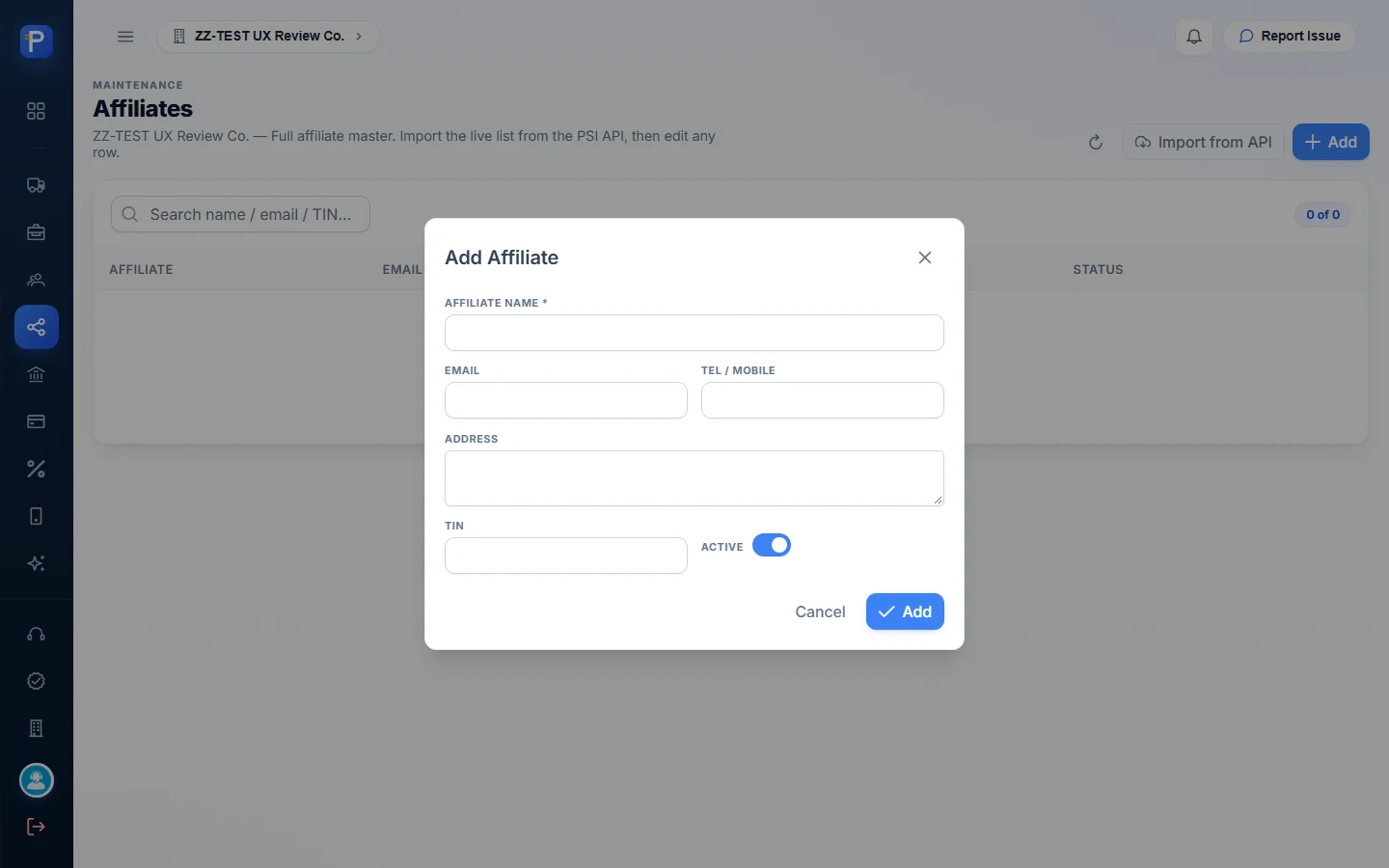
Affiliates are a lighter partner master with Affiliate Name, Email, Tel / Mobile, Address, TIN and Active. Both lists were empty in the test company, so the screenshots show their empty states.


Finance setup
Banks
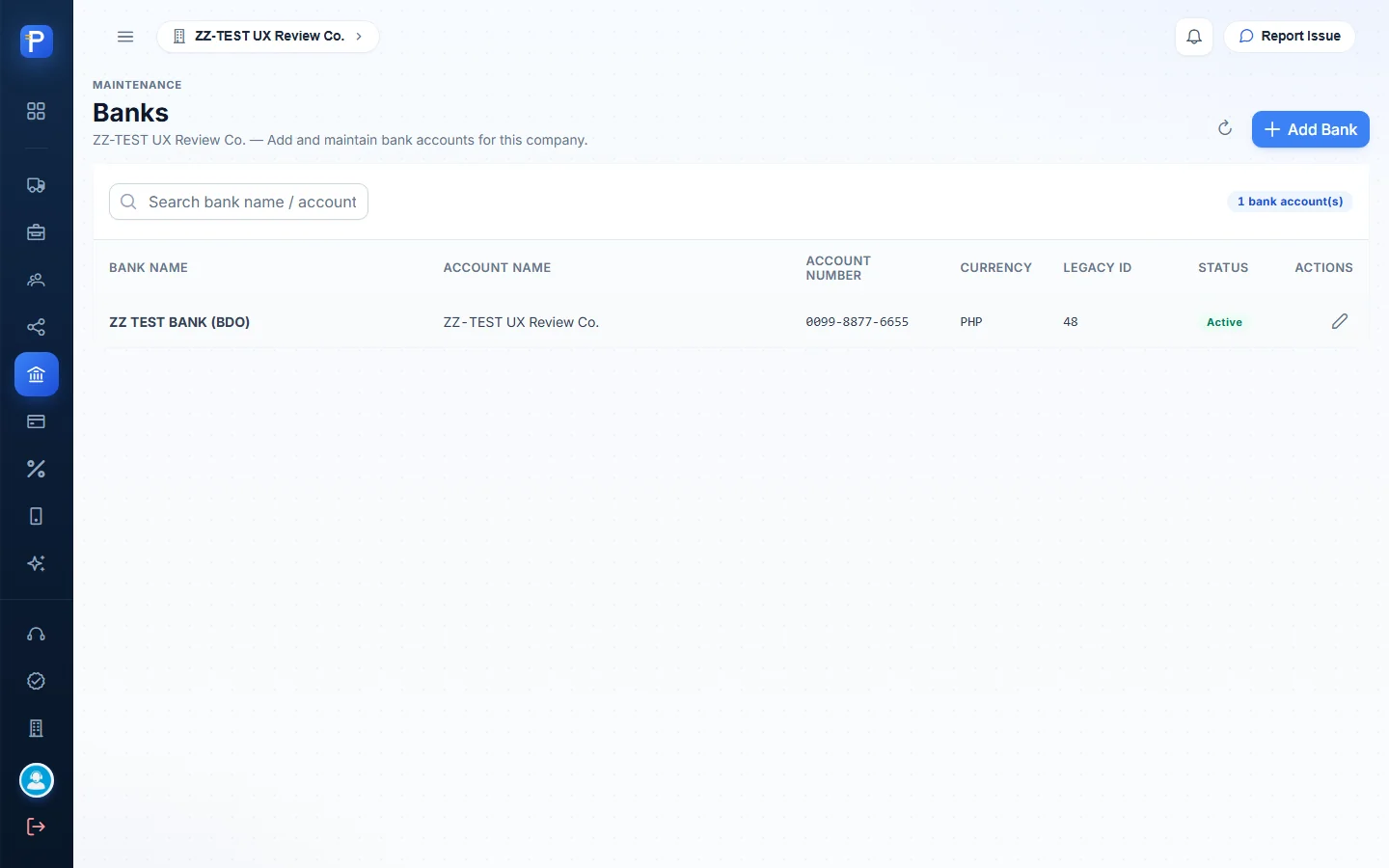
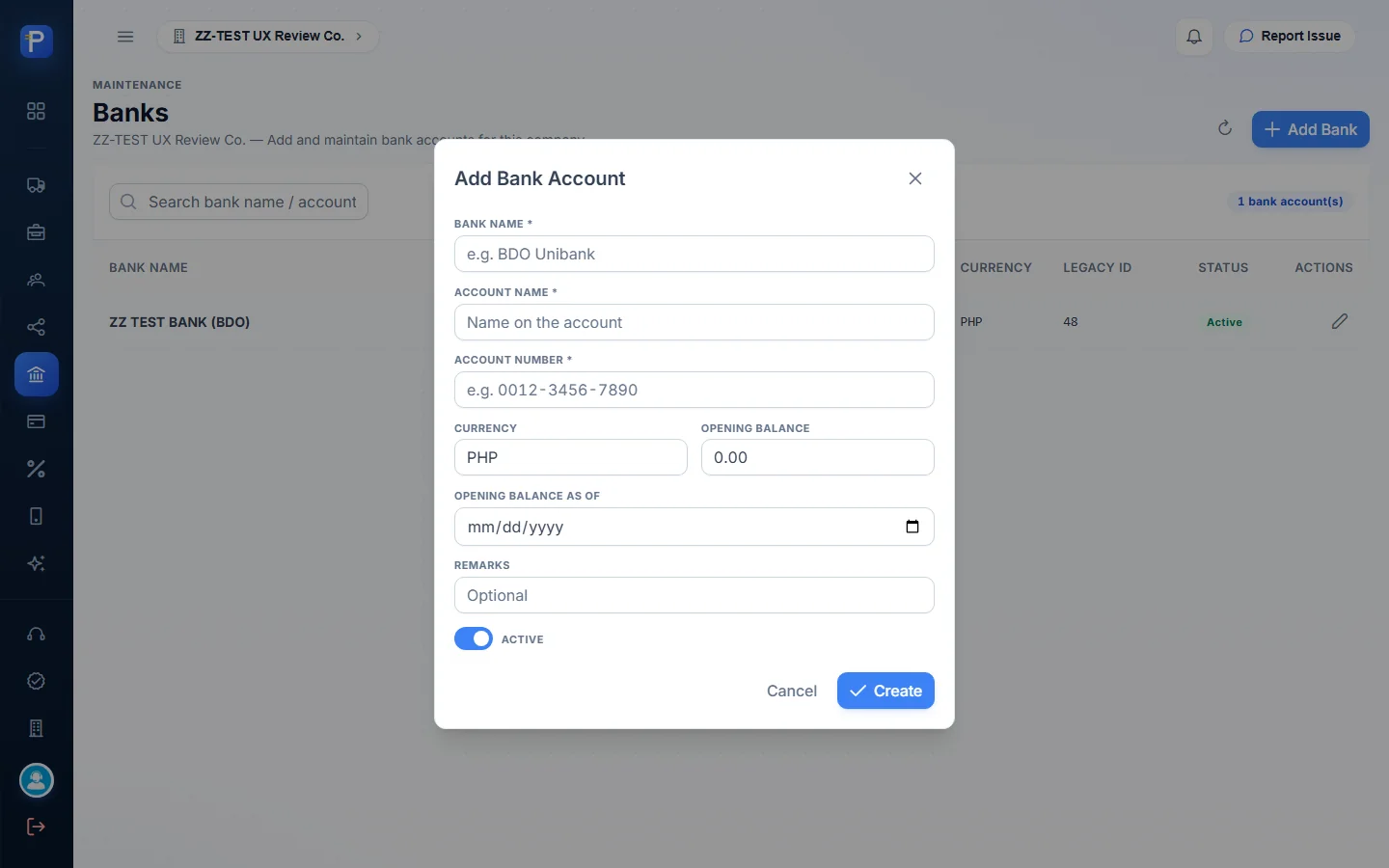
These are the accounts the company pays from and collects into. The columns are Bank Name, Account Name, Account Number, Currency, Legacy ID and Status. There’s one account, “ZZ TEST BANK (BDO)”, in PHP, with legacy ID 48. Add Bank Account asks for Bank Name, Account Name and Account Number (all required), Currency (default PHP), Opening Balance (default 0.00), Opening Balance As Of, Remarks and Active. The bank ledger starts from the opening balance.
Credit terms
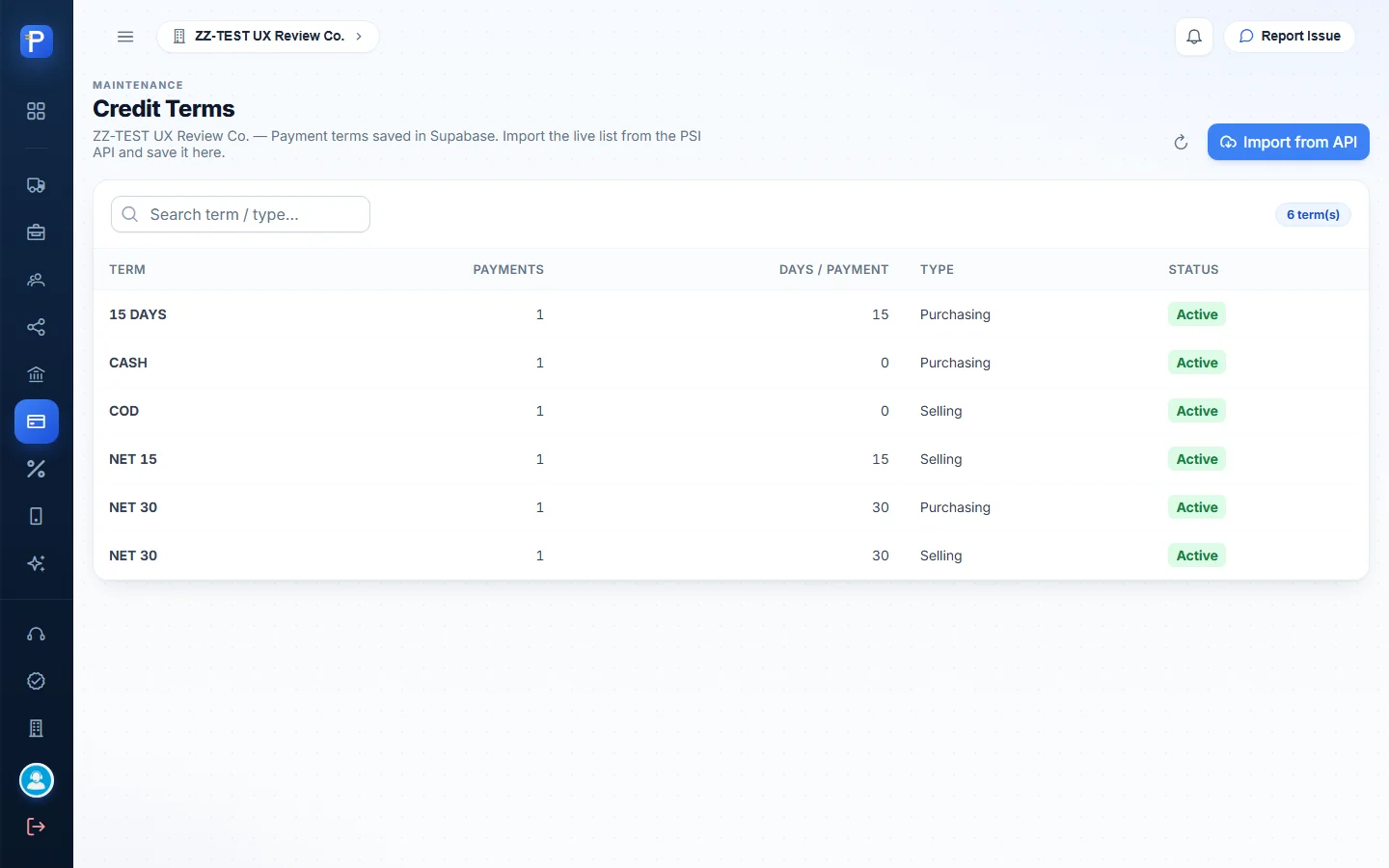
Payment terms are “saved in Supabase” and imported from the PSI API. The columns are Term, Payments, Days / Payment, Type (Purchasing or Selling) and Status. Six terms exist: 15 DAYS, CASH, COD, NET 15, and NET 30 for both purchasing and selling. I left out an Add button on purpose. The only action is Import from API, so the list always matches the legacy system.
Tax and VAT codes
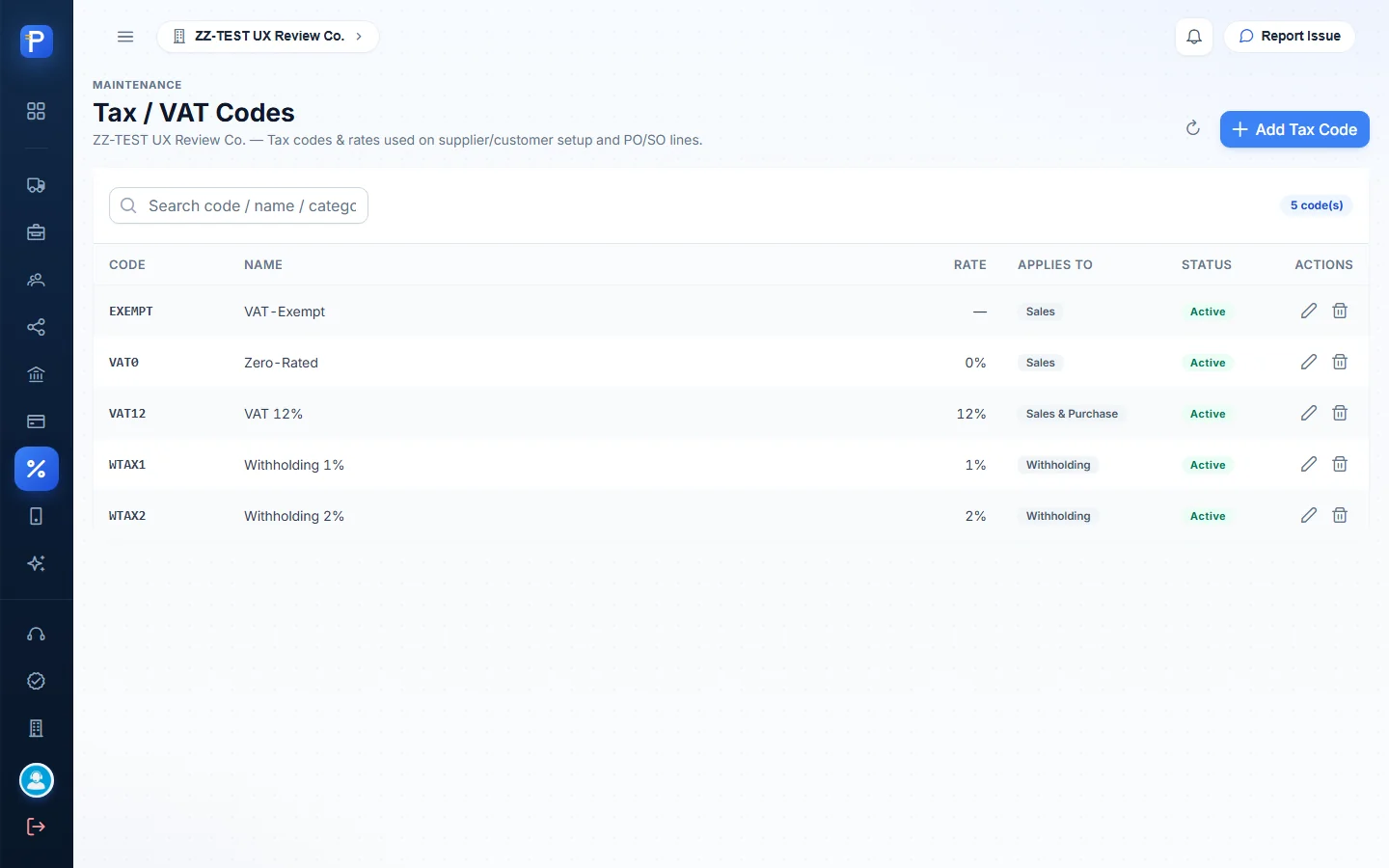
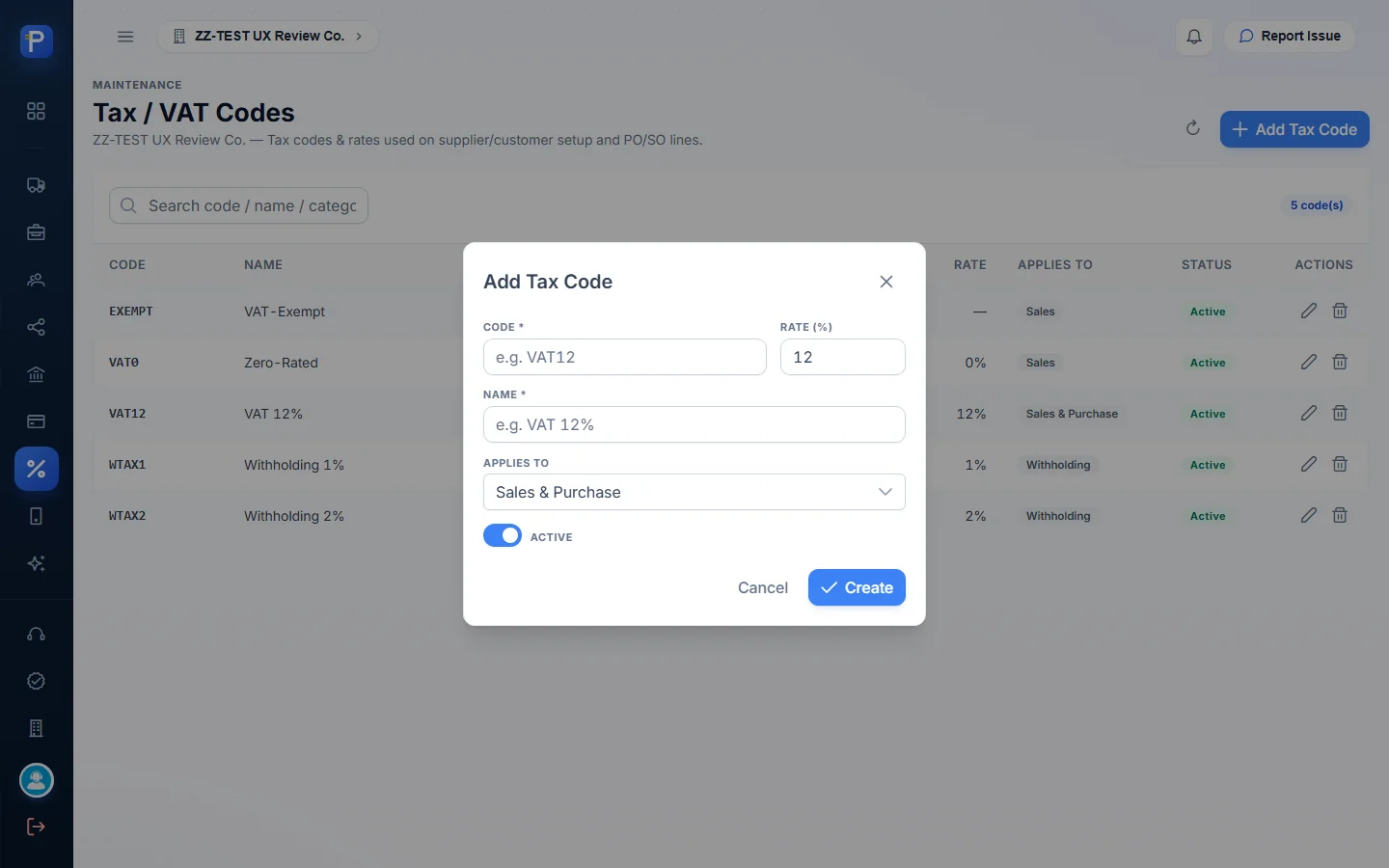
The page describes these as “Tax codes & rates used on supplier/customer setup and PO/SO lines.” The columns are Code, Name, Rate, Applies To and Status. The seeded codes are EXEMPT, VAT0 (0%), VAT12 (12%, Sales & Purchase), WTAX1 (1%, Withholding) and WTAX2 (2%, Withholding). Add Tax Code asks for Code, Rate (%), Name, Applies to (default Sales & Purchase) and Active.
Inventory setup
Measurement and conversions
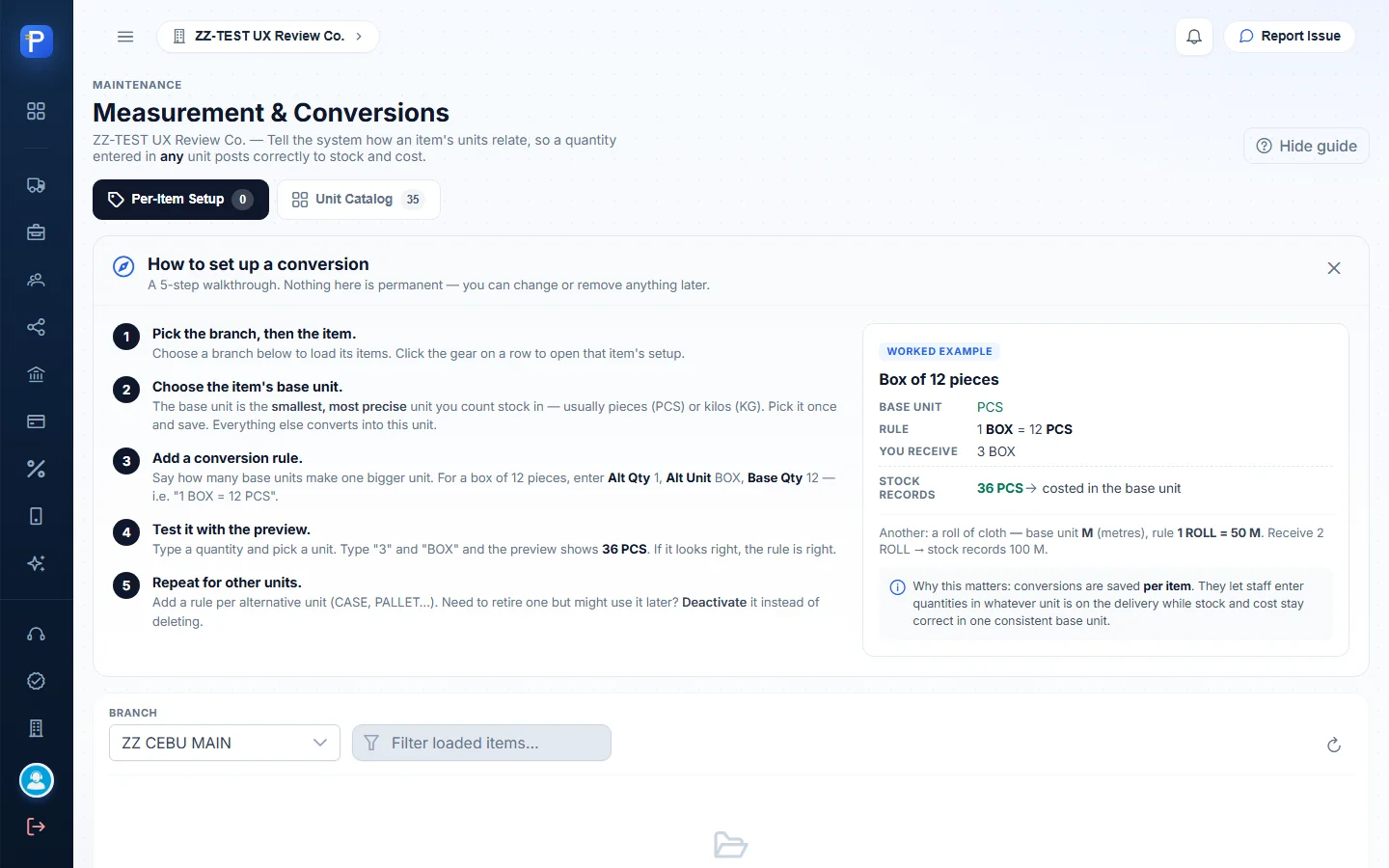
This page has its own 5-step guide. You pick the branch and then the item, and choose the item’s base unit (“the smallest, most precise unit you count stock in”). Then you add a conversion rule (“1 BOX = 12 PCS”), test it with the preview, and repeat for other units. The worked example: receive 3 BOX, and stock records 36 PCS, costed in the base unit.
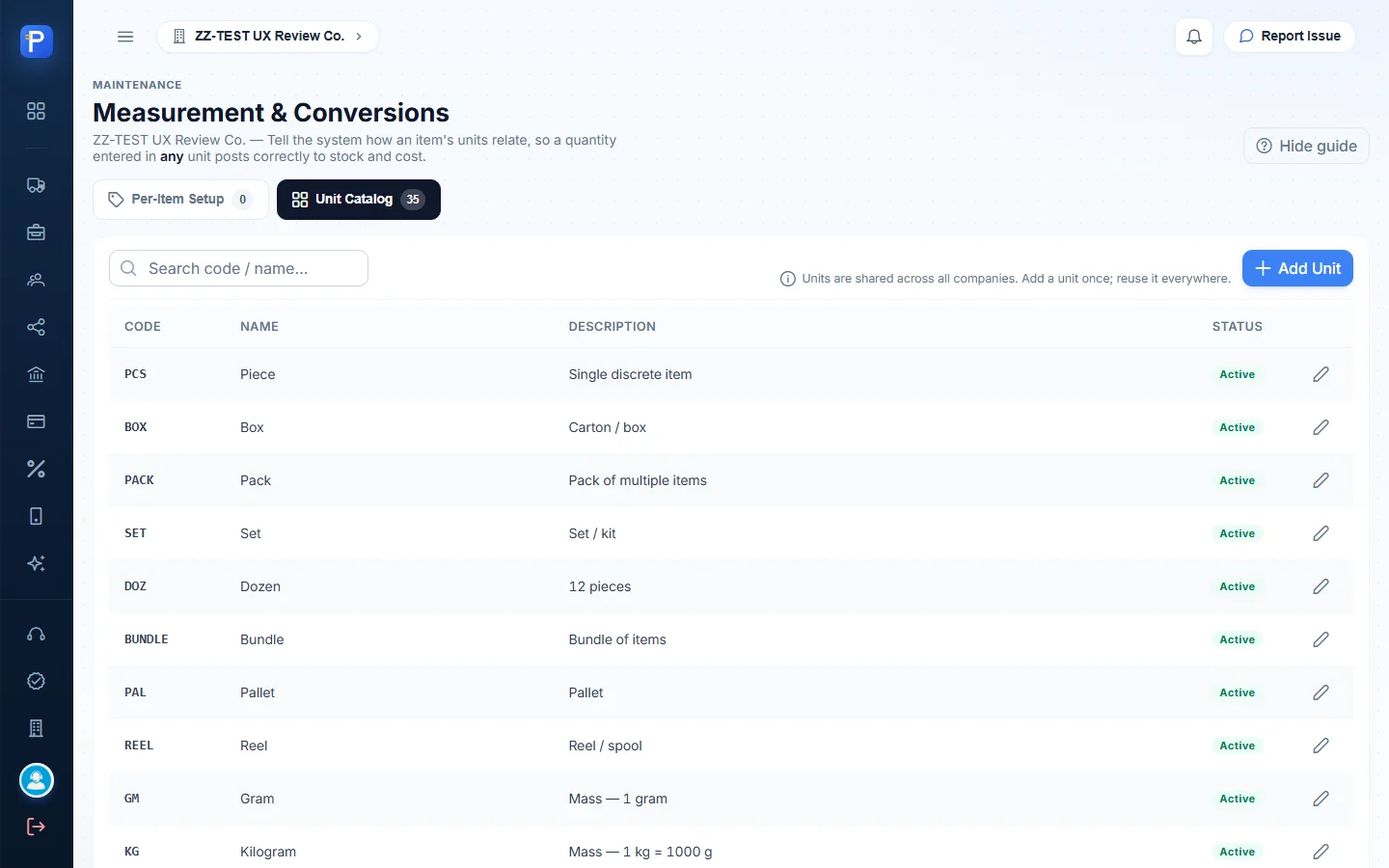
The Per-Item Setup tab lists a branch’s items. The test branch didn’t have any linked yet, so it showed “No items to set up here”. The Unit Catalog tab is shared across all companies and holds 35 units (PCS, BOX, KG, MT, M, L and so on), with an Add Unit button.
Items
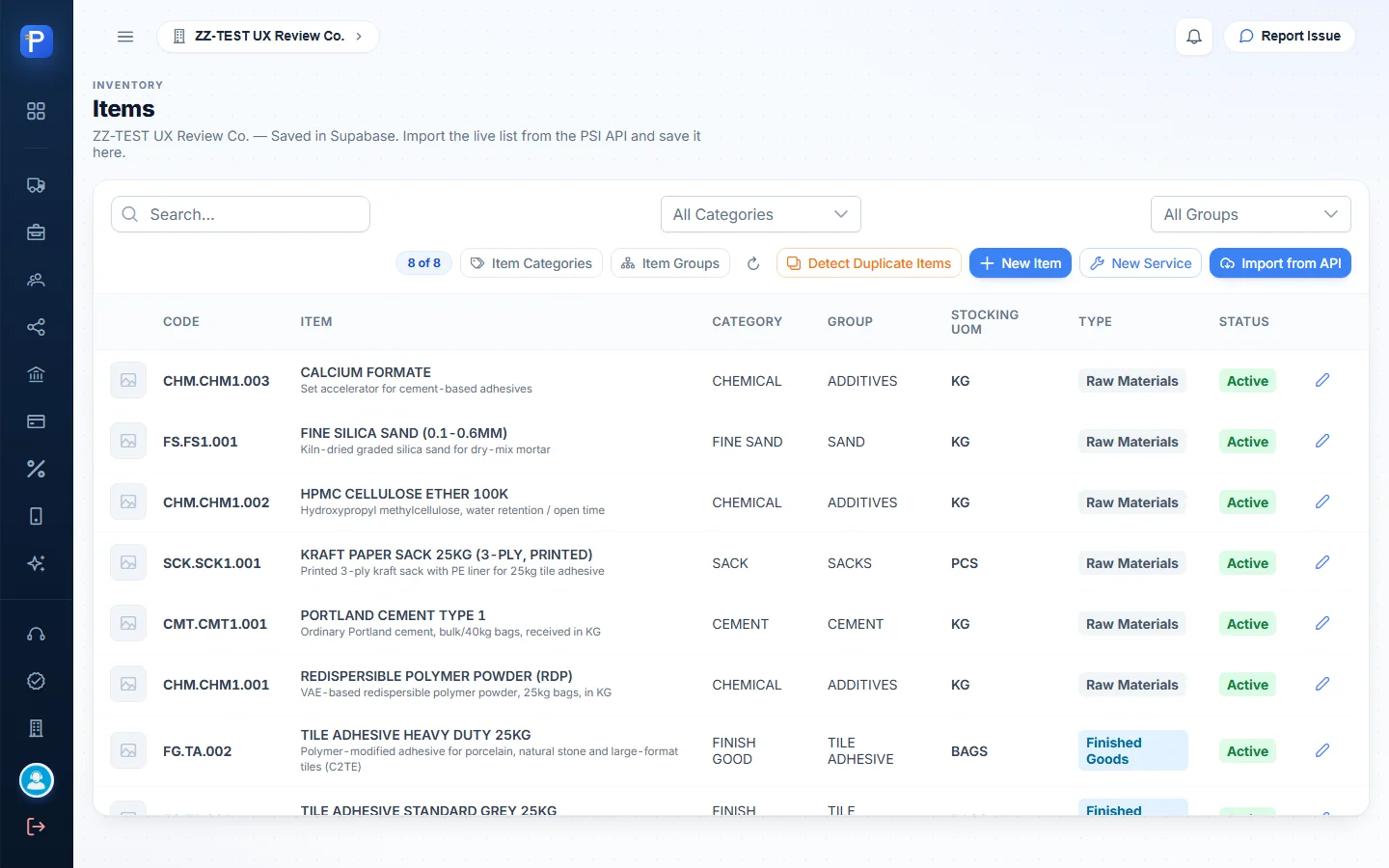
This is the item master that Supply Chain, Manufacturing and Sales all use. The columns are Photo, Code, Item (name and description), Category, Group, Stocking UoM, Type (Raw Materials or Finished Goods) and Status. You can filter by category and group or search. The buttons are Item Categories, Item Groups, Detect Duplicate Items, New Item, New Service and Import from API. Codes follow Category.Group.Sequence, for example FG.TA.001 TILE ADHESIVE STANDARD GREY 25KG.
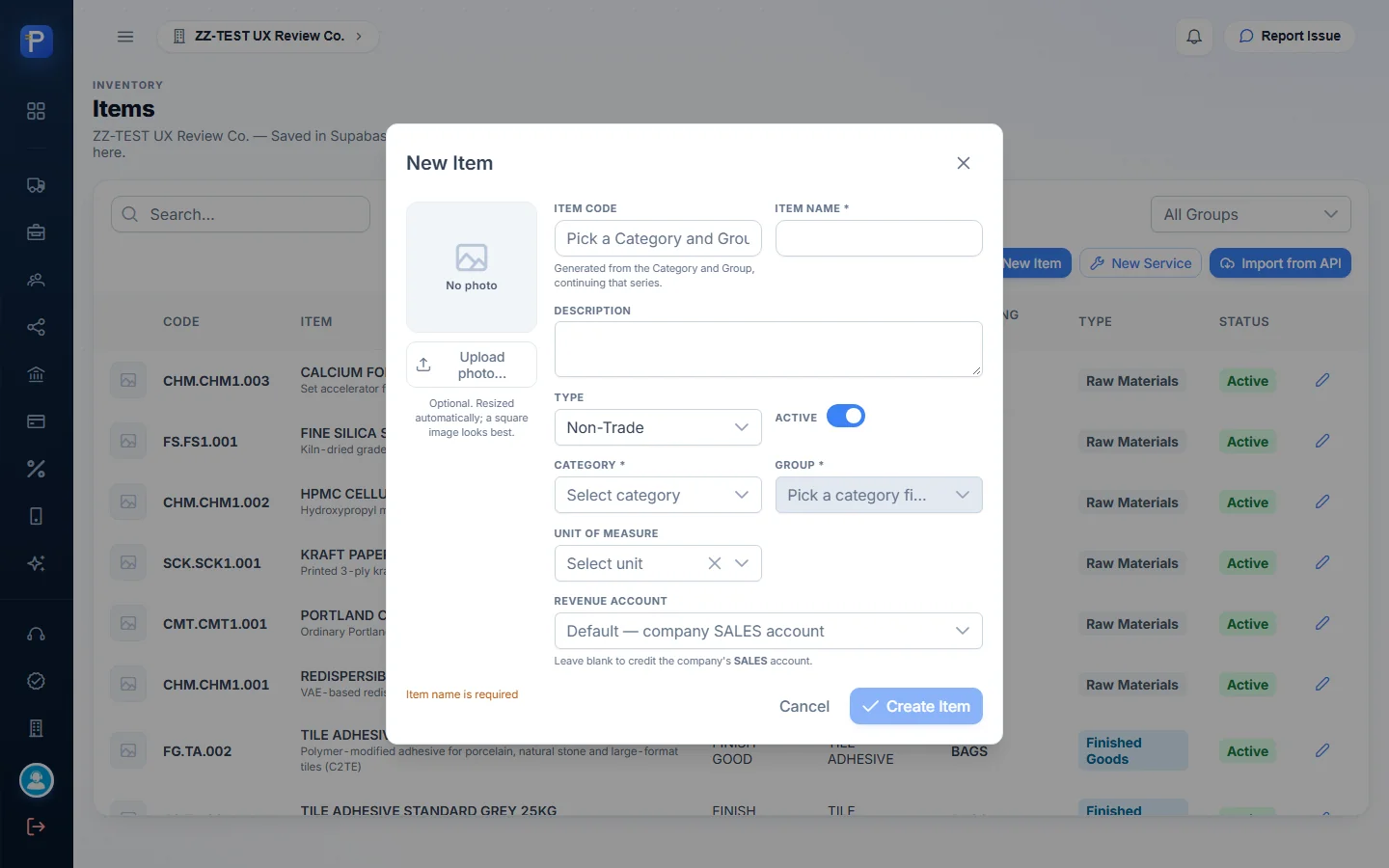
New Item has an optional photo and then these fields. Item Code (“Generated from the Category and Group, continuing that series”) stays read-only until you pick a category and group. Then come Item Name (required), Description, Type (default Non-Trade), Active, Category (required), Group (required, and disabled until a category is picked), Unit of Measure, and Revenue Account (“Leave blank to credit the company’s SALES account”). Create Item stays disabled until you enter a name.
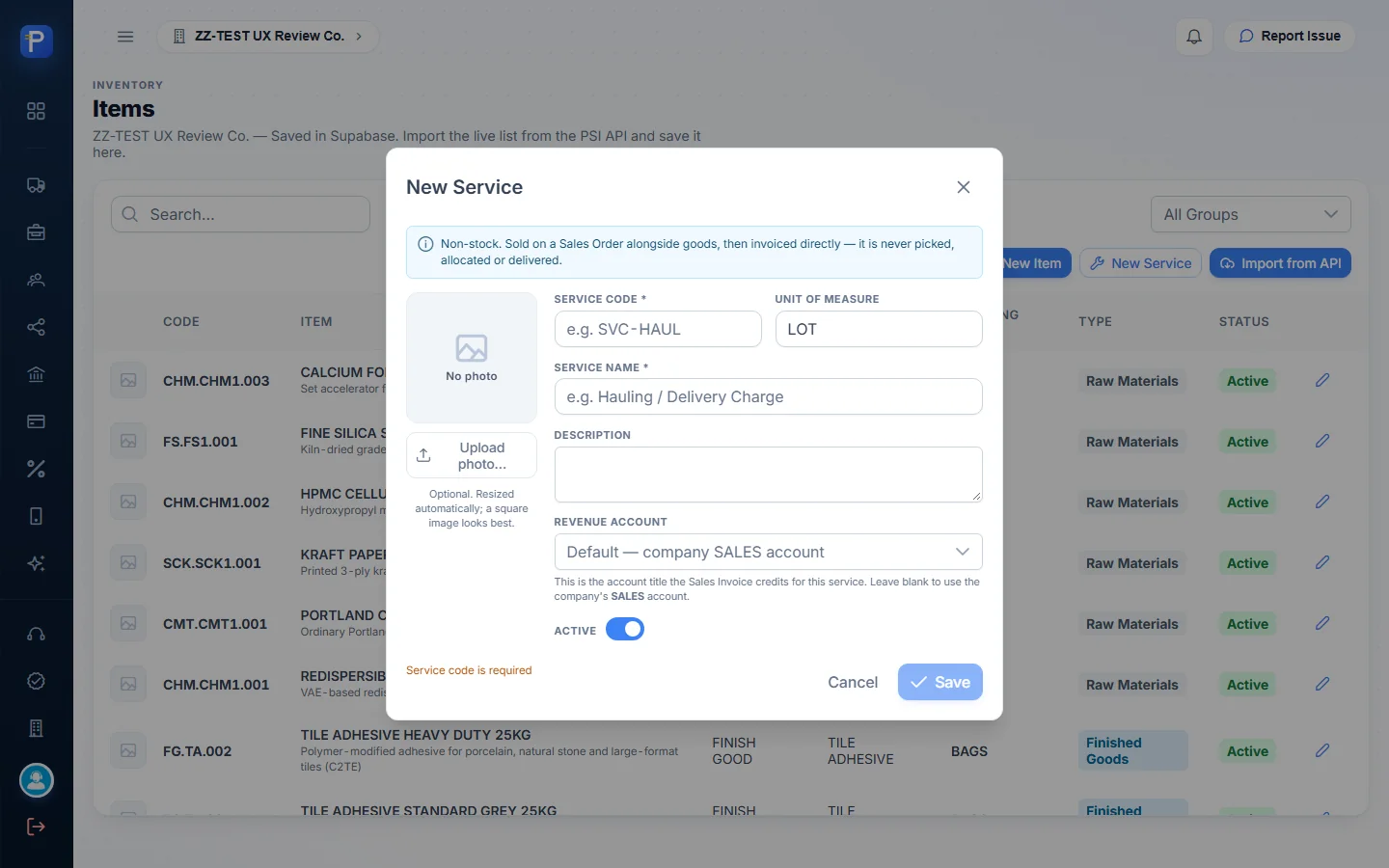
New Service is for lines that aren’t stock: “Sold on a Sales Order alongside goods, then invoiced directly — it is never picked, allocated or delivered.” It asks for Service Code, Unit of Measure (default LOT), Service Name, Description, Revenue Account (“the account title the Sales Invoice credits for this service”) and Active.
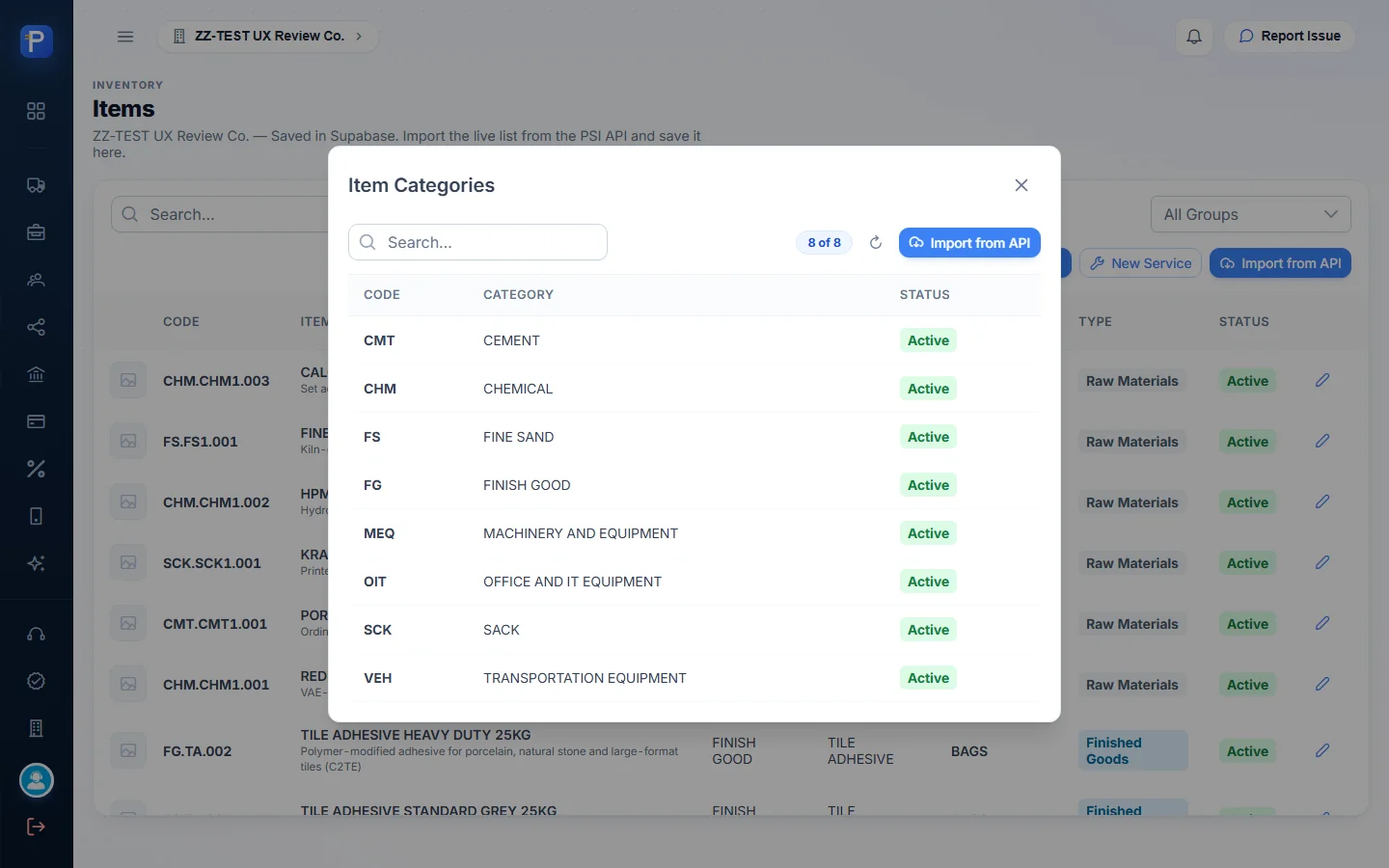
Item Categories (8 of them: CMT, CHM, FS, FG, MEQ, OIT, SCK, VEH) and Item Groups (5, each under a category) open as dialogs, each with its own Import from API.

Branches
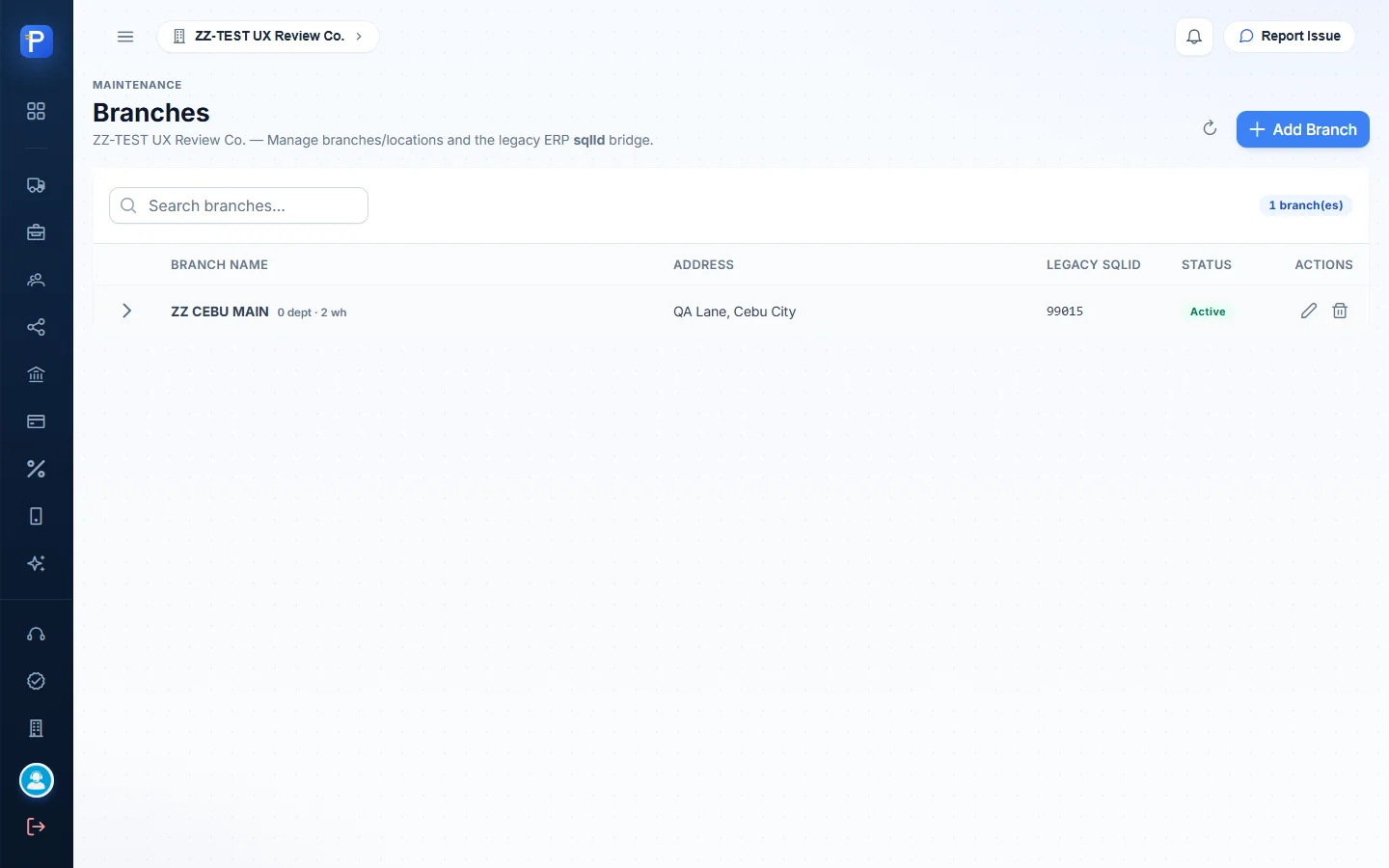
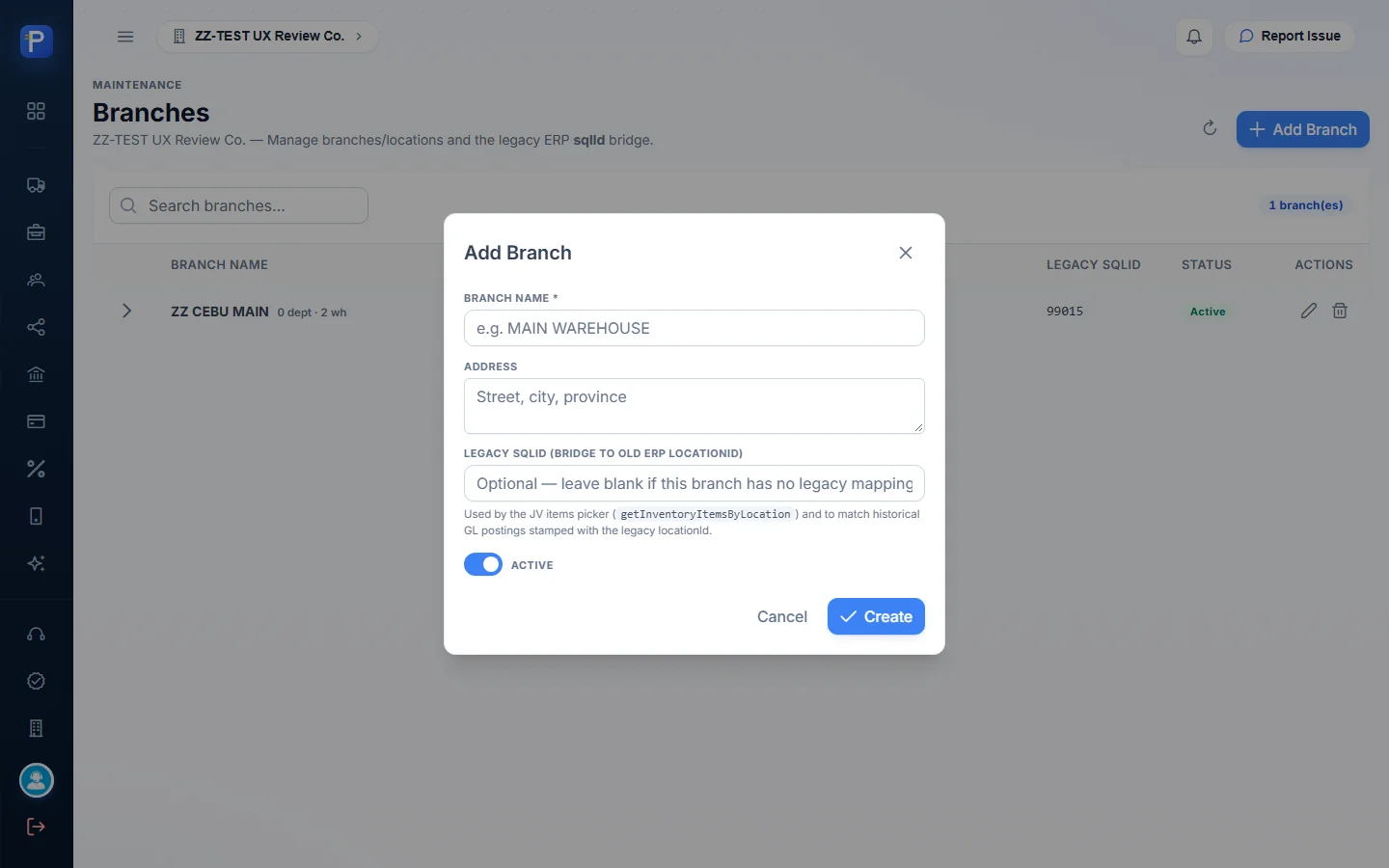
The intro: “Manage branches/locations and the legacy ERP sqlId bridge.” The columns are Branch Name (with a sub-count like “0 dept · 2 wh”), Address, Legacy sqlId and Status. Add Branch asks for Branch Name, Address, Legacy sqlId and Active. The help text says the sqlId is “Used by the JV items picker and to match historical GL postings stamped with the legacy locationId”.
Access and approvals
Users and roles
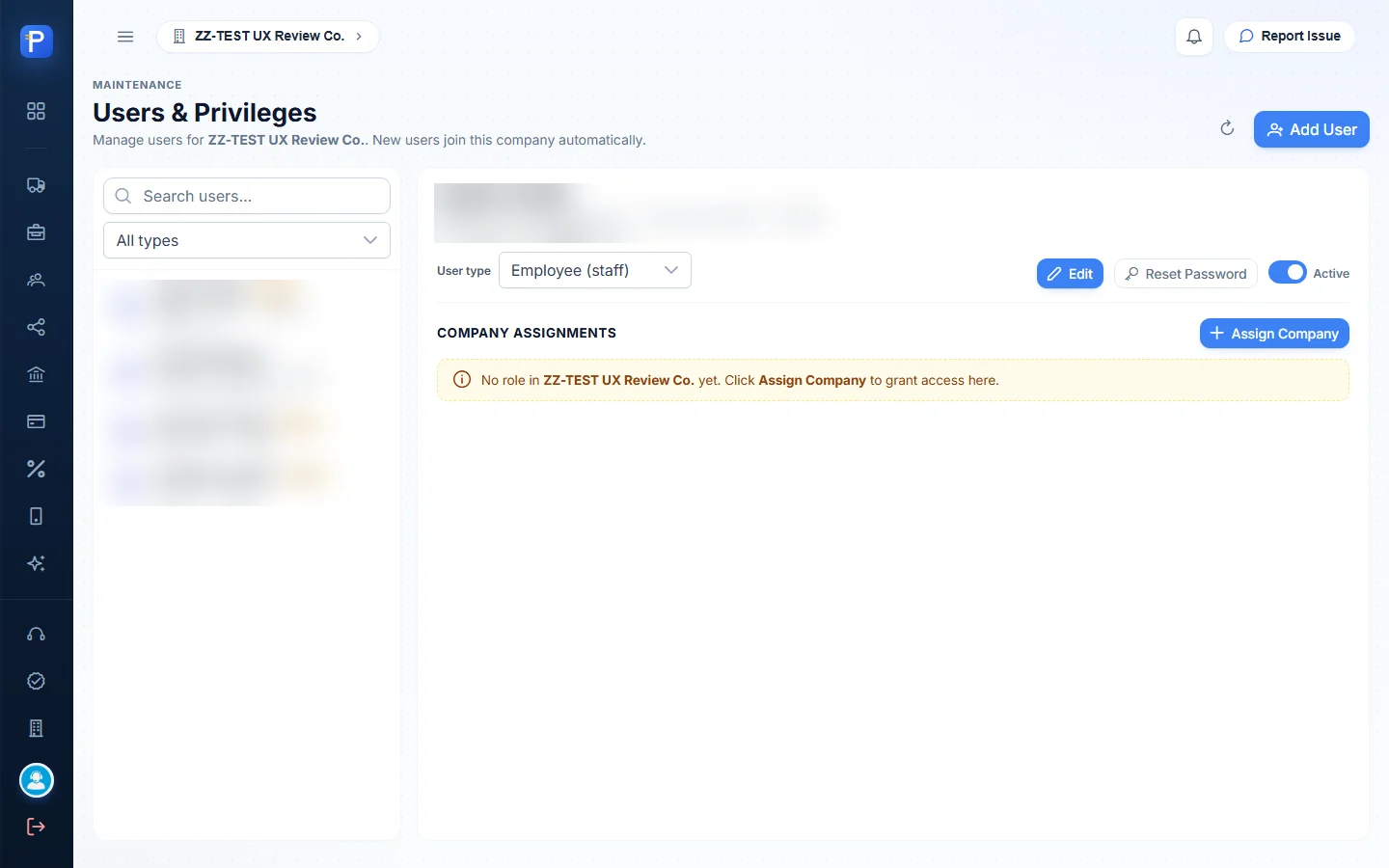
Users lists everyone in the company with their role badge, handle, ID and email. There’s Add User, Reset Password, an Active switch, and a Company Assignments block (“No role in ZZ-TEST UX Review Co. yet. Click Assign Company to grant access here.”).
Role Privileges lists 25 seeded roles grouped by app. They include Administrator (286 privileges), Group Accountant, Entity Accountant, AR/AP/Treasury clerks, Sales Manager/Officer, Cashier, Collector, Purchasing, Inventory Clerk, Warehouseman, QMS, Auditor, HR, Compliance Officer, Operations Manager, Guard, Cash Center Requestor and more. Each shows its privilege count and how many users hold it. You edit per-user overrides on the Users page and a role’s defaults on the Roles page. I only viewed both.

Approval hierarchy
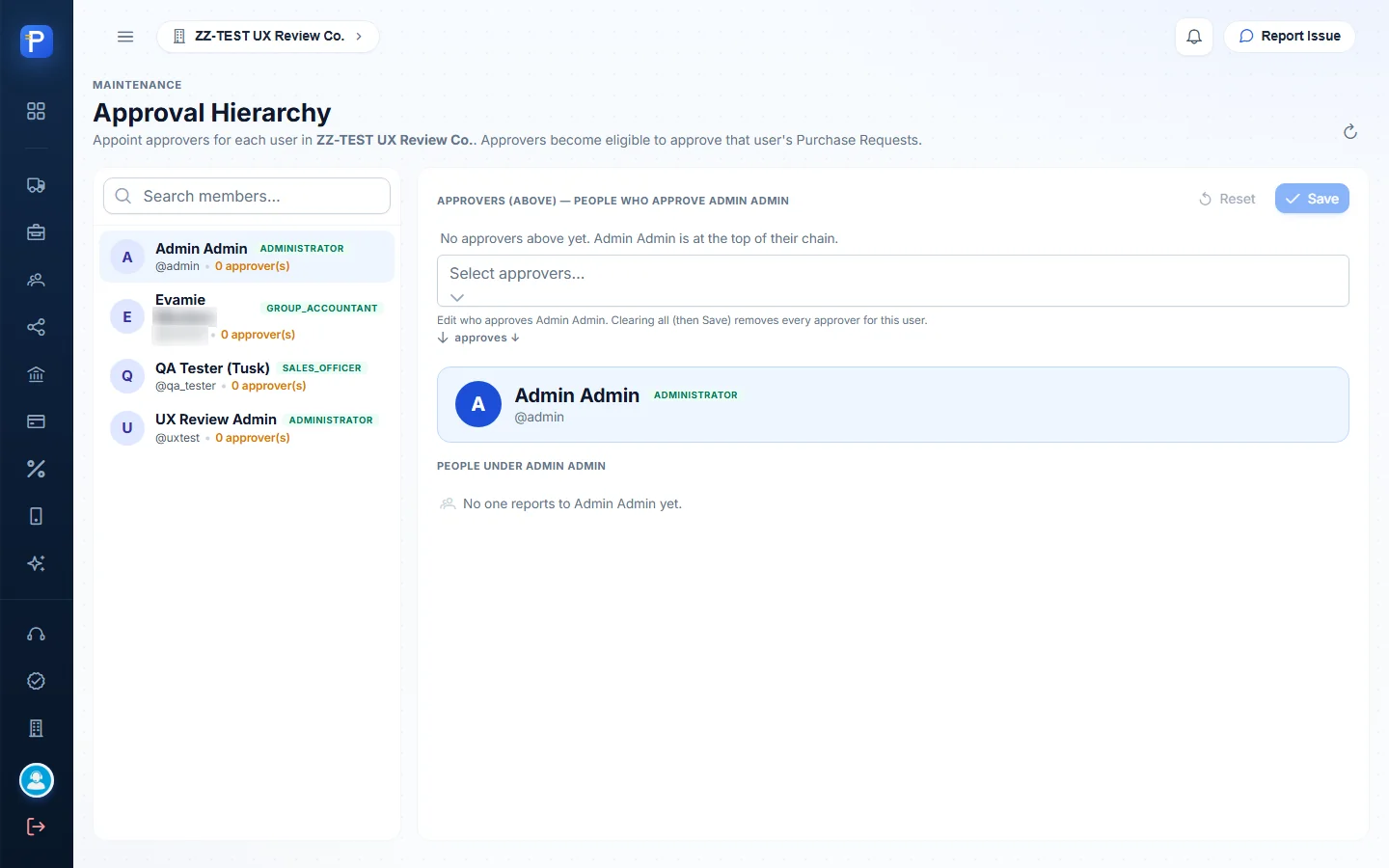
The page says: “Appoint approvers for each user. Approvers become eligible to approve that user’s Purchase Requests.” The left pane lists members with their role and “N approver(s)”. The right pane shows “Approvers (above)” with a Select approvers multi-select, Reset and Save, then the selected person’s card and the “People under” them. In the test company nobody has an approver yet (“Admin Admin is at the top of their chain”).
This is an appointment, not a privilege. The Help Center makes the point that the Immediate Supervisor signature on a PR is what moves it from For Approval to Approved, and only an appointed approver or an administrator can sign it.
Approval chain viewer
This is a read-only view of the same appointments. Search for a person and the page centres on them, with their approvers above and their direct reports below. For Admin Admin it reads “No approver appointed. Nobody can approve Admin Admin’s purchase requests except an administrator. Appoint one on Approval Hierarchy.” and “Admin Admin approves nobody — this is the end of this chain.”

Help Center
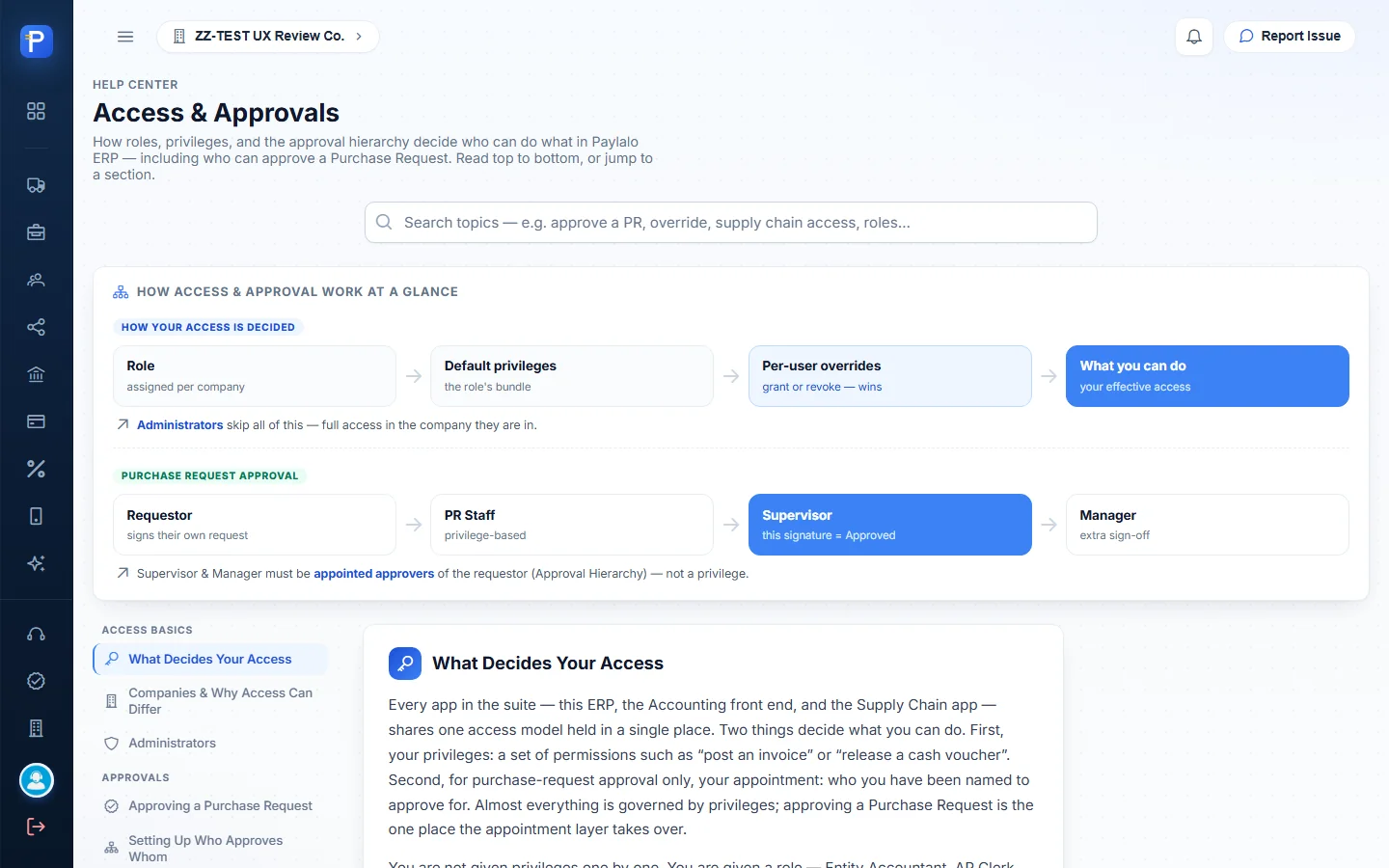
The Help Center is one long article, “Access & Approvals”, with a jump list. It covers how access is decided (role, then default privileges, then a per-user override that always wins) and why access differs per company. It explains that administrators bypass every check. It walks through approving a Purchase Request, which takes four signatures: Requestor, PR Staff, Immediate Supervisor (that one is the approval) and Purchasing Manager. Approving a Canvass or PO goes by the SC.PROCUREMENT.APPROVE privilege. It also covers who controls the Procure-to-Pay chain, the seeded roles, and an FAQ. I was honest in it about what’s planned and not yet enforced: post/cancel separation on APVs, maker/checker on new suppliers, and amount tiers.
Support and rewards
IT Helpdesk and Report Issue
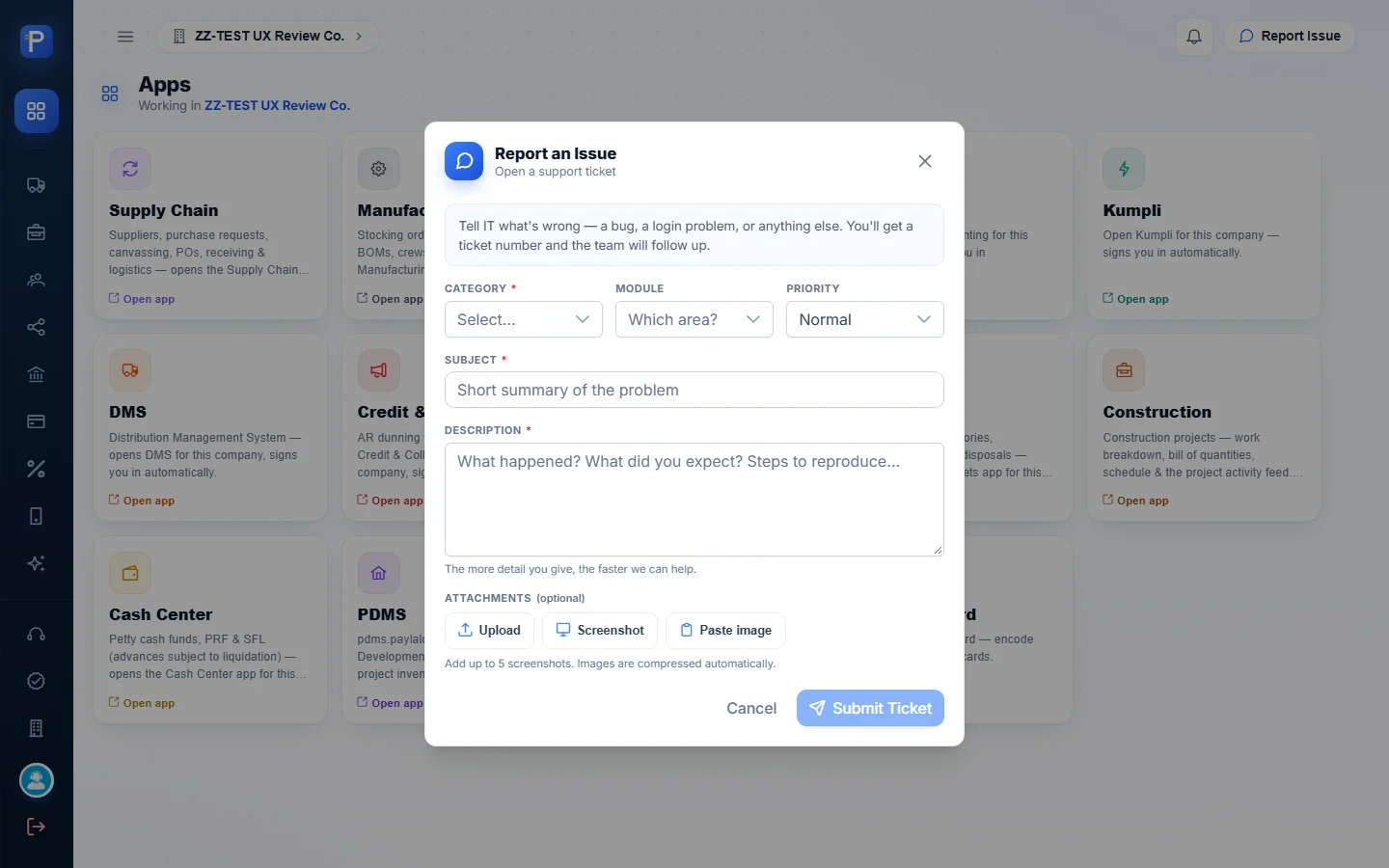
Anyone in any app can press Report Issue to open “Report an Issue — Open a support ticket”. It asks for Category (required), Module, Priority (default Normal), Subject and Description, and takes up to 5 attachments (Upload, Screenshot or Paste image). Submit Ticket stays disabled until the required fields are filled.
The ticket lands in IT Helpdesk. That page shows counters (Open, Unassigned, Resolved, All tickets), filters for status and “Unassigned only”, and a table with Ticket, Company, Subject, Category, Module, Priority, Requester, Assignee, Status and Created. General tickets are numbered HD- and login problems LGN-.
I opened HD-00002, “NO GL ENTRIES FOUND OF APV BEFORE POSTING”. It shows the requester (with Change), module, category, priority, created time, company, the description and attachments. There’s an Assignment box (assignee select, Save, Unassign), a Status box (In Progress, then Update), and a Comments thread with an “Internal note (staff only)” toggle and Post reply. The statuses I saw were In Progress and Closed.


Points approvals and rewards
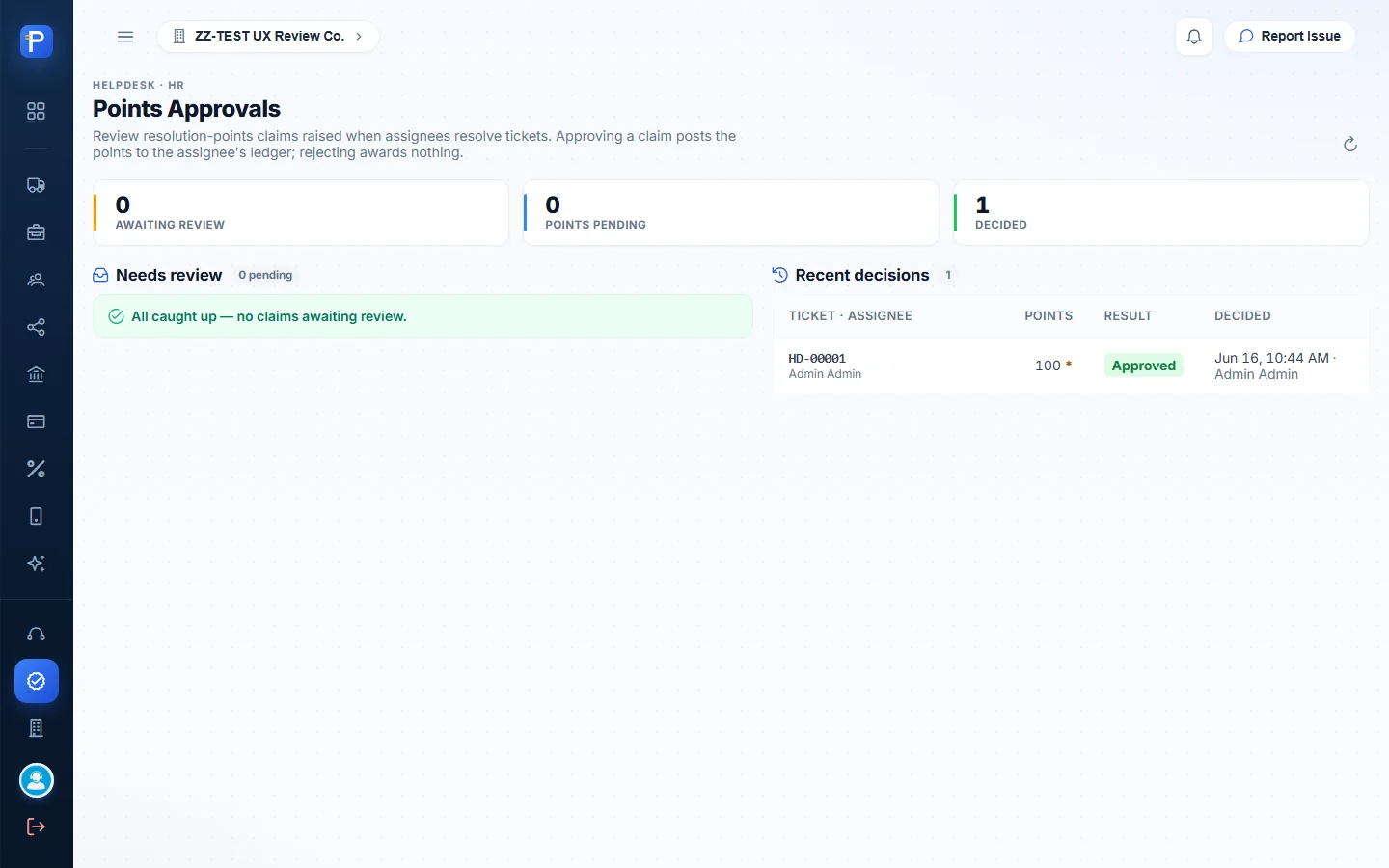
Resolving a ticket raises a claim for resolution points. Points Approvals explains: “Approving a claim posts the points to the assignee’s ledger; rejecting awards nothing.” It shows counters for Awaiting review, Points pending and Decided, a Needs review queue, and Recent decisions (HD-00001, 100 points, Approved).
Rewards Maintenance holds the voucher catalog and the redemption queue. The catalog lists Voucher, Cost in points, Stock, Status and Edit. There are four vouchers, such as “500 Starbucks Voucher” at 50 points with stock 49. The page notes that “Rejected or cancelled requests refund the user’s points and restore stock automatically.” Recent decisions show FULFILLED redemptions.

Integrations
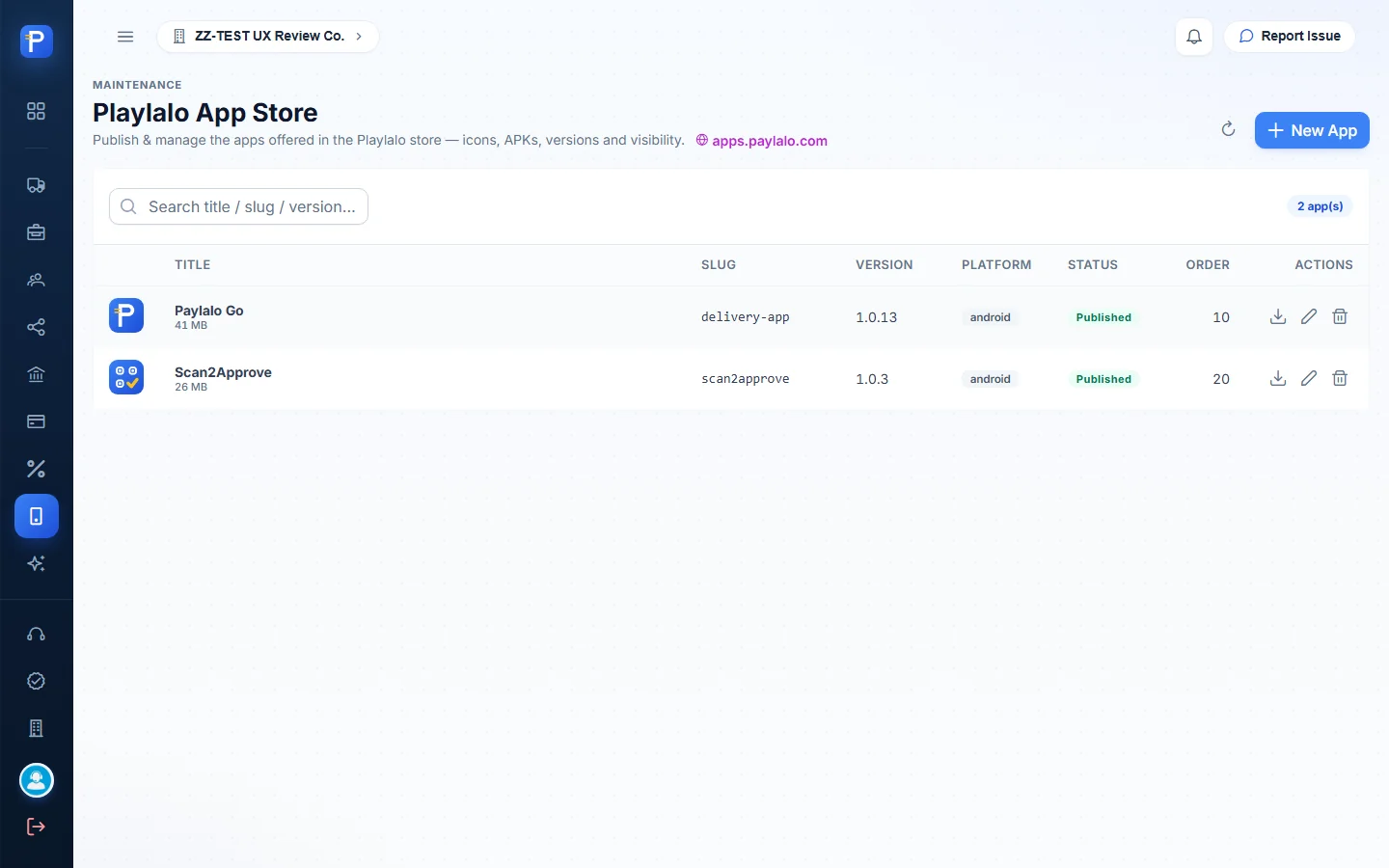
- Playlalo App Store publishes the Android apps served at apps.paylalo.com (Paylalo Go 1.0.13, Scan2Approve 1.0.3), with version, platform, Published status and sort order.
- PDMS Accounts links ERP users to PDMS by email, so “Open PDMS” in the launcher can sign them in. It offers Create in PDMS and Import to ERP. In the test company it reports that the PDMS service login isn’t configured.
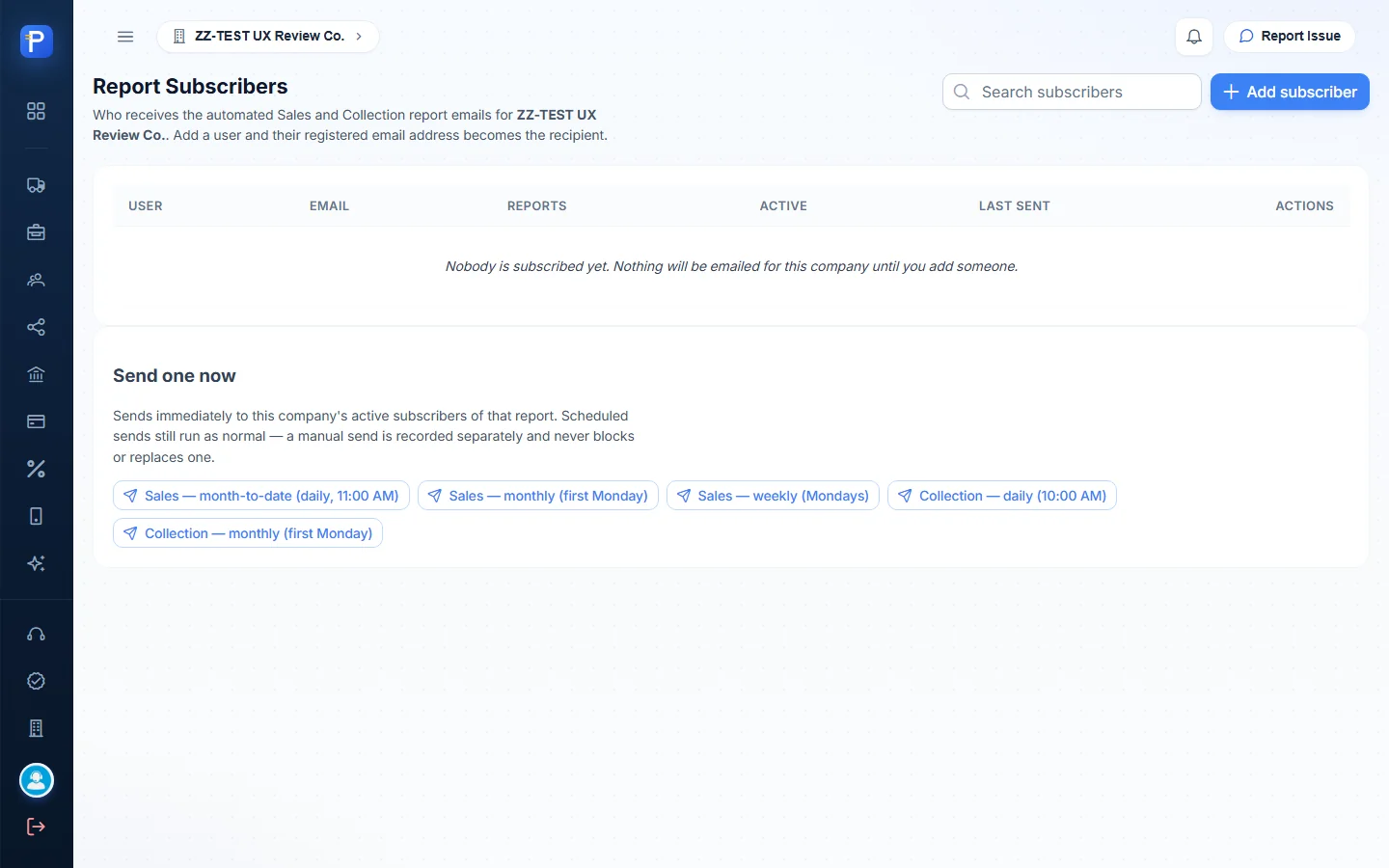
- Report Emails manages subscribers for the automatic Sales and Collection reports. There are five schedules: Sales month-to-date daily at 11:00, Sales monthly, Sales weekly, Collection daily at 10:00, and Collection monthly. There’s also a “Send one now” option. Nobody is subscribed here.
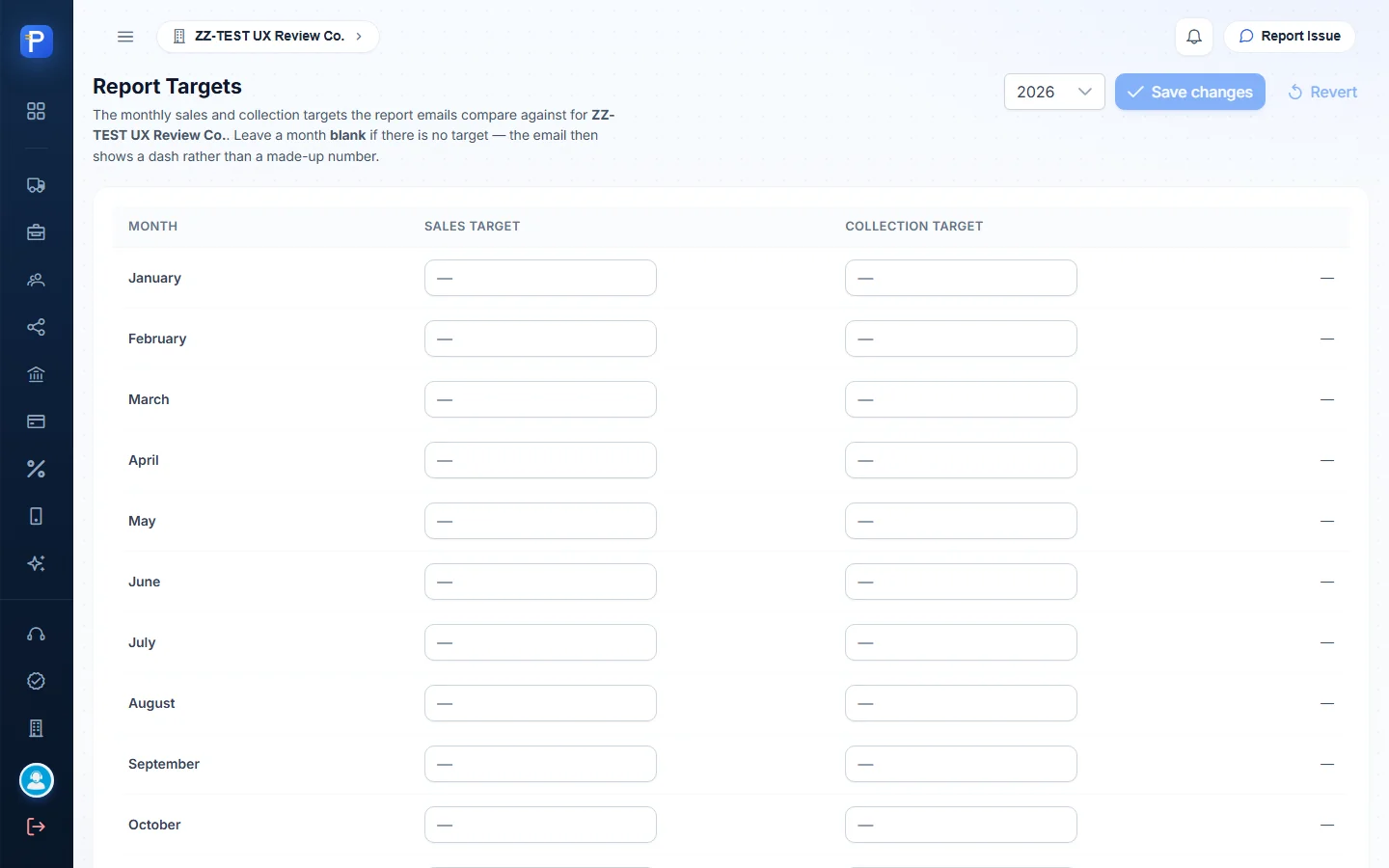
- Report Targets holds the monthly Sales and Collection targets per year that those emails compare against. The page warns “Never enter 0 to mean not set” and explains how partial months are prorated.
- AI Connector gives personal, read-only links that let Claude read chosen modules. It lists the name, modules, key prefix, expiry, last use and request count, and a link can be revoked.
- Webhooks are outbound endpoints per company. The page says that today only “Customer rating submitted” sends anything.
- Emailing sets a per-company SMTP server and sender identity, falling back to the project default. Send test email only goes to yourself.

KPI Scorecard
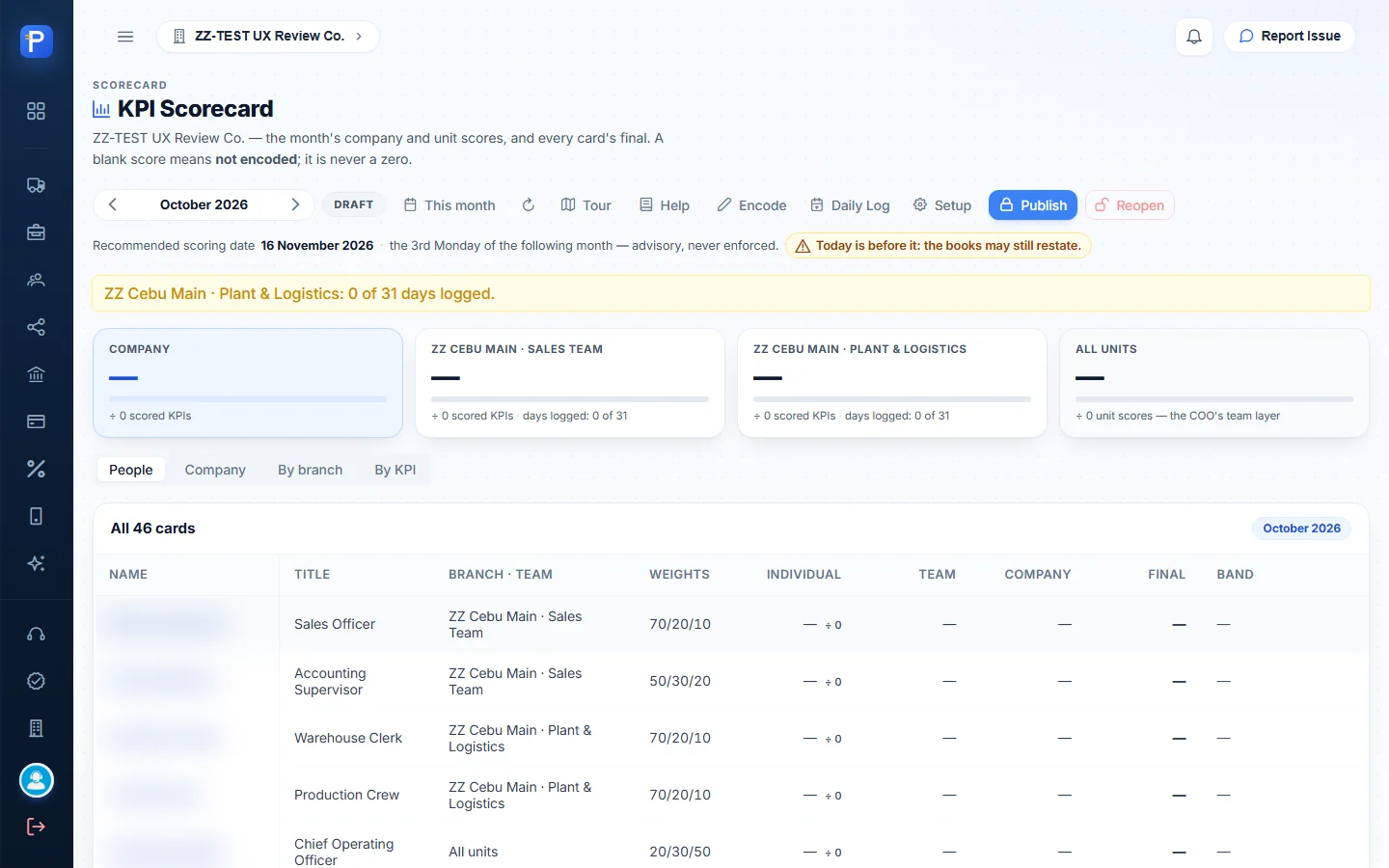
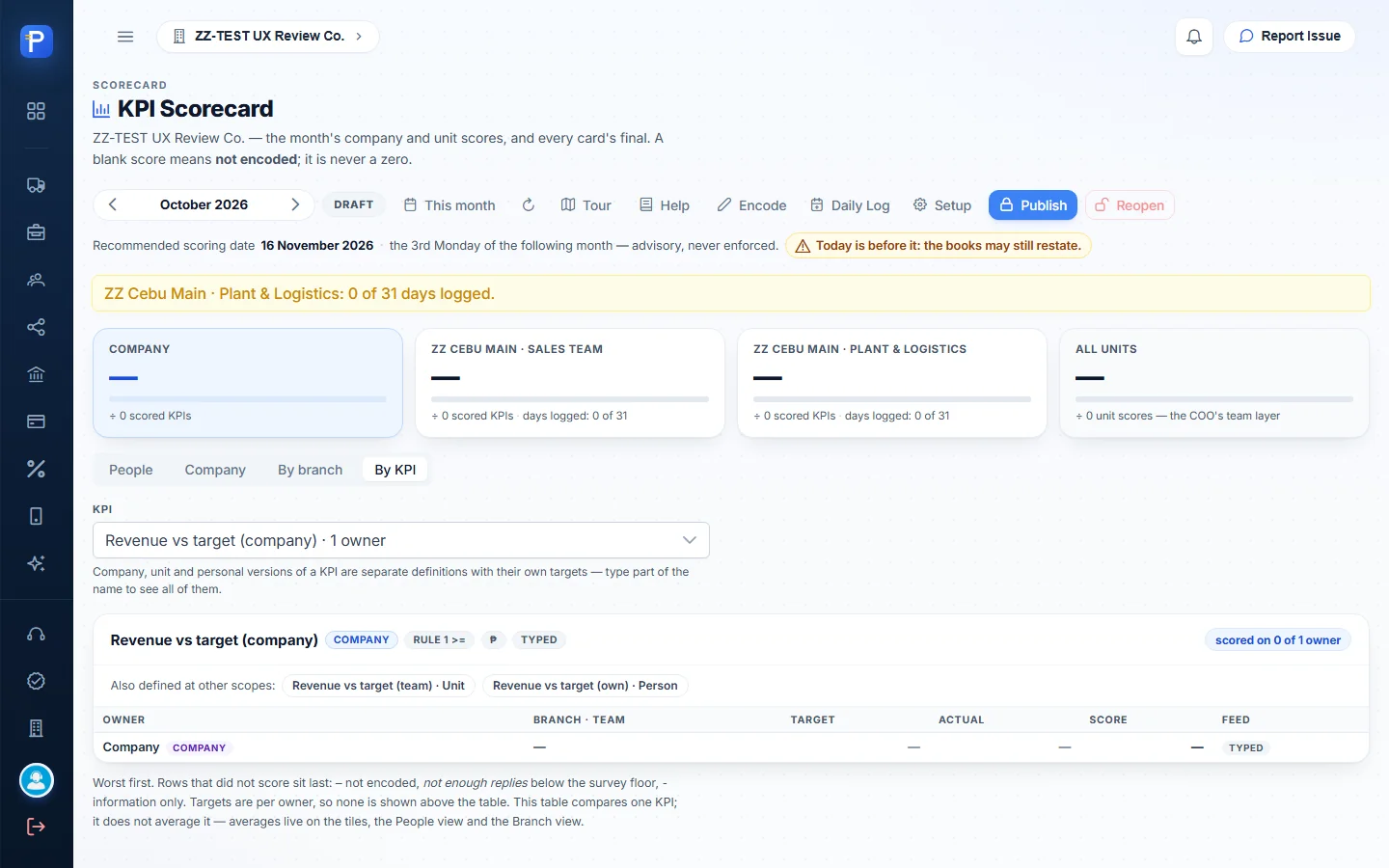
You can only reach the scorecard from its launcher card. The landing page shows the month (October 2026, marked DRAFT), a “This month” button, and Tour, Help, Encode, Daily Log, Setup, Publish and Reopen. It gives a recommended scoring date (“the 3rd Monday of the following month — advisory, never enforced”). Then there are tiles for Company, for each unit (ZZ Cebu Main · Sales Team, ZZ Cebu Main · Plant & Logistics) and for All units.
Below the tiles are four views. People shows all 46 cards with Name, Title, Branch · Team, Weights (such as 70/20/10), Individual, Team, Company, Final and Band. The others are Company, By branch and By KPI. One rule is printed everywhere: “A blank score means not encoded; it is never a zero.”
The monthly cycle
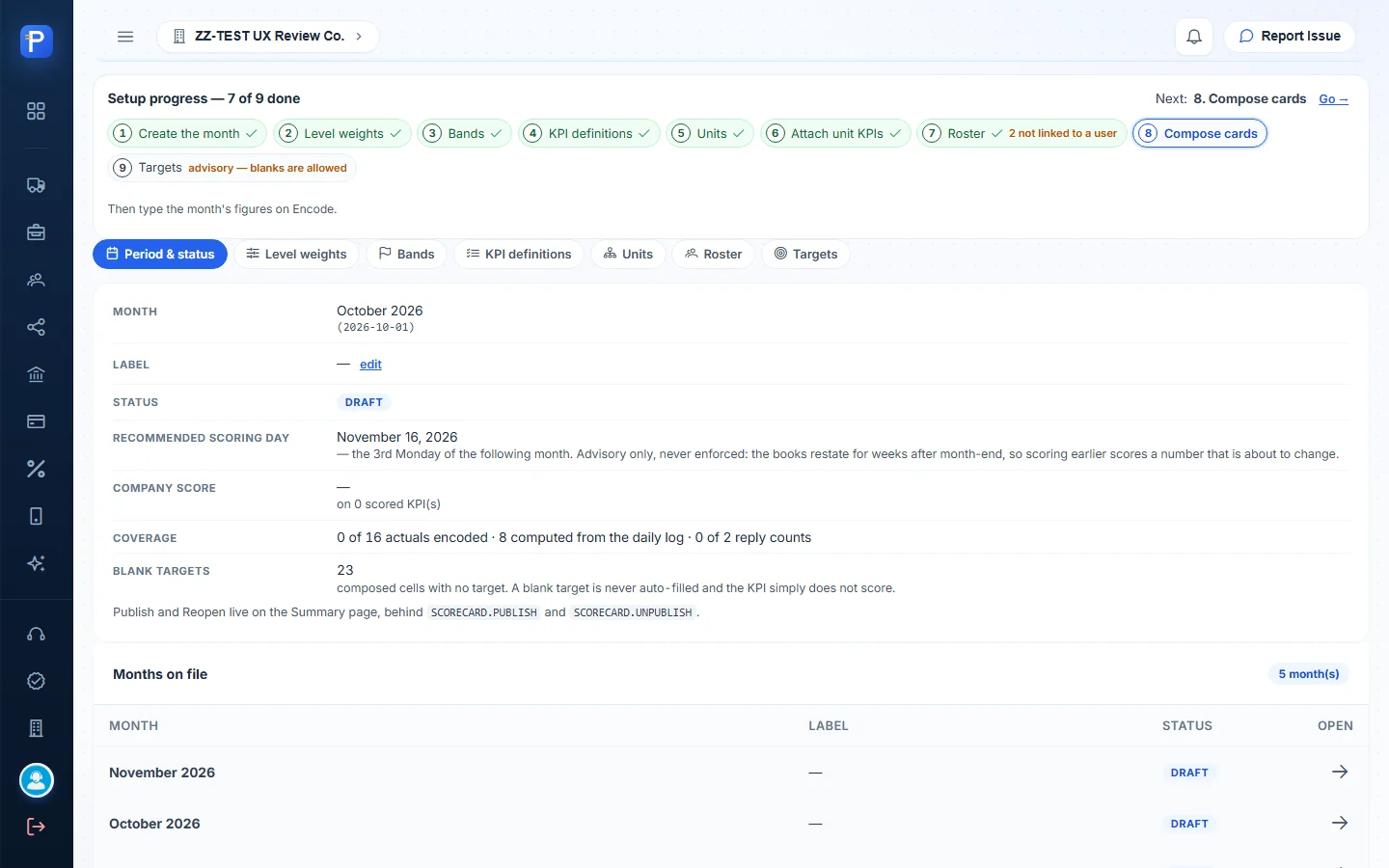
- Setup (SCORECARD.SETUP) is a 9-step checklist. You create the month, set level weights (individual, team and company must add up to 1), set bands (Outstanding 95 and up, Exceeds 85, Meets 70), and define KPIs (rule, direction, unit, survey reply floors). Then you set up units, attach unit KPIs, build the roster, compose cards and enter targets. The test month showed “7 of 9 done” and “23 composed cells with no target”.
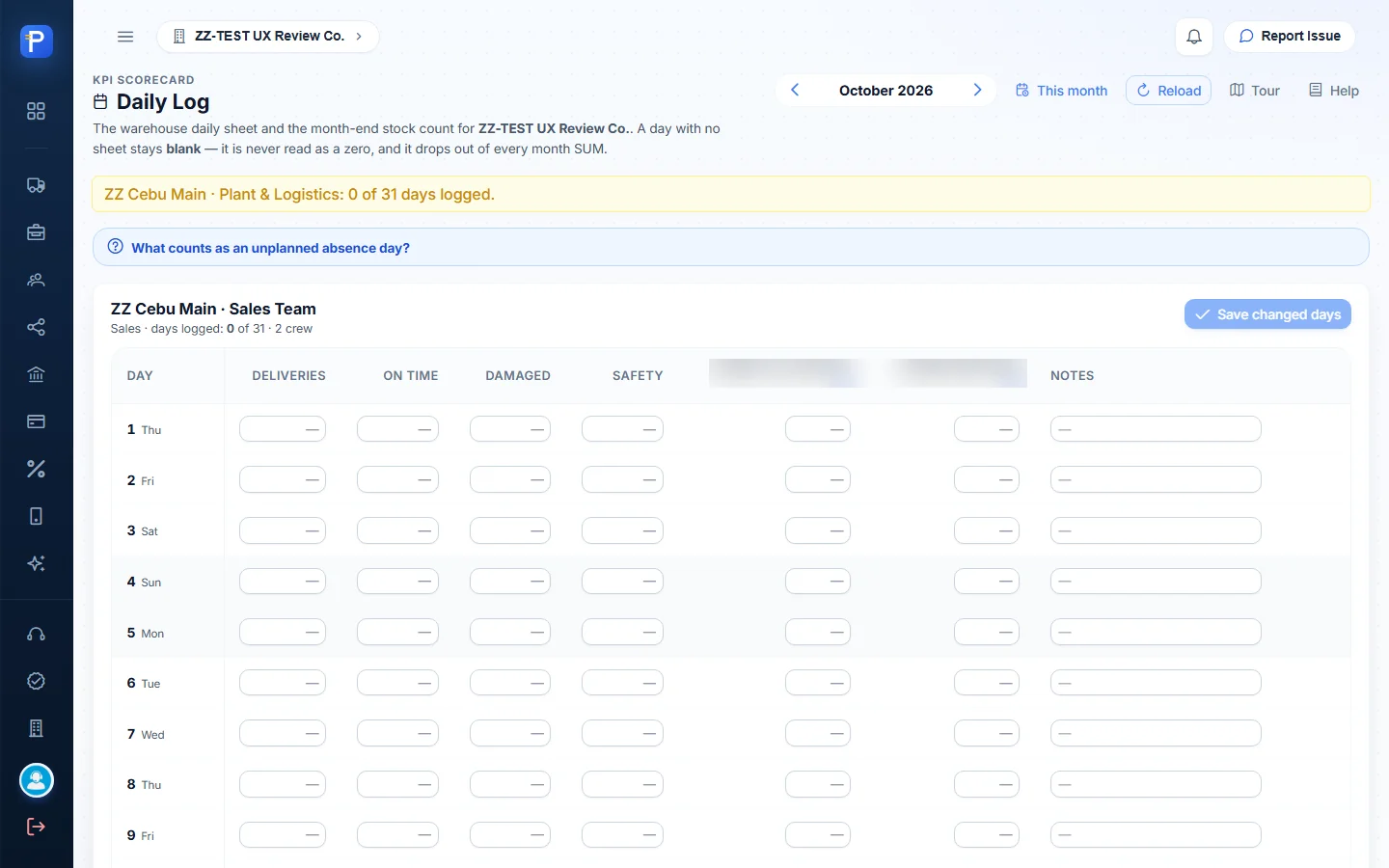
- Daily Log (SCORECARD.LOG) has one sheet per unit and one row per day. The columns are Deliveries, On time, Damaged, Safety, one absence column per crew member, and Notes. There’s a Month-end stock count block, and read-only Month result rows that are “exactly what Encode reads”.
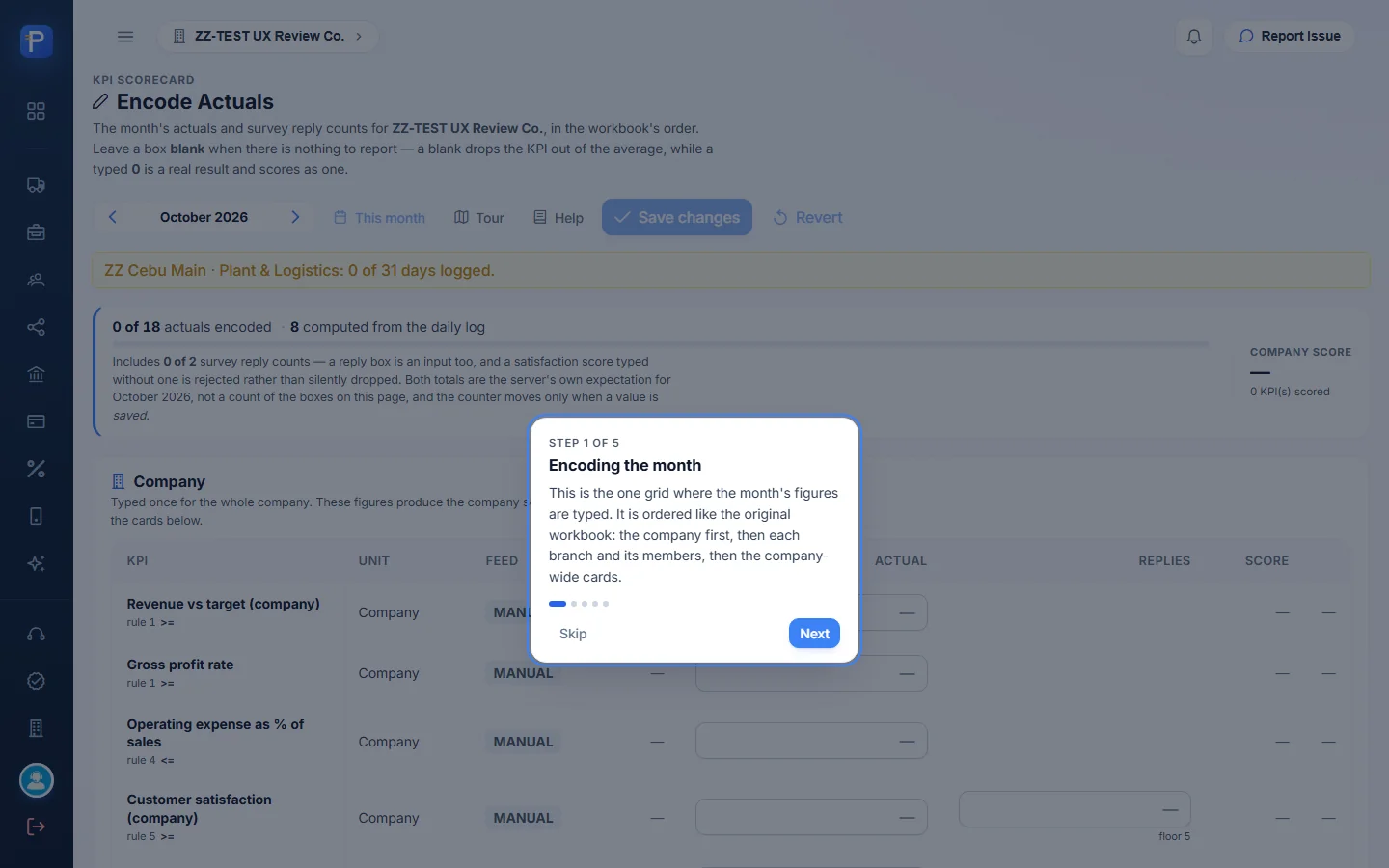
- Encode (SCORECARD.ENCODE) is the one grid for the month’s actual figures, in the same order as the workbook. Company KPIs come first, then each unit’s team KPIs and members, then company-wide and admin cards. Rows fed from the daily log show a link instead of an input box. The counter read “0 of 18 actuals encoded · 8 computed from the daily log”.
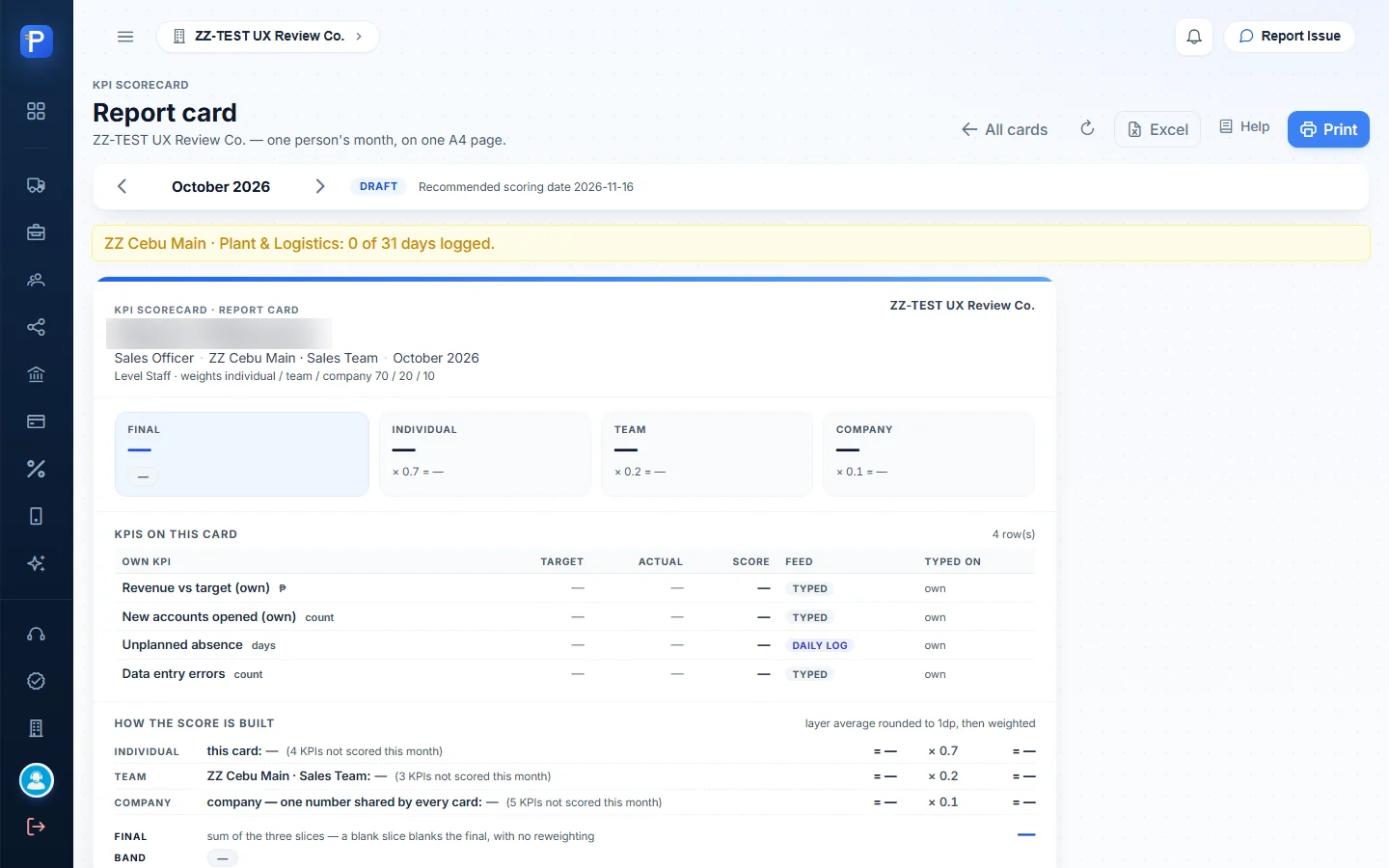
- A report card is one person on one A4 page. It shows Final, Individual x 0.7, Team x 0.2 and Company x 0.1, then the KPI table (Own KPI, Target, Actual, Score, Feed, Typed on), “How the score is built”, the bands, and Reviewed by / Acknowledged by lines. It has Print and Excel buttons.
- Publish freezes the month, so every score becomes a stored snapshot. Reopen is a separate, higher privilege.

How it all connects
- You pick a company on /companies. The launcher and every maintenance page are scoped to it.
- Master data is created or imported here first: suppliers, customers, agents, items (with categories, groups, UoM and conversions), banks, credit terms, tax codes and branches.
- The sibling apps use it. Supply Chain raises Purchase Requests against suppliers and items. Accounting posts payables, invoices and vouchers against the same partners, banks and tax codes. Cashiering collects against customers.
- Purchase Request approval follows the Approval Hierarchy kept here. Canvass and PO approval, and every accounting action, follow the roles and overrides kept here.
- Document events (DS posted, CV released, APV cancelled) come back to the hub’s notification bell.
- Problems in any app become Helpdesk tickets through Report Issue. Resolved tickets earn points, which get approved on Points Approvals and spent on Rewards.
- At month end the KPI Scorecard goes Daily Log, then Encode, then report cards, then Publish. Report Emails send sales and collection summaries against Report Targets.
Notes from testing
- I kept this walkthrough view-only on purpose. I didn’t create, edit, save or submit anything in the hub. I opened the “New” dialogs to capture the blank forms and closed them with Escape or Cancel, so no test documents exist from this session.
- Credit Terms and per-item Measurement have no Add button. Terms only come from Import from API. Conversions are set from the gear icon on an item row, once the branch has items linked.
- The KPI Scorecard, Daily Log and Setup pages start a guided tour on the first visit. I skipped it and didn’t replay it.
- While trying to expand the sidebar, I clicked the first button on the page and got a “Log out?” confirmation. I got out of it by navigating away, and the session stayed signed in. The real toggle is the “Open menu” hamburger.
- An item called ZZ-DOC TEST ADDITIVE 25KG (CHM.CHM1.004, Stocking UoM “Not Set”) was already in the item master. Another walkthrough created it, not this one.
- PDMS Accounts reports that the PDMS service login isn’t configured in this environment. I read AI Connector, Webhooks and Emailing but chose not to screenshot them, because those pages show key prefixes and a webhook endpoint URL with credentials in it.
- Before publishing, check 34-users.png, 48-company-switcher.png, the helpdesk shots (30, 32) and the scorecard shots. They show real user names, email addresses and the live company list, which may need blurring.