Paylalo Go
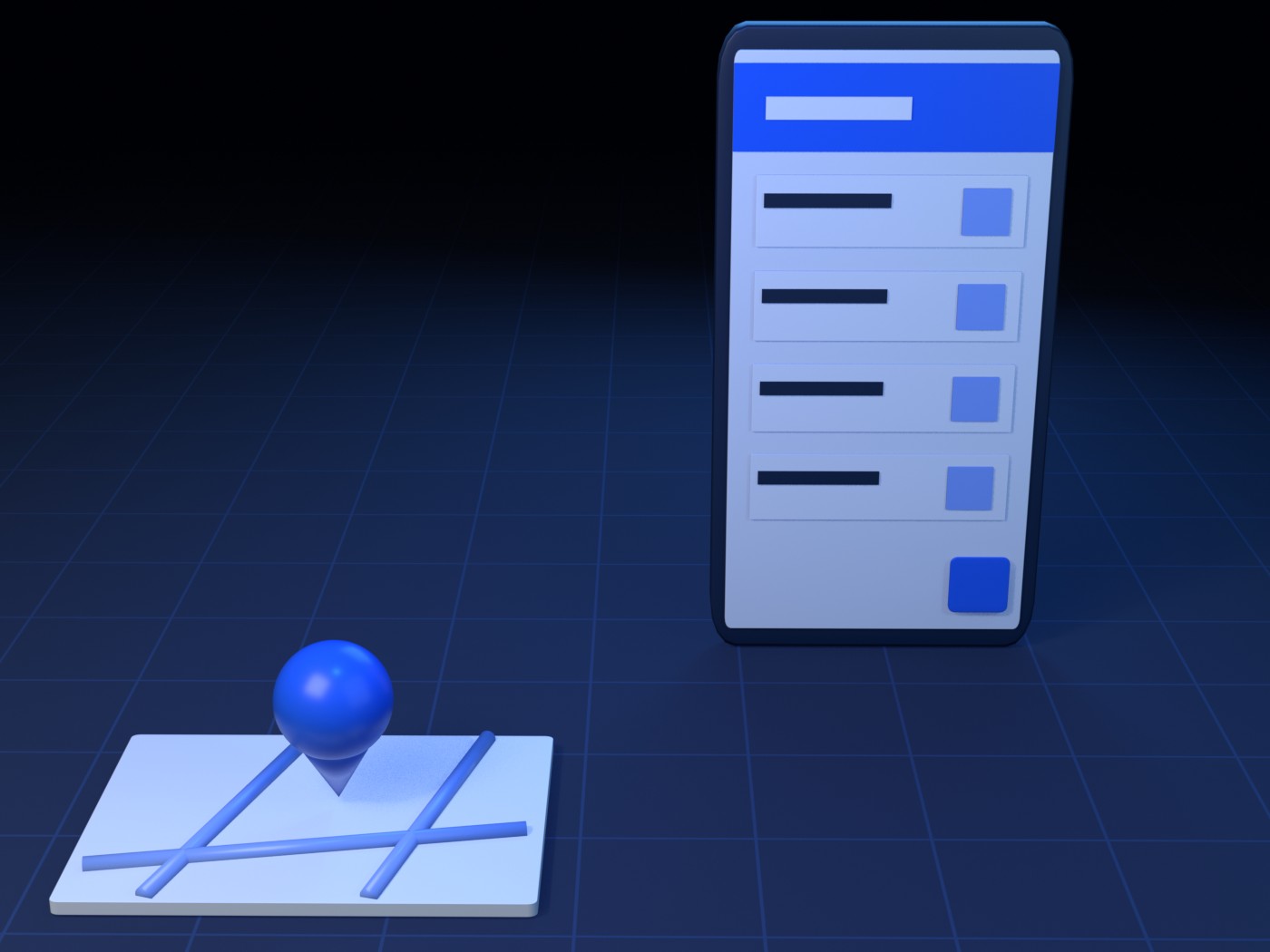
Paylalo Go is the Android app I built for the two people who physically move goods out of a Paylalo company: the driver, who runs the delivery trip and captures proof of delivery, and the gate guard, who confirms a Delivery Receipt (DR) is allowed to leave the yard. It’s the mobile end of the Supply Chain and DMS modules.
The flow goes like this. The office approves a DR in the web ERP, the guard passes it at the gate, the driver delivers it and marks it done, and the server releases the stock and issues the Sales Invoice. The app signs in to the same Supabase backend with the same credentials as every web app. It’s distributed through the Paylalo app store (apps.paylalo.com), not Google Play.
Screens
- Sign In: username and password against the shared
auth-loginEdge Function. - Landing and access check: verifies
DELIVERYAPP.ACCESS, picks the company (the Change company sheet) and routes you by role (Choose a role). - Driver Dashboard, My Trips and Completed Trips: KPI cards, a red “On-going” banner and trip lists.
- New Trip, where the driver picks released DRs as stops.
- Trip detail: start, Proof of Delivery, Done, Can’t deliver, Complete, Cancel and notes, plus the Trip map.
- The “How did we do?” rating QR, which the customer scans with their own phone.
- Guard Dashboard, Awaiting Release and My Releases for the guard.
- Scan DR QR, the gate pass sheet and Delivery Receipt detail, for checking items, confirming and commenting.
- Profile and the Update available dialog.
Sign In
The form is titled “Welcome back” / “Sign in to your account to continue”. It has “Username or Email”, “Password” (the eye icon shows or hides it) and a “Sign In” button. On a tablet, a navy brand panel lists features like “Guarded gate release of Delivery Receipts” and “QR scan-to-release, posts GL & stock”.
- Empty fields are refused inline with “Username is required.” or “Password is required.”
- The app POSTs
{username, password}to/functions/v1/auth-login. A 401 shows “Invalid username or password.” A network fault shows “Cannot reach the authentication server. Check your connection.” - The HS256 JWT and the user are saved in
shared_preferences(delivery_token,delivery_user) and copied to the on-device store so the background trip service can read them. If the token hasn’t expired, later launches skip the login.
Landing: access check and picking a company
You see a spinner while the app works out what you’re allowed to do.
- Non-admins call the
deliveryapp_my_companiesRPC, which returns the companies where they holdDELIVERYAPP.ACCESS. With one company it loads straight away. With several, the “Change company” sheet opens. Closing it without choosing shows “Select a company to continue using the Delivery App.” with a Retry button. - If the company is different from the one in the token,
ensureCompanygets a new JWT from therefresh-company-tokenEdge Function. RLS limits reads to the current company. - Then it reads
get_my_privileges. With no access you get “No access” (“Your account is not granted the “Access Delivery App” privilege…”). With access but no Driver or Guard privilege you get “No role assigned”. Both offer Sign out. If the network fails it shows “Could not verify access” with Retry. - With one role you land on its dashboard. With both you get “Choose a role” (“You have more than one role. Which one do you want to use?”) and a Driver card and a Guard card. Switch role in the drawer brings this screen back.
Driver Dashboard
The driver side has three pages, “Driver Dashboard”, “My Trips” and “Completed Trips”, and a “New trip” floating button. The side drawer holds Dashboard, My Trips, Completed Trips, Profile, Change company, Switch role and Sign out. The dashboard says “Welcome, {name}” / “Run your trips and capture proof of delivery.” and shows stat cards for Active trips, Stops to deliver and Stops delivered, plus an “Open my trips” button.
The first time this part opens, it asks for location permission. If that’s permanently denied, it shows “Location is off for this app. It’s required to start a trip.” with Open Settings.
Trips come from supplychain_trips (with nested supplychain_trip_stops) where createdById = me, and realtime keeps them fresh. While a trip is Dispatched or InTransit, a red ribbon reads “On-going · {tripNo}” with an HH:MM:SS timer, and a pulsing dot marks My Trips. An Android foreground notification (“On-going trip”) keeps the GPS streaming, and tapping it opens the trip.

New Trip
This screen lists DRs you can add, from the supplychain_trip_candidate_deliveries RPC. Those are released DRs that aren’t already on a live trip. There’s a “Trip remarks (optional)” box, a checkbox list under “Select deliveries for this trip” and a “Create trip (N)” button. When there’s nothing to add it says “No released deliveries to add”.
- The ticked DRs must all belong to one company (“Select deliveries from a single company for one trip.”).
- The app calls
supplychain_create_tripwithp_company_id,p_stops([{deliveryId}]) andp_remarks. The trip starts life as Draft, and you start it from My Trips.
Trip detail
The header has a status chip, “{delivered}/{total} delivered”, “Started …” / “Ended …” and the remarks. Below are the numbered stops with customer, DR number, location and status. The bottom bar shows Cancel and either “Start trip” (for a Draft) or “Complete trip” with “{n} stop(s) left” (once it’s moving). A trip in progress also gets Trip map and Add note icons.
- Start trip needs location granted and switched on. If not, you see “Location permission needed” or “Turn on location”. The “Start {tripNo}?” dialog asks for “Odometer (required)” in km, then calls
supplychain_dispatch_tripwithp_start_odometer. The server can refuse with “You already have an on-going trip…”. - Done on a pending stop opens the “Proof of Delivery” sheet. It has a Received by toggle (Customer or On behalf), “Receiver name (required)”, a photo strip (“Take or add at least one photo”) with Camera and Gallery, “Remarks (optional)” and “Confirm delivery”. That button stays disabled until there’s a photo and a name. After “Are you sure the delivery is done?” and Proceed, the photos upload to the private
kumplibucket (pod/trip/{tripId}/{stopId}-photo-N.jpg) and the app callssupplychain_record_podwithp_photo_paths,p_remarksandp_receiver_name. - At this point it fetches the rating QR (
supplychain_delivery_feedback_qr,p_trigger = 'driver-pod') and keeps it ready. - Completing a delivery is write-through. A row with a UUID made on the phone goes into the local
outbox_actionstable first. Then the app callssupplychain_driver_complete_deliverywithp_delivery_id,p_client_action_idandp_event_at. There are several possible results:- green: “Delivered. Invoice {no} issued.”
- amber: “Delivered. Invoice saved as draft for Accounting: …” or “Delivered — Accounting must invoice this manually: …”
- neutral: “Delivered — already invoiced.”
- offline: “Saved. We’ll finish syncing this delivery automatically when you’re back online — the invoice is issued then.”
- a thrown fault: “Couldn’t complete delivery” with Retry.
Queued rows replay with back-off when the phone reconnects. They pause for 30 minutes on authorization errors, go to a dead-letter state after 10 temporary failures, and count “already delivered on the server” as success.
- Can’t deliver, in the overflow menu, asks for “Reason (required)” and calls
supplychain_fail_trip_stop(“It will not deduct stock.”). - Complete trip turns on when no stop is still Pending. “End this trip?” takes an “Odometer (optional)” and calls
supplychain_complete_trip. Cancel needs a reason and callssupplychain_cancel_tripwithp_reason. - Add note (“Pinned to your current location. Works offline”) posts a text note tagged with your location through
supplychain_post_trip_message, using the same outbox. The toasts are “Note posted.” or “Saved — will send when you’re back online.” - Tapping a delivered stop opens a read-only POD viewer, and a Show rating QR icon brings the customer QR back up.
Trip map
The map draws the GPS trail recorded on the phone over OpenStreetMap tiles, which are cached as you drive. A green flag marks the start and a blue arrow shows where you are now. It follows you until you pan, and a “Recenter & follow” button brings it back. Before there’s any data it says “Waiting for GPS… drive a little and your path will appear here.” Points go to the server in 10-second batches through supplychain_push_location.
The “How did we do?” rating QR
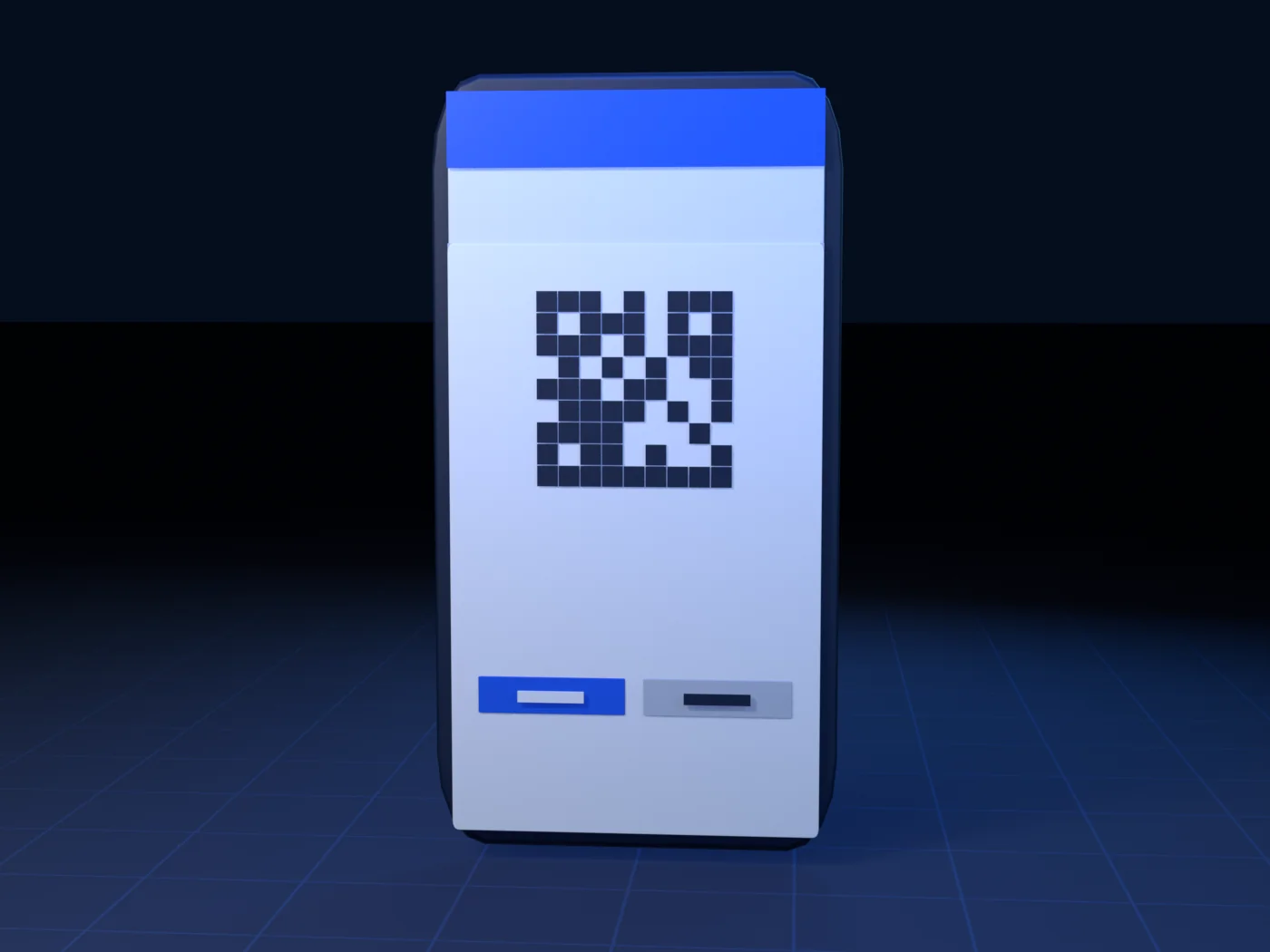
After proof of delivery, or after a pick-up release at the gate, the result dialog offers “Ask customer to rate”. The sheet shows a big black-on-white QR, “Ask the customer to scan — 30 seconds. Salamat!”, the DR number and customer, and two buttons, Customer declined and Done. The screen brightness goes to maximum. The app only draws the URL the RPC sends back. If the RPC is missing or the company has no feedback.portalBaseUrl setting, the option just doesn’t appear.
Guard Dashboard, Awaiting Release, My Releases
The guard side mirrors the driver’s, with “Guard Dashboard”, “Awaiting Release” and “My Releases” pages and a “Scan QR” button that’s always there. The dashboard says “Release Delivery Receipts at the gate.”, shows a Deliveries awaiting release card, and has “Scan DR QR to release” and “View awaiting-release list” buttons.
Awaiting Release reads supplychain_customer_deliveries with status Approved or Released and deliveredAt null. When it’s empty it says “Nothing awaiting release”. My Releases lists DRs where releasedById = me.
Scanning a DR and the gate pass
“Scan DR QR” is a full-screen camera with a white viewfinder, torch and camera-switch icons, and an “Upload QR image” option for a saved screenshot. It only accepts PAYLALO-DR|companyId|deliveryId|qrToken codes. Anything else gets “Not a Delivery Receipt QR code.”
- The session switches to the QR’s company (
ensureCompany) and fetches the DR by id. If RLS hides it, you see “DR #N (company N) not found or not visible to your account…”. - The gate pass sheet shows the DR number, a status chip, Customer, Sales Order, Branch, Delivery date and a “Verify items” checklist with a quantity badge on each line (“×5 pc”). The guard has to tick every line (“Tick every item above to confirm it is loaded — then the gate pass is enabled.”). A DR that’s still “For Approval” is refused.
- The button says “Confirm gate pass” when the DR already posted at approval. For an older DR with no goods-issue GL master it says “Release delivery” (“confirming also posts the goods-issue GL entry and deducts stock”).
- The app runs
supplychain_release_customer_deliverywithp_delivery_idandp_qr_token. On success the toast reads “Delivery {no} released — GL + stock posted.” For a pick-up DR it then offers the rating QR (p_trigger = 'guard-release').
Delivery Receipt detail
The guard opens this from either list. It shows the header rows, the same item checklist if the DR can be released (otherwise a plain “Items” list), an Activity timeline (Created, Approved, Released) and a Comments thread (“Add a comment…”). Comments run on list_doc_comments and add_doc_comment (p_doc_type = 'DR') plus mark_doc_viewed. New comments arrive live, and you see “{name} is typing…”.
Profile
“Profile” has Change photo, Edit profile (“Full name”, “Email (optional)”), Change password and Default signature (Draw or Upload, then Save signature). Behind it are get_my_profile, update_my_profile, change_my_password, set_my_avatar and set_my_signature. The signature is saved as a PNG at kumpli/signatures/user/{userId}/sig.png.
How it talks to the rest of the suite
- Auth uses the custom JWT from
auth-login. Every call is plain HTTP to/rest/v1/...or/rest/v1/rpc/...withapikeyandAuthorization: Bearer.supabase_flutteris only used for realtime. Switching company goes throughrefresh-company-token. - Access is gated by
DELIVERYAPP.ACCESS,DELIVERYAPP.DRIVERandDELIVERYAPP.GUARD. Admins skip the check. - The documents it touches are Customer Deliveries approved in the DMS and Supply Chain web apps, whose DR screen prints the QR, and trips (
supplychain_trips,_trip_stops), which the DMS trip map also watches. - Scan2Approve reads the same
PAYLALO-DR|…code. The rating page is the CustomerPortal at/f/{token}.
Releases and updates
pubspec.yaml is at 1.0.13+14. CLAUDE.md records 1.0.12 / code 13 as live in the store since 2026-08-05, so 1.0.13 is a bump that hasn’t gone out yet.
To publish, I go to ErpFrontEnd → Maintenance → Playlalo Apps → “Add version”. That uploads the arm64-v8a APK to the playlalo bucket, writes manifest/delivery-app.json and adds the store rows. On launch the app fetches that manifest. If it finds a higher versionCode, it shows “Update available (vX.Y.Z)” with the notes and two buttons, Later and “Open Paylalo Store” (deep link apps.paylalo.com/apps?app=delivery-app). With mandatory: true, Later is hidden and the back button is blocked.
Notes
SETUP_OTA.mddescribes a Shorebird/GitHub-Releases route that isn’t how the app is actually published. The rootversion.jsonis an old sample.- According to
CLAUDE.md,supplychain_cancel_triponly flips the status and doesn’t reverse any stock or AR. That’s an open server defect. - The gate-release rating trigger has never run against a real pick-up DR (
isPickupis false everywhere). - I wrote this from the source code, not by running it on a device. Server messages like “You already have an on-going trip…” come from code comments.