Paylalo Manufacturing (Make-to-Stock)
Paylalo Manufacturing (Make-to-Stock) runs at stocking.paylalo.com. It’s the factory side of the Paylalo suite, for a company that builds finished goods to keep on the shelf rather than to fill one customer’s order. Planners, production staff, the floor crew and accounting all work in it.
Here’s the shape of it. A planner raises a Stocking Order saying how much finished stock is wanted. Production builds it with Production Orders that consume the materials in a Bill of Materials. A crew moves each batch across a wall-mounted Floor Queue. Accounting sees the result in Work in Process (WIP) and Overhead absorption. The app shares its item master, branches, warehouses and stock figures with Paylalo Supply Chain and Accounting, so a component in a recipe is the same item the warehouse counts and the ledger values. For this article I ran one full cycle in the test company ZZ-TEST UX Review Co., which makes 25 kg bags of tile adhesive: recipe, stocking order, approval, build, material issue, shop floor, completion and cost.
The screens
- Dashboard: a material-planner summary (items, stock warnings, pending plan approvals) plus procurement snapshots.
- Stocking Orders: the demand document. You create it as a Draft, approve it, then use Build to raise production against it.
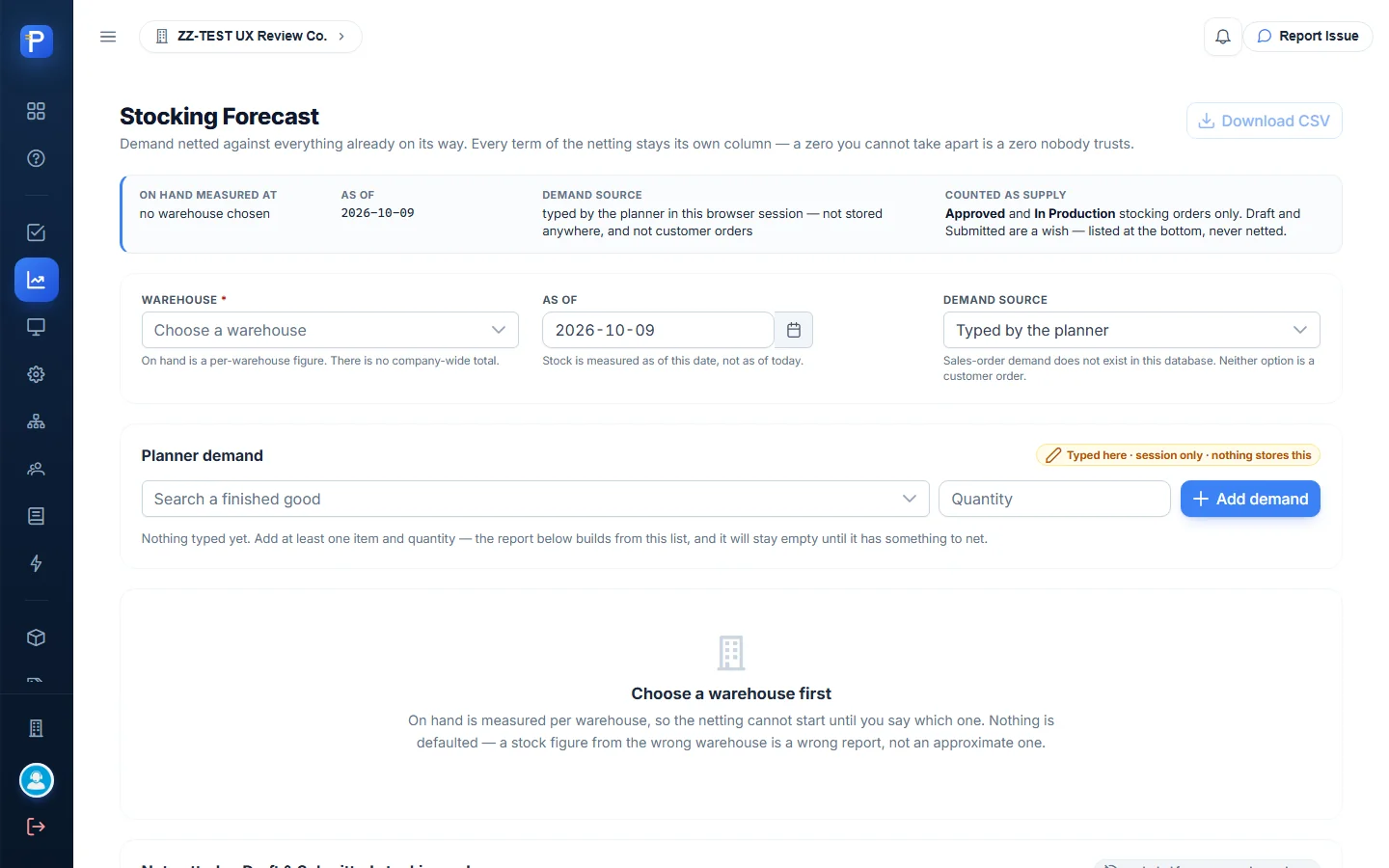
- Stocking Forecast nets the demand you type against on-hand stock, open production and approved stocking orders, per warehouse and as of a date.
- Floor Queue is a three-column shop-floor board (Queue, Processing, Ready) with crew and station assignment.
- Production Orders hold the build. Each shows its material requirement and a Posting panel (Issue materials, Post completion, Substitute ingredient, Cancel order).
- Bills of Materials are versioned recipes with a live cost roll-up at weighted-average cost (WAC).
- Crews & Stations are the crews and work stations you can put on a batch.
- WIP & Cost Sheet lists every production order still carrying a WIP balance (issued + overhead − absorbed − written off).
- Overhead & Rates covers cost pools, monthly rates per unit, month-end confirmation, and applied-versus-actual variance.
- Stock Position, Items, Item Categories and Item Groups are the shared inventory masters and on-hand stock by warehouse.
- Material Planning (grid, Plans, KPIs, Admin) has a time-phased MRP grid, saved plans and planning KPIs. Its “Forecast” page reads “Coming soon.”

Bills of Materials
The recipe and its cost
A Bill of Materials (BOM) says what one batch consumes. A batch isn’t one unit, which is why the screen keeps repeating “Component quantities below are per batch of 100.0000 BAGS — not per finished unit.” The recipe stores quantities only. Money is read live from each component’s WAC at a chosen branch and as-of date, and never saved on the recipe.
The existing default recipe BOM-TA-HD (Tile Adhesive Heavy Duty, 100 bags per batch, 1.00% finished-goods yield loss) rolls up to ₱31,433.50 per batch, or ₱314.34 per bag. The cement line, for example, is 1,000 kg at WAC ₱6.90, which gives ₱6,896.00. The polymer powder line is 87.5 kg at ₱185.00, giving ₱16,187.50.
You never edit an Active recipe in place. The detail panel offers New version from this and Archive, and warns that activating a new version archives the old one in the same step.

Creating a recipe (ZZ-DOC-BOM-TA-STD-10)
- Click New recipe. The form tells you it’s “Saved as a Draft. A draft costs nothing and is used by nothing.”
- Pick the Finished good. Only active items classed Finished Goods are offered, and you can’t change this after saving. I picked FG.TA.001 Tile Adhesive Standard Grey 25kg.
- Enter the recipe code (
ZZ-DOC-BOM-TA-STD-10), version 1, a name, Batch yield 10, UoM BAGS, the FG yield loss %, the effective-from date and notes. - Add components. Only items classed Raw Materials are offered, and each item can appear on one row only. I added Portland cement 100 kg, silica sand 137.5 kg, HPMC 1.25 kg and kraft sacks 10 pcs.
- A live checklist at the bottom (“3 things to fix before this can be saved”) changes to “Ready to save as a Draft.” Then click Create draft.
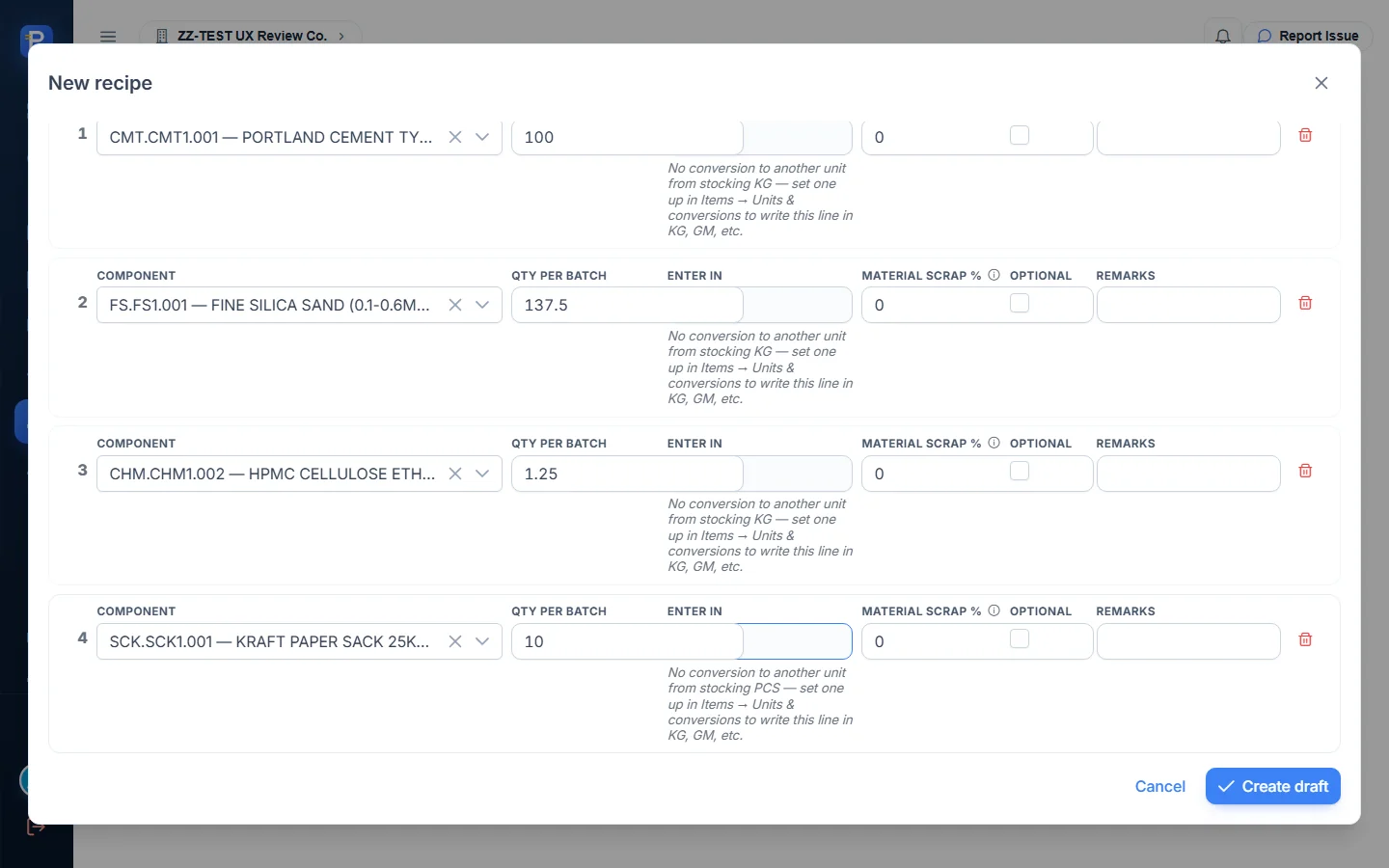
The draft showed up in the list as Draft. Its detail panel rolled it up to ₱1,404.60 per batch (₱140.46 per bag) and offered Edit draft, Activate, Delete draft and Archive.

I left this recipe as a Draft on purpose. Activating it would make it a live recipe for FG.TA.001 next to, or instead of, the existing default BOM-TA-STD, and other users’ production depends on that one. So the production run below used the existing default BOM-TA-STD v1 (100 bags per batch), not my ZZ-DOC recipe.
Stocking Orders
Raising one (STK-2026-0005)
A Stocking Order asks for finished stock to be on hand. It names a branch and a warehouse, not a customer.
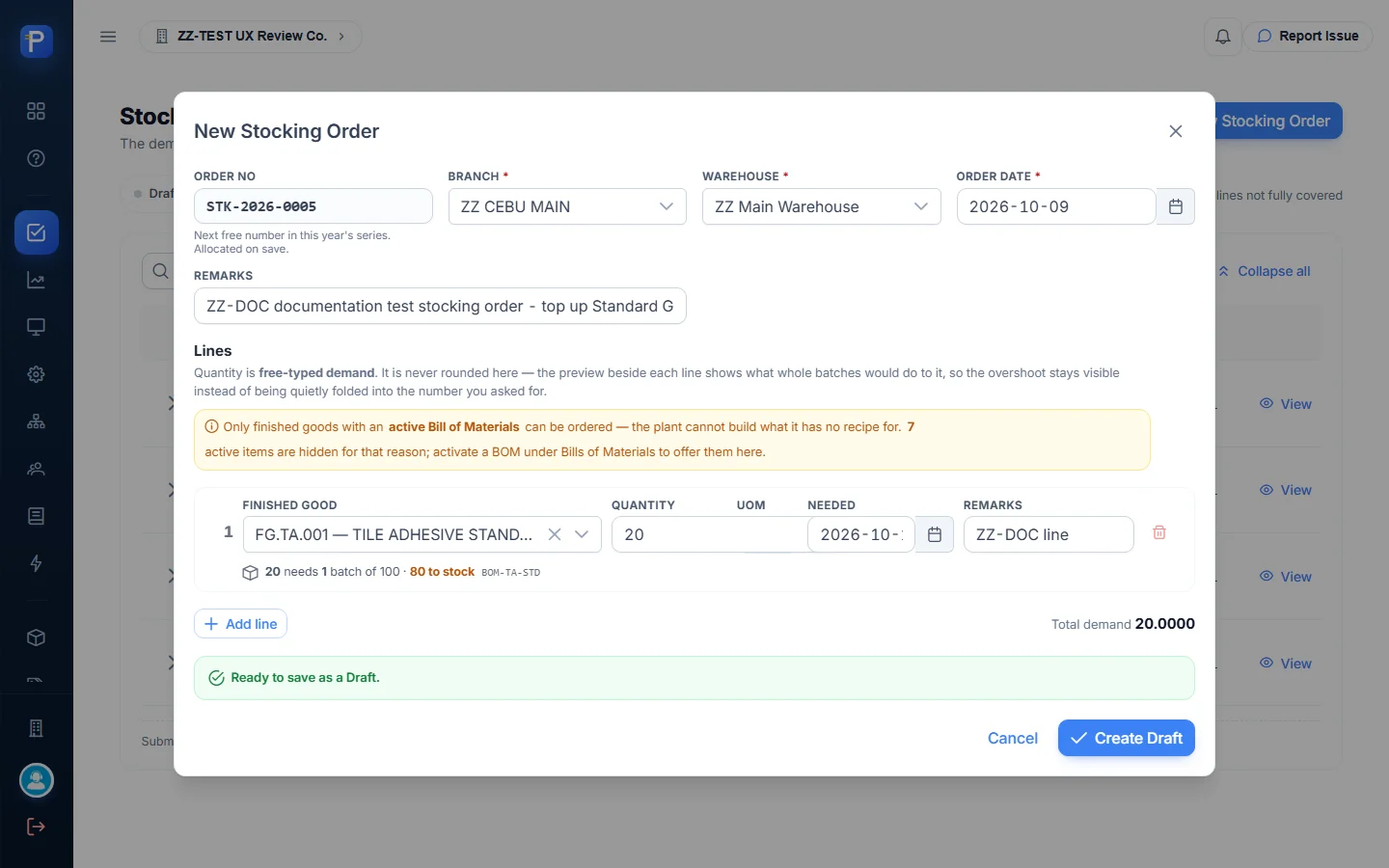
- Click New Stocking Order. The number (STK-2026-0005) is shown as “Next free number in this year’s series. Allocated on save.”
- Pick the branch (ZZ CEBU MAIN), the warehouse (ZZ Main Warehouse), the order date and remarks.
- Add lines. Only finished goods with an active BOM can be ordered (“7 active items are hidden for that reason”). I asked for 20 BAGS of FG.TA.001, needed 2026-10-16.
- Each line previews what that means in batches: “20 needs 1 batch of 100 · 80 to stock BOM-TA-STD.” The quantity you type is never rounded. It shows you the overshoot instead.
- Click Create Draft and confirm. The confirmation says: “It is saved as a Draft — nothing is authorised to be built by this, and no stock or general-ledger entry is written.”

Approving it
The order’s View panel has a Position block (Demanded, Committed to build, Finished so far, Still open), the lines, the production raised against the order, and a history.
- Open the order and click Approve.
- Confirm “Approve STK-2026-0005? Production can then be built against its 1 line(s).”
The status went straight from Draft to Approved. There was no Submit step. The history logged “Approved · Admin Admin · Oct 9, 2026, 3:39:27 PM”, the status line changed to “Authorised. Counts as supply in the Stocking Forecast.”, and a Build button took Approve’s place.

Building production from it
Build opens a short form. It shows the recipe it’ll use (BOM-TA-STD v1, default, 100 per batch), Batches (whole batches only), the order and needed dates, the materials warehouse and the finished-goods warehouse. It spells out the split: “This order will build 100 · Allocated to this demand 20 · Surplus to plain stock 80.” It also confirms that ZZ Main Warehouse covers every component for one batch, and says “This creates the order only — it posts nothing.”
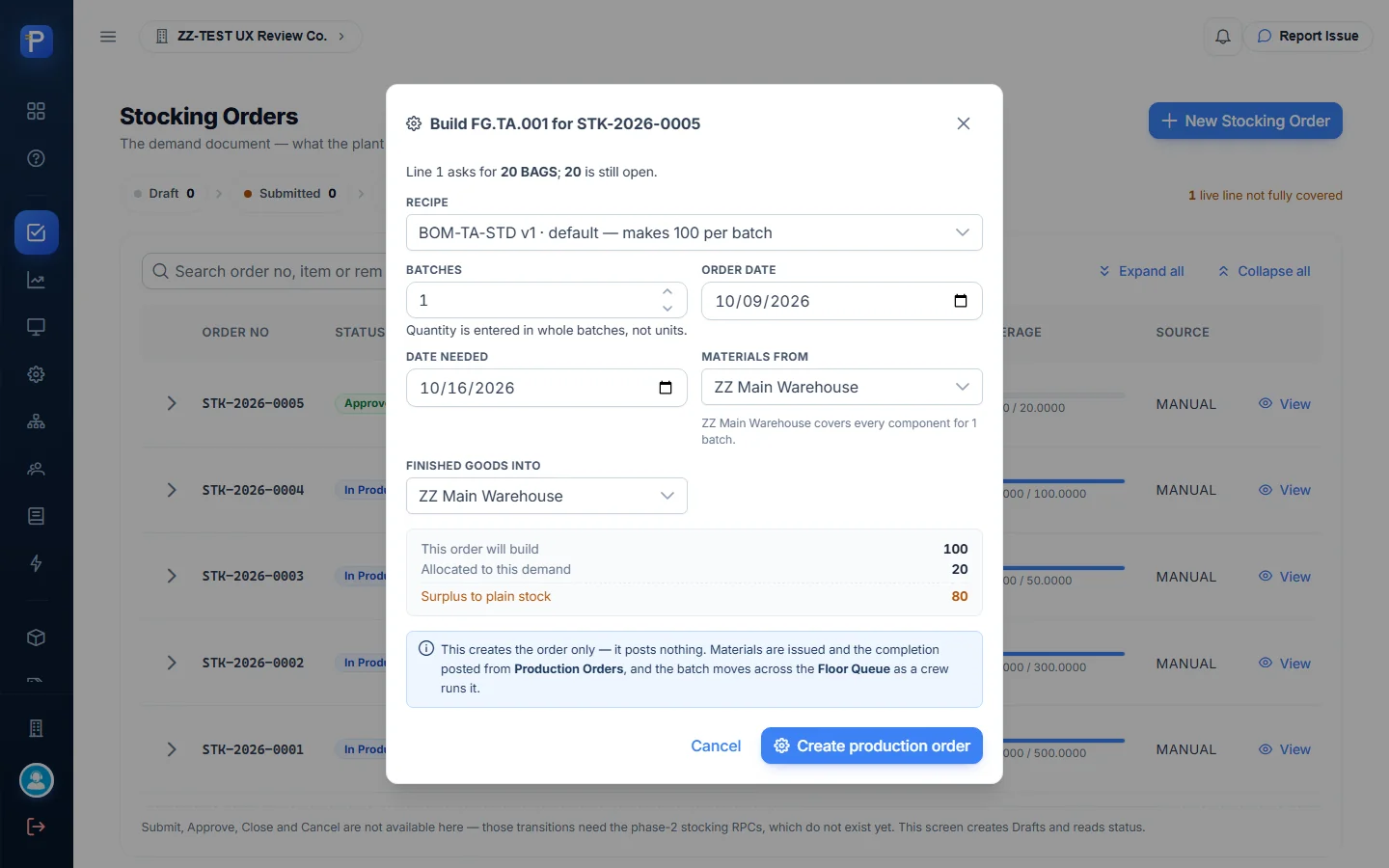

After I confirmed, PROD-2026-0008 was created as Released. The stocking order moved to In Production with coverage 20.0000 / 20.0000.
Production Orders
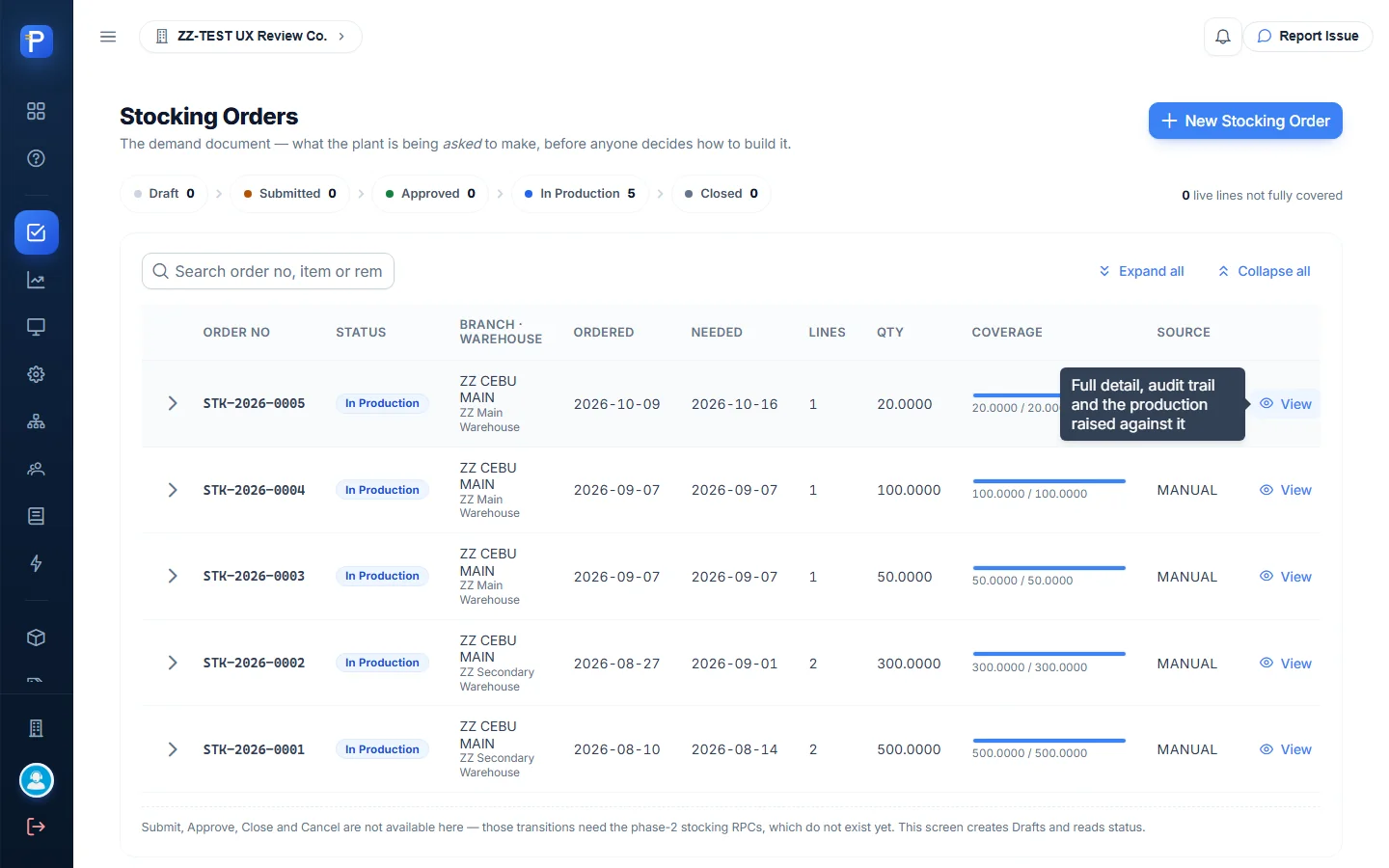
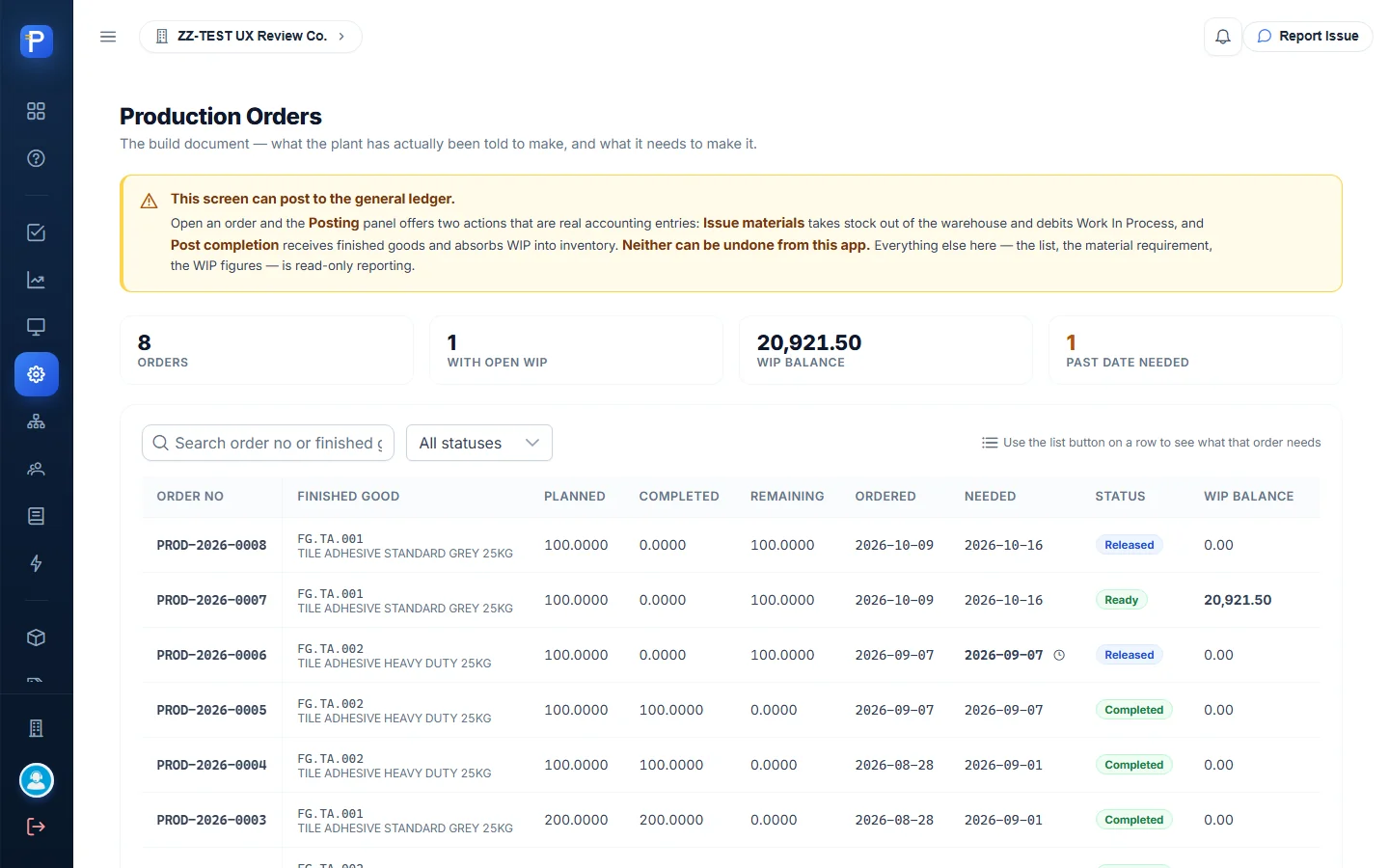
The list shows each order’s planned, completed and remaining quantity, its dates, status and WIP balance. A yellow banner warns: “This screen can post to the general ledger… Neither can be undone from this app.” The list button on each row opens the material requirement for that order. Requirement = recipe quantity × (planned ÷ batch yield), with an optional scrap gross-up, and on-hand is read as of the order date. The Posting panel sits below.
Issuing materials
- Open the order and click Issue materials.
- The form prefills each component with its outstanding balance, not the full requirement, because “re-issuing what is already in work in process is the easiest way to double-charge a run”. It shows Required, Already issued, Balance and On hand. Stock and cost are measured as of the issue date.
- Click Issue materials and confirm: “Issue 6 components to PROD-2026-0008? This moves stock out of the warehouse and posts to the general ledger. It cannot be undone from this app.”


The order went to In Process, “Fully issued: yes”, with WIP of ₱20,921.50. On-hand in the requirement table dropped by exactly the issued amounts: cement from 124,750 to 123,875 kg, sand from 186,200 to 184,650 kg, and sacks from 12,500 to 12,400 pcs.
The WIP figure ties back to the recipe at WAC:
| Component | Qty | WAC ₱ | Value ₱ |
|---|---|---|---|
| Portland cement | 875 kg | 6.896 | 6,034.00 |
| Fine silica sand | 1,550 kg | 1.60 | 2,480.00 |
| RDP polymer powder | 37.5 kg | 185.00 | 6,937.50 |
| HPMC | 10 kg | 320.00 | 3,200.00 |
| Calcium formate | 27.5 kg | 48.00 | 1,320.00 |
| Kraft sacks | 100 pcs | 9.50 | 950.00 |
| Total issued to WIP | 20,921.50 |

The help pages list the rules the server checks on every draw. You can’t draw more than the recipe needs. You can’t draw stock you didn’t hold on the document date. You can’t draw a material with no cost, and you can’t feed a product into its own build.
Floor Queue
The Floor Queue is a live board meant for a monitor on the wall. It has three stages. Queue holds released batches, soonest needed first. Processing is what’s on the line, with crew and station. Ready means “Physically finished. The cost has NOT been posted yet.” A batch with no materials issued can’t be called: PROD-2026-0006 sat in the queue marked “No materials issued yet — cannot be called.” Mine said “Materials issued in the office — no crew called.”
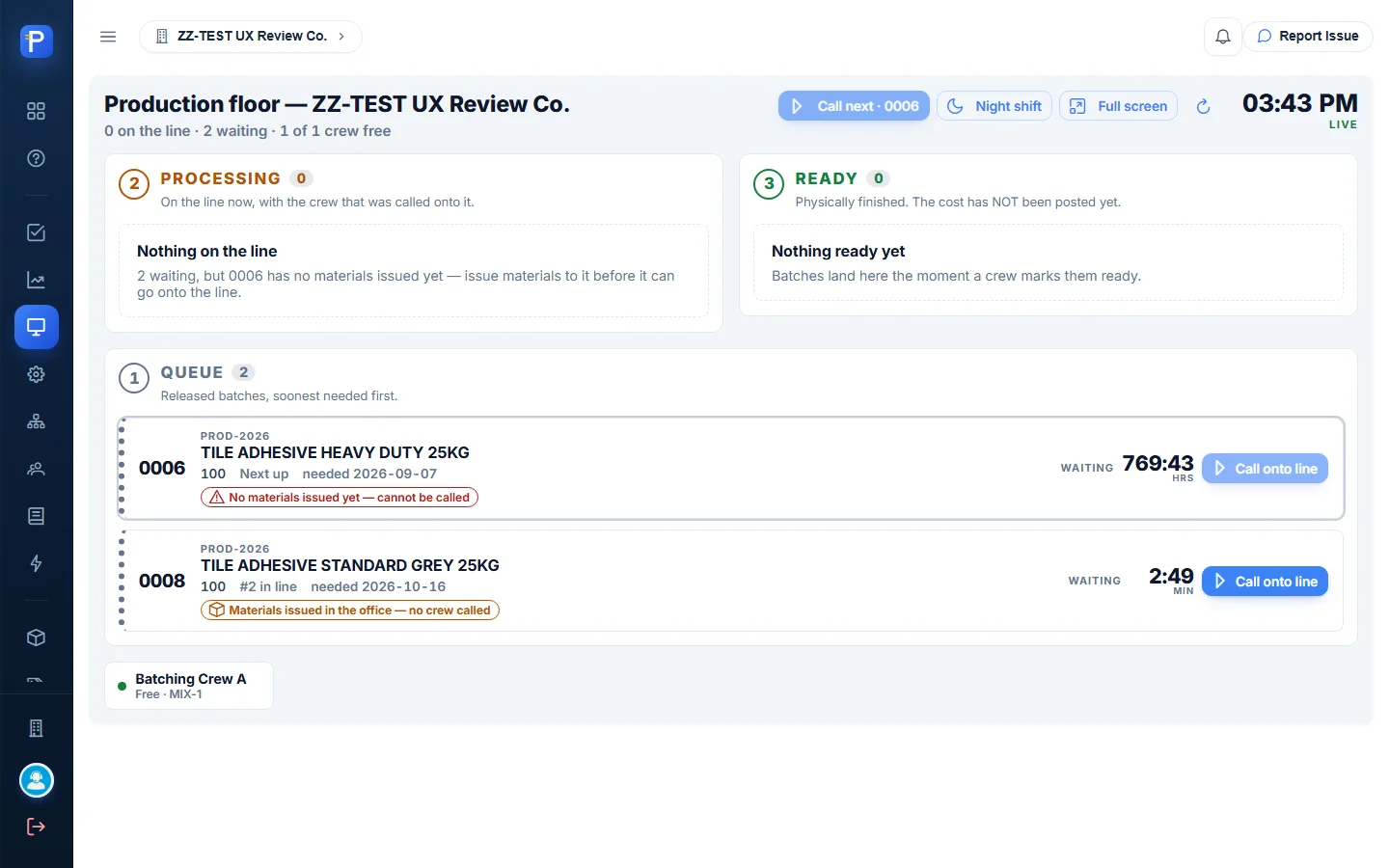
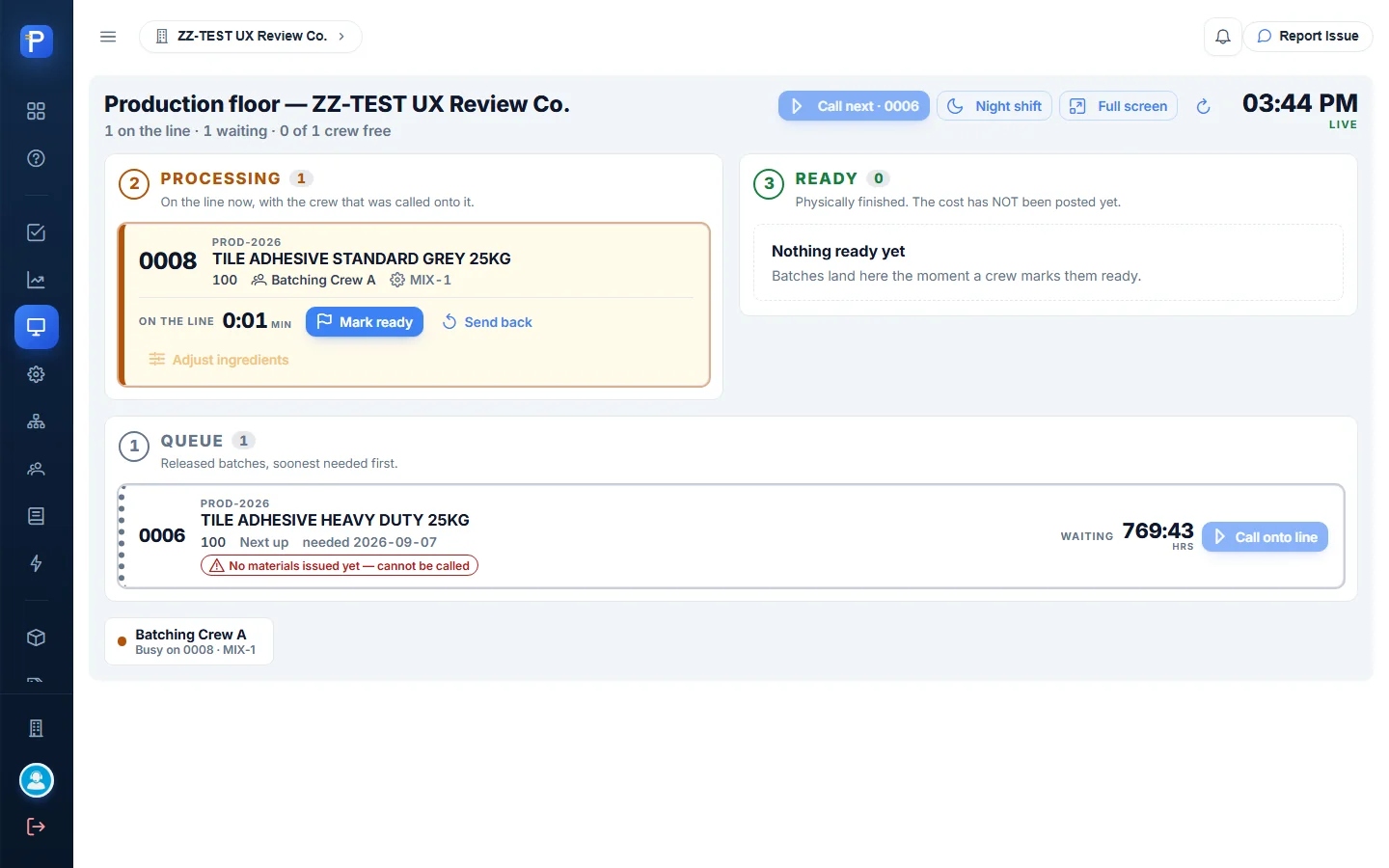
- Call onto line: pick the crew (Batching Crew A) and station (MIX-1), then Put it on the line. The dialog says this “moves no stock and posts nothing — it records who is running the batch and starts the clock.” The crew then shows “Busy on 0008.”
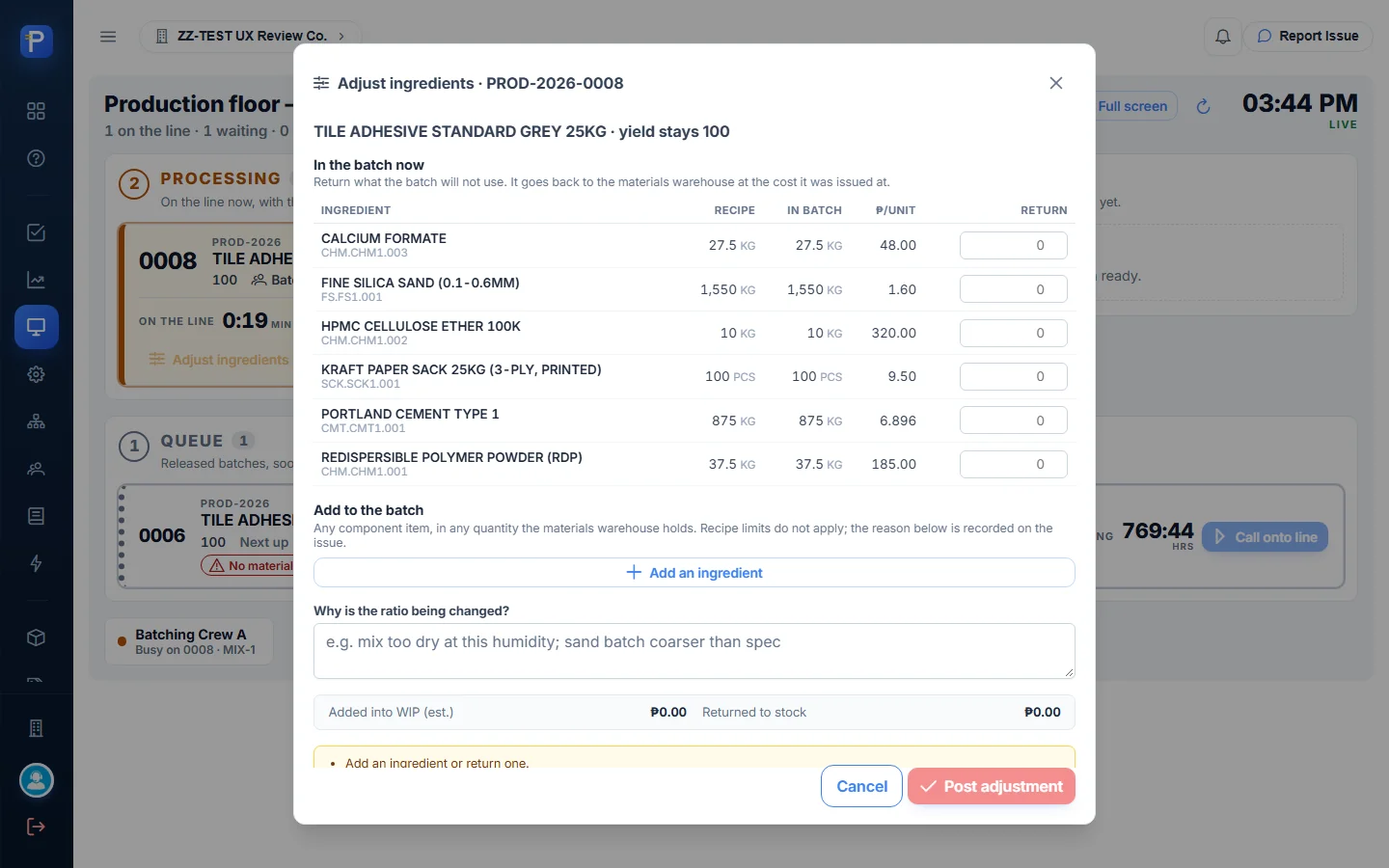
- While the batch is on the line, the card offers Mark ready, Send back (which needs a reason) and Adjust ingredients. Adjust ingredients lists what’s in the batch with its ₱/unit and lets you return unused material or add any raw material, with a required reason. This one does post: additives go into WIP, returns go back to stock.
- Mark ready asks you to confirm “This is a floor signal only — it posts no cost and moves no stock.” The batch moves to Ready, labelled “Waiting for cost posting.”

The board won’t double-book. A crew or station already running a batch can’t take a second one.
WIP & Cost Sheet
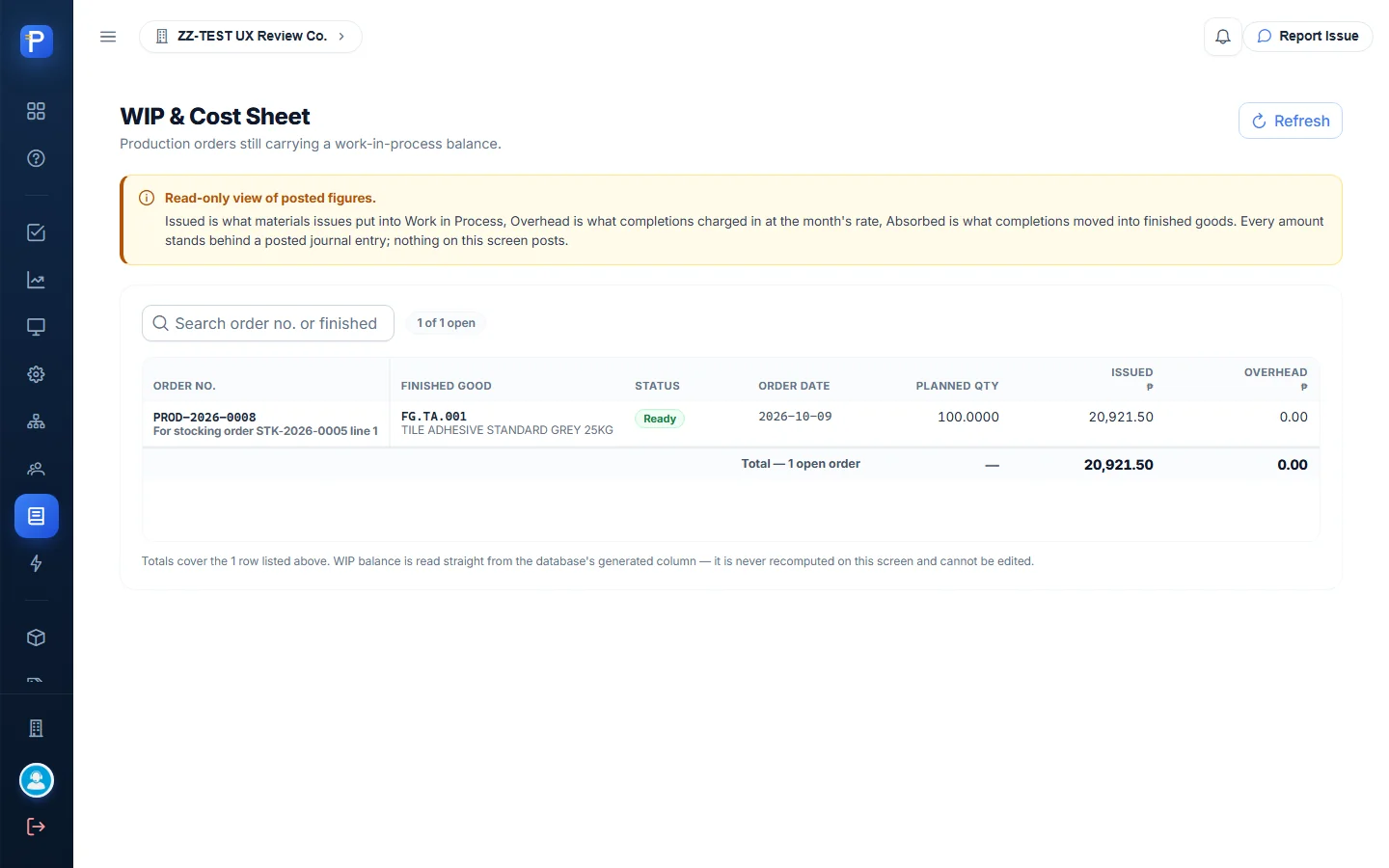
This read-only report lists every production order with a WIP balance that isn’t zero. It shows Issued, Overhead, Absorbed, Written off and the WIP balance, which the database calculates. While PROD-2026-0008 sat in Ready, there was one open order: “For stocking order STK-2026-0005 line 1”, Issued ₱20,921.50, Overhead 0.00, Absorbed 0.00, WIP ₱20,921.50. Overhead is zero here because it’s charged at completion, not at issue. When an order nets to zero it drops off, and the page reads “No open work in process.”
Posting completion
- In the Posting panel, click Post completion.
- Enter the completion date, Good quantity and Scrap quantity, and set the Final completion switch (“closes the order and clears the remaining work in process to zero”). I recorded 99 good and 1 scrap, which matches the recipe’s 1% yield loss.
- The form lists each overhead pool for October 2026 with its rate × units and a “charge” checkbox. It shows Work in process now, Overhead applied, and an estimated finished-goods unit cost.
- Click Post completion and confirm: “Post completion of 99 good and 1 scrap on PROD-2026-0008? This receives finished goods into stock and posts ₱20,921.50 of materials plus ₱10,878.80 of overhead to the general ledger. It also CLOSES the order.”
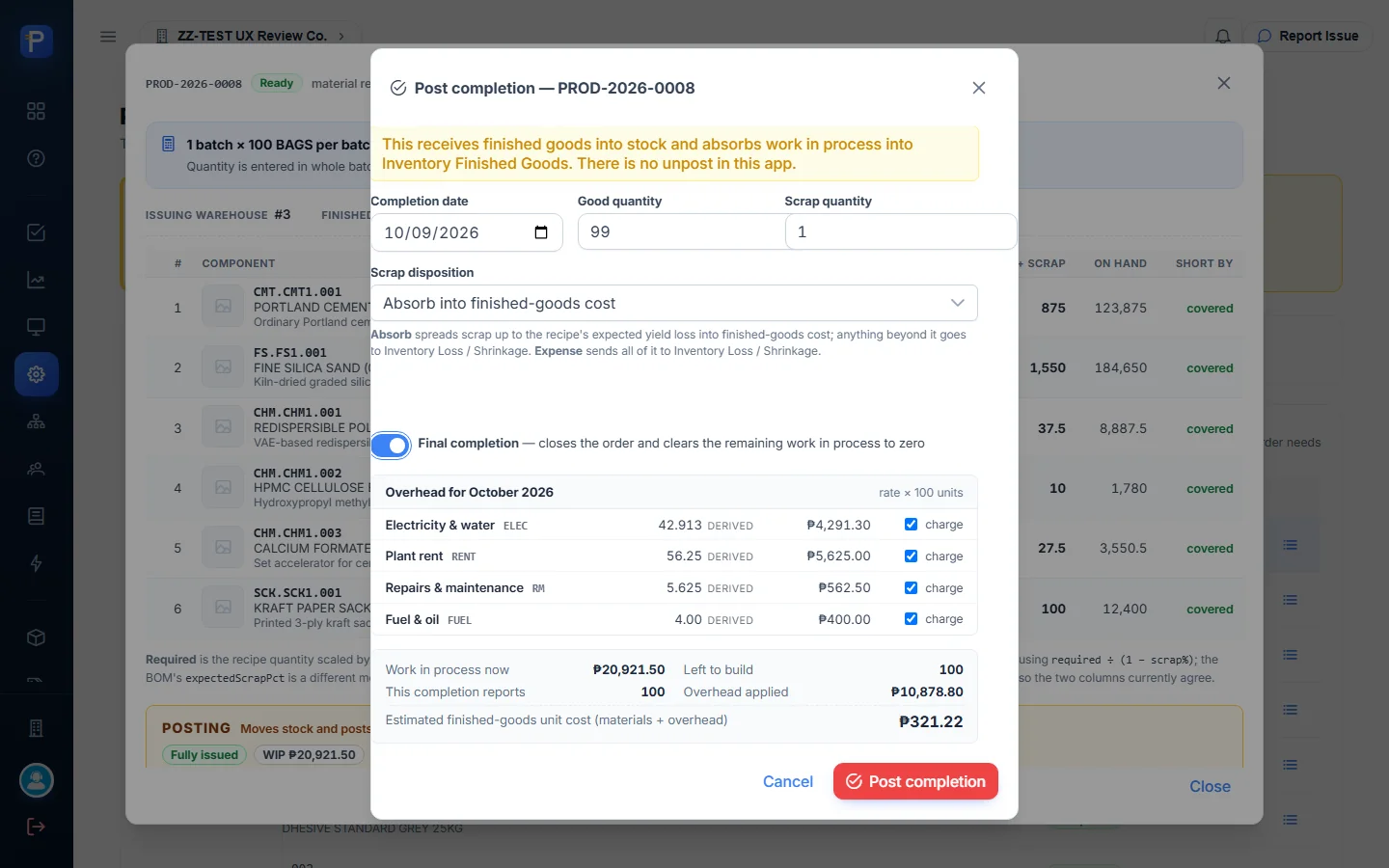

The maths: overhead is charged on units produced (good + scrap), so 100 units × ₱108.788 = ₱10,878.80. That October rate is electricity 42.913 + rent 56.25 + R&M 5.625 + fuel 4.00. Total cost to absorb is ₱20,921.50 + ₱10,878.80 = ₱31,800.30. Spread over 99 good bags, that’s ₱321.22 per bag, the same figure the form showed. Scrap carries no value of its own. The good units absorb its cost.
PROD-2026-0008 ended Completed, 99.0000 completed, WIP ₱0.00, “0 of 100 left to build.” Issue materials and Post completion went inactive (“Order is Completed — nothing to complete.”).

Back on the stocking order, STK-2026-0005 showed Demanded 20, Committed 20, Finished so far 99, Still open 0, with PROD-2026-0008 listed as Completed (allocated 20, planned 100, completed 99, surplus +80).

Overhead & Rates
Overhead is absorbed through cost pools: Electricity & water, Factory labour (inactive), Plant rent, Repairs & maintenance, and Fuel & oil. Each pool is measured from an expense account and credits one Factory Overhead Applied account when it’s charged into a batch. The basis is per unit produced (good + scrap). The page says “Nothing on this screen posts to the ledger”. Overhead only reaches the ledger through completions.
There are three tabs:
- Rates by month is a grid of ₱ per unit by pool and month. A month’s rate comes from the confirmed actual of the month two before, divided by that month’s output (“January’s bills price March’s batches”), unless someone types a manual rate. For 2026, September totals ₱96.00 per unit and October ₱108.788.
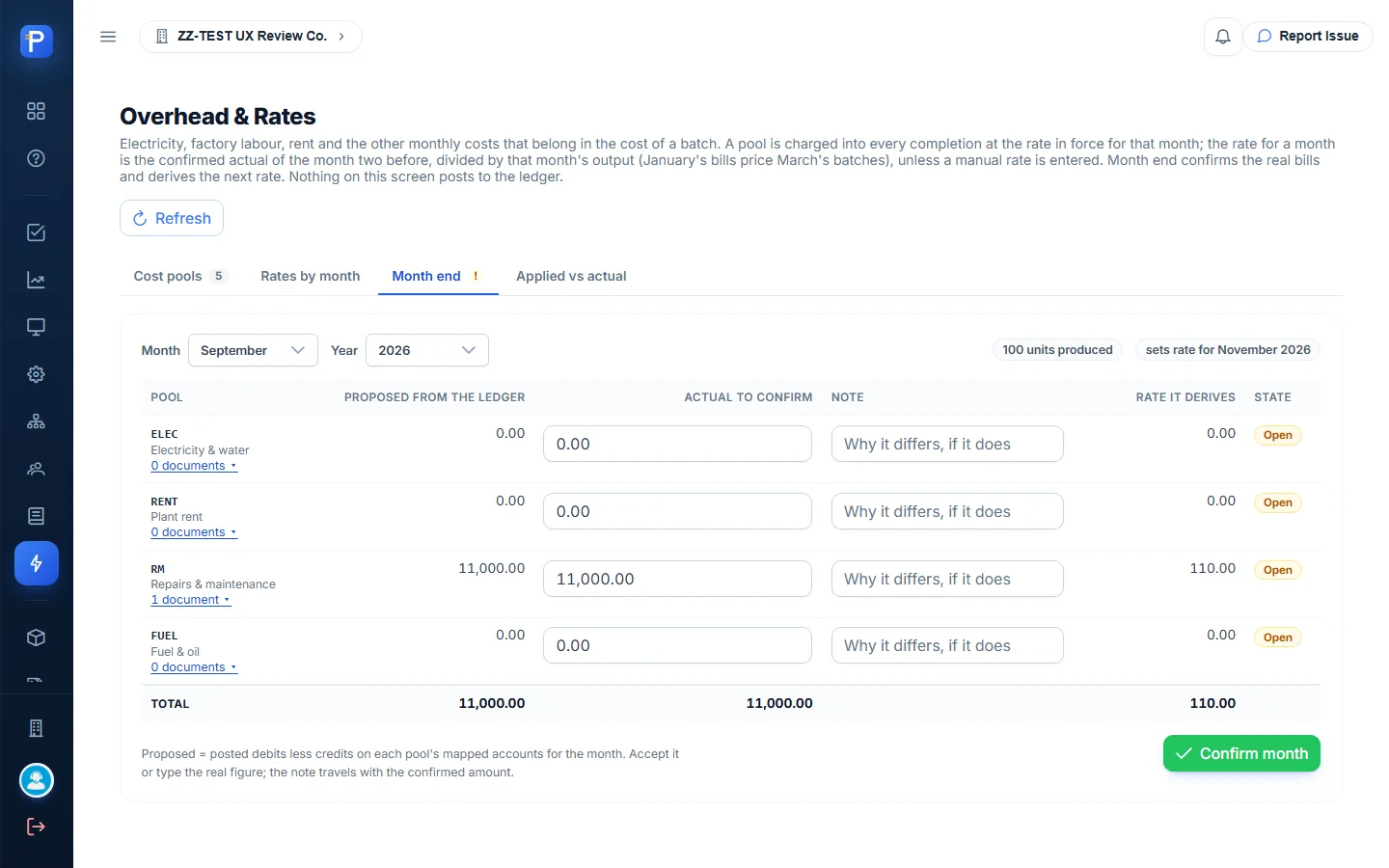
- Month end shows, per pool, the actual “proposed from the ledger” with its source documents, a field to confirm or override it, and the rate it gives. September’s confirmation “sets rate for November 2026”. I didn’t click Confirm month, because that sets a company-wide rate.
- Applied vs actual shows, per month, the rate used, units charged and skipped, Applied, Actual, Variance (applied − actual) and how to read it (over-applied gain or under-applied loss), plus year-to-date figures. It’s a report only. The variance isn’t posted.

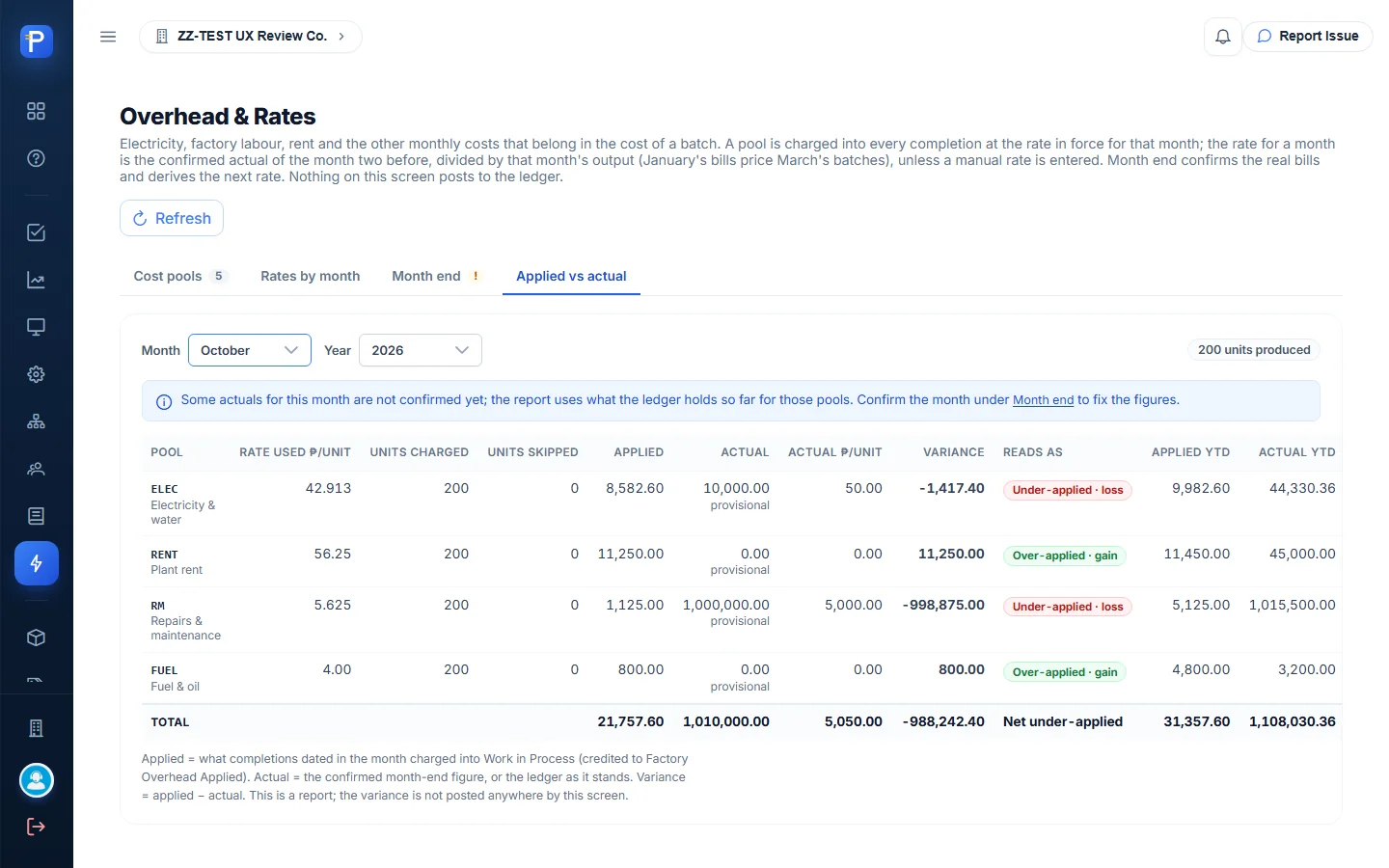
For October the report showed 200 units produced and ₱21,757.60 applied. Only 100 of those units and ₱10,878.80 were mine. The other 100 came from PROD-2026-0007, which another user ran in the same company while I was testing. The provisional actuals (₱1,000,000.00 under Repairs & maintenance, for example) are just what the ledger held at the time.
Other screens
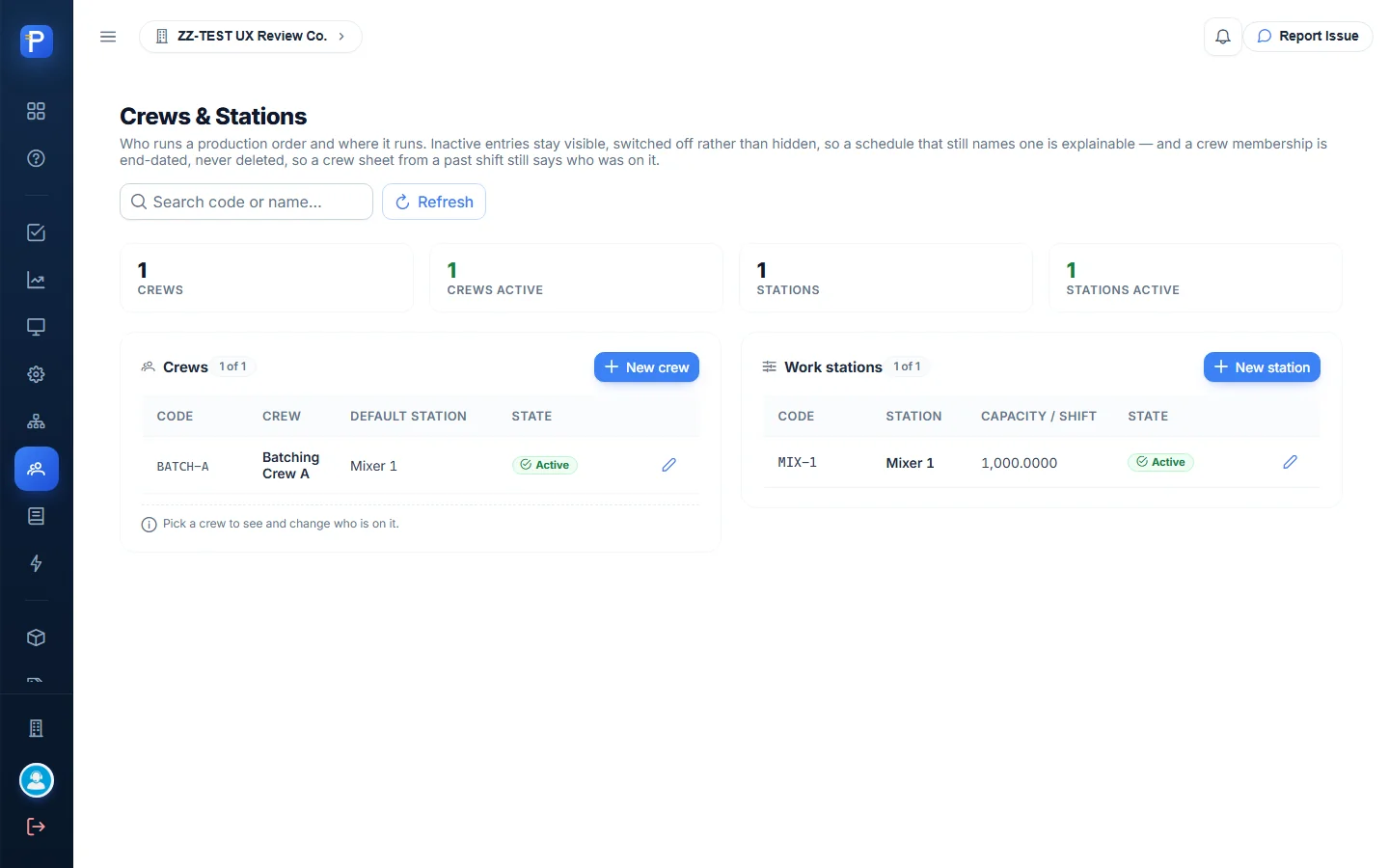
- Crews & Stations had one crew (BATCH-A, Batching Crew A, default station Mixer 1) and one station (MIX-1, capacity 1,000 per shift), both Active, with New crew and New station buttons. Memberships are end-dated, never deleted.
- In Stocking Forecast you pick a warehouse and an as-of date, type demand per finished good (kept for the session only), and it nets that against on-hand, open production and Approved / In Production stocking orders. Drafts are listed separately as “a wish” and never netted.
- Stock Position shows receiving reports, transfers, adjustments and on-hand by warehouse “as of” a date (the bin card).
- Material Planning has a six-month MRP grid (demand, forecast, projected, suggested) per item, plus Plans (none yet) and KPIs (stockout rate, days of supply, PO coverage, turnover).
How the documents connect
- A Bill of Materials (Active, default) sets the per-batch consumption for a finished good. Only finished goods with an active BOM can go on a stocking order.
- A Stocking Order goes Draft → Approved. Only Approved / In Production orders count as supply in the Stocking Forecast.
- Build raises a Production Order (Released) in whole batches. Part of the batch goes to the stocking-order line and the rest to plain stock. The stocking order becomes In Production.
- Issue materials takes raw materials out of the warehouse into WIP at WAC and posts to the GL. The order becomes In Process.
- On the Floor Queue, Call onto line → Mark ready. These are floor signals only and post nothing.
- Post completion receives finished goods into the finished-goods warehouse, moves materials plus overhead from WIP into inventory, and posts to the GL. The order becomes Completed and WIP goes to zero.
- Overhead & Rates prices the overhead charged at completion. Its month-end and applied-versus-actual reports check that against the expense accounts in Paylalo Accounting.
- Items, warehouses and stock are shared with Paylalo Supply Chain. Receiving reports there bring in the raw materials this app uses.
Notes from testing
- The app’s own text is behind what it does. The Stocking Orders list footer still says: “Submit, Approve, Close and Cancel are not available here — those transitions need the phase-2 stocking RPCs, which do not exist yet. This screen creates Drafts and reads status.” The Help Center also says nothing in the app posts to the GL and that Crews & Stations is read-only. In practice the order View panel offered Approve and Build, the Production Orders screen issued materials and posted completion to the ledger (its own banner says so), and Crews & Stations has New buttons.
- Approval skipped Submitted. Approve moved STK-2026-0005 straight from Draft to Approved, and I didn’t see a Submit action.
- The stocking order stays In Production after its only production order completed. The View panel only had a dialog Close button, and I couldn’t find any action that closes the order.
- Posting references aren’t shown. The confirmations state the amounts posted, but I found no journal-entry number or GL view in this app. The production order’s History lists Created, Called onto the line and Marked ready, but not the issue or completion postings.
- There’s no WIP drill-down. The WIP & Cost Sheet has no per-order cost sheet to click into, and a completed order leaves the list. The open-balance view (shot 41) is the only WIP evidence for this run.
- The company was shared. Another user created and completed PROD-2026-0007 (FG.TA.001, 100 bags) in ZZ-TEST during my session, so company-wide figures like October’s 200 units produced and FG.TA.001 on hand of 199 bags include their run as well as mine.
- I skipped some actions on purpose: Activate on the ZZ-DOC recipe (it could change the default recipe others use), Confirm month on Overhead (a company-wide rate change), Substitute ingredient, Cancel order, Send back, and any change on Planning Admin.
- The Planning Forecast page only shows “Coming soon.”