Paylalo Supply Chain
Paylalo Supply Chain is the operations app of the Paylalo suite, where a company buys goods, receives them into warehouses, moves and corrects stock, and ships to customers. Purchasing staff, warehouse staff, material planners, dispatchers and approvers all work in it.
The in-app Help calls it “Kumpli”, and it draws the line plainly: Kumpli handles quantities and operations, the books and money live in Paylalo Accounting, and Sales Orders come from the DMS app. Everything is scoped to the company you pick at sign-in. I ran this walkthrough end to end in the test company ZZ-TEST UX Review Co., signed in as its admin.
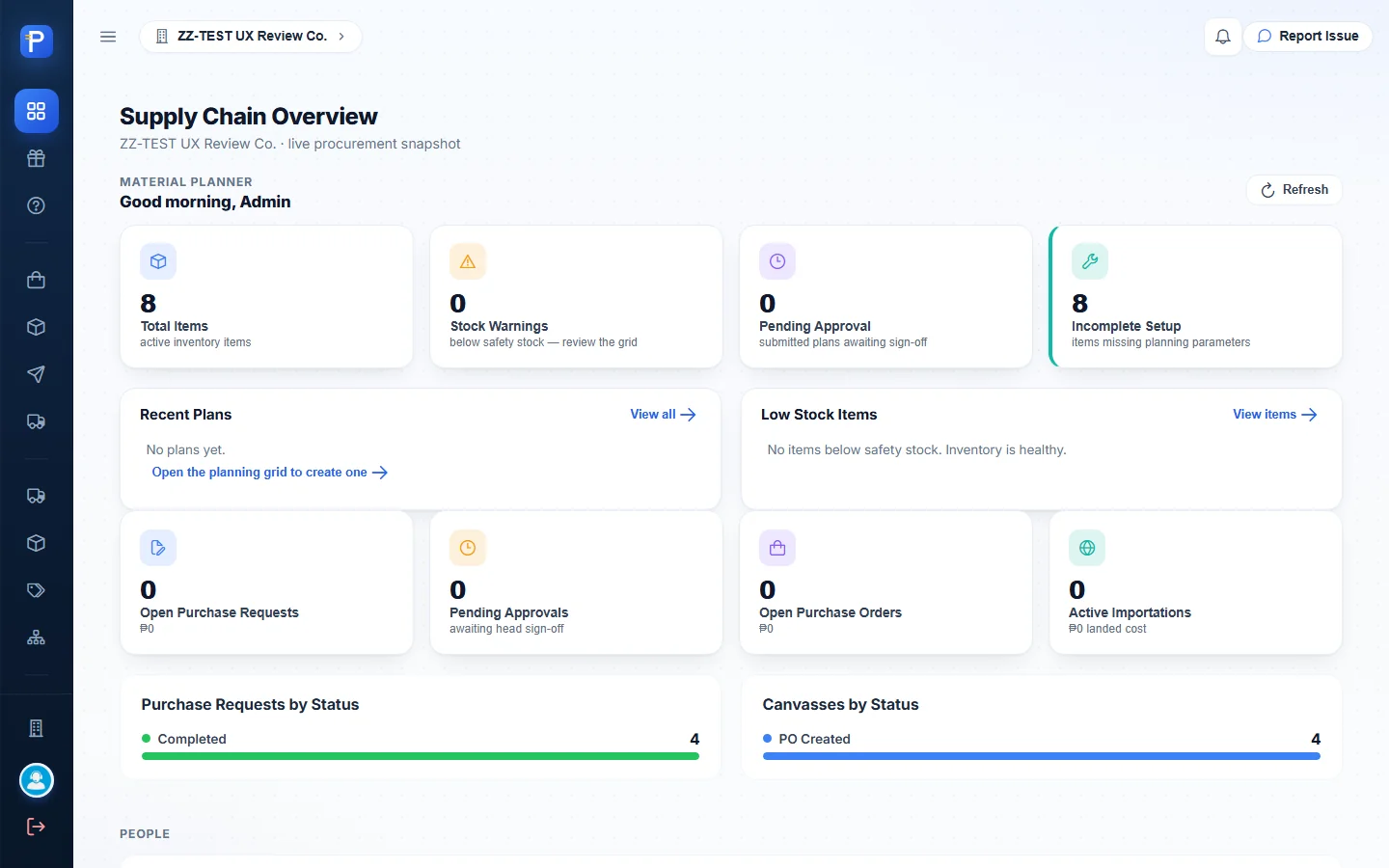
What’s in the menu
- The Dashboard is a live procurement snapshot. It shows item and stock-warning counts, open PRs and POs with their peso value, PR and canvass status charts, and leaderboards for requestors, purchasing staff and approvers.
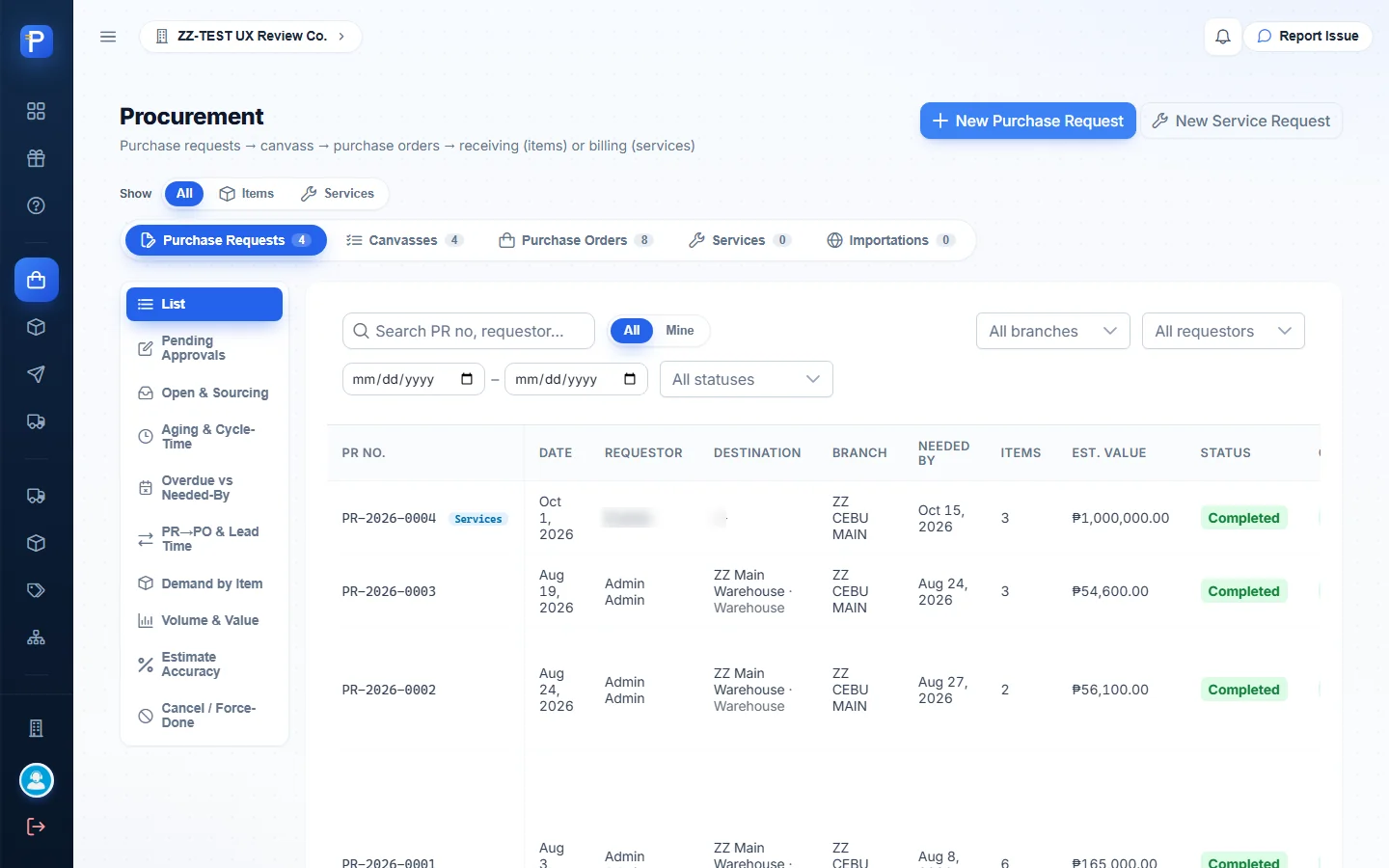
- Procurement has tabs for Purchase Requests, Canvasses, Purchase Orders, Services and Importations. PRs get ten analytic views, including Pending Approvals, Aging & Cycle-Time and PR→PO & Lead Time.
- Inventory & Warehouse has tabs for Receiving Reports (RR), Transfers, Adjustments, MRIS (material requisitions) and Inventory Items. Each item has a bin card.
- Logistics covers customer Deliveries (DR), Pending Evidence, Picking & Loading (pick lists and cycle counts) and Route Planning / Dispatch (trips and fleet).
- Trips is a table of every trip, with progress and dispatch and end times.
- Suppliers, Items, Item Categories and Item Groups are the master data. Each of these screens has an “Import from ERP” button.
- Material Planning is a time-phased MRP grid, plus Plans, KPIs and Planning Admin. Forecast reads “Coming soon.”
- Rewards is a points store, and Help is a long illustrated guide to the whole flow.
Master data
Suppliers
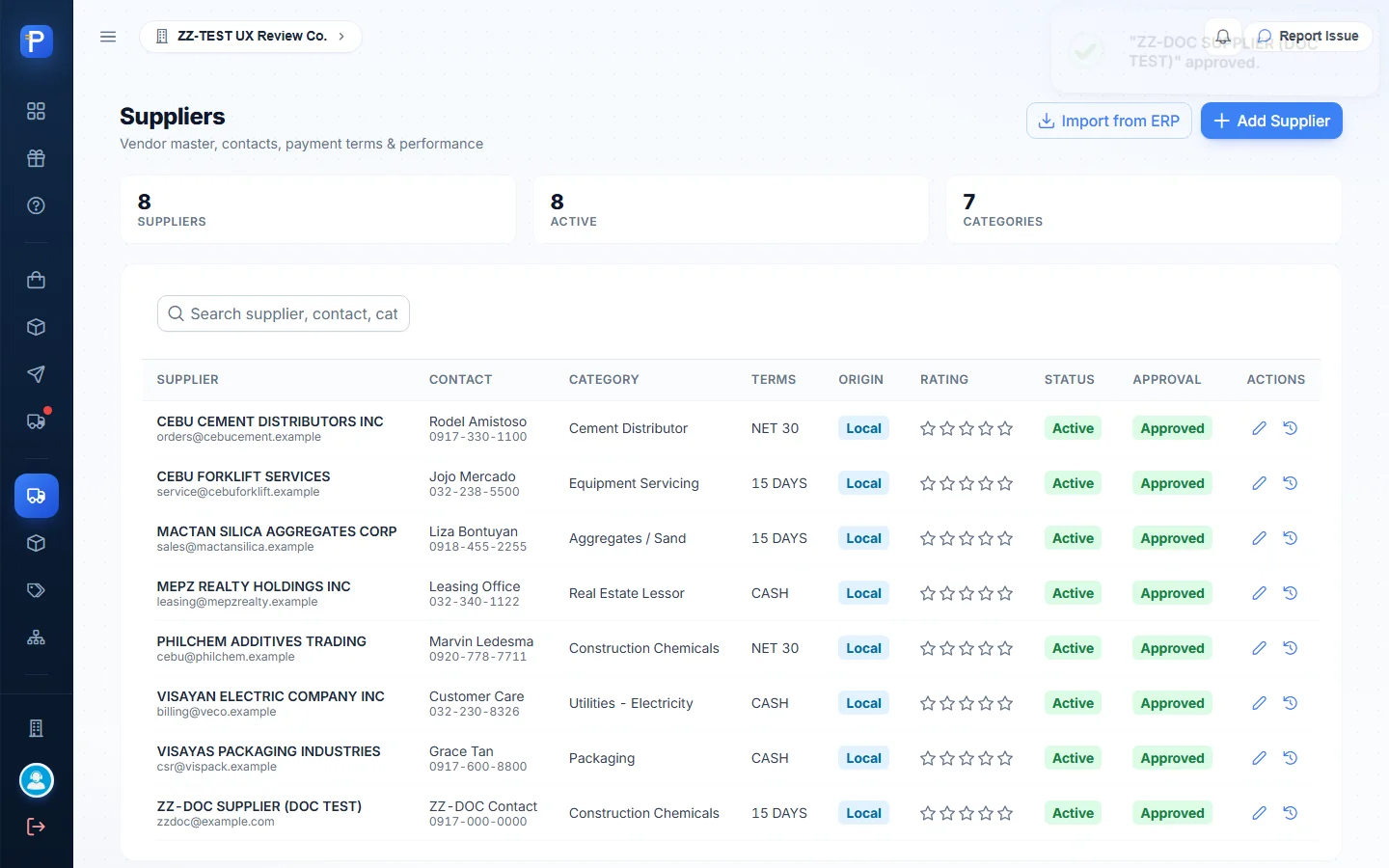
A supplier record holds the contact, category, payment terms, origin (Local or Imported), lead time, TIN, tax type and a limit for advances. Each supplier also gets a star rating and an Approval chip.
- Open Suppliers → Add Supplier. Only Supplier Name is required.
- Fill in the contact details, the category, the terms (15 DAYS, CASH, COD, NET 15 or NET 30), the lead time and the products.
- Click Create Supplier. The toast says “Supplier created.” and the new row shows Active / Pending.
- Click the check-circle action on the row. The app asks: “Approve ‘ZZ-DOC SUPPLIER (DOC TEST)’ as a payable supplier? It becomes selectable as an APV/CV payee.” Once approved, the chip turns Approved.
Supplier approval decides whether the supplier can be paid through Accounting. It didn’t stop me from canvassing, awarding and sending a PO to the supplier while it was still Pending (see the notes at the end).
Items
Add Item builds the item code from the Category and Group and continues that series. Picking CHEMICAL / ADDITIVES gave CHM.CHM1.004 for “ZZ-DOC TEST ADDITIVE 25KG”. The dialog also asks for an Item Class: Finished Goods, Non-Trade, Raw Materials or Consumables.
The unit of measure I chose in Add Item didn’t stick, and the row showed “Not Set”. The base unit is really set in the Units & Conversions dialog:
- Pick the base (stocking) unit and click Save base.
- Add alternate units after that, for example 1 BAG = 25 KG.
Once KG was saved there, Edit Item showed the UoM as read-only with the note “Set in Units & conversions → Base unit.”

Item Categories and Item Groups are plain code/name lists, described as “pulled from the ERP item maintenance.”
Procurement
The page subtitle sums up the chain: Purchase requests → canvass → purchase orders → receiving (items) or billing (services). Each list has columns that link to the documents before and after it.
Purchase Request (PR)
A PR says what’s needed, where, and by when. Its fields:
- the requester (filled in for you)
- Branch
- Location Type (Department, Warehouse or Project) and the specific location
- Needed By and Remarks
- item lines with Qty, UoM and Est. Unit Price
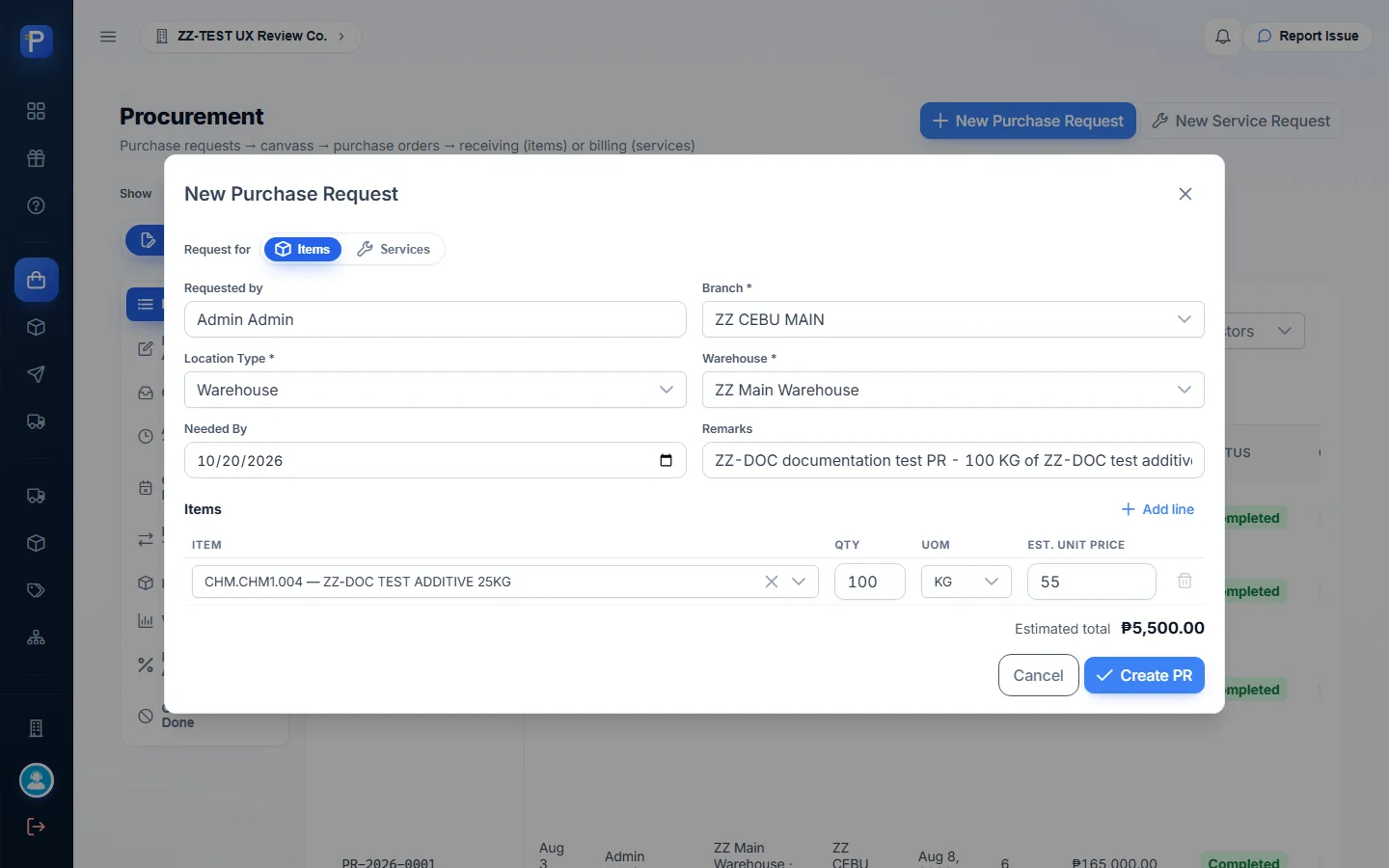
- Click New Purchase Request and choose Items (the other option is Services).
- Pick Branch ZZ CEBU MAIN, Location Type Warehouse, then ZZ Main Warehouse.
- Add a line for ZZ-DOC TEST ADDITIVE 25KG: 100 KG at ₱55. The estimated total updates to ₱5,500.00.
- Click Create PR. PR-2026-0005 appears with status For Approval.
The PR detail has a Signatures & approval panel with four slots:
- Signature of Requestor
- Assigned PR Staff
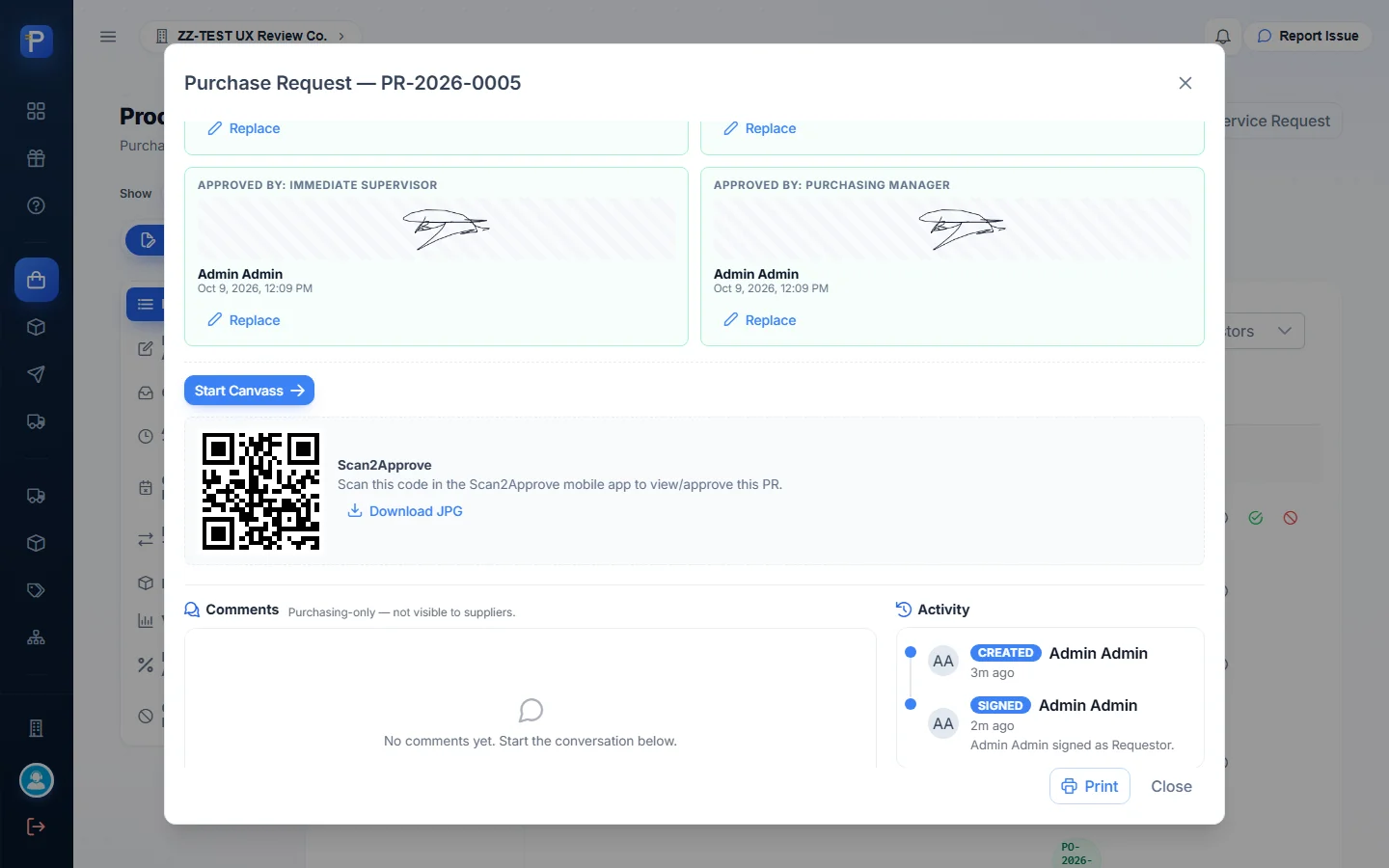
- Approved By: Immediate Supervisor
- Approved By: Purchasing Manager
Each Sign button takes a saved, drawn or uploaded signature. Until the PR is approved, Start Canvass stays disabled with the note “This PR is still For Approval — it must be Approved before canvassing.” The panel also has a Scan2Approve QR code for approving from the phone app, plus internal comments and an activity log.
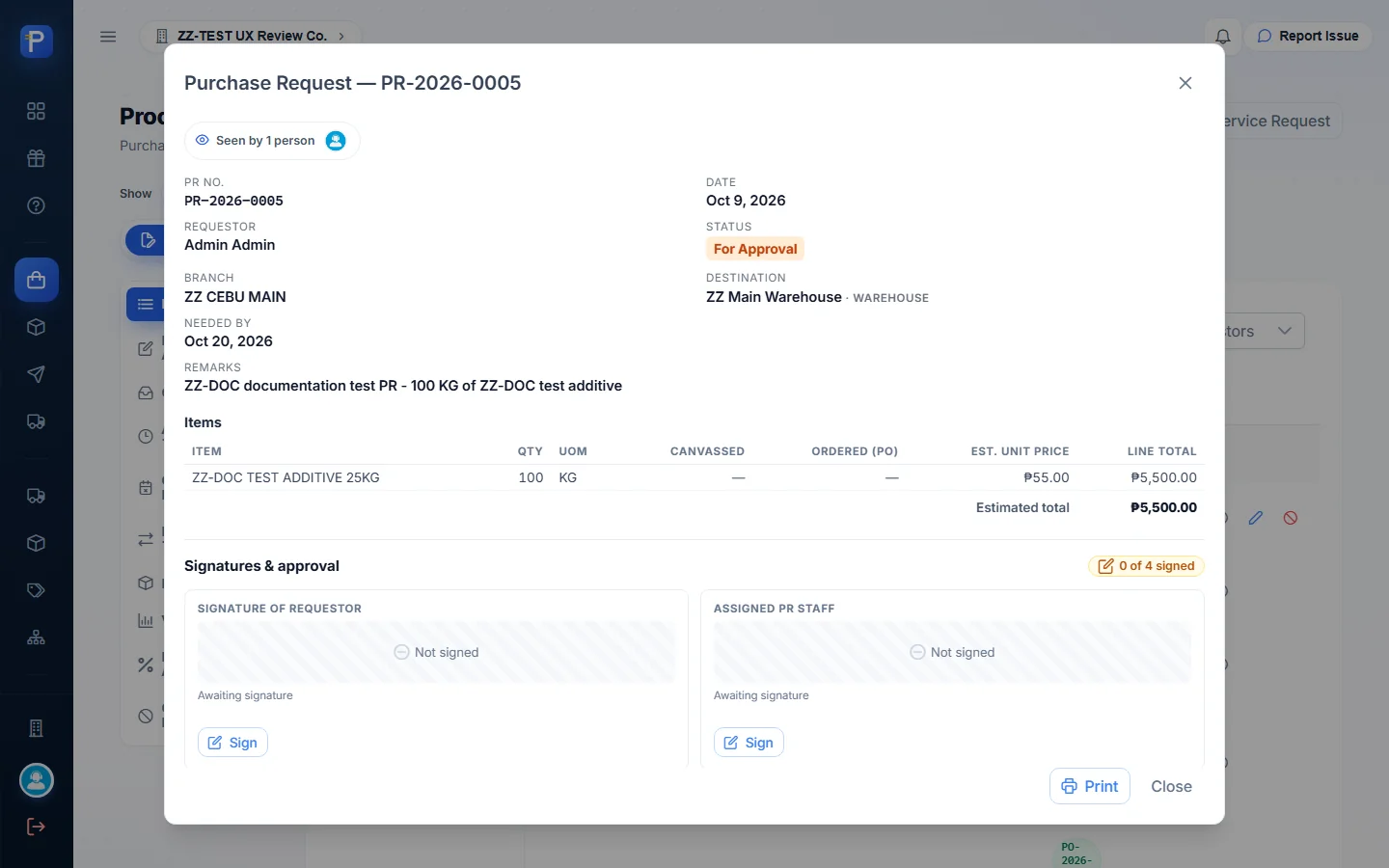
As I signed each slot, the counter went from “0 of 4 signed” to “4 of 4 signed”. The status changed to Approved and Start Canvass came on. The Pending Approvals view then read “No PRs are pending approval — every request is fully signed.”
Canvass
A canvass compares supplier quotes for the PR’s lines and records which supplier wins.
- From the approved PR, click Start Canvass (or the row’s “Canvass this PR” arrow).
- Pick the suppliers to canvass. I used ZZ-DOC SUPPLIER and PHILCHEM ADDITIVES TRADING.
- A quote grid opens with one column per supplier. Each column has Payment Terms and Lead Time (days), and each line has a unit price. The line also shows the canvass qty, here “Remaining: 100 of 100”.
- Enter the prices, ₱52 and ₱58. The Award picker labels the options “✓ lowest” and “★ Recommended”. The system recommended PHILCHEM (NET 30 terms, +12% vs lowest) and offered a Use button. I awarded the lowest bid instead: ZZ-DOC at ₱5,200.
- Click Save Canvass. CNV-2026-0005 is created as For Approval.

Approving the canvass shows this warning: “The awarded supplier and quoted prices become the basis for a Purchase Order… Editing the canvass afterwards resets it to For Approval.” After approval the row gets a Create PO button. Once the PO is raised, the canvass status becomes PO Created.

Purchase Order (PO)
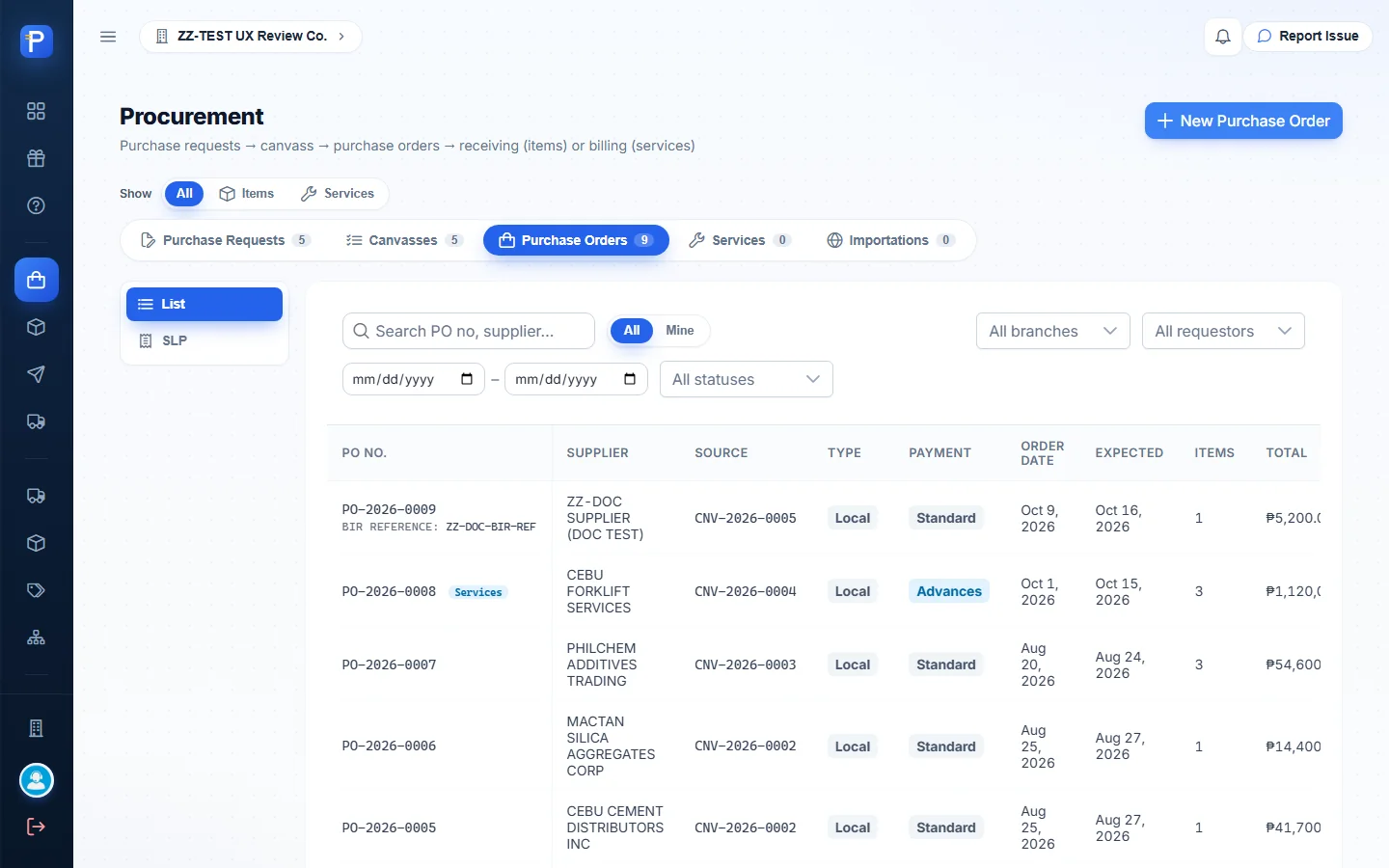
The New Purchase Order form is filled in from the canvass. It asks for an Expected Delivery date, and for each awarded supplier:
- a BIR Reference
- an Import Type (Local or Imported)
- a Payment Type (Advances or Standard)
Order qty defaults to whatever hasn’t been ordered yet, and you get one PO per supplier.
- On CNV-2026-0005, click Create PO. Set Expected 2026-10-16, BIR Reference ZZ-DOC-BIR-REF and Payment Type Standard.
- Click Raise PO. PO-2026-0009 is created at ₱5,200.00 as For Approval.
- Open it and click Approve → Approve PO. The status changes to Approved, and the dialog now offers Mark as Completed and Request Cancellation.
The PO detail notes that “VAT is applied at the Receiving Report (RR), not on the purchase order.” It also lists the PO’s Receiving Reports. Choosing Imported would create an Importation record automatically to carry the landed cost. The Importations tab was empty in this company.


Inventory and warehouse
Receiving Report (RR)
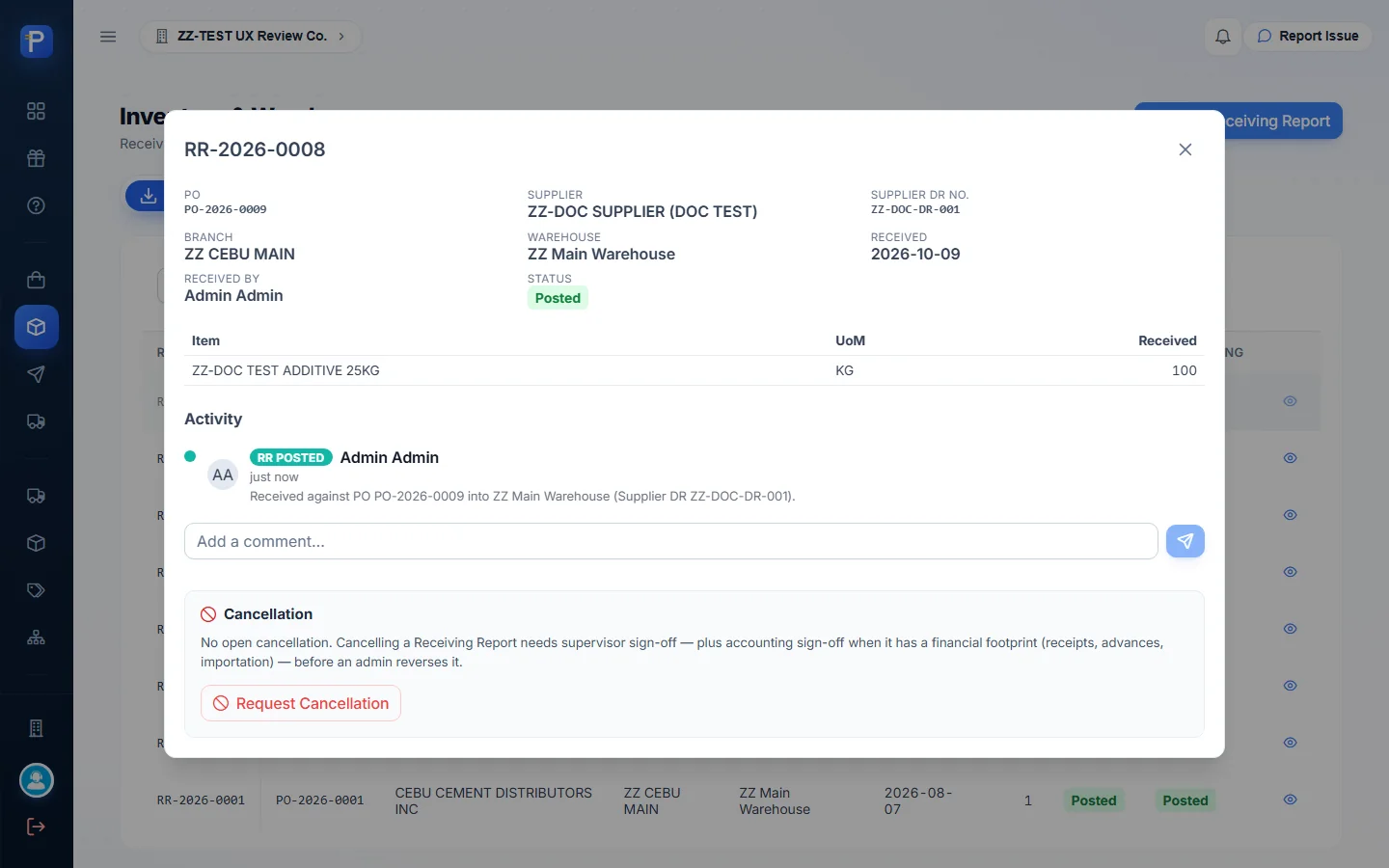
An RR records goods arriving against an approved PO.
- Click Inventory → New Receiving Report and pick the PO. Only POs that can still be received are listed.
- Pick the warehouse, the received date and the Supplier DR No. (required; I used ZZ-DOC-DR-001).
- The line grid shows Ordered, Received, Remaining and Receive Now. I received all 100 KG.
- Click Post Receiving Report. The toast says “Receiving Report RR-2026-0008 posted.”
RR-2026-0008 is listed as Status: Posted and Accounting: Pending. The PO changed to Received with RR-2026-0008 linked. The PR became Completed, linking CNV-2026-0005 and PO-2026-0009.
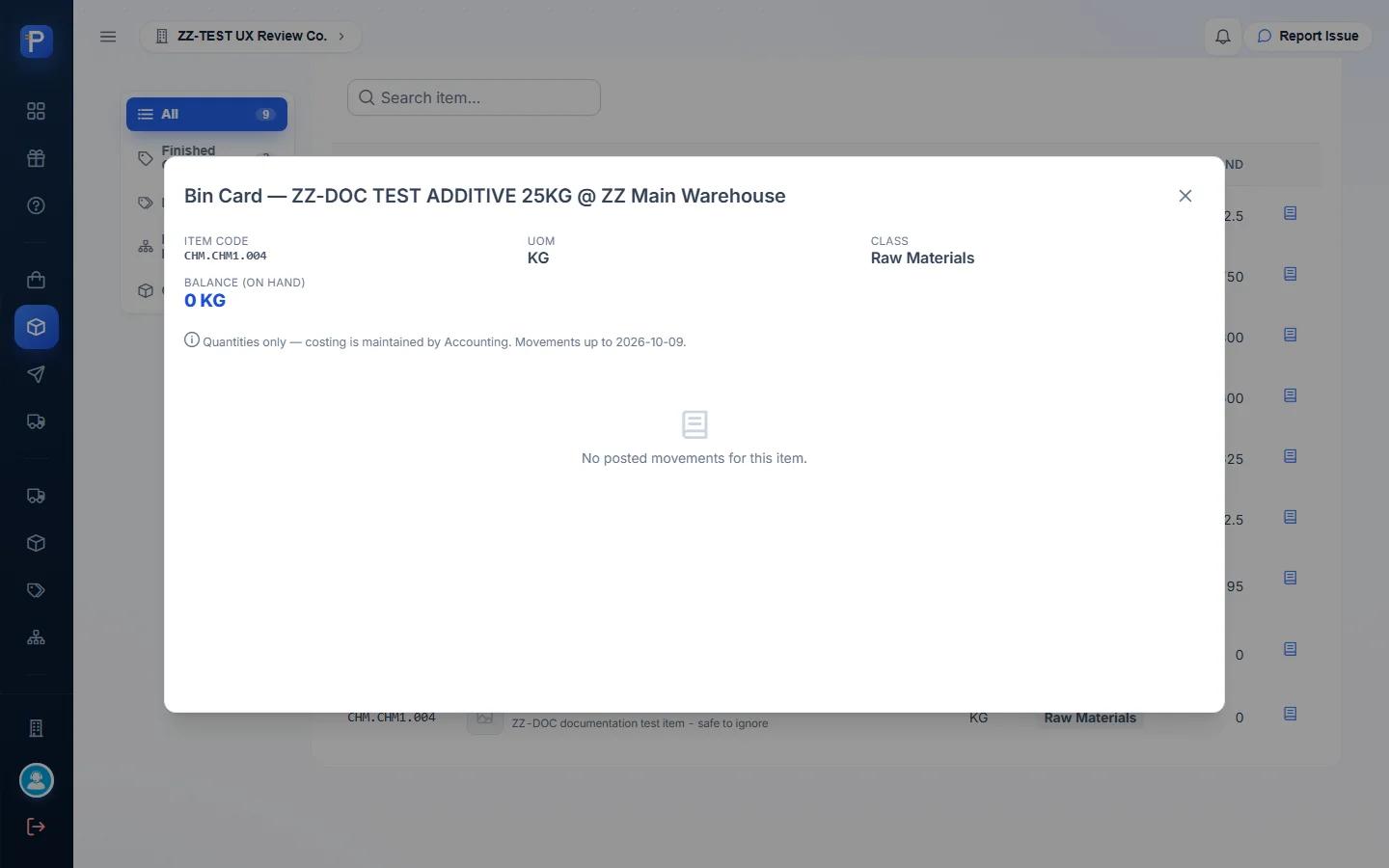
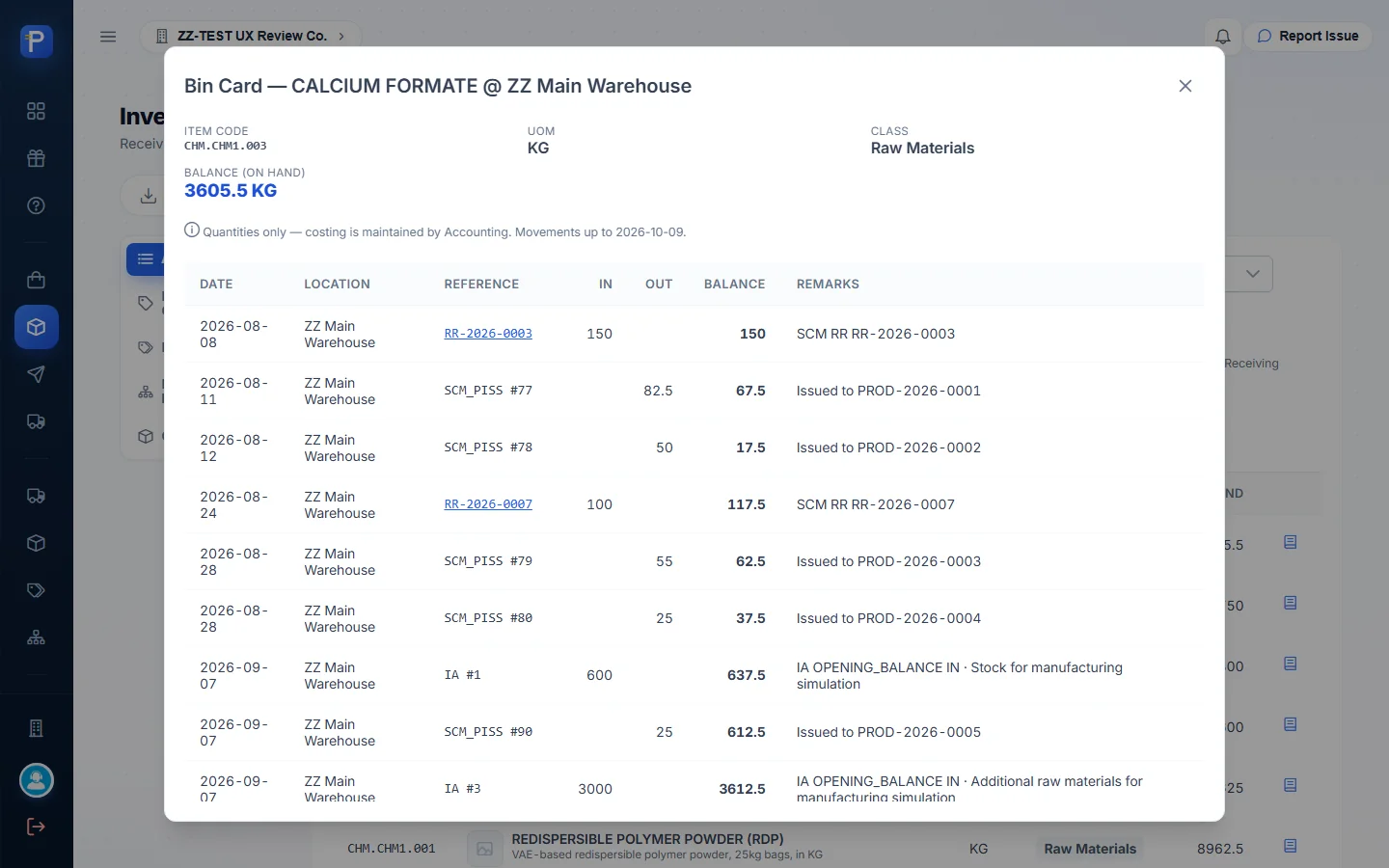
After posting, the ZZ-DOC item’s bin card still read 0 KG, “No posted movements for this item.” The Inventory Items page explains why: “Receiving Reports posted here update the PO, but on-hand will only change once GL posting is enabled.” Older RRs in this company show Posted / Posted, and those do appear on bin cards, for example RR-2026-0003 and RR-2026-0007 on Calcium Formate. So an RR reaches the bin card once its accounting side has posted, and RR-2026-0008’s hadn’t posted during my test.
Stock Transfer
A transfer moves stock between locations, inside one branch or across branches. You can only pick items that are in stock, and each line shows the source on-hand and the WAC (weighted average cost).
- Click New Transfer. Set Source ZZ Main Warehouse and Destination ZZ Secondary Warehouse.
- Add CALCIUM FORMATE (on hand 3612.5, WAC 48.00) with qty 5.
- Click Post Transfer. The toast says “Stock Transfer XFER-2026-0001 submitted for approval.”
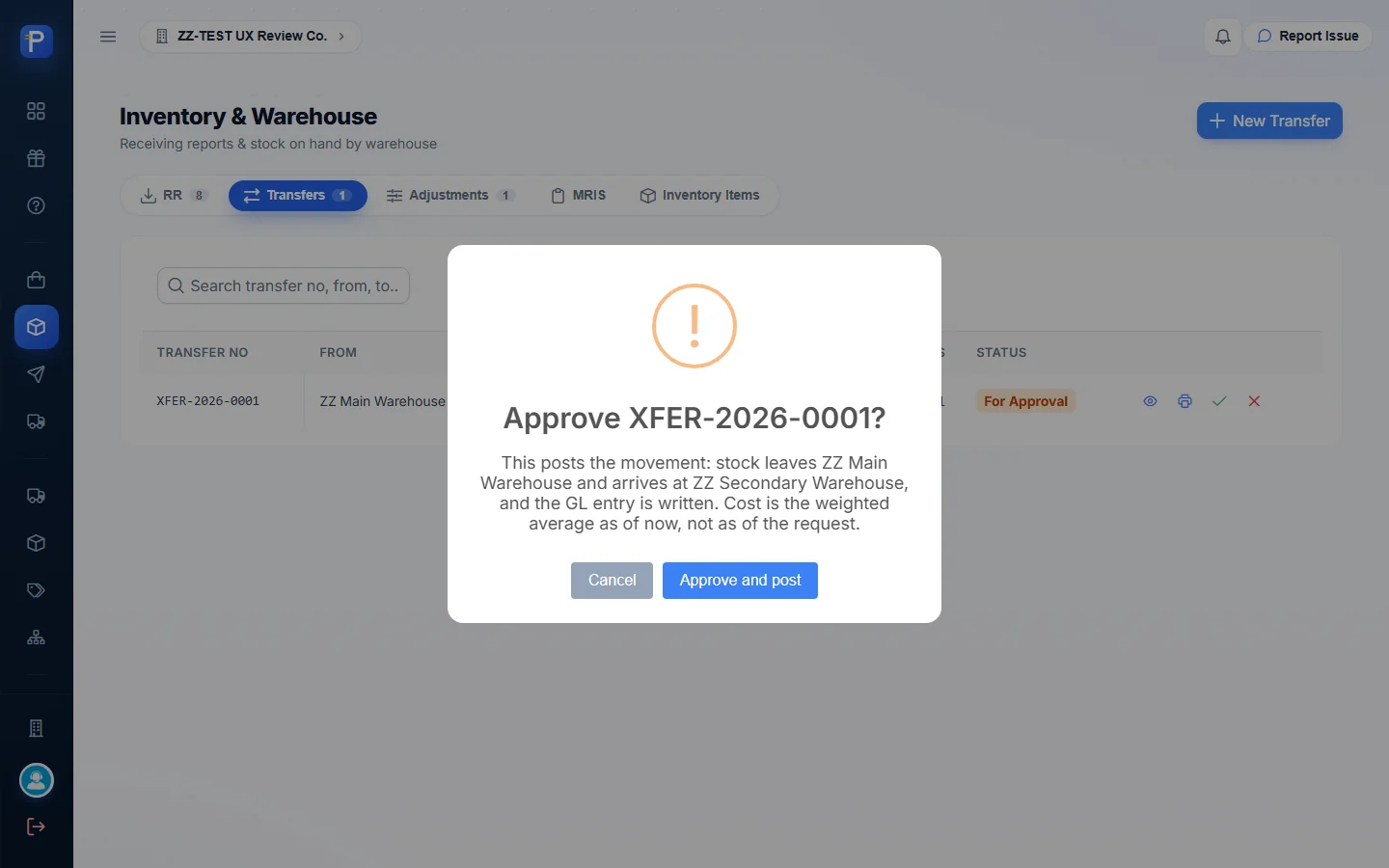
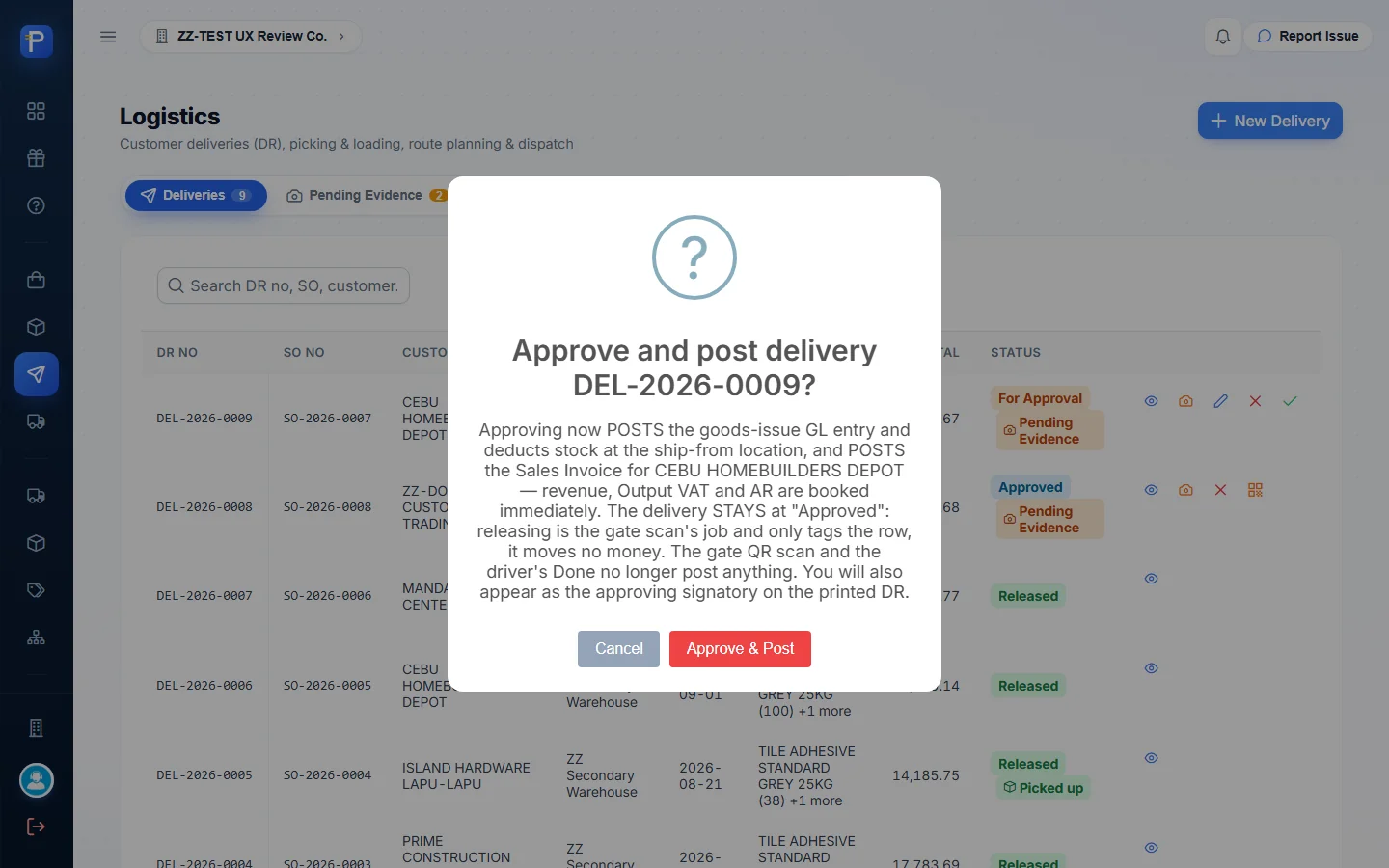
- Approve it with the check icon on the list row. The app warns: “This posts the movement: stock leaves ZZ Main Warehouse and arrives at ZZ Secondary Warehouse, and the GL entry is written. Cost is the weighted average as of now, not as of the request.” Click Approve and post, and the status changes to Approved.
The transfer’s detail dialog has no Approve button, only a Scan2Approve QR. In the web app, approval lives on the list row.
Inventory Adjustment
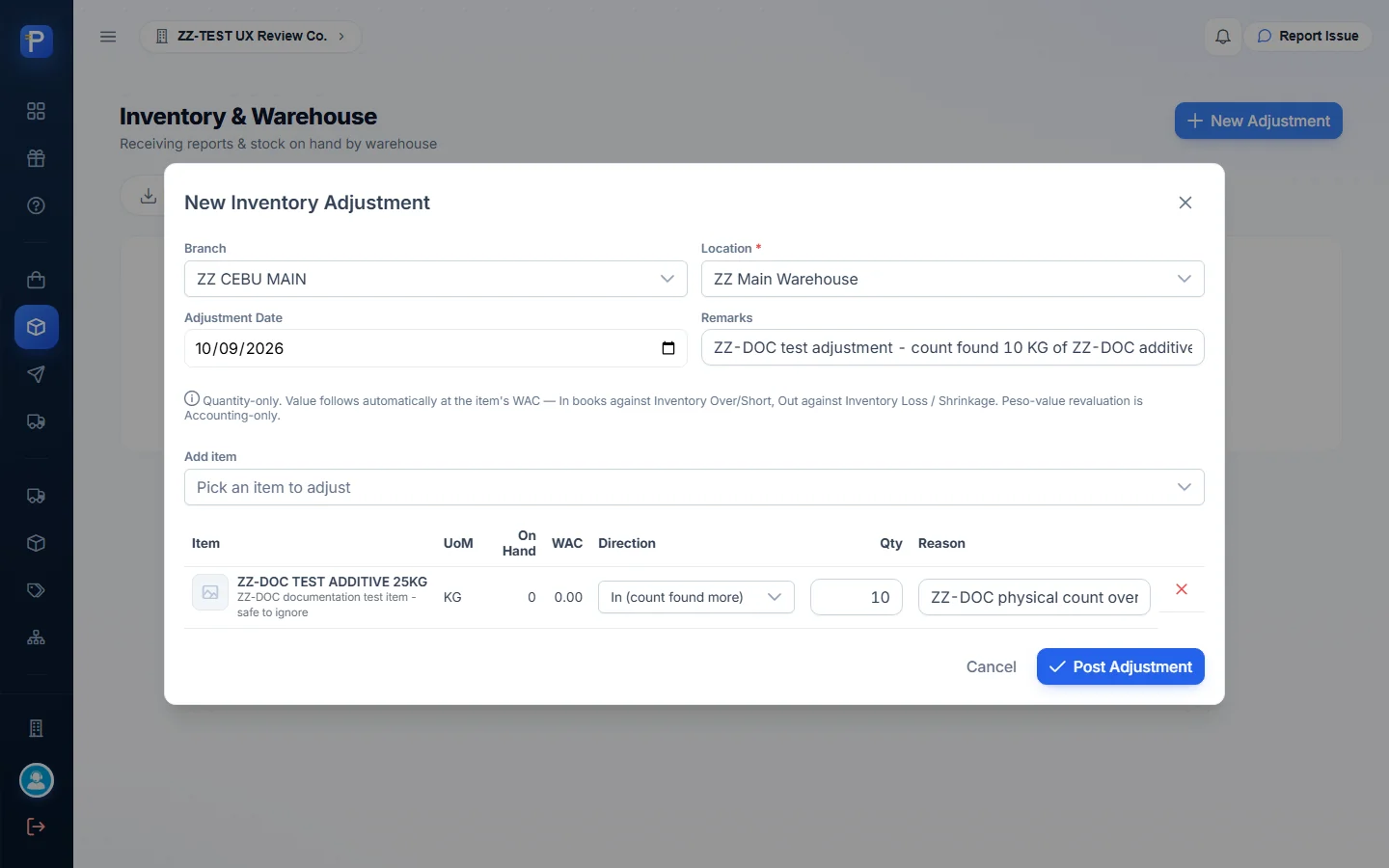
Adjustments change quantity only. The form explains that the “Value follows automatically at the item’s WAC — In books against Inventory Over/Short, Out against Inventory Loss / Shrinkage. Peso-value revaluation is Accounting-only.” Each line has a direction, a qty and a reason.
My first try was an In of 10 KG on the ZZ-DOC item. It was refused: “Item ZZ-DOC TEST ADDITIVE 25KG has no cost basis yet — establish its initial cost via Accounting before adjusting quantity in.”
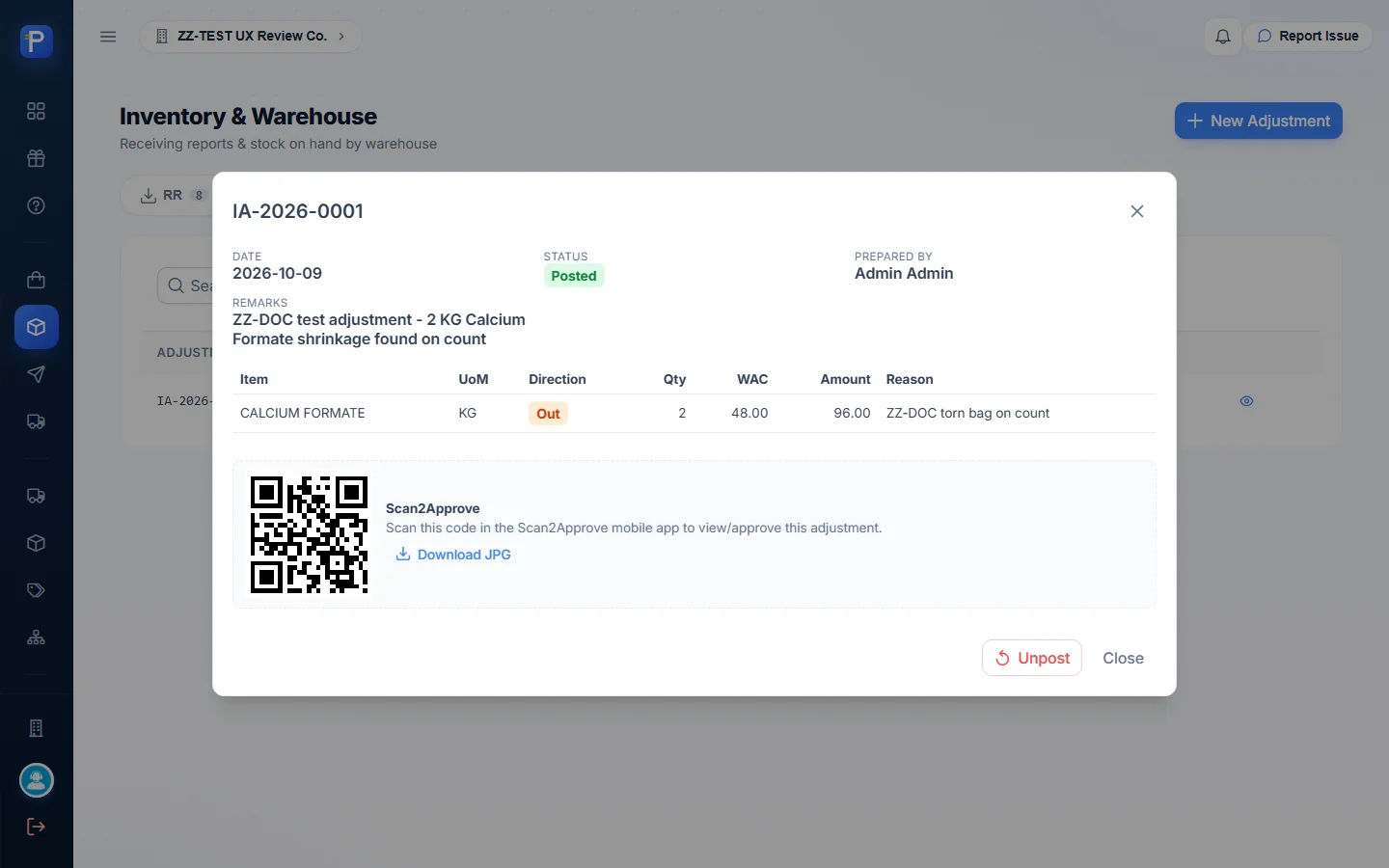
Then I tried an Out of 2 KG on Calcium Formate, reason “ZZ-DOC torn bag on count”. It posted straight away: “Inventory Adjustment IA-2026-0001 posted.” The detail shows WAC 48.00, Amount 96.00 and an Unpost button.
Bin Card
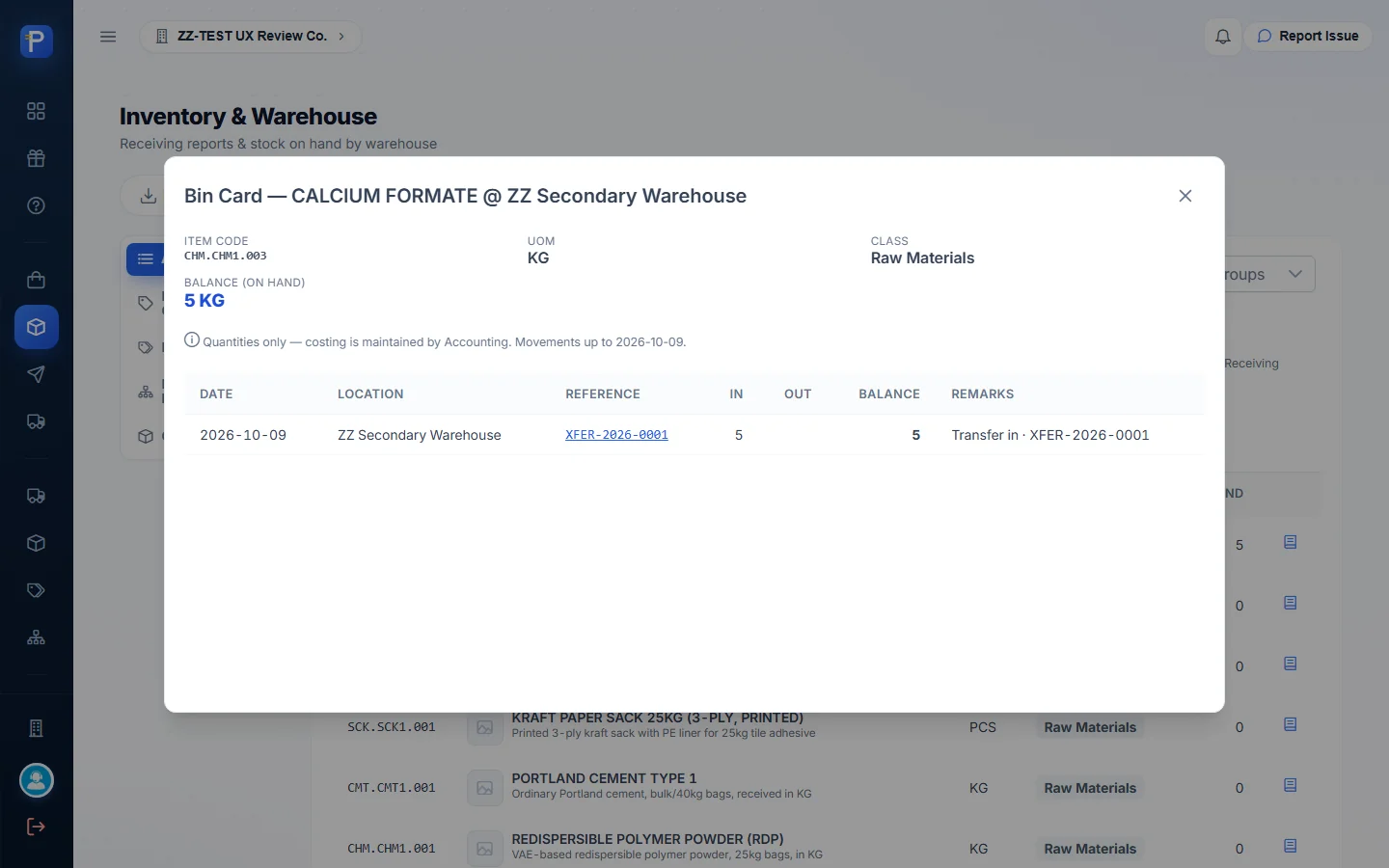
The eye icon on Inventory Items opens an item’s bin card for one location. It’s a quantity ledger with Date, Location, Reference, In, Out, Balance and Remarks columns, labelled “Quantities only — costing is maintained by Accounting.” An “As of” date lets you look at stock on an earlier day.
After the test, the Calcium Formate card at ZZ Main Warehouse ended with:
- IA-2026-0001, Out 2 → 3610.5
- XFER-2026-0001, Out 5 → 3605.5
The same item’s card at ZZ Secondary Warehouse opened with XFER-2026-0001, In 5 → 5.
MRIS
A Material Requisition charges a request to either a Project or a Warehouse. It has a request date, Needed By, Purpose and item lines. I opened the form but didn’t submit it.
Logistics
Customer Delivery (DR)
A DR is raised against an Approved or Partial Sales Order from DMS. The form loads the SO’s open lines and shows each line’s on-hand and availability. One line here read “OK”; the other read “No stock” and had its qty locked at 0. Delivery Type is For Pick Up or For Delivery, and the customer’s credit is checked when the DR is created (“Credit checked on create”).
- Click New Delivery and pick SO-2026-0007 — CEBU HOMEBUILDERS DEPOT. It was the only eligible SO, and it already existed. Add a ZZ-DOC remark and choose For Delivery.
- Click Create Delivery. DEL-2026-0009 is created as For Approval for 2 bags of Tile Adhesive Heavy Duty: goods-issue value at WAC 846.67, selling total 500.00.
- Click Approve & Post. The status changes to Approved, a Release QR is issued, and the approver goes into the signatories block.
- Click Release → Confirm Gate Scan. The status changes to Released. I hadn’t attached a photo, so the DR is also tagged Pending Evidence.

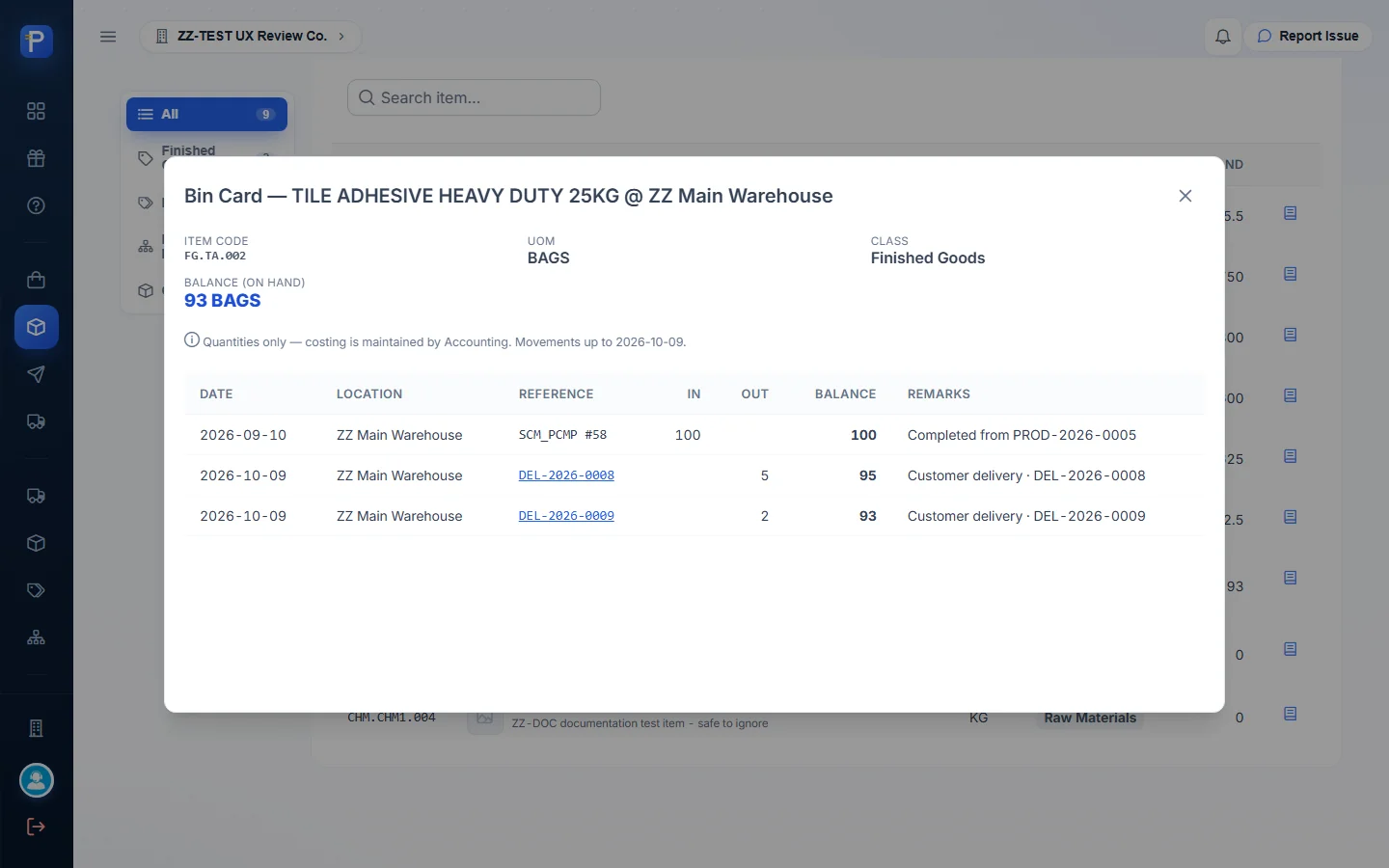
After approval and release, the Tile Adhesive Heavy Duty bin card showed DEL-2026-0009, Out 2 → 93. The Pending Evidence tab lists every DR without a picture. Uploading one there is for the record only.
Pick List
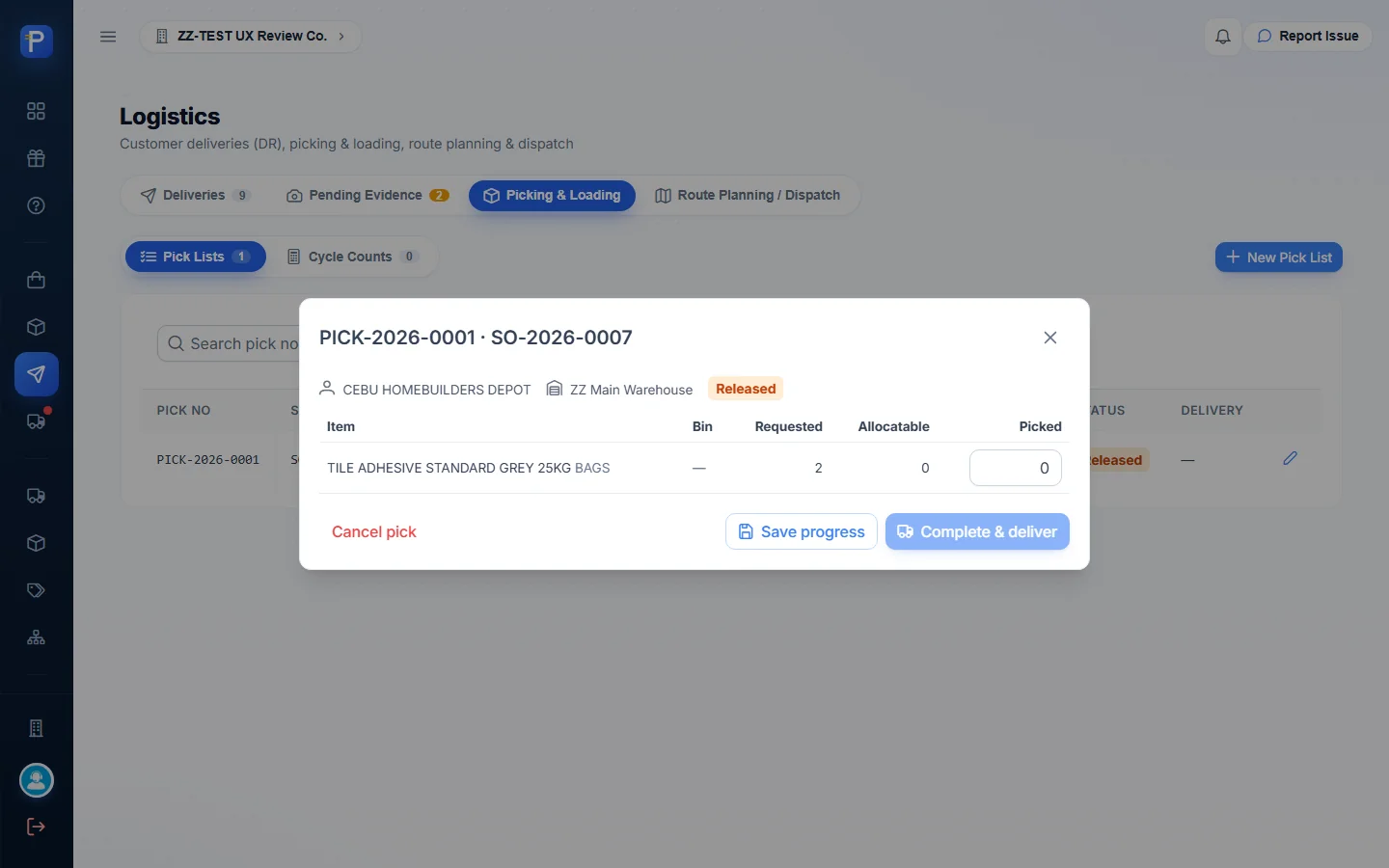
Picking & Loading → New Pick List takes an SO and lists the lines still to pick, with Requested qty and a Bin tag. I created PICK-2026-0001 for SO-2026-0007’s remaining line (Standard Grey, 2 bags), and it went straight to Released. Its detail showed Allocatable 0, so Complete & deliver stayed disabled. Cycle Counts live on the same tab.
Trips and fleet
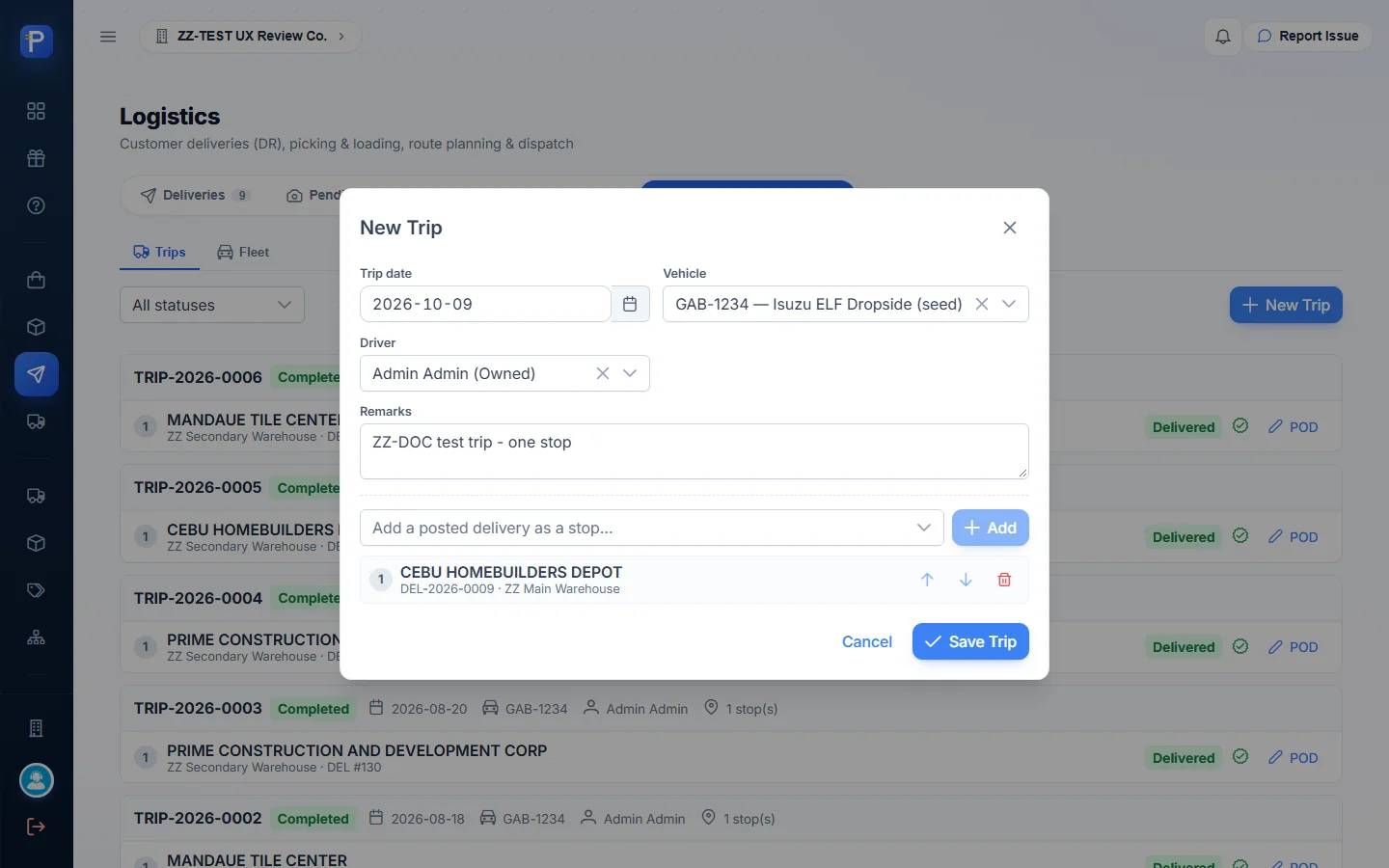
Route Planning / Dispatch → New Trip takes a trip date, vehicle, driver and remarks. Released deliveries are added as stops, and you can move each stop earlier or later.
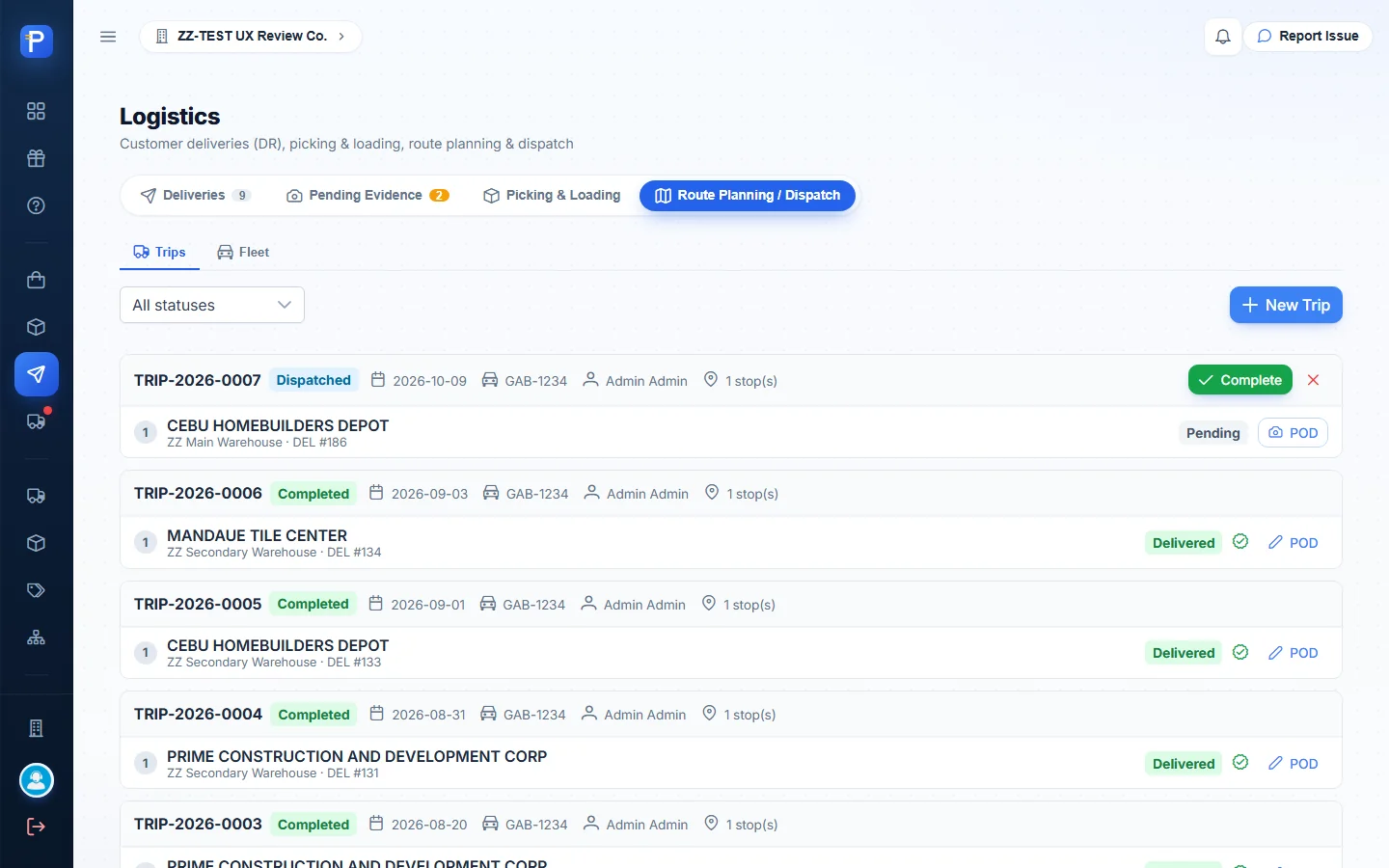
- Create the trip: vehicle GAB-1234, driver Admin Admin, remark “ZZ-DOC test trip - one stop”, stop DEL-2026-0009. Click Save Trip. TRIP-2026-0007 is created as Draft.
- Click Dispatch. The toast says “Trip dispatched.”, the status changes to Dispatched, and the Trips page shows “1 on-going” with progress 0/1.
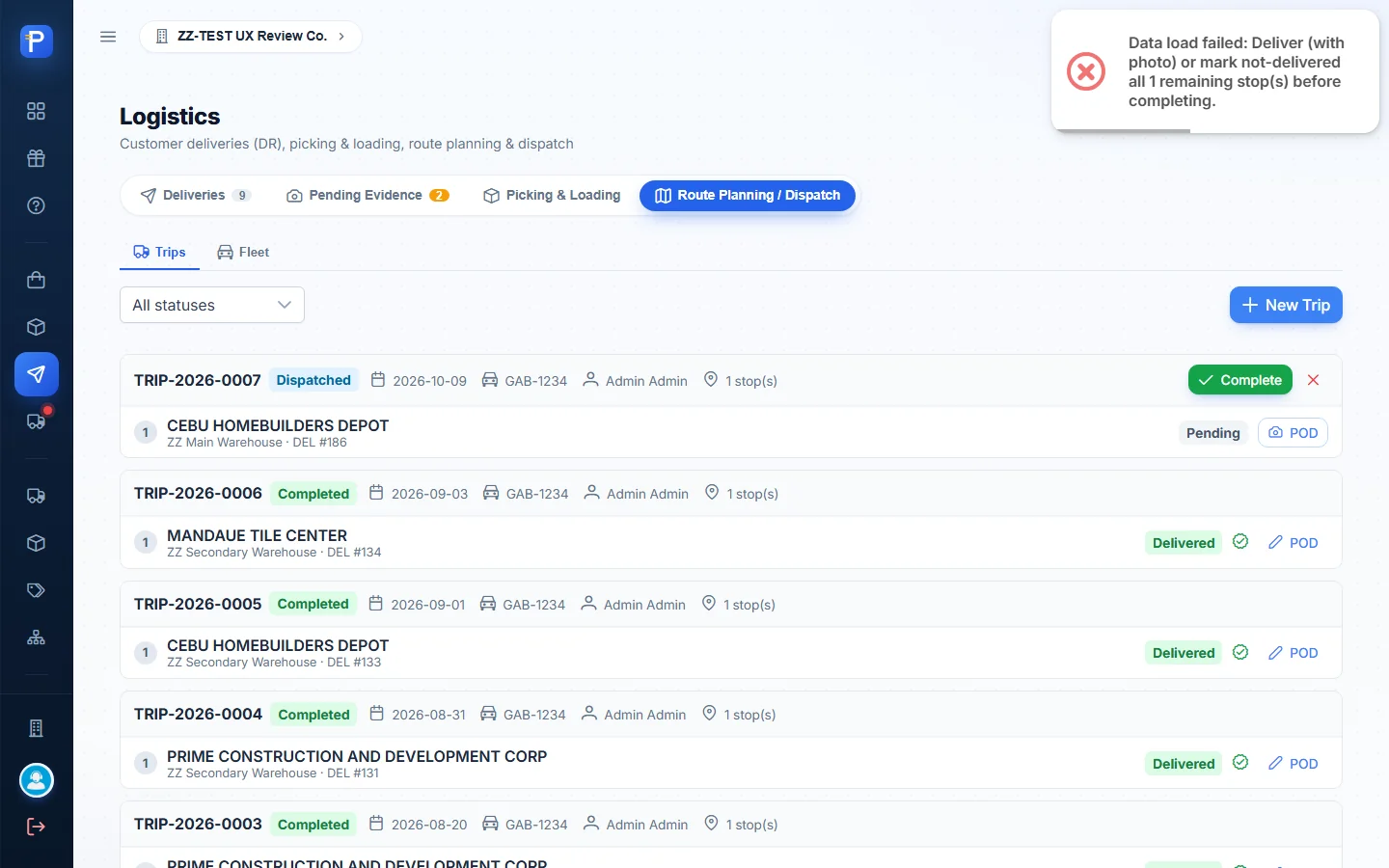
- Complete is blocked until every stop has a proof of delivery: “Deliver (with photo) or mark not-delivered all 1 remaining stop(s) before completing.”
The Trips page detail shows the stop’s DR and its Sales Order. SO-2026-0007 is now Partial. The Fleet tab lists vehicles (plate, ownership, capacity in kg) and drivers.

Material planning
The Material Planning grid is a six-month, time-phased MRP. For each item it shows Demand, Forecast, Projected stock and Suggested order by month, next to On hand, Safety stock and MOQ. You work it from the keyboard: arrow keys move, Enter edits, Tab goes to the next cell, Esc cancels.
- Create plan from suggestions feeds Plans, which have their own approval workflow. This company had no plans yet.
- KPIs tracks Stockout Rate, Avg Days of Supply, PO Coverage, Inventory Turnover and a monthly procurement budget.
- Planning Admin assigns the SC.PLANNING and SC.PLANNING.APPROVE rights. I only looked.
- Forecast reads “Coming soon.”

How the documents connect
- Purchase Request: four signatures, then Approved, then Start Canvass.
- Canvass: quotes and award, then Approved, then Create PO. The canvass then shows PO Created.
- Purchase Order: once Approved, it can be received. An Imported PO also creates an Importation to carry landed cost.
- Receiving Report: posts against the PO. The PO becomes Received and the PR Completed. On-hand changes once Accounting posts the RR in Paylalo Accounting.
- Transfers and Adjustments move quantities on the bin card at WAC and write GL entries.
- Sales Order (from DMS) → Pick List / Customer Delivery → Approve & Post (goods issue, plus a Sales Invoice in Accounting) → Release (gate scan) → Trip → proof of delivery.
Notes from testing
- The RR didn’t change on-hand. RR-2026-0008 is Posted, but its Accounting column says Pending, and the ZZ-DOC item stayed at 0 KG. That matches the on-screen note that on-hand changes only once GL posting is enabled. So the new item’s bin card has no movements.
- A brand-new item with no cost basis can’t be adjusted in until Accounting sets its initial cost (exact message quoted above).
- The Logistics screens disagree about which step posts the goods issue:
- The New Delivery form says the Release step “books the goods-issue leg… and deducts stock”, and that the invoice posts “when the driver marks the stop Done”.
- The Approve dialog says “Approving now POSTS the goods-issue GL entry and deducts stock… and POSTS the Sales Invoice… The gate QR scan and the driver’s Done no longer post anything.”
- The approved DR’s Release QR caption says the gate scan “posts the GL entry and deducts stock”.
- The Release confirmation says “nothing is posted again here”.
I only checked the bin card after both approval and release, so I can’t say which step moved the stock.
- The UoM has to be set in Units & Conversions. The unit picked in Add Item is ignored.
- Supplier approval doesn’t gate procurement. ZZ-DOC SUPPLIER was canvassed, awarded, ordered from and received against while its Approval chip still said Pending. I only approved it at the end.
- One user can sign everything. The admin signed all four PR slots (requestor, PR staff, supervisor and purchasing manager), and the app allowed it.
- Print on the PR and PO calls the browser’s print directly, so there’s no in-app preview to capture.
- Some records were left open, and some existing data was touched:
- DEL-2026-0009 and PICK-2026-0001 were raised against the existing SO-2026-0007, which now shows Partial.
- According to its confirmation dialog, approving DEL-2026-0009 also posted a Sales Invoice to CEBU HOMEBUILDERS DEPOT.
- TRIP-2026-0007 is still Dispatched, because completing it needs a photo POD.
- PICK-2026-0001 is still Released with nothing allocatable.
Nothing was cancelled or deleted.
- I didn’t try these:
- Service Requests and the Services/billing path
- Importations
- MRIS submission
- cycle counts
- plan creation
- the Rewards store
The transfer and adjustment used the existing item Calcium Formate, because the ZZ-DOC item had no stock and no cost.