Scan2Approve
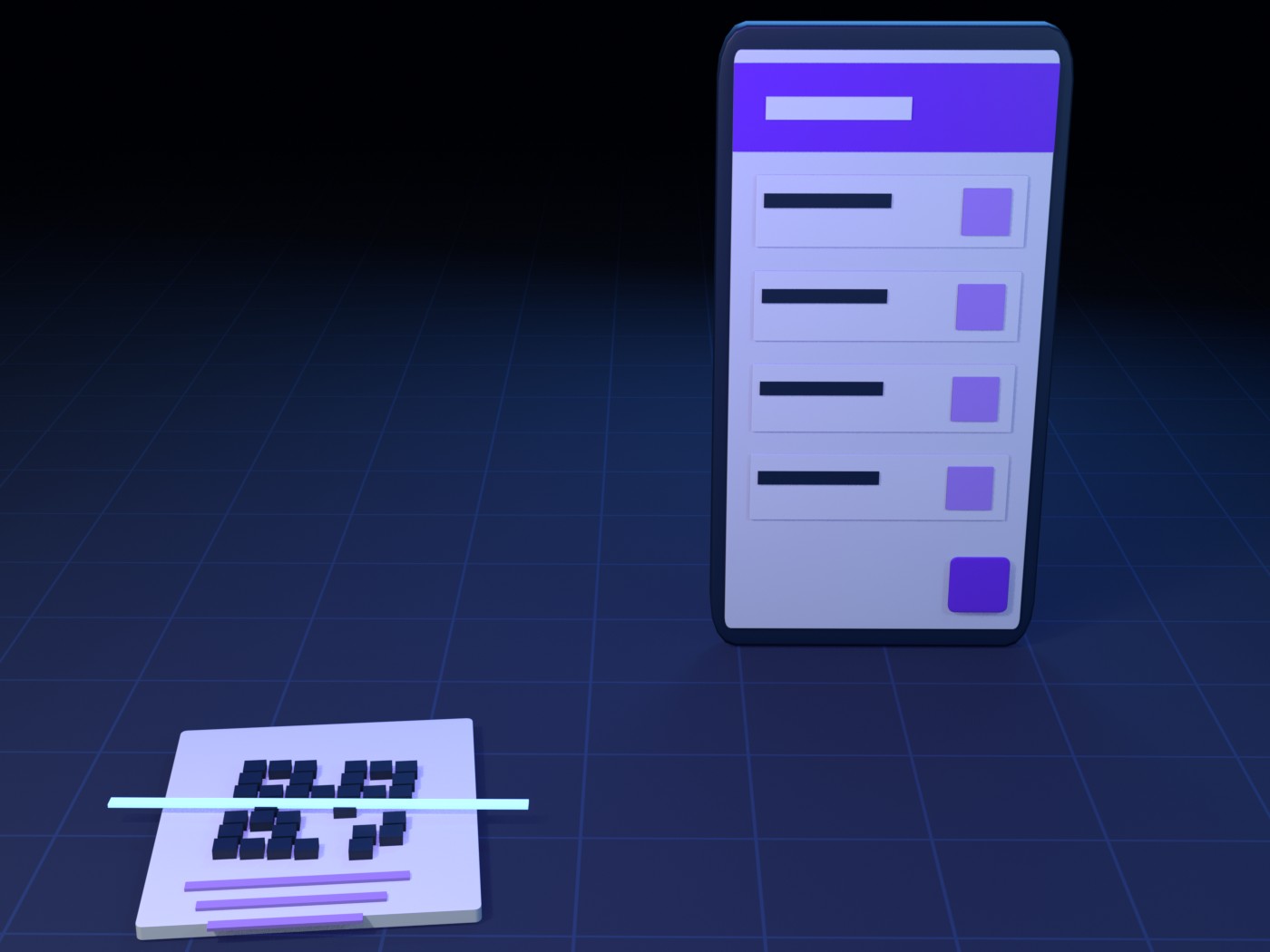
Scan2Approve is the Paylalo Android app for approvers who aren’t at a desk. A manager points it at the QR code on a company document, the document loads with its lines, totals and comments, and if the server allows it they approve, post or sign it right there.
Every printed or on-screen document in the suite carries that QR code: Purchase Requests, Purchase Orders, Sales Orders, Receiving Reports, Delivery Receipts, Invoices, Journal Vouchers, Cash Center PRF/SFL requests and more. The app is a sibling of Paylalo Go, with the same login, the same store and the same Supabase backend. The difference is that it doesn’t know about any one document type. A single dispatcher on the server turns any document into a common envelope, so adding a new document type is a database change, not an app release.
Screens
- Sign In: username and password against the shared
auth-loginEdge Function. - A landing screen that checks for
SCAN2APPROVE.ACCESS. - Scan home, with one big “Scan Document” button.
- Scan Document QR, using the camera or an uploaded QR image.
- Document detail: the envelope view, an action bar and comments.
- A signature sheet for drawing a signature when an action needs one.
- Profile: photo, name, email, password and default signature.
- An Update available dialog that downloads the new APK in the app and shows progress.
Sign In
The login form reads “Welcome back” / “Sign in to your account to continue”, with “Username or Email” and “Password” fields and a “Sign In” button. On wide screens a navy panel titled “Scan2Approve” / “Paylalo Documents” lists “Scan any document QR — PO, SO, RR, SI, JV…”, “Auto-detects the document type and loads it”, “Approve or post on the spot — RBAC enforced” and “Multi-company, multi-branch”.
- Both fields are checked inline (“Username is required.” / “Password is required.”).
- The app POSTs to
/functions/v1/auth-login. A 400 returns “Username and password are required.”, a 401 shows the server’s message, and anything else shows “An unexpected error occurred. Please try again.” - The custom JWT and the user are saved in
shared_preferences. If the token is still valid on the next launch, this screen is skipped.
Checking access
A spinner shows while hasAccess() runs. Admins always pass. Everyone else calls the get_my_privileges RPC and needs SCAN2APPROVE.ACCESS.
If that fails, the “No access” panel appears (“Your account is not granted the “Access Scan2Approve” privilege (SCAN2APPROVE.ACCESS). Ask an administrator to grant it, then sign in again.”) with a Sign out button. A network error shows “Could not verify access” with Retry. There’s no company picker in this app; the check runs against the company in the login token (see the notes at the end).
Scan home
The home screen has a “Scan2Approve” app bar with Profile and Sign out icons. Below it are the brand mark, “Scan a document QR”, the line “Point your camera at the QR on any Purchase Order, Sales Order, Receiving Report, Invoice, Journal Voucher and more — Scan2Approve detects the type, loads it, and lets you act.”, a full-width “Scan Document” button, “Signed in as {name}”, and a floating “Scan” button. Both buttons open the scanner, and a good scan opens the document.

Scanning a QR
“Scan Document QR” is a live camera view with a white 240-px viewfinder and the hint “Point the camera at the QR code on the document — or tap the gallery icon to upload a saved QR image.” The app bar has Upload QR image, Toggle torch and Switch camera icons, and there’s an “Upload QR image” button at the bottom.
- Every frame goes through
DocQrPayload.tryParse. It accepts two formats: the generic locatorPAYLALO|TYPE|companyId|docId, and the older Delivery Receipt formPAYLALO-DR|companyId|deliveryId|…, which maps to typeDR. Anything else shows “Not a recognized document QR code.”, at most once every 2 s. - Upload decodes the chosen image with a pure-Dart zxing reader, so it works on web too. If there’s no code in it, you get “No document QR found in that image.”
- The first valid payload closes the scanner and opens the document.
The QR only says where the document is. It never authorises anything, and the server checks tenant and RBAC again on every call.
Document detail
The app bar shows the document number, or the type while it’s loading. The body scrolls through the envelope:
- a title (e.g. “Purchase Order”), a status chip and “{TYPE} · #{id}”
- label/value header rows
- an “Items” list (name, code, “×qty uom”, amount or “@ unit price”) or an “Accounts” list (“Dr …” / “Cr …” per line, with remarks)
- a totals block
- the Comments thread, with “Add a comment…” and a send button
The bottom bar has one filled button for each action the server declares, such as Approve, Post or Sign. A pen icon marks actions that need a signature.
Here’s what happens under the hood:
- On open, the app calls
ensureCompany(payload.companyId). That usesrefresh-company-tokento re-mint the JWT for the document’s company, becausescan2approve_resolvetakes no company argument and RLS limits reads to the current company. scan2approve_resolve(p_type, p_id)returns the envelope (header,lines,totals,capabilities.actions,meta). A non-2xx response shows the error view with Retry. An empty body shows “This document could not be loaded.”list_doc_comments(p_doc_type, p_doc_id)is awaited but guarded. If the comment RPCs don’t know the type, the document still renders, just without a thread.mark_doc_viewedis fired and not waited on.- A realtime channel on
supplychain_doc_commentsadds new comments as they arrive and shows “{name} is typing…” from a broadcast event. - Each action button is only enabled when its capability is true. POST-type actions need
canPost; APPROVE, SIGN and REJECT needcanApprove. - If an action has
requiresSignature, tapping it opens the signature sheet first. The PNG is uploaded tokumpli/signatures/s2a/{TYPE}/{docId}/{userId}/{timestamp}.png, and its path goes into the payload, along with the action’sslotif the server sent one. scan2approve_act(p_type, p_id, p_action, p_payload)runs. The toast shows the server’smessage, or “{label} done.” / “{label} failed.” Onokthe screen reloads the envelope. Any thrown error is shown word for word; a storage RLS refusal reads “new row violates row-level security policy”.
According to CLAUDE.md, the dispatcher can resolve 19 types (APV, CANVASS, CR, CV, DR, DS, FT, IA, IMPORT, JV, PO, PR, PRF, RR, SFL, SI, SO, SUPP_INV, TRANSFER). Thirteen support actions. Six are view-only (IA, IMPORT, JV, RR, SUPP_INV, TRANSFER), and for those the server answers “Document type % is view-only; no server action is available.”

Signing
The signature sheet slides up from the bottom, titled “Sign to {action}” (“Draw your signature below.”). It has a white 200-px drawing pad, a Clear link, and Cancel and “Use signature” buttons. Use signature stays disabled until you’ve drawn something. It exports the pad as a PNG and goes back to the action. Cancel drops the action without calling the server.

Profile
The “Profile” screen has:
- the avatar, with Change photo and Remove
- “@username”, plus role and “Company N” chips
- Edit profile: “Full name”, “Email (optional)” and Save profile
- Change password: “Current password”, “New password”, “Confirm new password” and Change password
- Default signature: “Draw or upload a signature to keep on file.”, with Draw / Upload segments, Choose signature image, Save signature and Remove
These call get_my_profile, update_my_profile, change_my_password, set_my_avatar and set_my_signature. The profile signature is stored at kumpli/signatures/user/{userId}/sig.png. It’s separate from the signatures captured on each document during an action.
How it talks to the rest of Paylalo
Auth uses the same custom-JWT scheme as every Paylalo app: auth-login to sign in, refresh-company-token to change company, and raw HTTP with apikey + Authorization: Bearer for PostgREST, RPC and Storage. supabase_flutter is only initialised for realtime.
The only privilege the app checks itself is SCAN2APPROVE.ACCESS. Each document’s own privileges and appointment rules still decide whether Approve, Post or Sign is available, and those rules live inside scan2approve_resolve / scan2approve_act. For a PRF, for example, the envelope’s canApprove already combines the Cash Center privilege with cashcenter_can_approve_request.
The web apps’ document screens print the generic PAYLALO|TYPE|companyId|docId code. The older PAYLALO-DR|… code on Delivery Receipts is the one Paylalo Go’s guard scans, and Scan2Approve reads it as a DR locator.
It can open anything the dispatcher knows: Supply Chain procurement (PR, Canvass, PO, RR, Import), DMS (SO, DR), Accounting (SI, CR, APV, CV, JV, DS, FT, Transfer, Supplier Invoice) and Cash Center (PRF, SFL). Comments use the shared list_doc_comments / add_doc_comment thread that the web apps show.
Releases and updates
pubspec.yaml is at 1.0.3+4. CLAUDE.md records 1.0.2 / code 3 as the build live in the store (published 2026-07-17). It also explains that 1.0.3 went out with manifest versionCode = 2004. That’s because --split-per-abi adds 2000 to the arm64 APK’s real versionCode, and the updater compares the manifest against that real number. Earlier manifests advertised 1/2/3 and never triggered an update.
The app is distributed through the Paylalo store (the playlalo bucket). The documented release path (SETUP.md) is a GitHub Actions workflow on a v* tag. It builds and signs the arm64-v8a APK, uploads apk/scan2approve-X.Y.Z.apk, icon/scan2approve.png and manifest/scan2approve.json, and renders dist/publish.sql. An operator then runs that SQL through the Supabase MCP to upsert erp_playlalo_apps / erp_playlalo_app_versions. The manifest URL baked into update_config.dart must not change.
On launch the app fetches that manifest. If its versionCode is higher than the installed build, it shows “Update available (vX.Y.Z)” with notes and Later / “Update now” buttons. Unlike Paylalo Go, it downloads and installs the APK inside the app with ota_update. It shows a percentage, offers Retry if the download fails, and can check a SHA-256 from the manifest. To roll back, hide the store row or re-upload the previous manifest. Never reuse a versionCode.
Open issues
- The null-primary-company gate bug noted in
landing_screen.dartis still open. A non-admin whoseusers.companyIdis NULL can be told “No access” even though they hold the privilege in a specific company. Paylalo Go fixed the same bug with adeliveryapp_my_companiesRPC, but the matchingscan2approve_my_companiesdoesn’t exist yet. - Storage policies for signature uploads only exist for the
signatures/s2a/PR/prefix. The first non-PR type that needs a signature will fail at upload until a policy migration ships. PerSETUP.md, the PR sign flow still needed a retest on a device. - Per
CLAUDE.md, the accounting types (SI, CR, APV, CV, JV, DS, FT, IMPORT, TRANSFER, IA, SUPP_INV) are missing from the comment RPC whitelists. The detail screen now copes with that and still shows the document without a thread, but nobody has confirmed it on a device. - REJECT for PRF/SFL is left out on purpose, because the app has no screen for entering a reason.
- The tagged-release CI lane has never run, and nobody recorded how the live 1.0.2 build was made.
- I wrote all of this from the source code and the repo docs. None of it was tried on a device.